
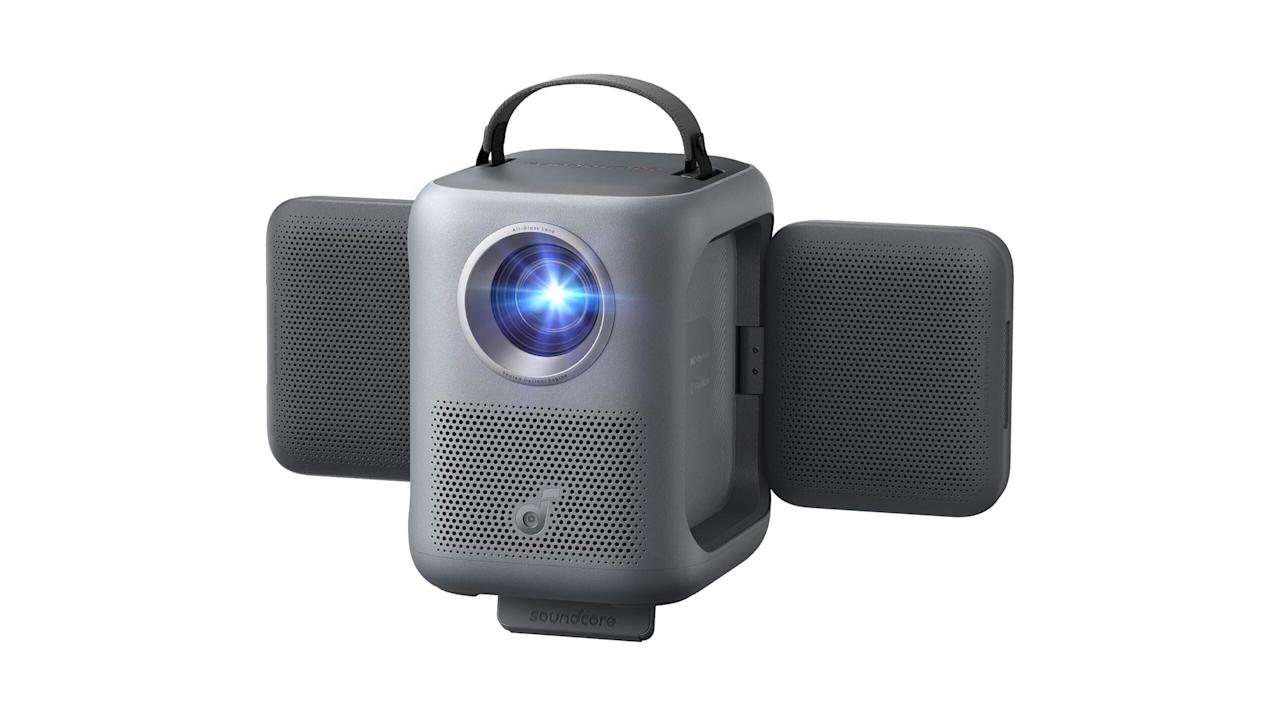

Anker’s Soundcore projectors have become an attractive option for buyers thanks to models like the P1 and Nebula X1 that combine performance and portability. Now, the company has added “affordability” to that equation with its latest model, the $369 P1i. Instead of being detachable like on the P1, its speakers fold out toward listeners, promising better and louder sound than most cheap projectors.
The P1i also delivers 1080p video, Google TV for streaming and the same easy screen fit setup as other Anker projectors. However, unlike some portable models, it lacks a built-in battery for true portability. Overall brightness is lower as well at 380 lumens compared to 650 on the P1. Despite those issues, the P1i is an outstanding budget projector that’s ideal for impromptu indoor screenings and outdoor party use.

Soundcore
Anker’s P1i is a solid budget projector that’s ideal for impromptu indoor screenings and outdoor party use, but it lacks both brightness and sharpness.
- Accurate colors
- Simple automatic setup
- Highly portable
- Google TV is built in
- Sound is loud but tinny
- Picture is blurry at the edges
- No battery
Features and design
With its relatively small size (8.9 x 7.2 x 8.0 inches) and slight five pound weight, the Soundcore Nebula P1i can be perched nearly anywhere and is easily toted around by the soft handle on top. It’s almost too light, as even a slight bump can displace it and ruin the picture. It does have a tripod mount, though, which makes it easy to set up outside or install on your ceiling.
Fortunately, the P1i is perhaps the easiest projector in this price range to align with your wall or screen. It has Anker’s Smart Instant Setup that automatically adjusts the autofocus, keystone correction, screen fit and obstacle avoidance. For my 120-inch roll down screen, I just had to set the P1i about 11 feet from the wall, make sure it was fairly level and then tilt the stand so it pointed at the screen. Then, I just ran the smart setup which instantly gave me a correctly set-up image.
The P1i is not a laser projector but its LED light source lasts even longer, rated for over 30,000 hours. It runs fairly cool compared to a bulb or laser model, but it still has a fan that kicks on from time to time. One annoyance is that the fan seemed to engage even when the projector was turned off, so I found I had to unplug it to stop that.

Steve Dent for Engadget
Connectivity-wise, the P1i has a single HDMI 2.0 port with ARC (Audio Return Channel), along with a USB-A port for external media and a 3.5mm auxiliary audio output. The projector allows for a maximum input of 4K at 60 fps (it outputs 1080p at 60 fps), so it’s only good for light gaming. Plus, you’ll want to keep in mind that if you do any keystone correction, gaming latency quadruples from 20ms to 80ms. It also supports Wi-Fi 5 for streaming and Bluetooth 5.1 to connect extra speakers.
Google TV is built in for streaming and projector control, which is a nice feature for a projector under $400. It provides a large library of apps via Google Play along with a familiar interface. You also get Netflix’s official application with support for 4K Dolby Vision without the need to plug in a streaming device, plus there’s Chromecast support and Google Assistant for voice control. The downside is that the interface can occasionally be sluggish. As for those foldable speakers, you can aim them up, down, forward or backwards, and they support Dolby Audio at 10 watts each.
Image quality
Image quality is decent but not outstanding, about what you’d expect for a projector at this price. While it’s very sharp in the center, the edges are fuzzier, particularly if you’re tilting the projector up or down and using plenty of keystone correction. With just 380 lumens of brightness (I measured it at just over 300 lumens in standard mode), it’s best to use the P1i in a dark room or at night — if there’s any ambient light, you won’t be able to see much detail.
The P1i offers multiple picture profiles, including Standard, Vivid, Sports, Movies and Games, along with a Conference mode for maximum brightness. I found that the “Vivid” setting gave me the best mix of color accuracy and brightness.

Steve Dent for Engadget
Color accuracy is a strong point, with natural looking, nicely saturated hues. Surprisingly, the P1i supports 10-bit HDR to help improve color accuracy and max out what little brightness there is, though it’s a gigantic stretch calling a 380 lumen image (around 50 nits) “HDR.” I tested the P1i on my usual roster of content, including Once Upon a Time in Hollywood, Andor, Dune 2 and Spider-Man: No Way Home, and found the colors to be pleasing and realistic. If they’re not quite to your liking, you can make fine adjustments manually.
Sound
The primary selling point of the Nebula P1I is those fold out speakers. However, considering Soundcore’s reputation for solid audio performance (take the Nebula X1 Pro for example), sound quality was a bit disappointing. It’s relatively tinny with very little bass, providing a less-than-theatrical experience. Those speakers can go pretty loud, though, and midrange sounds like voices are very clear.
Fortunately, there are a couple of solutions. The P1i has multiple EQ settings, including Movies (with enhanced bass and treble), Music for the most natural sound and Outdoors to ensure clarity in open and noisy spaces. The best of those, I found, was Movies, as it mildly improves the lows and highs. There’s also a “custom” mode that lets you fine-tune the equalization. I was able to get acceptable sound quality when I boosted the bass to nearly the maximum level.
The other option, of course, is to pair the P1i to some Bluetooth speakers. I did just that with Soundcore’s external speakers sold as an option with the Nebula X1 and the sound quality was much improved. Of course, that would remove much of its convenience and increase the price for better sound.
Wrap-up

Steve Dent for Engadget
Anker’s $400 Soundcore Nebula P1i is an excellent option for buyers looking for a portable projector to use outdoors or in the place of a second TV, though it suffers from subpar sound and picture quality. Competitors like XGIMI’s MoGo 2 Pro offer similar brightness, built-in speakers and Google TV. And if you have a bit more in your budget, Anker’s $800 Nebula P1 is brighter and easier to set up. Finally, for those looking for battery portability for camping or other activities, take a look at XGIMI’s $500 Halo+ or the $530 Anker Nebula Capsule.
The P1i is great for simple nighttime movie screenings outdoors. If you feel like watching a movie or series in bed, you can bring it into your room, project the picture onto a wall and enjoy your streaming service of choice. You may not be disappointed with the overall picture quality, though you may wish for slightly better sound.

Stephan is the sports journalist for the Maple Grove Report.








