AV-IT Convergence emerges as a Strategic Imperative for Future-Ready Enterprises: NETGEAR Inc Insights


By – Abhishek Anand, Country Manager – NETGEAR India & SAARC

The lines between Audio-Visual (AV) systems and Information Technology (IT) are blurring, marking a significant shift in how enterprises approach digital infrastructure. What was once a clear separation—IT managing data infrastructure while AV teams managed meeting room technologies and display systems – is now evolving into a unified, IP-driven ecosystem.

Today, these two worlds are merging. This convergence is transforming how organizations build and manage modern communication environments. From smart meeting rooms to large-scale digital signage networks, everything now relies on unified, IP-based infrastructure.

Managing this unified network requires specialized tools and robust hardware. Organizations need systems capable of handling heavy video traffic without compromising critical data performance.

The Rise of AV over IP (AVoIP)

A key driver behind this transformation is AV over IP (AVoIP). Instead of relying on traditional HDMI or SDI cables, businesses are increasingly using standard Ethernet networks to deliver high-quality audio and video.

This shift simplifies infrastructure significantly. There is less dependence on proprietary cabling and rigid matrix systems, allowing for more flexible and scalable deployments. Adding a new display or endpoint is as simple as connecting it to a nearby network switch.

AVoIP not only reduces installation complexity but also lowers costs while offering unmatched flexibility. Organizations can expand their systems gradually, aligning with growth and evolving needs.

Why Network Performance is Non-Negotiable

As AV becomes part of the broader IT ecosystem, network performance becomes critical. Unlike traditional data traffic, which is often burst-based, AV traffic requires continuous, high-bandwidth, and low-latency transmission.

Even minor disruptions can impact user experience. While dropped data packets in standard IT environments can be retransmitted, packet loss in AV results in visible issues such as video freezing or audio distortion.

This shift places new demands on IT teams, who must now manage continuous AV streams alongside regular data operations. Reliable, high-performance networking infrastructure is essential to ensure seamless delivery.

Purpose-Built Networking for AV Environments

Standard IT infrastructure is not always optimized for AV workloads. Modern AV networks require capabilities such as efficient multicast handling, high Power over Ethernet (PoE) support, and simplified configuration.

Advanced networking solutions are designed to handle multicast traffic effectively, ensuring that video streams are delivered only where needed, rather than overwhelming the entire network. High PoE capacity enables devices such as cameras, displays, and access points to be powered directly through the network, reducing the need for additional electrical infrastructure.

Equally important is ease of deployment. User-friendly interfaces and profile-based configurations allow teams to set up complex AV networks quickly, without extensive command-line expertise. This reduces deployment time and minimizes the risk of errors.

Addressing these needs requires networking solutions that combine performance, scalability, and ease of deployment. Providers such as NETGEAR are focusing on delivering these capabilities through dedicated Pro AV portfolios, including solutions such as the M4250 series AV switches, designed for seamless AV over IP deployments, and the M4350 series for high-bandwidth, enterprise-grade environments.

These solutions offer advanced multicast optimization, high Power over Ethernet (PoE) capabilities, and simplified configuration through the NETGEAR Engage Controller, along with enterprise-grade security features including network segmentation and access control.

Security in Converged Networks

As AV devices become part of enterprise networks, security becomes a major concern. Unsecured endpoints, such as digital displays or wireless presentation systems, can create vulnerabilities.

Modern networking approaches incorporate robust security measures, including access controls; secure management protocols, and network segmentation. These features help protect sensitive data while ensuring uninterrupted AV performance.

Bridging the Gap between AV and IT Teams

The convergence of AV and IT is not just a technological shift—it is also an operational one. Traditionally, AV and IT teams have worked independently, with different priorities and expertise.

Today, successful deployments require collaboration. AV professionals focus on user experience and signal quality, while IT teams prioritize network reliability and security. A unified approach enables both teams to work efficiently on a shared platform.

This collaboration leads to faster project execution, easier troubleshooting, and more reliable communication systems.

Building Future-Ready Infrastructure

The convergence of AV and IT is now the standard across corporate offices, educational institutions, broadcast environments, and entertainment venues. Organizations must invest in infrastructure designed for this integrated reality.

By adopting scalable and flexible networking solutions, businesses can future-proof their environments and ensure seamless, high-quality communication experiences. A strong network foundation is essential to support the growing demands of modern AV systems.


Source link

Leave a Reply

Subscribe to Our Newsletter

Get our latest articles delivered straight to your inbox. No spam, we promise.

Recent Reviews


Comparing the columns in Excel is a powerful way for analysing and understanding data and can help us in identifying the patterns and trends that we may not be able to find out through manual inspection. Using Excel formulas and techniques we can quickly and easily compare columns and gain insights that can help us in making better decisions. There are several ways to compare two columns in Excel. By using formulas like IF, COUNTIF, INDEX/MATCH and VLOOKUP. But before we compare we need to understand the type of data you are working with, like whether it is a numeric, text or date/time data. This will help you to choose the suitable tool or technique to compare it. For example if you are working with text data, you can use the IF function to compare and find the matching and non-matching entries. If you are working with numeric data, you may use a function like COUNTIF function to count the number of matching entries.

Methods to compare two columns in excel:

1. Using Equal operator

One of the simplest ways to compare values in two columns in Excel is using an equal operator. Let us understand how we can compare two columns using equal operators with an example.

  • First select a cell where you want to write the result
  • Then type “=” sign
  • Select the value in the first column which you want to compare then write “=” and select the value in another column and 
  • Hit the enter button


Want to gain knowledge in Excel? Then visit here to learn Excel Training!

Excel Training

  • Master Your Craft
  • Lifetime LMS & Faculty Access
  • 24/7 online expert support
  • Real-world & Project Based Learning

2. Using Conditional formatting:

a) Comparing two columns to highlight the duplicate values in the columns:

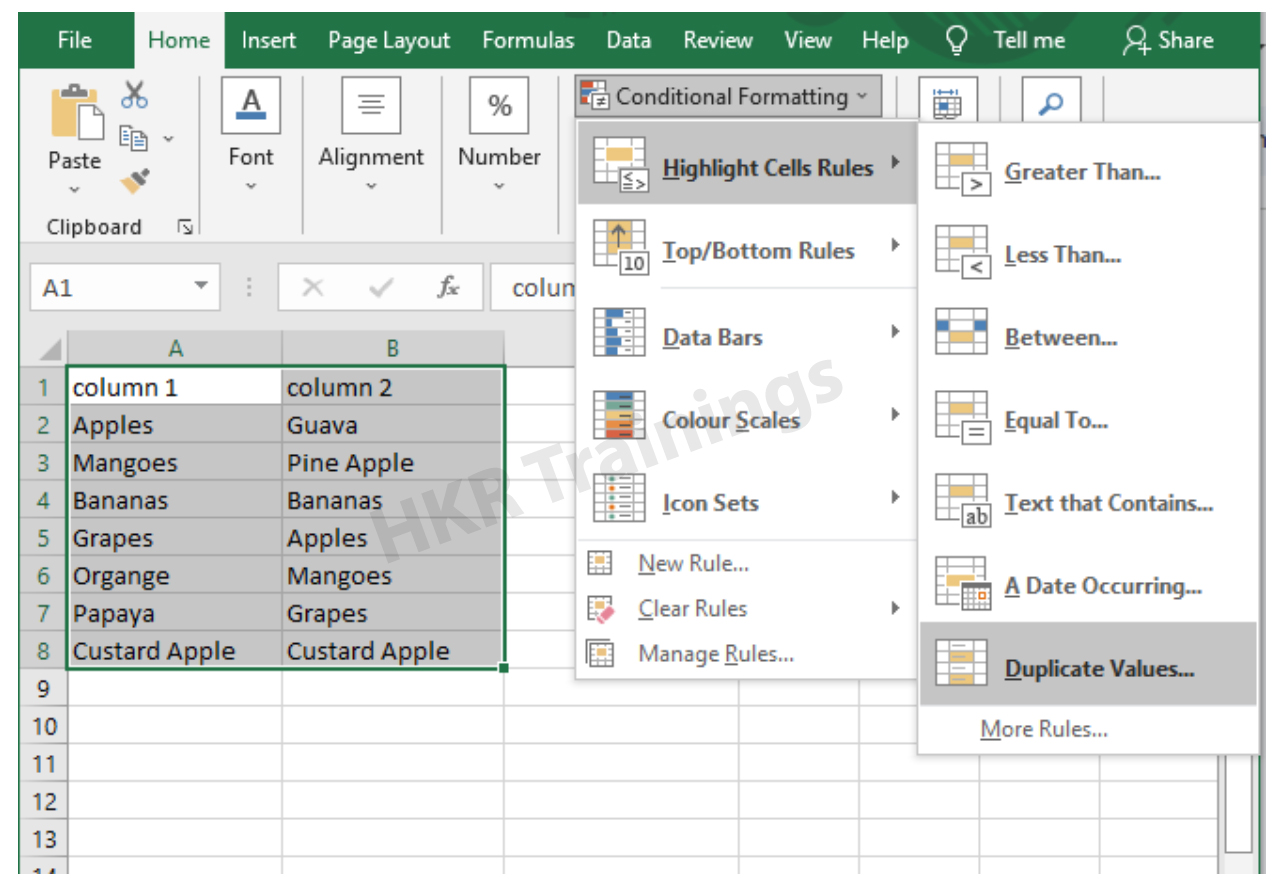
It is a feature in Excel that will highlight cells in one column that match/do not match with another column. To highlight the cells that have same values follow the below steps:

1. Select the two columns you want to compare.

2. Then go to the home tab and select the conditional formatting option.

3. Select the option Highlight cells Rules, then click on duplicate values option


4. Duplicate values dialogue box appears on the screen. Select an option from the dialogue box how the duplicate values must look like. In this Example I have chosen Green fill with dark green text. You can choose any option you like and click ok.

5. Then the duplicate text will be highlighted with green colour with dark green text

b) Comparing two columns to highlight the Unique values in the columns:

Now to highlight the cells that have different values follow the below steps:

  1. Select the two columns you want to compare.
  2. Then go to the home tab and select the conditional formatting option.
  3. Select the option Highlight cells Rules, then click on duplicate values option
  4. Duplicate values dialogue box appears on the screen. Select an option Unique instead of Duplicate from the dialogue box and also how the duplicate values must look like. In this Example I have chosen Light Red fill with dark Red text. You can choose any option you like and click ok.
  5. Then the unique text will be highlighted with light Red colour with dark Red text


Equal operator, Generals, compare-two-columns-in-excel-description-0, Generals, compare-two-columns-in-excel-description-0, Generals, compare-two-columns-in-excel-description-0, Equal operator, Generals, compare-two-columns-in-excel-description-0, Generals, compare-two-columns-in-excel-description-0, Equal operator, Generals, compare-two-columns-in-excel-description-0, , Generals, compare-two-columns-in-excel-description-1, Generals, compare-two-columns-in-excel-description-1, Generals, compare-two-columns-in-excel-description-1, Equal operator, Generals, compare-two-columns-in-excel-description-0, Generals, compare-two-columns-in-excel-description-0, Equal operator, Generals, compare-two-columns-in-excel-description-0, , Generals, compare-two-columns-in-excel-description-1, Generals, compare-two-columns-in-excel-description-1, Equal operator, Generals, compare-two-columns-in-excel-description-0, , Generals, compare-two-columns-in-excel-description-1, , Generals, compare-two-columns-in-excel-description-2, Generals, compare-two-columns-in-excel-description-2, Generals, compare-two-columns-in-excel-description-2

Subscribe to our YouTube channel to get new updates..!

3. Using Formulas

Excel offers a number of Formulas to compare the cells in two columns. Let us go through them one by one.

a) IF:

It allows you to compare two cells in two columns and will return the result based on the condition we provide. Let us understand how to use the IF formula to compare the values in two columns with an example.

  1. First select a cell where you want to write the result
  2. Then type “=” sign
  3. Type IF and open bracket “( and write the condition and put a comma. Then write the value to be displayed if the condition is true in inverted commas and put a comma, and then write the value to be displayed if the condition is false in inverted commas.
  4. Close the bracket “)” and hit the enter button


b) COUNTIF:

We can use this formula to compare the two columns and count the number of cells that are the same or different. Let us understand how to use the COUNTIF formula to compare the values in two columns with an example.

  1. First select a cell where you want to write the result
  2. Then type “=” sign
  3. Type COUNTIF and open bracket “(“ and select the range, put a comma and select the range from another column to compare it
  4. Close the bracket “)” and hit the enter button


Top 30 frequently asked Excel Interview Questions !

Excel Training

Weekday / Weekend Batches

c) MATCH:

We can use the match function to compare two columns and find the position of a value in one column that matches with the value in another column. Let us understand how to use the MATCH formula to compare the values in two columns with an example.

  1. First select a cell where you want to write the result
  2. Then type “=” sign
  3. Type MATCH and open bracket “(“ and select the cell which you wanted to compare, put a comma and select the range from another column to compare, put a comma and write 0 to get exact match
  4. Close the bracket “)” and hit the enter button


d) VLOOKUP:

We can use the VLOOKUP function for comparing two columns and return a value if there is a match. Let us understand how to use the VLOOKUP formula to compare the values in two columns with an example.

  1. First select a cell where you want to write the result
  2. Then type “=” sign
  3. Type VLOOKUP and open bracket “(“ and select the cell which you wanted to compare, put a comma and select the range from another column to compare, put a comma and write 2 to return the value from the second column of the range – if a match is found, put a comma and write FALSE to get exact match
  4. Close the bracket “)” and hit the enter button


Conclusion:

In this blog, We have discussed different ways to compare two columns in Excel with examples. We hope you found this information useful. For more information on Excel stay tuned.


Source link