
Deal of the day: Fly business class to Germany for 60,000 points


Many travelers plan their trips to Germany to coincide with Oktoberfest or the area’s plethora of enchanting Christmas markets, but there are several reasons to visit outside of these times. You can attend Munich’s Fruhlingsfest, the “little sister” of Oktoberfest in April and May, or take in Frankfurt’s mix of city life and old-world charm.

If either of those sounds appealing to you, you’ll also be happy to know you can save substantially (and arrive well rested) by timing your visit outside of Germany’s most popular travel seasons.

We found a spectacular Lufthansa business-class deal that you can book through Air Canada using as few as 60,000 Aeroplan points. Or, if you can book on short notice, you can even snag a coveted Lufthansa first-class seat starting at 100,000 points.

(Note that prices and availability were accurate at the time of writing.)

Related: How to travel to Europe using points and miles

TPG’s deal of the day basics

Munich. HARALD NACHTMANN/GETTY IMAGES
  • Airline: Lufthansa, bookable via Air Canada
  • Routes: From Boston Logan International Airport (BOS), John F. Kennedy International Airport (JFK) and Newark Liberty International Airport (EWR) to Munich Airport (MUC) and Frankfurt Airport (FRA) in Germany
  • Best way to book: Through Air Canada’s website
  • Price: Business class starts at 60,000 points one-way plus $58 in taxes and fees
  • Cash price: From $6,000 each way
  • Travel dates: Various dates through November

Related: The best credit cards for paying taxes and fees on award tickets

How to find and book TPG’s deal of the day

You can find this deal on Air Canada’s website. You can also find it on Seats.aero, a handy tool that shows award availability across multiple departure cities, as shown below.
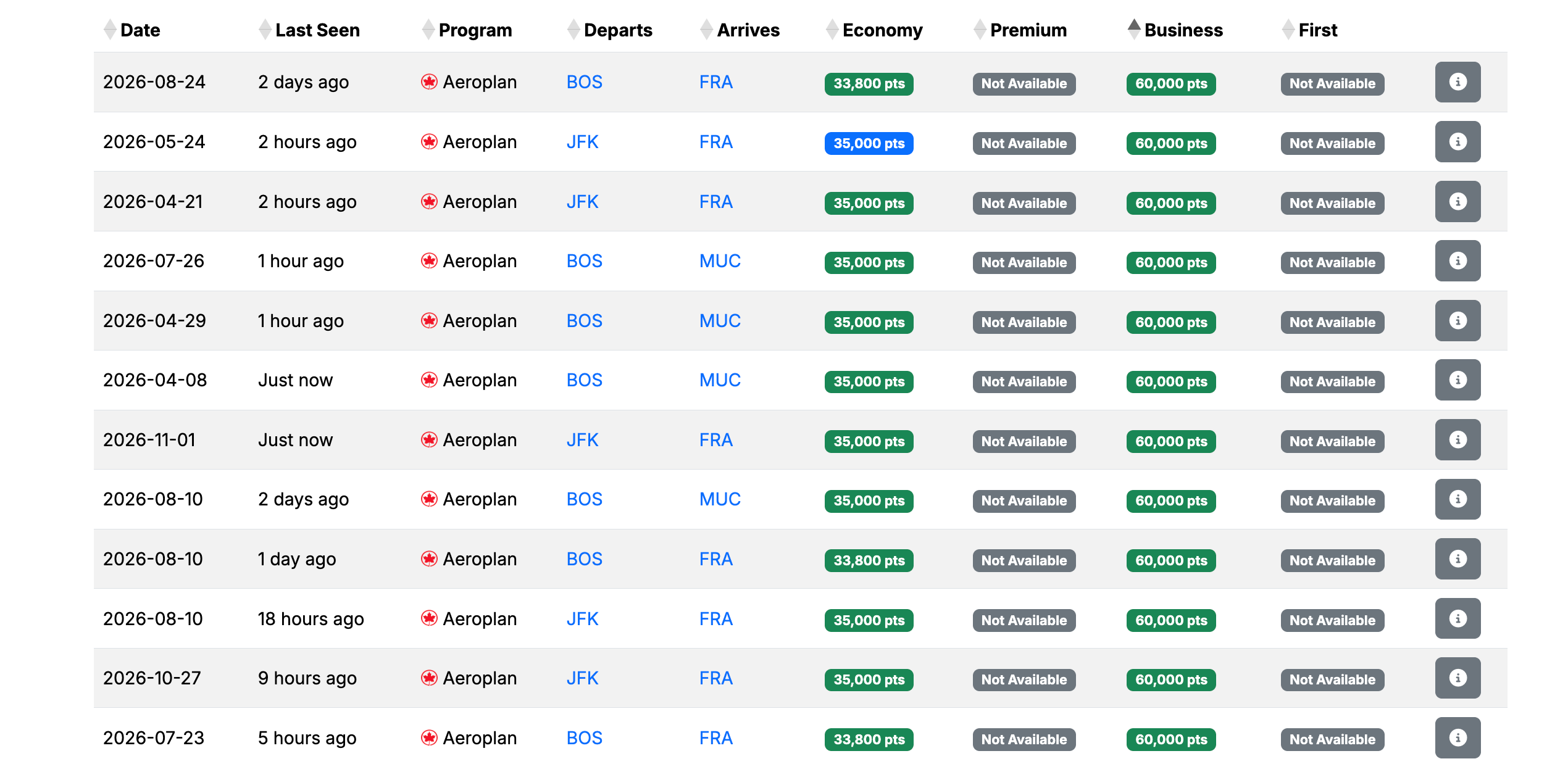
flight pricing
SEATS.AERO

Once you find the flight date and time that work best, you can use the Air Canada Aeroplan points you already have in your account. Or, you can transfer points or miles from your preferred rewards program and book directly on the airline’s site.

Reward your inbox with the TPG Daily newsletter

Join over 700,000 readers for breaking news, in-depth guides and exclusive deals from TPG’s experts

Remember, transfers are irreversible, so always confirm award availability with the airline before transferring your rewards.

Although this is a Lufthansa flight, it is better to book through Air Canada than to book directly with Lufthansa. Cash prices start at well above $6,000, and even if you redeem miles through Lufthansa’s Miles & More program, you would pay more than $1,000 in taxes and fees.

If you are hoping to score a first-class seat, Lufthansa only opens first-class award seats to partner programs between two weeks and a few days before departure. Flexibility is key if you hope to book with Aeroplan points.

Lutfhansa planes at Munich
ZACH GRIFF/THE POINTS GUY

How to earn the points or miles required for TPG’s deal of the day

Here are just a few of the cards that earn Air Canada Aeroplan points or offer the ability to transfer rewards to Aeroplan at a 1:1 ratio, and their current welcome offers:

*Up to $100 of Bilt Cash earned rolls over to the next year.
TPG’s Brian Kelly is a Bilt adviser and investor.

Related: How (and why) you should earn transferable credit card points

Bottom line

By visiting Germany outside of the most popular — and crowded — times, you can save money and arrive in style on a comfortable business-class flight.

Related reading:


Source link

Leave a Reply

Subscribe to Our Newsletter

Get our latest articles delivered straight to your inbox. No spam, we promise.

Recent Reviews


Lost a crucial document because your system crashed before you could save it? Worry no more! Microsoft Word has introduced an automatic save option that regularly backs up your work, so you’ll never lose your progress again.

Users will now be able to manage their Word documents without thinking about saving them manually. The new Microsoft Word update allows users to automatically save their documents to the cloud as soon as they start documenting any content piece.

Raul Munoz, the Senior Product Manager at Microsoft, has stated about the new feature, “We are modernizing the way files are created and stored in Word for Windows! Now you don’t have to worry about saving your documents: Anything new you create will be saved automatically to OneDrive or your preferred cloud destination.

Microsoft additionally hints at introducing similar features for Windows Excel and PowerPoint, which are now live.

How Does the Auto-save Feature Work?

The auto-save option can be accessed and used effectively with the compatible Word for Windows version. Let’s understand how the process works-

Primarily, users need to create a fresh document in Word and switch the AutoSave option on. Unlike the previous default document name- DocumentN, the autosave feature saves the files with the date.

Microsoft Word Update - Step 1

Source: Microsoft Tech Community

To change the name of the file and its location, users need to select Save or press Ctrl+S. After selecting the file name and location, press Confirm to save the changes.

Microsoft Word Update - Step 2

Source: Microsoft Tech Community

In case users try to close the file before it gets saved, a dialog displays on the screen asking whether they intend to Discard or Keep the file. If users try to close empty files, Word discards them without asking for confirmation.

Microsoft Word Update - Step 3

Source: Microsoft Tech Community

Availability of the Auto-Save Feature of Microsoft Word Update-

The AutoSave feature of Microsoft Word update is available to users with Version 2509 (Build 19221.20000) or newer. This advancement is set to enhance accessibility and address the challenge of lost files. Similar features have been introduced on Windows Excel and PowerPoint as well.

Advantages of the Latest Microsoft Word Update

Microsoft Word’s new auto-save feature will unlock several benefits for users. Alongside increased security, it offers flexible file management capabilities. Let us discuss other significant advantages-

Flexibility in File Storage and Control: Users can store and manage their files more flexibly than ever. As users are in charge of the documents, they can adjust file names and locations to save, organizing the files according to convenience.

Never Lose Your Files: The auto-save feature in Microsoft Word addresses the challenge of losing files due to not saving them manually. As soon as you start making progress in a file, it automatically gets saved.

Enhanced Security and Compliance: Files saved in your organization’s cloud servers already adhere to the set security guidelines and practices. Hence, users do not need to think about protecting the files separately.

Increased Accessibility: The auto-save feature enables enhanced accessibility of Word files. It can be accessed from diverse types of devices and platforms once shared, including Android, iOS, and web browsers. Changes made to the file will get synced on all devices and platforms.

Better Collaboration: The AutoSave feature has made collaboration within and across teams easier. Users can easily share the cloud file and initiate collaboration by making changes, adding comments, and resolving comments in real time.

Agentic AI Support: The Word files are now equipped with Copilot agentic AI support. Users can unlock AI-powered capabilities whenever they need to improve or update their documents. Nevertheless, to use Copilot in Word, a Microsoft 365 Copilot license is needed.

Additional Tips: 

  • Users will be able to easily change the location for new documents. Right-click on any cloud folder in the File section of Word, then select Set as Default Location to choose the location.
  • Users can manage how their files are created, whether in the traditional manner or automatically in the cloud, in the Save tab of Word Options, and opt in or opt out for Create new files in the cloud automatically.

Key Elements to Keep in Mind-

  • When a new Word session is started while another is running, the new file does not autosave. Hence, users need to close the previous file to enable the auto-save option for new files.
  • Users may sometimes encounter a delay in refreshing the recent files list while changing the name of a document.
  • If users disable the option for Show the Start screen when this application starts, remember that the first file they create will not autosave automatically.

Concluding Remarks!

Microsoft has been making significant advancements in its 365 Office platforms for better collaboration and enhanced productivity of diverse teams within an organization. With the integration of Copilot and flexible features, the firm is aiming to boost user experience and accessibility of the tools, including Word for Windows.

Learn about the major technological shifts and practices with KnowledgeNile!


FAQs:

1. What is the AutoSave feature in Microsoft Word?

Answer: The AutoSave feature in Microsoft Word lets users save their files automatically.

2. What is the purpose of AutoSave?

Answer: The AutoSave feature aims to reduce the challenges of data loss in unwanted circumstances, such as power shortages and device failures.

3. Where are AutoSave Word documents stored?

Answer: Automatically saved Word files are stored in cloud storage, like OneDrive.


Recommended For You:

Oracle identity cloud vs Microsoft Active Directory: Which to opt for and why?


Source link







