How Informality Easily Creates Unexpected Workplace Liability


Your small marketing startup company rented a workspace, and you and your team all share it. While every one of your employees has a formal title, the job descriptions are murky, so everyone ends up doing everything. In this article, we will discuss how informality can possibly turn in to an unexpected workplace liability. 

One (casual) day, your assistant – who handles all your client email correspondence – notices some equipment that’s in the way and decides to move it. He wasn’t trained for it, but he’s always around, so it makes sense. 2 days later, he’s moving some things again, and one of them tips over and falls on the freelancer who’s sitting close to it.

Now what? The freelancer wants you to cover their medical costs, but you’re not sure if that’s your responsibility or not.

You weren’t there; there was no supervisor; there’s no report of the accident; and you can’t even tell who (if anyone) asked the assistant to move the equipment in the first place.

If you’re feeling awkward, you should know that that’s the least of your issues right now.

Key Takeaways on Informality

  • Informal workplace atmospheres create environments where roles/responsibilities are blurred or watered down, a problem when issues happen and accountability is being questioned.
  • Unassigned tasks and lack of training are closely tied to workplace liability.
  • Improper/poor documentation weakens legal protection.
  • Even if a workplace is friendly/flexible, it still requires clear structure and assigned responsibilities to lower risk.

What Do You Do When Nobody Seems to Be Clearly Responsible?

If you have a small team, then everyone has to be flexible because there’s no other choice. Flexibility is strength, and you appreciate that everyone pitches in when you need them to. The work gets done, and that’s all that matters. 

Except it isn’t.

When something goes wrong, who is supposed to handle that very task? What does the contract say? Is there a contract that even mentions it?

When you have employees doing things that don’t fall within their normal duties, you might see that as a plus, but in truth, that’s liability. Yes, it’s great that the assistant is willing to move those heavy boxes, but if they haven’t had any training for it and they get hurt, you could be in trouble.

There are 2 different kinds of responsibility you should be aware of: implicit and assigned.

An example of implicit responsibility would be when you don’t take notes (don’t write everything down), meaning you’re pretty much doing guesswork on what does what.

Assigned responsibility would be something that you can point to on paper. Assigned responsibility would be what would protect both you and your employees.

And after an accident, the only thing the law cares about is if you can prove who was assigned what; nobody cares about anyone’s assumptions.

Messy, isn’t it? What makes this even messier is that the consequences depend on where the incident occurred, i.e., what state/jurisdiction you’re in.

If the office is in Illinois, an injured employee can hire an Illinois job accident lawyer, but you need to know that the state uses a mandatory no-fault workers’ comp. The employee can’t sue you, but you have to give them benefits even if they can’t prove you did something wrong. 

If you’re in a state such as Texas, you can end up in court because the state of Texas says you’re free to opt out of workers’ comp if you want, but your employees can sue you.

The ‘Small’ Things That Get Ignored Every Day via Informality

Here are all the things nobody bothers to pay attention to, but they lead to some pretty serious issues.

Everyone Just ‘Figures Things Out’

This person is willing to help, so they finish the task. 

This goes on for a while. And while all that’s happening, it doesn’t cross anyone’s mind that we should (perhaps) check whether that specific person should even be handling that specific task. So, in a way, you’re normalizing risk based on a sort of routine. 

This, of course, isn’t a good thing. You don’t question it because that would slow things down, and your employees don’t question it because… why would they if you aren’t?

Then what was supposed to be a one-time thing becomes routine, and you don’t even realize that the routine is risky every single time.

No One Writes Anything Down Due To Informality

‘Standard operating procedures.’ 

This might sound a bit like standard corporate lingo that’s basically a very pompous and complex way of saying something extremely simple. And because of this, lots of people ignore/skip it.

The result? 

The way you do literally everything now depends on memory and quick explanations you do over morning coffee. When you hire someone new, they learn their job by watching what their colleague is doing for 20-30 minutes, and off they go.

After a bit, what happens is that you just can’t tell if this is how you’re supposed to do things. There just isn’t anything that explains ‘the right way’ of doing that specific task. But who has the time to write things down these days, eh?

You Mention Problems (You Don’t Record Them)

You’re fully aware that there’s a wobbly cart right over there. And the only reason you know that is because a couple of coworkers talked about it in your WhatsApp group.

So, pretty much (almost) everyone’s aware it’s there, and everyone moves from it. So the only ‘log’ is a fully informal one. No authoritative person (e.g., a supervisor) has been made aware of that, so nobody’s been assigned to fix it.

Then that cart tips a few weeks later, and you’re all shocked at what happened because someone was supposed to take care of it. 

If only you had a record that showed there was a problem to begin with, maybe someone would have fixed it.

Safety Falls on One Person, Not the Entire System

Small Business Coach: A Custom Carpentry Success Story

There’s that one employee who’s just a careful person, and they double-check everything. There’s also another one that’s the complete opposite, who never thinks twice before they do something. In this type of environment, safety is just personality. 

You have no standards, and what’s safe depends on the mood.

This causes you to have blind spots, and you’ll only see them after someone’s had an accident, and you’re the one dealing with the aftermath.

You Think You See Everything

You’re the owner and the founder. The big boss. You see everyone and know everything. 

That’s a very dangerous way of thinking because it’s simply not true. You assume that, if there are problems, you’ll see them, which is nothing more than an illusion of safety.

The bigger you grow, the worse this problem becomes, and sooner or later, you’ll have a serious incident on your hands. And by the time that has happened, you’ll have a bunch of small issues hiding in plain sight for months on end.

It’s easier to take notice and deal with everything ASAP, instead of not doing checkups and then having to deal with dozens at once.

Conclusion on Informality

It’s great when you’ve got great in-house communication and a great atmosphere. Someone’s scrappy, someone else is in a great mood. The overall office vibe – it’s just amazing; informal AND friendly.

Who wouldn’t want that?

Well, while this certainly IS a great thing, when someone twists their ankle on a Wednesday, and then you’re left not knowing what to do.

How did it happen? Who’s responsible? Could we have prevented that?

Oh yeah, there’s nowhere because you never write anything down, and your team is used to winging it.

You can still keep the great vibe, but you can also protect yourself and not have your business become a corporate nightmare. Start writing things down, and start paying attention to the rules. It’s kind of like cheap insurance.

Frequently Asked Questions on Informality in the Workplace

Does informality lead to workplace liability?

It can, yes. If the informality removes (or weakens) boundaries when it comes to roles and procedures, then there’s a much greater chance of liability. This happens because, when something goes wrong, there’s typically no (or improper) documentation or structure on who’s responsible, or whether set procedures have been properly followed.

What’s the difference between implicit and assigned responsibility?

Implicit is based upon assumptions and expectations. Assigned is based upon clear definitions and documentation.

Can employees who operate outside their assigned task create liability?

Yes. Whenever employees perform tasks they weren’t trained for there’s a higher chance/risk of injury or mistake. If an injury happens, the employer (or the supervisor/manager) is usually held accountable.

2 Interlinking Opportunities:

From https://www.smallbusinesscoach.org/how-to-preserve-employee-safety-in-your-business/ with anchor essential routes to ensuring staff safety are ill-defined

From https://www.smallbusinesscoach.org/workplace-compliance-why-it-matters-and-how-to-get-it-right/ with anchor maintaining legal adherence and responsibility

google business page


Source link

Leave a Reply

Subscribe to Our Newsletter

Get our latest articles delivered straight to your inbox. No spam, we promise.

Recent Reviews


Power Bi Dashboard – Table of Content

What is Power BI?

Power BI is a Business Intelligence and Data Visualization tool that transforms information from diverse sources into visualisations and BI reports. Power BI suite includes a variety of software, connectors, and services, including Power BI desktop, SaaS-based Power BI service, and mobile Power BI apps for various platforms. Business users use this set of services to consume data and create BI reports. Power BI Desktop is used to create reports, Power BI Services (Software as a Service – SaaS) is used to publish reports, and Power BI mobile app is being used to view dashboards and reports. Power BI Desktop is available in 32-bit and 64-bit configurations.

Become a Power BI Certified professional by learning this HKR Power BI Training !

What is a Power BI Dashboard?

A Power BI dashboard is a single-page visualisation that uses multiple charts and graphs to tell a storey. This one-page dashboard visualisation is also known as a Canvas. The Power BI dashboard is accessible only in Power BI Service. Because a Power BI dashboard is only one page long, it only encompasses the features of a storey. Power BI Desktop does not support the creation of dashboards. A Power BI dashboard is a single sheet, also known as a canvas, that uses visualisations to tell a storey. A well-designed dashboard includes only the features of that storey since it is restricted to one page. Readers can get more information by viewing related reports.

Power BI Dashboards

Power BI Dashboard on Power BI Service

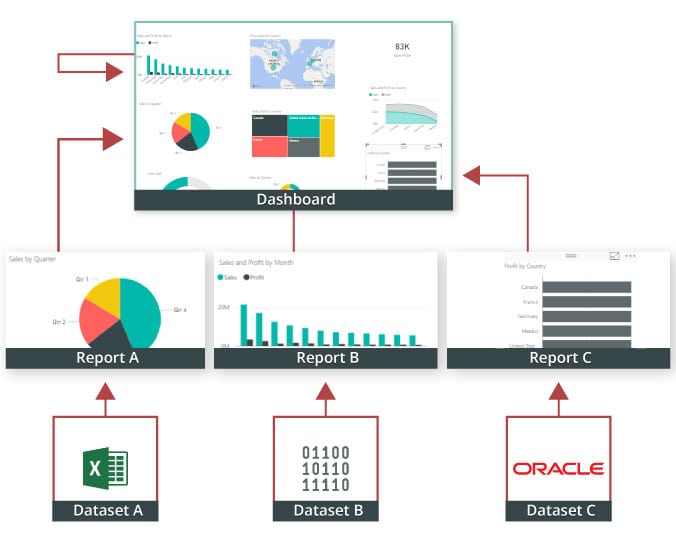
In a dashboard, representations are produced from reports, and each report depends on one dataset. The representations present on the dashboard are called tiles, and report creators pin these tiles to the dashboard.

Dashboard

Advantages of a Power BI dashboard : 

Dashboards are a magnificent method for observing your business and seeing each of your most significant measurements initially. The perceptions on a dashboard can emerge out of one basic dataset or many, and from one basic report or many. A dashboard joins on-premises and cloud information, giving a united view paying little heed to where the information resides.

• A Power BI dashboard empowers clients to examine reports and view exceptionally significant measurements initially

• Utilizing a Power BI dashboard, clients can make perceptions from numerous datasets or various reports

• You can alter dashboards to meet the necessities of any venture

• Power BI dashboards can be inserted into applications to give a brought together client experience

• You can immediately impart a dashboard to different partners in your association

How to Create a Dashboard in Power BI?
Building reports in the dashboard provides details regarding Power BI Desktop and distributing them to Power BI Service is probably the most ideal way to see how a Power BI dashboard functions.
For our demo, we’ll be taking a gander at a deals dataset that contains item deals data all through the United States. The dataset contains different client related subtleties, including client names, request and shipment dates, item names, item classes and subcategories, benefit made, etc. This dataset is normally known as a Sample Superstore dataset. We’ll investigate this dataset to analyze deals and benefit from each section, year, and quarter.
We’ll likewise make a guide to show the deals across various states in the USA.
Coming up next is the dataset that we’ll use to make the dashboard:

Fig: Sales Data

sales-data

To begin, we will make three different vouchers to evaluate total sales, profit, and amount of sales. Click “card” in the visualisation committee on the power to make a vacant card.

Drag the sales column onto the fields to see the total amount of sales for all products. The user  can change the font size and colour of the sales value on this card. The user  can also give this card a headline. Correspondingly, by having to drag corresponding columns onto disciplines, you can generate 2 more cards for net income and total amount of sales.

Then, in our visualisation, we’ll add a slicer to slice the data based on the “Order Date” column. This will allow us to screen the data as well as visualise it as needed.

Fig: Cards and Slicers

sales-dashboard

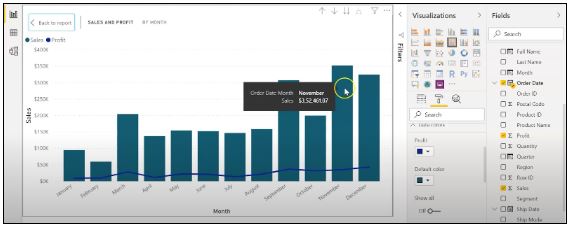
Assume you are hoping to picture and investigate deals and benefit over a specific number of years. To do this, you’ll make a line and stacked segment diagram. Select the line and stacked segment graph from the representation board and drag the “Request Date” section on to “Shared Axis.” Put “Deals” under “Segment” values, and addition the “Benefit” segment into “Line” values. That will create the chart. You can alter the shade of the bars and the line under the organization tab.

cards-slicers

In the outline over, the bars address the deals, and the line addresses the benefit. The chart uncovers that the most noteworthy measure of deals and benefits happened in 2017. Power BI Desktop gives an amazing component to dive into the information and picture the chart as far as each quarter, month, and day. This choice is accessible at the top when you explore a particular outline.

sales profit by month

Fig: Sales and profit by each month

You can likewise add the names to the diagram by tapping the “Organization” tab and turning on the information marks.

adding-labels

Fig: Adding labels to the graph

Presently, we should make a bunched segment diagram by dissecting yearly and quarterly deals.

From the Visualizations menu, select the “Grouped Column Chart.” Add the “Year” segment to the pivot. Take the “Quarter” sections under “Legend,” and add the “Business” segments to “Worth.”

clustered-bar-chart

Fig: The clustered bar chart

The diagram above shows that the principal quarter of each year had the most minimal marketing projections, while the final quarter was reliably the most elevated. You additionally have the choice to change the shadings on your diagram to make it all the more outwardly engaging.

Presently, how about we examine the deals for each state in the US. To do this, we’ll utilize a filled guide. Select a filled guide from the representations board. Add the “State” section to “Area.” Drag the “Deals” segment onto “Tooltips.” To alter the shadings, click on the “Configuration” tab, and pick “Information Colors.” Select the contingent arranging choice and add the scope of tones that you’d like.

formatting-colors

Fig: Formatting colors based on the sales

Our colour has been described for the smallest, medium, and greatest sales values. The green-colored states had the smallest sales. California, Texas, and New York, which are highlighted in orange or red, had the highest sales. Correspondingly, you can create a map to see the profit and number of units sold in each nation.

sales-state

Fig: Sales by each State

So far, our report appears to be as follows. We’ve covered how to make cards, slicers, line and stacked column charts, clustered bar charts, and packed maps.

sales-report

Fig: Sales report

Following that, we’ll take a glance at how to make a donut chart to evaluate revenue and profit by section.

Select the pie chart from the visualizations menu. Add the section column to the legend. Drag the “Sales” column to the “Values” column and the “Profit” column to the “Tooltips” column.

donut-chart

Fig: Donut chart for Sales and Profit

According to the pie chart given above, the customer group had the most revenue and profit, while the head office segment had the least. To make the visualisation more visually appealing, you can format it as needed.

We will now create a pie chart to visualize the sales for each product category. Move the “Category” column to the “Legend” column and add the “Profit” column to the “Values” column. Drag the “Sales” column to the “Tooltips” section.

pie-chart

Fig: Pie Chart for Profit and Sales

The new tech classification produced the most sales and profit, while furniture generated the least. To change the colours and make any necessary changes, go to the “format” tab.

The following is an example of the the last total sales report:

overall-sales-report

Fig: Overall Sales Report

Allow us now to picture our information at a more granular level by examining deals, benefit, and units sold at territorial and state levels.

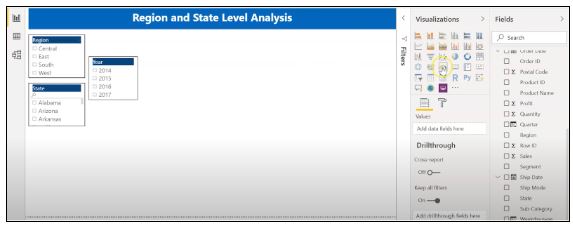
In the first place, we’ll make three slicers to channel our information. Click on the slicer from the representations board and add the “Area” segment on to “Field” to make a local slicer. Additionally, you can make a state and year slicer. You likewise have the choice to alter the slicers to change the text dimension, increment the size of the text, and add a foundation tone.

slicers-filter-data

Fig: Slicers to filter data

We’ll presently make a table to check the sum and the advantage made in each city. Under the “Insights” tab, select “Table”. Add the “City” fragment under “Values,” followed by sum and the “Advantage” area. Add an establishment tone to the fragment headers and addition the size of the printed style. You can channel the data by picking the things from all of the slicers.

Under, we have picked the central region and picked the region of Minnesota. In the table, you can see all of the metropolitan regions in the area of Minnesota, the sum sold, and the advantage they made.

creating-a-table

Fig: Creating a Table in Power BI 

Orchestrating a table is another limit that Power BI Desktop maintains. This gives clients the decision to sort the segment in a table in their solicitation for tendency.

By and by, could we create a clustered reference diagram to separate the arrangements for each thing class across different states? Select the gathered bar layout from the discernments board. Take the “State” area on the center point, “Characterization “portions on to the legend, and “Arrangements” on to “Worth.”

cluster-bar-2

Fig: Clustered Bar Chart

Among the three classes of things, the region of California made the most critical arrangements for all orders.

Then, at that point, we should check the yearly advantage by grouping using an area diagram. Select the area chart from discernments and drag the “Year” segment on to the turn, the “Class” fragment on to the legend, and “Advantage” on to “Values.”

area-chart

Fig: Area chart using Power BI

You can separate the advantage and sum that each thing class and subcategory sold. You can moreover make a line. Clients can research their various decisions through the dashboard.

region-state-report

Fig: Region and State Level Report

To go comprehensively and make a more granular level report, you can do that by making a report considering the things’ orders and subcategories, as shown in the report underneath. You can use class and subcategory as your slicers and make different line traces, bubble outlines, treemaps, and pie charts to imagine the data.

category-level-report

Fig: Category and subcategory Level Report

We’ll as of now disperse our overall business diagram on Power BI Service and make a dashboard. Save your reports on Power BI Desktop. Then, click on the home menu and select the “Convey” tab.

sales%20and%20profit

Fig: Publishing report on to Power BI Service

You can in like manner make another workspace or disperse the report to a current workspace in Power BI Service.

publishing-powerbi

Fig; Publishing to Power BI successfully.

Power BI Training

  • Master Your Craft
  • Lifetime LMS & Faculty Access
  • 24/7 online expert support
  • Real-world & Project Based Learning

Reports in Power BI :

A Power BI report is a multi-perspective look at a dataset, with visual effects representing various information and results from that set of data. A report may contain a single visual or possibly multiple pages of visual elements. Based on your work, you may be in charge of creating reports.

Power BI reports v Dashboards : 

Pages- Dashboards are not permitted to span more than one page; all essential reports are displayed on a single page.

Data sources- Dashboards are founded on the basis of multiple data tables that are linked to one another in one or more contexts. Reports are typically generated from a solitary table of data with no relationships to other tables.

Available in Power BI Desktop- Both the features are available in Power BI desktop

Pinning- Dashboards are fastened to the page so that the viewer can simply read through the data. Reports are built with various filters and shredders to allow the user to communicate with the set of data.

Subscribe- Reports can be published on the web and subscribed to via email. Dashboards have the same features as reports, but they can only be exported to a limited number of formats, so they are used to visualise important data rather than analyse it, which is only possible with reports.

Filtering- Power BI dashboards don’t at present have filter channels though reports are made with any sort of channels and slicers so the client can cooperate with the informational index. Dashboards are stuck to the page even the report proprietor.

Set alerts- With a dashboard, you can set up alarms for when a tile arrives at a specific limit. Thusly, you will not need to continue to return on the dashboard to check whether the tile has arrived at that limit. Sadly, it is absolutely impossible to set up a caution for a report. Thus, you should continue to inquire on the report to check whether the measurements you are following have arrived at a specific limit.

Modify/change visualization type- Dashboards contain an assortment of outlines and tables on a scope of related points though reports contain diagrams and tables on a solitary theme. Accordingly, dashboards regularly offer an undeniable level outline of a subject, and reports will generally be more granular and smaller in center.

Click here to learn Power BI Tutorial

HKR Trainings Logo

Subscribe to our YouTube channel to get new updates..!

Features of Power BI : 

Range of Attractive Visualizations :

Visualizations, or the visual representation of data, are important in Power BI. It provides a wide variety of detailed and appealing visualisations.

Get Data Feature :

The Get Data feature in Power BI permits the users to choose from a variety of data sources. The data sources can range from on-premise to cloud-based, unstructured to structured. Every month, new data sources are added.

Datasets Filtration :

A dataset is a single set of data created by combining data from multiple sources. You can use the datasets to create various types of visualisations.

Customizable Dashboards :

Dashboards are a grouping of visualisations that provide useful information or insights into data. Power BI dashboards are typically made up of multiple visualisations as tiles.

Flexible Tiles :

In a Power BI dashboard, a tile is a single block that contains a visualisation. Tiles properly separate each informative visualisation to provide a clearer view.

Click here to get latest Power BI Interview Questions and Answers

Power BI Training

Weekday / Weekend Batches

Conclusion :

Power BI dashboard is a wonderful storytelling tool that can be really helpful to develop actionable business insights. In addition to this, we have also illustrated the differences between the Power BI dashboard and the reports. If you have any questions let us know in the comments section.

Related Article :


Source link