
Airline status match options for Spirit elite members


If you had elite status with Spirit, you may now be searching for a new primary airline. Or, even if Spirit wasn’t your primary airline, you may be looking to leverage your status into something useful now that Spirit Airlines has gone out of business.

Luckily, several airlines are specifically offering status matches for travelers with Spirit status. You could also try other airline status matches if you happened to grab screenshots of your account page and membership details before Spirit discontinued operations. Otherwise, the following airlines that are specifically promoting status matches for Spirit elite members will be your best bet.

Avelo

Avelo Airlines, which serves as an alternative for 29 routes previously flown by Spirit, is offering Spirit Saver$ Club members a no-cost status match into the Avelo Plus membership program. Avelo Plus typically costs $59 for your first year and $99 for subsequent years.

Wheels Up: Avelo Airlines Takes Flight
JOE SCARNICI/GETTY IMAGES/AVELO

To be eligible, you must have joined the Spirit Saver$ Club before May 1, not be a former or current Avelo Plus member and submit either a screenshot of your Spirit profile clearly showing Saver$ Club membership status or a screenshot from the last 12 months showing your Spirit Saver$ Club payment confirmation, enrollment or renewal confirmation email.

If you submit a match on this page by May 31 and are approved (which usually takes 7 to 10 business days), you can enjoy Avelo Plus benefits for a year from when you’re approved. Benefits of Avelo Plus include exclusive fares and deals, priority boarding and other perks that extend to up to nine travel companions.

Related: Avelo consolidates bases and fleet, ends deportation flights amid broader restructuring

JetBlue TrueBlue

JetBlue TrueBlue is offering a limited-time opportunity for Free Spirit Silver and Gold members to request a status match. Especially if you frequently flew Spirit to, from or through Fort Lauderdale, JetBlue may be a compelling new option for your loyalty.

SEAN CUDAHY/THE POINTS GUY

Free Spirit Silver members can match to Mosaic 1, and Gold members can match to Mosaic 2 status, on JetBlue’s status match page. You’ll need to submit a screenshot of your frequent flyer program profile showing your full name and proof of status (if you didn’t take a screenshot before the airline ceased operations, a recent email with this information might suffice). And if you’re matching to Mosaic 2, you’ll also need to include a screenshot or photo of your most recent boarding pass or flight confirmation email showing your status.

It may take up to four weeks for your match to be considered. The match will be good for three months from when it is approved (you’ll get an email once it’s approved), but you can extend your new Mosaic status through the following calendar year by earning and receiving the following number of tiles within your three-month match period:

Reward your inbox with the TPG Daily newsletter

Join over 700,000 readers for breaking news, in-depth guides and exclusive deals from TPG’s experts

  • 10 tiles to keep Mosaic 1
  • 25 tiles to keep Mosaic 2
  • 40 tiles to earn Mosaic 3

As a reminder, you’ll earn 1 tile for every $100 in qualifying spend on JetBlue flights (including many extras & fees), JetBlue Vacations packages, and TrueBlue Travel, and for every $1,000 in qualifying spend on JetBlue credit cards.

Related: JetBlue Premier Card adds new perks, including elite status boost and spending-based companion pass

Southwest Airlines

If you have Spirit Silver or Gold status, you can use the Southwest status match program to gain A-List status for 120 days.

Plus, you can extend the promotional A-List status for an additional 12 months if you fly three qualifying round-trip flights on Southwest, fly six qualifying one-way flights on Southwest or earn at least 11,500 tier qualifying points from flights within your 120-day promotional status period.

southwest plane
SEAN CUDAHY/THE POINTS GUY

Southwest A-List elite members enjoy a first checked bag free, Group 1 boarding, the ability to select a Preferred or Standard seat at booking for no additional cost (including for up to eight companions on the same reservation), the ability to select an extra-legroom seat within 48 hours of departure for no additional cost (including for up to eight companions on the same reservation), same-day standby access and more.

You can submit a status match request on this page. You’ll need to complete a form and attach proof of your Spirit status via an elite card or statement from Spirit that clearly shows your name and Spirit status tier.

Related: The ultimate guide to Southwest credit card eligibility

Botton line

If you frequently flew Spirit, you may not know which airline or airlines will get your business in the future. But if you had elite status with Spirit, now is a good time to utilize one or more of these matches to give you some benefits in the interim.

If you have your eye on a different airline loyalty program than the ones mentioned above, check to see whether the program offers a status match option that will accept whatever proof you have of your Spirit status. And, even if they won’t offer a status match, keep in mind that some credit cards can also help jump-start your status.


Source link

Leave a Reply

Subscribe to Our Newsletter

Get our latest articles delivered straight to your inbox. No spam, we promise.

Recent Reviews


What is XPath in Selenium – Table of Content

What is XPath in Selenium?

Selenium is an open-source, most popular web automation testing tool that supports multiple browsers & OS. XPath in Selenium is an XML Path and a syntax useful for locating an element on a web page. Locating any element on the web page uses XML path or XPath expression. Further, XPath in Selenium is useful for navigating through the HTML structure of the web page. 

Moreover, XPath uses HTML DOM structure to find any element on a web page for both HTML and XML documents. 

The syntax for XPath In Selenium 

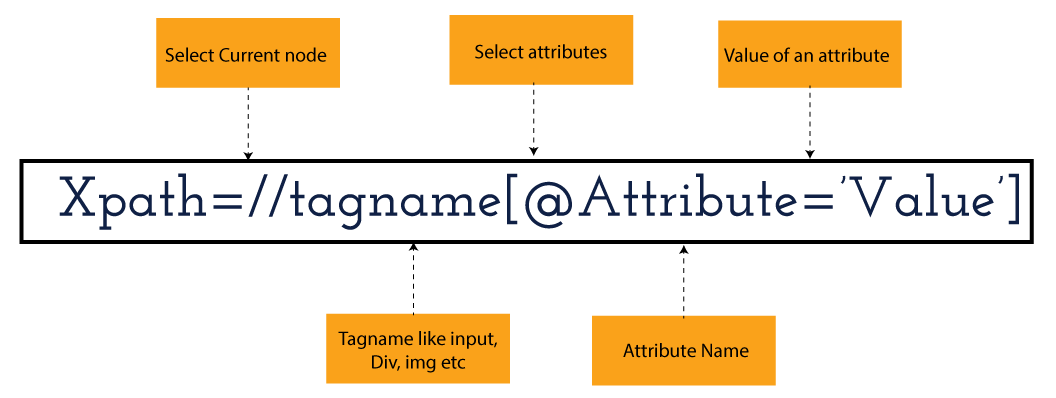
XPath in Selenium holds the element’s location on the web page. The basic syntax for XML Path Selenium is as follows-

Xpath=//tagname[@attribute="value"]

The meaning of each expression in the syntax is-

  • // : Choose the existing node.
  • Tagname: Particular node’s tagname.
  • @: This symbol denotes the “Select” attribute.
  • Attribute: Node’s attribute name.
  • Value: Attribute’s Value.

Become a master of Selenium by going through this HKR Selenium Training!

XML Document

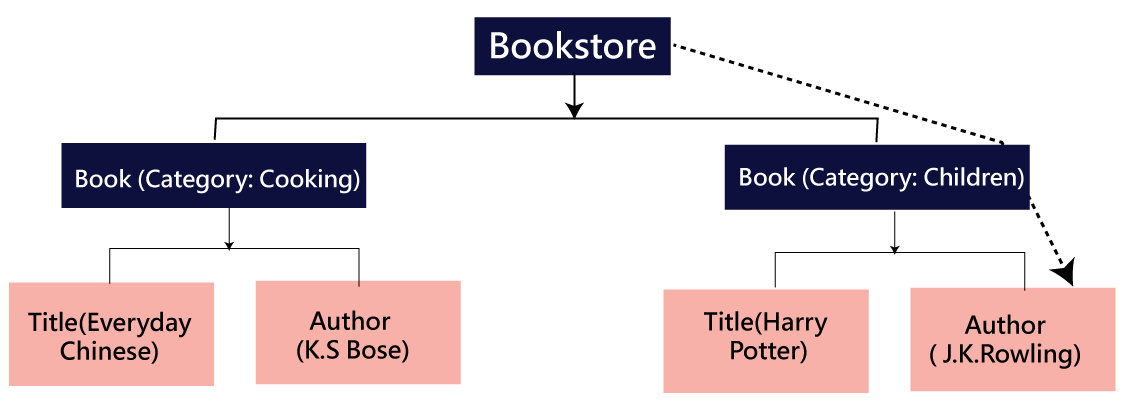
The XML documents are the text files that contain XML data, including elements and other markups, in a sequential package. Further, it can include a wide variety of data such as numbers databases, numbers of a mathematical equation, etc. You can understand XML document with an example:-

 Kumar

   AK & Co.

    032456123

Here, the above code is divided into two parts- Document Prolog & Document Elements. Let us discuss them in brief.

Document Prolog

The document prolog appears at the top of the document, beforE the root document element. It includes XML and Document type declaration. 

Document Elements

These major building blocks of XML segregate the document into different sections. Each of these document sections perform a particular purpose. Moreover, you can easily segregate a document into different sections so that search engines can use it. Further, these document elements can be the containers having text and other elements combined. 

Types of XPath

  1. Absolute XPath:
  2. Relative XPath:
Absolute XPath

In Selenium, the absolute XPath is the direct path to find the element. This Xpath begins with the “/” (Slash) symbol and helps select the element from the root. The major drawback of this XPath is that if you change the path of the element or attribute, the absolute XPath will fail.

Relative XPath:

The Relative XPath in Selenium begins with the double forward slash “//” symbol and from the middle of the HTML DOM. You can search elements anywhere on the web page as it doesn’t need to write a lengthy Xpath. This XPath is mainly considered as it is not a complete path from the root element.

For example: //input[@id=‘ap_email’]

Suppose You launch Google Chrome and navigate to google.com. Then locate the search bar utilising XPath. By analysing the web element there is an input tag and attributes like class and id. Utilise the tag name and given attributes to create XPath that will locate the search bar.

If you want to Explore more about Selenium? then read our updated article – Selenium Tutorial

What-is-xpath-in-Selenium-1

Click the Elements tab and press Ctrl + F to open a search box in chromes developers tool.  Write XPath string selector and it will try to search based on that criteria. In the image given above, it has an input tag.  //input implies tagname. Use the name attribute and pass ‘q’ as its value. It provides XPath expression as shown below:

//input[@name=’q’]

XPath string

It has focused on the element that implies this specific element was located utilising XPath.

If you want to Explore more about Selenium? then read our updated article – Selenium Tutorial!

Check out our Latest Tutorial video. Register Now Selenium Online Course to Become an expert in Selenium.


Acquire Selenium with jenkins certification by enrolling in the HKR Selenium with jenkins Training program in Hyderabad!

Selenium Certification Training

  • Master Your Craft
  • Lifetime LMS & Faculty Access
  • 24/7 online expert support
  • Real-world & Project Based Learning

XPath Functions

Automation utilizing Selenium is unquestionably an incredible innovation which gives numerous approaches to distinguish an article or component on the website page. Be that as it may, in some cases we do deal with issues in recognizing the articles on a page that have similar credits. Some cases can be: components having similar credits and names or with more than one button with similar name and ids. It’s trying to train selenium to distinguish a specific item on a website page and it is the place where XPath functions to serve as the hero. 

Frequently asked Selenium Interview Questions and Answers !!

Types of XPath Functions

Selenium involves different functions. The three of the most broadly utilized functions are given below:

1) Basic XPath

The basic XPath expression selects nodes or a list of many nodes based on various elements or attributes such as ID, Name, ClassName, etc. It selects them from the XML documents. The syntax we can use for the basic XPath is –

Xpath=//input[@name="uid"
2.Contains()

It is a method used in XPath expression when the value of an attribute or element dynamically changes. You can easily find the elements with a partial text using the “Contains” feature in the XPath expression. Now understand this with the below example.:-

Xpath=//*[contains(@type,'sub')]

The above example denotes that the full value of the element type is submitted, but we use the partial text ‘sub’ here to find the element. Thus, in the above example, we tried to find the element by giving a partial text of the attribute “submit”. 

3) Using OR & AND

Here, we use two conditions, first or second condition, among which one condition must be “True” to execute it. This method is still applicable if any one or both conditions are “true”. It means that any conditions should be true to find the element. The expression we can use for this is-

Xpath=//*[@type="submit" or @name="btnReset"]

The above XPath expression will help determine whether a single or both conditions are ‘True’.

Similarly, in the “And” XPath expression, also we use two conditions, but both conditions should be “true” to locate the element. If any one of the conditions becomes “false”, then the expression cannot find the element. The syntax we can use for this function is-

Xpath=//input[@type="submit" and @name="btnLogin"]
4) Xpath Starts-with

The function Xpath-Starts-with() in the Xpath functions is useful to find the element whose attribute value changes in some conditions. Here the value changes with the refresh of the page or by performing dynamic actions on the webpage. In this method, the initial text of the attribute should be in parallel to locate the element whose attribute value changes interactively. 

Further, you can also find the elements whose attribute value doesn’t change or remain static. You can understand this function’s use by the following example:-

Xpath=//label[starts-with(@id,'message')]

The above syntax shows that two different elements start with the initial id “message”. Here, you can use the Xpath-starts with function to check whose attribute value changes or remains static.

Become a master of Selenium by going through this HKR Selenium Training in Delhi!

HKR Trainings Logo

Subscribe to our YouTube channel to get new updates..!

5) XPath Text() Function

In Selenium WebDriver, the function XPath Text() is a built-in function useful to locate elements based on the web element’s text. Using this function, you can find the same text element. Moreover, the elements that you locate must be in a string format.

Xpath=//td[text()='UserID']

Using the above expression having text function, you can locate the element that will show the exact match of the text.

6) XPath axes methods

This method in XPath functions is useful for finding complex or changing elements. However, we can see the following XPath axes methods which we can use:-

  1. a) Following- It is useful to select all the elements in the document of the existing node(). The expression you can use for this method is-
 Xpath=//*[@type="text"]//following::input
  1. b) Ancestor- The ancestor axes method is useful to select all the ancestor elements of the existing node, like parents, grandparents, etc. Here, the expression you can use is-
Xpath=//*[text()='Enterprise Testing']//ancestor::div
  1. c) Child- This axes method selects all the child elements in the documents’ current node. The expression you can use here is-
Xpath=//*[@id='java_technologies']//child::li
  1. d) Preceding- This method helps select the nodes that come before the existing ones. Here is the example expression:-
Xpath=//*[@type="submit"]//preceding::input

The above expression helps to identify all the input elements before the currently given nodes.

  1. e) Following-sibling- This method helps to select the following siblings of the existing node. All the siblings will be equivalent to the existing node, and the method will find the sibling next to the existing node. Moreover, the syntax you can use here for this method is-
xpath=//*[@type="submit"]//following-sibling::input
  1. f) Parent- It helps to select the parent from the existing node of the element. The following is the syntax you can use here.
Xpath=//*[@id='rt-feature']//parent::div

Many div(s) match with the parent, but if you want to focus on a specific element. For this you can use the below xpath syntax-

Xpath=//*[@id='rt-feature']//parent::div[1]
  1. g) Self- In this method, it selects the existing node where it selects itself only. That means the node here is the “self”. The expression you can use for self is-
Xpath =//*[@type="password"]//self::input
  1. h) Descendant- It helps to select the descendants of the existing element where it recognizes all the element descendants of the existing element. 
Xpath=//*[@id='rt-feature']//descendant::a

Selenium Certification Training

Weekday / Weekend Batches

Conclusion

XPath or an XML Path is used to locate any element or navigate through the HTML structure of a webpage. It is generally used for automation purposes and in cases where it is difficult to find elements using locators like name, class, ID, etc. However, it is the most important among the locators useful in Selenium to identify web elements. Also, it is a handy locator for the testers of web pages.

Thus, learning about XPath in Selenium will help you quickly identify a web element on a web page. 

Related Articles:


Source link