Google’s approach to digital car keys is designed to be secure and shareable.
Smartphones are a common replacement for credit and debit cards thanks to features like Google Pay and Apple Pay. As more car makers update their tech, your smartphone might just be a replacement for your keys, too. Android’s support for digital car keys means that if your phone and car are compatible, you can use Google Wallet to unlock your vehicle, and, in some cases, even start it remotely. Knowing how the feature works and which smartphones support it will not only make the feature easier to set up, but it could keep you and your car safer in the long run.
What is Android’s digital car key feature?
Google added support for digital car keys with the release of Android 12 in 2021, one year after Apple brought its version of the same idea, CarKey, to iOS. Both let you store a digital copy of your car key in your default wallet app (Google Wallet, for Android devices) and control your car over a secure wireless connection. What extra functions are available to you depends on each vehicle’s maker, but the ability to unlock your car comes at a minimum. Because this smartphone key is entirely digital, and basically a representation of data associated with your car, it can also be shared with other phones via a simple text message. That’s even including iOS devices.
While digital car keys are a relatively recent addition in the grand scheme of smartphone features, the concept was in the works for several years before even Apple and Google hopped on board. The Car Connectivity Consortium, an industry group representing car and electronics companies, introduced its first “Digital Key” standard all the way back in 2018. The version of digital car keys available on smartphones today is built on an updated version of that same standard.
How do digital car keys work on Android?
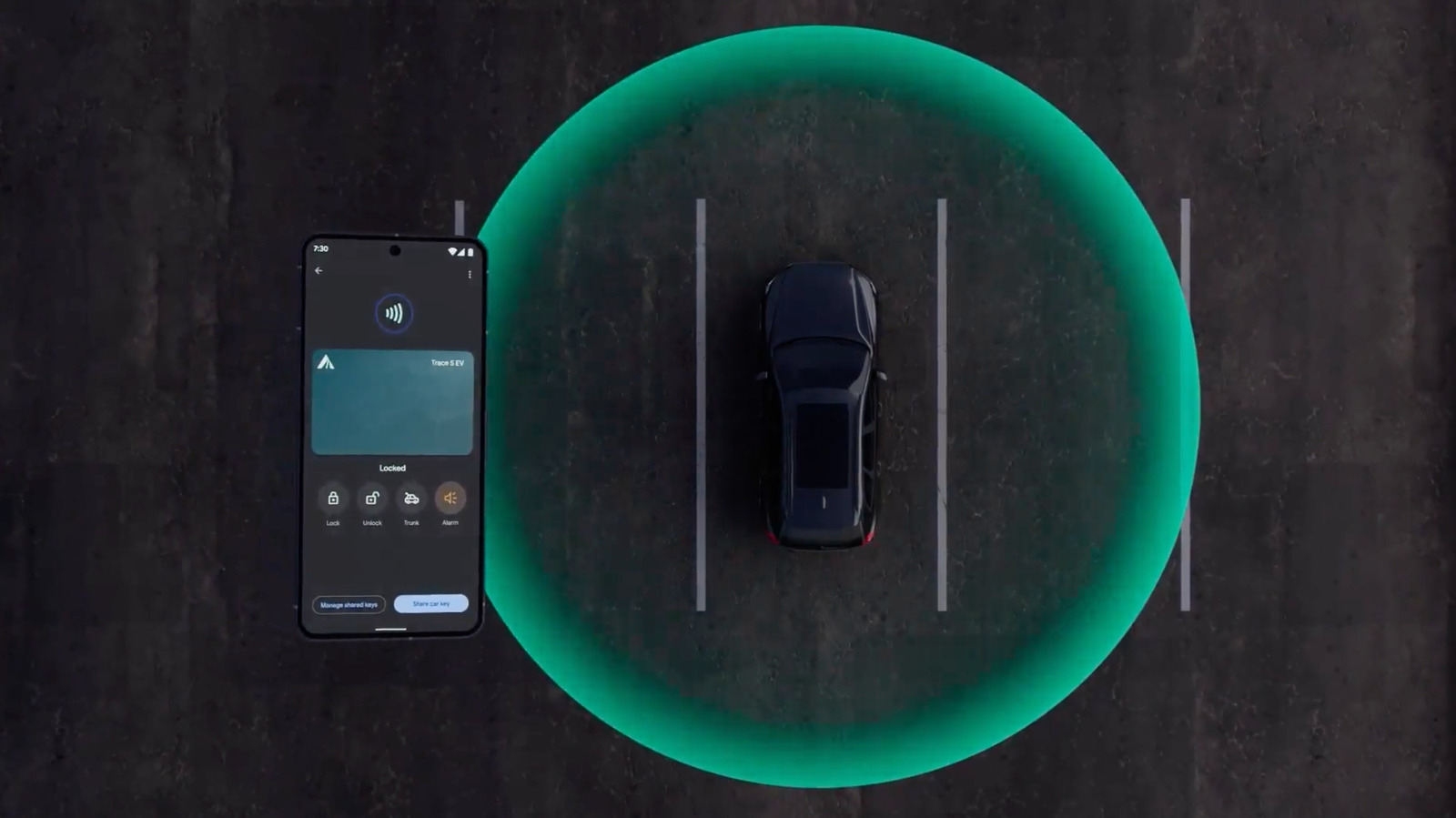
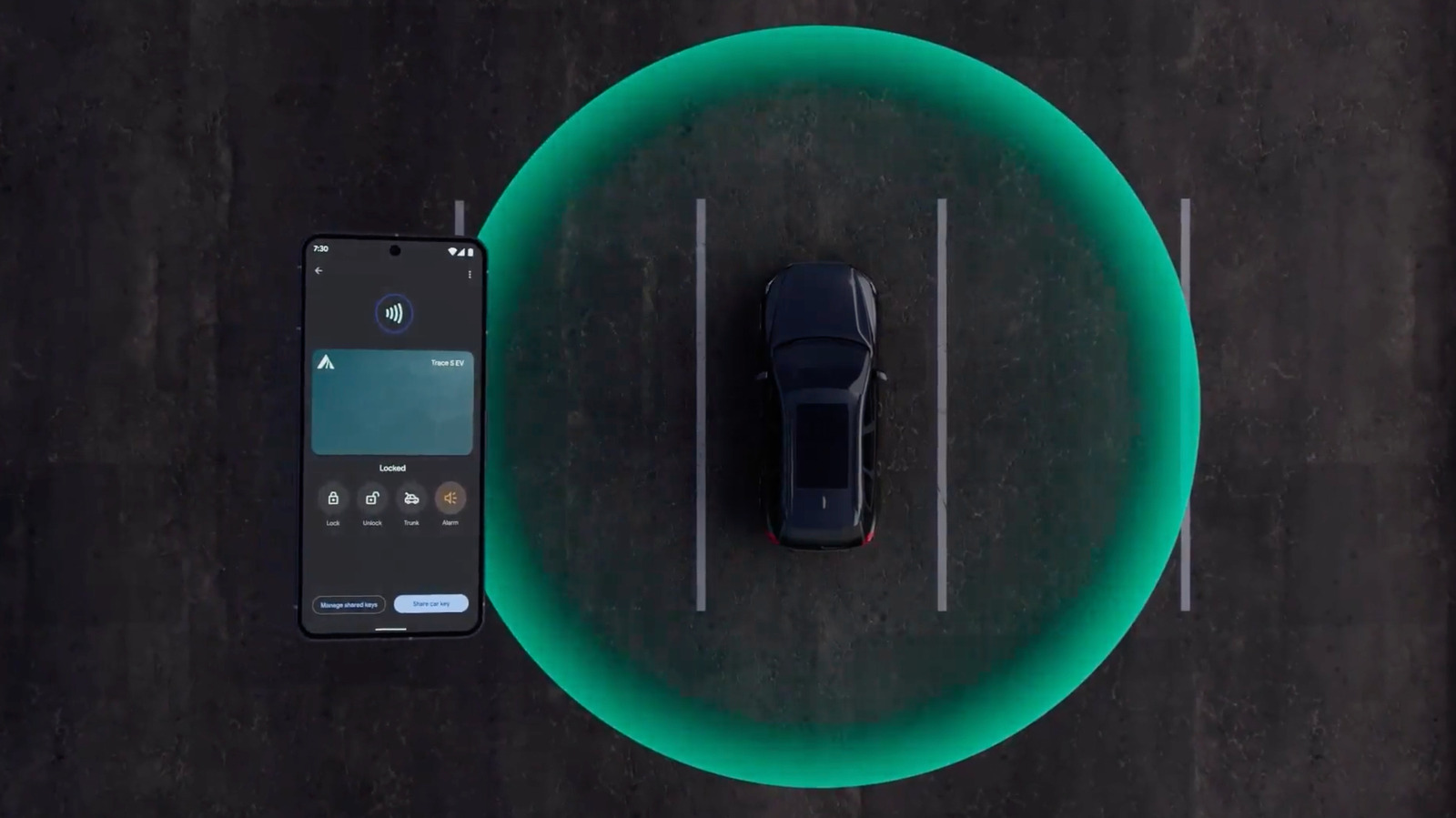
On Android, once you’ve added your key to Google Wallet, your smartphone connects to your vehicle over Bluetooth and Ultra-wideband (UWB). The latter is the radio technology used in by things like Google’s Find Hub and Apple’s AirTags. Digital car keys can also fall back on an NFC (or Near Field Communication) connection if your Android device doesn’t have one of those other radios. Your car may also use NFC to authenticate your phone when you first add your key to Google Wallet.
These methods may actually be more secure than your car’s wireless fob. According to Google, “digital car keys offer enhanced security compared to key fobs, which are vulnerable to relay attacks.” Relay attacks amplify the signal from a key fob so that a car can be unlocked without you or the key needing to be nearby.
Since one of the main features of UWB is the ability to determine something’s precise position relative to its radio, your digital car key won’t unlock anything unless your phone is physically near your car. Because the information associated with your car is stored securely on your phone, it also benefits from the same security methods that protect everything else you keep on your device, like photos or messages.
How do you add a digital car key to your Android phone?
How you actually go about adding your car key to Google Wallet will vary depending on your car. Some companies let you add the key directly through their app, while others send you an email with an “Add to Android” button. Some even let you set up the key through your in-car display. Whichever method your vehicle requires, you’ll need an up-to-date Android phone with the Google Wallet app installed and a Google Account to get started.
All three methods require logging in with your Google Account, agreeing to the terms of service and authenticating your smartphone, either over NFC through your car’s NFC reader (often housed in a built-in wireless charger), via an authentication code or both.
Which phones and cars support digital car keys?
Android’s digital car key feature requires you to have a smartphone running Android 12 or later to work. For example, that means you could use digital car keys on a Pixel 6 or later, a smartphone from Samsung’s Galaxy S26 series, a Motorola Razr or Razr Plus or a OnePlus 15. Google maintains a full list of compatible devices on its website, but any smartphone running the latest version of Android and that supports Bluetooth, UWB and NFC should fit the bill. To be clear, though, only Bluetooth and NFC are mandatory for the basic functions of digital car key to work. UWB enables additional features.
If your car isn’t in that short list, your car brand might still support digital car keys on Android. Here are the main US and European brands that support the feature, according to Google’s website:
Audi
BMW
Genesis
Hyundai
Kia
LEXUS
Mercedes-Benz
MINI
Polestar
Porsche
RAM
Toyota
Volvo
Are there any risks to using digital car keys?
While UWB and NFC might make a digital car key on your phone more secure in some ways than a simple fob, that doesn’t mean using your smartphone as a key is free from risk. In fact, adding your car keys to your phone makes losing it even riskier. If you don’t have adequate security measures set up (like using a weak passcode, for example) it’s that much easier for someone to access your car if they steal your phone. Relying on your smartphone over physical keys might also cause problems if a software issue prevents you from using Google Wallet or, God forbid, you lose your phone.
The simple solution is to always carry your key as a backup in the same way you carry your wallet if you use Google Pay. You can always fall back on a physical key or card when your phone fails you. You might also consider enabling biometric authentication and disabling passive entry — Google’s method for automatically unlocking cars — to make sure you have to be intentionally unlocking your car to get inside it. If your phone is stolen, you can also delete or suspend your digital key from another device so it can’t be used until you get your phone back.
AWS DaaS (Amazon Desktop as a Service), furthermore recognised as Amazon WorkSpaces, is a service provided by Amazon. The basic concept in Amazon WorkSpaces is that you can access the desktop from any kind of device at any point of time. Once relative to conventional desktops and on-premises VDI solutions, you could indeed pay monthly or hourly for the WorkSpaces you initiate, saving you money.
WorkSpaces are another name for these desktops. You won’t have to install any hardware or complicated software, which saves time and money. You could either add or delete thousands of users as needed, and they are allowed to use any kind of device to access the WorkSpaces.
Why Amazon Workspaces?
Many of us are using VM ware, Citrix, and other technology as we enter the technology enhancement era, but what is the problem with it? It requires significant upfront investments in back-end hardware equipment and application components, as well as ongoing maintenance. But on the other hand, Amazon workspaces, The AWS Management Console, allows you to stipulate virtual desktops for just an unlimited number of people with just a few clicks.
It’s essentially an AWS cloud-based full-desktop service that’s fully managed. AWS manages the desktop environment’s updates and patches, and management, and it has a very cost-effective compensation model that can be hourly or monthly.
How do AWS Workspaces work?
Each and every WorkSpace is considered as an AWS-hosted chronic long-term Windows Server 2008 R2 instance which makes it look like Windows 7. The users are allowed to access their desktops via PCoIP, and backup of the data is performed for every 12 hours as a default case.
User Preferences
The user needs to have a stable Internet connection with UDP ports and open TCP ports. The primary step is to download the Amazon WorkSpaces client application for their device, which is freely available.
Become a AWS Certified professional by learning this HKR AWS Training !
AWS Training
Master Your Craft
Lifetime LMS & Faculty Access
24/7 online expert support
Real-world & Project Based Learning
Amazon Workspace Architecture ?
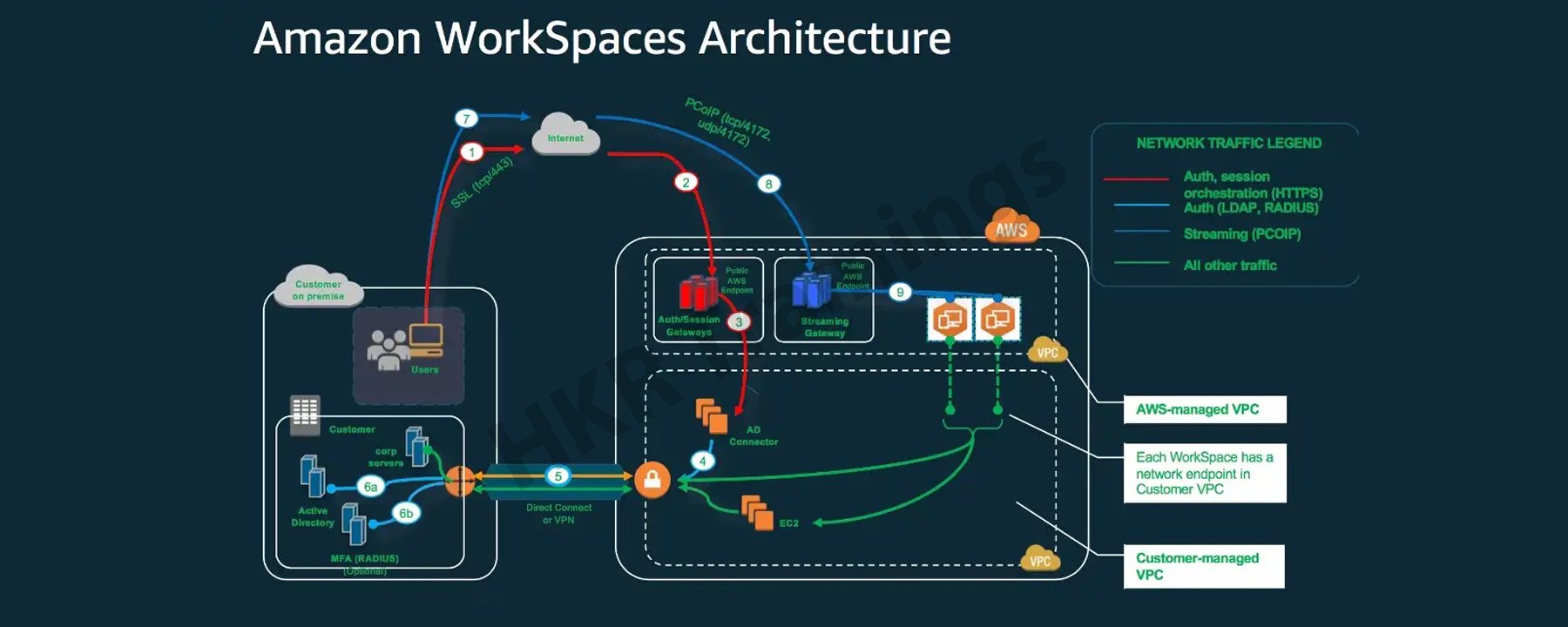
The following diagram depicts the high-level architecture of the Amazon WorkSpaces solution, with a customer using the internet to connect to an Amazon WorkSpace via an Amazon WorkSpaces Windows client.
A Virtual Private Cloud is linked to Amazon workspaces (VPC). The information for workspaces and users is stored and managed by AWS Directory services. To authenticate users, Amazon Workspace uses the Simple AD, AD Connector, or AWS Managed Microsoft AD directory.
Users gain access to the workspace using a client application on a supported device. The traffic towards the directory workspace sends user login information to the authentication gateway. Streaming traffic is started through the streaming gateway after the user has been authenticated. Ports for connecting to the workspace.
These ports are used by client applications to connect to the workspace:
Client applications and web browsers that support the operating system can connect to AWS Workspaces.
There are client applications for:
Windows Operating System
macOS
Ubuntu is a Linux distribution.
Chromebooks are a type of computer that runs on
iPads
Android
Tablets that burn
Amazon Workspace Benefits:
Desktop Delivery Simplified:
You don’t have to be concerned about your computer’s life cycle. When you start creating one, it really is provisioned, deployed automatically. It is preserved by Amazon, and when you close your account, Amazon recycles the desktop for future use. AWS WorkSpaces eliminates such a need to handle all of your desktop’s hardware and software, as well as the need to set up a complex Virtual Desktop Infrastructure (VDI).
You don’t have to buy new laptops or desktops every time you require more; instead, you can use WorkSpaces’ AWS Desktop as a Service to access the cloud-based desktops. These desktops focus on providing resources for Compute, Memory, Storage, and Databases based on the performance requirements of the users.
Control Over The Desktop Resources:
AWS Workspaces eliminates the need to consider the number of desktops to implement. Furthermore, it aids in the configuration of the desktop you require. It offers a variety of memory, CPU, and storage configurations that you can tweak to make the most compatible version for your app. It also reduces the amount of hardware you’ll need to purchase. It is possible to adaptively adjust the resources you utilize, which will help you save money.
Amazon Workspace is made possible by the Amazon Virtual Private Network. The user can use AWS key management services to access encrypted storage volumes in the cloud. No user data is stored on the local device to improve user data security and reduce your overall risk surface area. The user data is not only available on the local device, which reduces the risk involved via the unauthorised access to the data.
AWS WorkSpaces come with a dedicated VPC that gives every user encoded and provides secured access to AWS cloud storage volumes.KMS (Key Management Services) can also be used. It includes both public and private key files. Only the private key file has access to it.
Provide a variety of desktop operating systems to choose from:
AWS WorkSpaces offers Windows 7, Windows 10, and Amazon Linux as operating systems. Any device can be used to access the computing experience of these operating systems. You can also use your personal licence to run WorkSpaces on your own laptop running Windows 7 or 10. You’ll be able to restore your default settings this way.
Deliver Desktops to a Wide Range of Devices:
Windows and Mac computers, Chromebooks, Fire tablets, iPads, and Android tablets are all supported by Amazon WorkSpaces. Access is also possible using the Chrome and Firefox browsers. You can simply download the Amazon Workspaces client and access your WorkSpace from any device once it has been implemented for your use.
Manage and scale your global desktop deployment from a single location:
From the AWS console, a user can control a global deployment of tens of thousands of Workspaces. Desktops can be provisioned as the workforce’s needs change. It is available in 11 regions and offers high-performance cloud computing from anywhere you need it, as well as the ability to scale global desktop deployments.
Utilise your current directory:
The WorkSpace can be securely integrated with an existing corporate directory, such as Microsoft Active Directory.
To give all authorised users access to company resources, multi-factor authentication tools are available.
Subscribe to our YouTube channel to get new updates..!
AWS Workspace Features:
Amazon WorkSpaces is providing the end-users with a secured, cloud-based and managed virtual desktop experience. In contrast to the traditional on-premises VDI solutions, you do not need to think about deploying, procuring, or managing an environment which is complex because Amazon WorkSpaces handles everything for you. Traditional desktop management or an on-site solution for a VDI requires capital investment and is difficult to manage and deploy.
Using a cloud-based virtual desktop eliminates upfront costs and the need to manage the desktop because Amazon will handle everything. It will provide your users with a cost-effective, user-friendly, and widely accessible desktop experience.
Amazon WorkSpaces Bundles:
To start with WorkSpaces, pick a bundle that includes a variety of software and hardware options, then launch as many WorkSpaces as you need. After the WorkSpaces have been provisioned, you’ll get an email to their inbox with instructions on how to establish connectivity.
You can also customise your WorkSpace by creating a custom image and installing your own software bundle.
Microsoft Office and Trend Micro Worry-Free Business Security Services are pre-installed software bundles with Standard plus, Value plus, Performance plus, PowerPro plus, Power plus, GraphicsPro plus or Graphics plus bundles available.
Allowing to bring your own licences:
You can utilizee Amazon WorkSpaces to run the existing Windows 10 Desktop licences on hardware which is physically devoted to you. You could save about 16 percent ($4 per WorkSpace per month) once you bring your existing Windows licence to WorkSpaces versus WorkSpaces, which include a new Windows licence. To satisfy this criteria, your company must meet Microsoft’s licensing requirements and devote itself to having to run upto 100 Amazon WorkSpaces per month in a specific AWS region. Confirm that you might run at least 4 of them AlwaysOn or at least 20 AutoStop GPU-enabled WorkSpaces in a particular region on a monthly basis on a dedicated hardware if you plan to use GPU-enabled bundles (Graphics, GraphicsPro, Graphics.g4dn, and GraphicsPro.g4dn).
Setting up a desktop with Amazon WorkSpaces is simple. It is your choice to either bring up one or more Amazon WorkSpaces, the only thing you have to do is to select the bundles which adequately suit your users’ needs, as well as the count of the Amazon WorkSpaces you want to launch. After your Amazon WorkSpaces provisioning has been completed, the users will receive an email to their inbox with instructions on how to connect to their Amazon WorkSpace and also the steps on where to download the applications within the Amazon workspaces based on their requirements. You can easily delete an Amazon WorkSpace if you do not require it.
Depending on the bundle you choose, you’ll get a different amount of persistent storage. The data that users store on their WorkSpace volume is backed up to Amazon S3, ensuring its security. They can attach Amazon WorkDocs Drive to WorkSpaces, making all of the content on the WorkDocs Drive accessible to users.
How to create Amazon workspaces?
Step 1: Under End User Computing, type WorkSpaces or search for WorkSpaces. Select it by clicking on it.
Select Get Started Now from the drop-down menu.
Select Quick Setup. (This can be used to create WorkSpaces for individuals or small groups.) Step 2: Just choose a specified operating system bundle (free tier to avoid charges), then run the programme and wait for the WorkSpace to appear.
Proceed to Launch WorkSpaces after entering the Username, First Name, Last Name, and Email.
To access the WorkSpaces Console, click View the WorkSpaces Console.
Wait till your WorkSpace’s status changes from Pending to Available.
Step 1: You will receive an email from AWS once the Amazon WorkSpace becomes available, as seen in the image following table:
To begin, go to the link marked 1 and keep updating your profile by entering a new password.
The previous link will now automatically redirect you to the Client download page. Alternatively, you can click on the 2nd link. Alternatively, you can utilize the following link: Amazon WorkSpace is a service provided by Amazon. Choose the appropriate client for your device on the website. It’s Windows in this case.
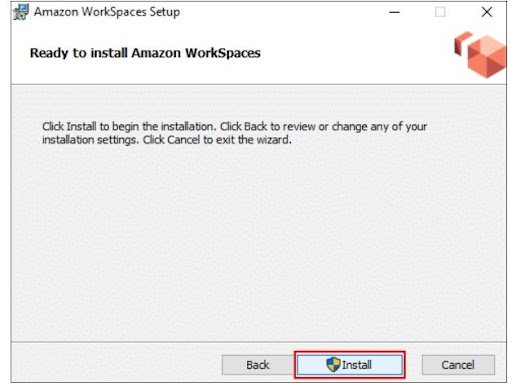
Step 2: Save it by clicking on the download button. Run the saved file and install it as you would any other programme. Even though most of you already know how to do it, screenshots displaying how and where to install the AWS Workspaces Client are provided.
Choose one of the following two options: If you’re installing it on your own computer, choose to install for all users of this computer; otherwise, choose Install just for you.
On your desktop, you should now see an Amazon WorkSpaces icon.
Step 3: After you’ve completed the installation, go to the Amazon WorkSpaces icon and enter your registration code, which you can find in the mail you received.
Then, after entering your Username and Password, click Sign in.
Wait for the desktop to be launched by the WorkSpace Client. You’ve just finished launching your first WorkSpace!
Deleting the Amazon WorkSpace that was created:
Step 1: Select the WorkSpace you would like to remove, and then go to Actions and Remove WorkSpaces.
Step 2: Wait for WorkSpace to be terminated. And that WorkSpace is no longer available!
Conclusion:
For the users of Windows, Mac, and Chromebooks, the Amazon WorkSpaces client applications provide a positive Windows desktop experience with high quality. Recognize the benefits of the change to both your employees and your company. Interact with those ideals to increase employee buy-in. Amazon WorkSpaces is an Amazon Web Services virtual desktop infrastructure (VDI) service (AWS). It’s a cloud-based desktop computing service from the market leader in cloud services. Because Amazon was one of the first public cloud providers, its VDI products are among the most well-known.
To provide the best experiences, we use technologies like cookies to store and/or access device information. Consenting to these technologies will allow us to process data such as browsing behavior or unique IDs on this site. Not consenting or withdrawing consent, may adversely affect certain features and functions.
Functional
Always active
The technical storage or access is strictly necessary for the legitimate purpose of enabling the use of a specific service explicitly requested by the subscriber or user, or for the sole purpose of carrying out the transmission of a communication over an electronic communications network.
Preferences
The technical storage or access is necessary for the legitimate purpose of storing preferences that are not requested by the subscriber or user.
Statistics
The technical storage or access that is used exclusively for statistical purposes.The technical storage or access that is used exclusively for anonymous statistical purposes. Without a subpoena, voluntary compliance on the part of your Internet Service Provider, or additional records from a third party, information stored or retrieved for this purpose alone cannot usually be used to identify you.
Marketing
The technical storage or access is required to create user profiles to send advertising, or to track the user on a website or across several websites for similar marketing purposes.