
Incremental Load in QlikView | Step by Step Guide for Beginners


Incremental Load in QlikView – Table of content

What is Incremental load?

The practice of loading only new or modified records from a database into an existing QVD is known as an incremental load. As compared to complete loads, incremental loads are more effective, which is especially useful for large data sets. In QlikView, an incremental load occurs when new data from a source database is loaded while previously retrieved data is loaded from a local store. QVD files or the QVW format used with a binary load are commonly used to save data. 

Why incremental load?

Is your BI application storing large amounts of data in a  atabase? Is it happening regularly, if so? Because BI applications are expected to handle larger data sets, frequent refreshes must obtain the most up-to-date information. In both cases, loading all of the data historically every time to get the most recent updated records on a timely basis is inefficient. This is where the concept of “Increment Load” comes in handy for making BI applications more efficient.

To gain in-depth knowledge with practical experience in QlikView, Then explore HKR’S QlikView Online Course!

What is the intention of the incremental load?

The “Incremental Load” is the answer to all of the previous questions. The loading process’s performance is improved by pulling only new and updated records rather than the entire data set and appending them to the existing data set (QVD). To keep it simple, incremental load updates old table/QVD data with newly modified records at each refresh. It increases the loading process 100 times over conventional loads in this manner.

How exactly incremental load works?

Let’s take a closer look at it by putting it to use. The workflow steps for implementing the same are described below.

1. You must load the whole data without the incremental Load. Either time you need to update new records, you must reload the whole data, which takes a long time to load and save on the local drive (QVD). You can only load new/updated records with incremental loading.

2. In a table, find the last revised record date from the QVW.

3. Connect to the data repository based on the last updated date and pull the recently inserted records that are older than the last modified date. The “where” clause of the load script can be used to do this.

4. To get live data, attach the recently modified records to the current table locally.

5. The incremented table should be added to the BI application.

Qlikview Training Certification

  • Master Your Craft
  • Lifetime LMS & Faculty Access
  • 24/7 online expert support
  • Real-world & Project Based Learning

Illustration of Incremental Load in Real Time

The practice of loading only new or modified records from a database into an existing QVD is known as an incremental load. As compared to complete loads, incremental loads are more effective, which is especially useful for large data sets. The incremental load can be applied in various ways, with the following being the most common:

  • Insert only (Do not validate for duplicate records).
  • Insert and update.
  • Insert, update and delete.

Illustration of Incremental Load in Real Time

1. Insert Only: 

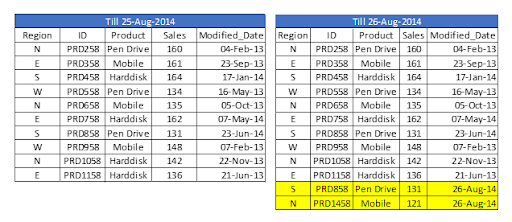
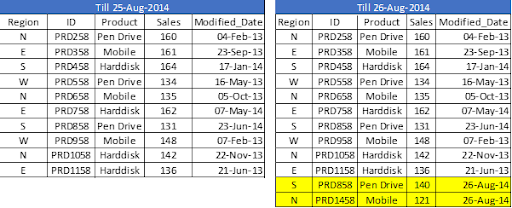
Let’s assume we have sales raw data (in Excel) updated with necessary details about the transaction by modified date if a new sale is registered. We already had a QVD produced before yesterday because we are working on QVDs (25-Aug-14 in this case). Now you can load incremental data (Highlighted in yellow below).
Insert Only

To begin, build a QVD for data up until August 25, 2014. We need to know the date on which QVD was last changed to find new incremental data. The maximum Modified_date in the available QVD file will be used to determine this. As previously stated, It is concluded that “Sales. qvd” is up to date with data until August 25, 2014. The following code will be used to determine the last updated date of “Sales. qvd”:

QVD file

We have loaded the most recent QVD into memory and then identified the most recent modified date by storing the maximum number of “Modified_Date” values. We then save this date in a variable called “Last_Updated_Date” and delete the “Sales” table. I used the Peek() function to store the maximum number of changed dates in the above code. The syntax is as follows:

Peek( FieldName, Row Number, TableName)

lets’s get started with QlikView Tutorial

This function retrieves the contents of a given field from an internal table row. FieldName and TableName must be string values, while Row must be an integer value. The first record is indicated by a 0, the second by a 1, and so on. Negative numbers indicate the order of the table from the top. The last record is indicated by a -1.

We can load incremental records of the data set (Where clause in Load statement) and merge them with available QVD because we know when the records will be considered new records after that date (Look at the snapshot below).

incremental records of the data set

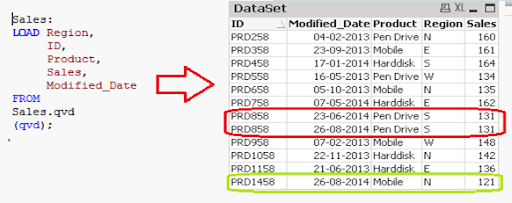
Now, load the most recent QVD (Sales), which will have incremental records.
incremental records

As you can see, two records from August 26, 2014, have been added. However, we’ve also added a duplicate record. Since we haven’t accessed the available records, we may tell that an INSERT is the only approach that will not validate duplicate records.

Furthermore, we are unable to update the value of existing records using this method.

To recap, the steps to load only incremental records to QVD using the INSERT only method are as follows:

1. Recognize and load new records.
2. Combine this data with the QVD file.
3. Replace the old concatenated table with the new QVD file.

2. Insert and Update method:

We can’t search for duplicate records or update existing records, as seen in the previous case. The Insert and Update approach comes in handy here:
Insert and Update method

Assume ID is the primary key, and we should be able to define and distinguish new or updated records based on change date and ID.

To use this process, repeat the steps for identifying new records as in the INSERT the only method. Then, apply the search for duplicated records or change old records’ value when concatenating incremental data with existing records.

incremental data with existing records

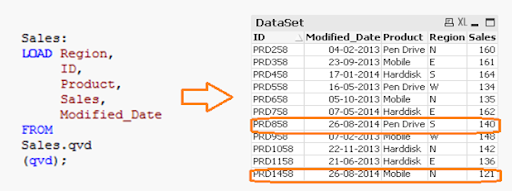
We’ve only loaded records where the Primary Key(ID) is new. The Exists() feature prevents the QVD from loading old records because the Latest version is already in memory, so expired record values are immediately updated.

Both specific records are now available in QVD, along with an updated sales value for ID (PRD858).

feature prevents the QVD

Business Intelligence & Analytics, incremental-load-in-qlikview-description-0, Business Intelligence & Analytics, incremental-load-in-qlikview-description-9

Subscribe to our YouTube channel to get new updates..!

3. INSERT, UPDATE, and DELETE method:

This method’s script is somewhat similar to the INSERT & UPDATE method, except there is an additional step to remove deleted records.

We’ll use an inner join with a concatenated data set (Old+Incremental) to load primary keys for all records in the new data set. Only common records shall be maintained, and unnecessary records will be deleted due to the inner join. Assume that in the previous case, we want to remove a record with the ID PRD1058.

INSERT, UPDATE, and DELETE method

We have a data set of one record added (ID PRD1458), one record modified (ID PRD158), and one record deleted (ID PRD1058).

Qlikview Training Certification

Weekday / Weekend Batches

Advantages of Incremental Load

The following are the benefits of the incremental load.

  • By removing the maximum load of data, it provides a productive load at any time.
  • As opposed to the standard model, it lowers the time it takes to get complete data by 100 times.
  • Incremental load reduces the database’s traffic load.
  • It reduces the workload for data source drivers.
  • The Incremental load minimizes the load on RAM.
  • It functions as a JIT (Just-In-Time) engine in the Data Extraction layer, fetching data in real-time.
  • It makes use of QVD file formatted tables, which significantly compresses the results.

Data Localization

The incremental load uses newly added data and attaches it to the recently incremented table, resulting in data access that is still local to the BI application.

Conclusion

This blog has addressed how incremental loads are faster and more effective than FULL loads for loading data. You should make regular backups of your data as the best idea, and if there are problems with your database server or network, your data can be affected or lost. It would be best to choose which approach is best for you based on your business and application needs. Insert and Update is used in the majority of BFSI applications. In most cases, records are not deleted.

Other Related Articles:


Source link

Leave a Reply

Subscribe to Our Newsletter

Get our latest articles delivered straight to your inbox. No spam, we promise.

Recent Reviews


Looker Data Actions – Table of Content

What is Looker?

Looker is an enterprise for BI- Business Intelligence tool, embedded analytics, and a data application platform. Looker became a part of google cloud in 2020, and from then, Looker provides users to create and share insightful visualisations of the data. It is a web-based or on-premise tool. It collects, visualises, and analyses data, but starting with Looker requires heavy effort as we have to format and model data in a particular way with LookML; it can not process data and create reports independently. Google cloud’s & Looker data analytics platform will provide options to deliver value with robust and new insights.

What are Looker Data Actions?

Looker actions is a data activation tool that analyses data in real-time, and data activation is a method to turn insights into actions. With Looker API calls, users can perform tasks in other tools, and LookML triggers an API call in a particular field. Data activation is generally done by picking up clean and modifying data from the data house and sending it back to business teams like marketing or sales.

Looker actions mainly focus on sending data back to business users, and they get real-time data and act accordingly. Looker tools support work within other tools too. Tools like slack, updating values, warning team members in tools, sending emails, and automating them are the popular ones that are used.

Why Data Actions?

Looker data actions helps in achieving the following things for an ease.They are:

  • One can easily update salesforce records form a single page.
  • You can easily manage the support tickets.
  • You can easily tag an dpritoize the github issues.
  • You can easily monitor the adword spend.
  • Enable the trigger tailored emails on command.

Looker takes an advanced approach to analytics, making it simple to build dependable data applications that enable any user to explore, analyze, and comprehend the data they require.

Data Actions, which are based on our extensive APIs, allow users to perform tasks across nearly any other application from a single Looker interface. Stop forcing your team to switch between tabs and tools to complete routine tasks.

We have the perfect professional Looker Training for you. Enroll now!

Looker Training

  • Master Your Craft
  • Lifetime LMS & Faculty Access
  • 24/7 online expert support
  • Real-world & Project Based Learning

Looker Data Actions:

Using Looker’s standard tools, you can move through your workflow quickly. Looker Actions enables us to create and act on your data. From interacting with your users to revamping records in any of the application domains you use, you can do it all.

Here is the list of looker data actions. They are:

Slack:

Notify your team of changes in activity directly from Slack.By directly injecting data into conversations, you can directly answer important questions.Custom commands that query Looker directly through Slack can be distributed to the rest of your company.

Segment

Looker email cohorts can be easily managed by sending lists to Marketo, Hubspot, Airship, and other services.With the click of a button, you can activate win-back and upsell campaigns.

Twilio:

Ad-hoc sends allow you to quickly send a text message to any phone number in your database from Looker. It doesn’t matter if you’re sharing your knowledge by sending data or simply creating a custom message on the fly.Schedule text messages – sharing insights with customers is an effective way to build relationships. Schedule data delivery to those who require it the most at your preferred interval. Use the Twilio Action to set up text alerts to easily notify customers when something happens, such as a delay in an order or an outage on their instance.

Get ahead in your career by learning looker course through hkrtrainings Looker Training in Noida !

Zapier:

With the Tray Action, users will be able to seamlessly integrate Looker queries into their daily workflows. Upload data to a cloud storage solution, distribute reports via an email list for the team, or even send reports to customers. Use this Action for a variety of scenarios with Zapier’s extensive integration list, the sky’s the limit.

Salesforce:

As you progress through the sales cycle, update the contract value of each new deal.

Twilio:

Use Twilio to send promotions, customer satisfaction surveys, and other notifications to customers.

Exavault:

Schedule the SFTP delivery of Looker dashboards, visualizations, or data to ExaVault. Avoid email size restrictions and ensure that your Looker data reaches the people and systems that need to process and analyze it. The following are some examples of use cases for this Action:

  • Sending daily sales and inventory automatically
  • Reports are automatically sent to colleagues and partners.
  • Schedule data collection to ExaVault.

Amazon Sagemaker:

Using machine learning algorithms on Looker data, use Amazon Sagemaker to predict, forecast, or classify data points.This Action allows you to send the results of a Looker query to XGBoost or Linear Learner to train a model for regression or classification, or to perform predictions on the results of a Looker query using a previously trained model. The Action is made up of three parts:

  • Amazon Sagemaker Train: XGBoost – uses the output of a Looker query to train an ML model with the XGBoost algorithm for regression, binary, or multiclass classification.
  • Amazon Sagemaker Train: Linear Learner – uses the output of a Looker query to train an ML model with the Linear Learner algorithm for regression, binary, or multiclass classification.
  • Amazon Sagemaker Infer : operates a batch inference job against the output of a Looker query using an existing Sagemaker ML model for target prediction.

Click here to get latest Looker interview questions and answers for 2022

HKR Trainings Logo

Subscribe to our YouTube channel to get new updates..!

SendGrid:

  • Ad-hoc sends allow you to quickly send an email from Looker to any email address in your database. Whether it’s sharing your knowledge by sending data or simply creating a custom message on the fly.
  • Schedule emails – sharing insights with customers is an effective way to build relationships. Deliver scheduled data to those who need it the most at the interval you specify.
  • Email alerts – using the SendGrid Action to easily notify customers when something happens, whether it’s a delay in an order or an outage on their instance.

High touch :

Reverse ETL has features lacking in Looker Actions and reduces the barrier between them. High touch is one of the alternatives to Data Actions, and reverse ETL copy’s data from analytics platforms or data warehouses to operational systems of record. Hightouch clears the problem by leveraging Reverse ETL, which transforms data from the data warehouse and synchronises it back to the native tools of businesses like Marketo, amplitude, Hubspot, iterable, salesforce, Google sheets, etc.

With hightouch, users can map attributes like purchases and emails to any field. It saves money and time by synchronising data at specific locations and ensures that no duplicate data is present. In Looker Actions, there is a limit on updating end tools, but in Hightouch, we are free to update any field and can send data in batches, unlike in looker Actions. High touch directly integrates with LookML and Looker, and it benefits companies to connect directly with Looker and view their reports.

Auger.AI:

This Action also reduces the workload of each data scientist because anyone in a company can run and deploy a predictive model with a few clicks. To create an accurate predictive model, use this Action with any labeled dataset, such as:

  • Forecast inventory to better balance supply and demand Predict equipment failures to perform preventative maintenance
  • Estimate headcount and employee turnover, as well as customer churn.
  • Determine the credit risk of customers for loans and financial transactions.

If you want to Explore more about Looker? then read our updated article – Looker Tutorial

DataRobot:

This Action also reduces the workload of each data scientist because anyone in an organization can run and deploy a predictive model with a few clicks. Utilize this Action to:

  • Determine which customers are likely to be repeat buyers.
  • Learn what user characteristics make certain account profiles a churn risk.
  • Investigate which factors, such as region and age, lead to higher sales.

Airtable

Looker Airtable Action transfers data from Looker to your Airtable spreadsheets. Using this Action, you can create and update Airtable spreadsheets for a variety of purposes, including:

  • Developing and maintaining lists of customer segments.
  • Every order and its details should be listed on your eCommerce site on a daily basis.
  • Keeping track of any backend infrastructure issues as they arise.
  • Keeping a list of customers who have been affected by high-severity issues.

 What are the problems with Looker Data Actions?

Looker’s premium features created a revolution in Business Intelligence tools and have provided many solutions in BI. Every software has its drawbacks, and Looker is not exceptional, but its advantages make it one of the best tools in BI and have a strong premise.

Large data volumes can not be handled upto the mark by Looker Actions. Data differencing or diffing will not take place in Looker Actions. Diffing is a method used to check if there are any changes in data before sending it to another system or application. Looker’s Data modelling, unique coding language (Look ML), and data matching capabilities are constrained to use. Companies have to duplicate their data into LookML, and companies with native tools or current data models cannot transform their data.

Many companies rely on SQL to modify their data. LookML is partially built on SQL, and users are needed to learn an entirely new language. It is expensive and time-consuming for businesses that are not yet using Looker. There are also some effective and easy tools to transform data ex. DBT, which is fully developed on SQL and automatically updates models. Developers and engineers can quickly transform, orchestrate and model their data.

Developers and engineers can use it to orchestrate, transform, and model their dataLooker Actions lack batching capacity for many destinations. Looker Action will send all the records irrespective of their duplicates. If a massive amount of data is to transform, it may fail because of the rate limit issue.

Looker Training

Weekday / Weekend Batches

Conclusion

In the above blog post all the looker data actions are explained, you can select your interested action to perform  the business operations. Had any doubts, please drop your queries in the comments section, our experts will get back to you shortly.

Other Related Articles: 


Source link