Sapphire Preferred benefits you might not know about in 2026


The Chase Sapphire Preferred® Card (see rates and fees) is one of the most popular travel rewards cards out there — and for good reason.

With generous earning rates on dining, vacation homes, gas and electric vehicle charging, and travel, plus several other well-known benefits, the Chase Sapphire Preferred is a favorite among points and miles beginners and experts alike.

Adding even more value to the card, the Sapphire Preferred is currently offering a welcome offer of 100,000 Ultimate Rewards points, earned after you spend $5,000 on purchases in the first three months from account opening — all for a modest $95 annual fee. According to TPG’s June 2026 valuations, this offer is worth a whopping $2,050.

But what are some of the lesser-known CSP benefits? Let’s take a look.

Related: Value simplicity? Why the Chase Sapphire Preferred is now the only card you need

Complimentary DoorDash DashPass

Through Chase’s partnership with DoorDash, Chase Sapphire Preferred Card holders can receive complimentary DashPass, DoorDash’s subscription service. DashPass includes $0 delivery fees and reduced service fees on eligible orders over $12.

Cardmembers can also receive up to $10 off of groceries, daily essentials and more each month when purchased through DoorDash.

doordash scooter parked on street
DOORDASH

DashPass typically costs $9.99 a month or $96 annually, meaning this benefit alone can help offset the card’s $95 annual fee. Chase’s DashPass partnership is currently scheduled to run through Dec. 31, 2027, though eligibility and activation requirements apply.

Note that once enrolled in DashPass, you must use your Chase Sapphire card for payment at checkout for DashPass-eligible orders to receive DashPass benefits.

Reward your inbox with the TPG Daily newsletter

Join over 700,000 readers for breaking news, in-depth guides and exclusive deals from TPG’s experts

Related: Your complete guide to Chase and DoorDash

Trip cancellation/trip interruption insurance

If your trip is cut short or interrupted by sickness, severe weather or other covered situations (deemed so by the benefit administrator), you can be reimbursed up to $10,000 per covered traveler and $20,000 per trip for prepaid, nonrefundable travel expenses, such as plane tickets, hotels and tours.

NARVIKK/GETTY IMAGES

This coverage is available to you and your immediate family members traveling with you when you pay for the trip expenses with your Chase Sapphire Preferred.

Related: Your guide to Chase’s trip insurance coverage

Baggage delay insurance

If your checked bag is delayed by more than six hours, you can be reimbursed up to $100 per day for up to five days for essential purchases like toiletries and clothing.

For example, if your luggage doesn’t arrive at your destination, this benefit can help cover the cost of necessities such as clothing, shoes and toiletries while you wait for your bag to be delivered.

CHRISTINA HOUSE/GETTY IMAGES

To file a claim, you’ll generally need documentation from the airline confirming the baggage delay, receipts for eligible purchases and proof that the trip was paid for with the Sapphire Preferred. Even award travelers may be eligible for coverage if qualifying travel expenses, such as taxes and fees, were charged to the card.

Along these same lines, you may be eligible for up to $3,000 in lost luggage coverage. However, this benefit requires you to produce almost all your original receipts for items costing more than $25, making it much harder to get the full value.

Related: Should you get travel insurance if you have credit card protection?

Trip delay reimbursement

Travel delays can be frustrating — and expensive — especially when they result in an unexpected overnight stay. Expenses such as hotel accommodations, meals and transportation can quickly add up when a flight is canceled or significantly delayed.

BEN ZUCKER/THE POINTS GUY

If your common carrier travel is delayed more than 12 hours or requires an overnight stay, the Sapphire Preferred covers you and your family for up to $500 per covered traveler for nonreimbursed expenses, such as meals and lodging.

This benefit can help offset the cost of unexpected travel disruptions, allowing travelers to focus on getting to their destination rather than worrying about additional out-of-pocket expenses.

Related: Flight delayed? 4 things to do to get trip delay reimbursement from your credit card

Primary car rental insurance

While most (although not all) credit cards offer car rental insurance, you’ll notice a difference in the insurance being offered. Several credit cards offer secondary car rental insurance, and some even charge a fee, but others offer better coverage through primary car rental insurance.

The Sapphire Preferred falls into the latter category, offering primary car rental coverage for no added fee as one of its benefits. This means rentals of up to 31 consecutive days paid for with the card are covered for losses, including physical damage and theft of the rental vehicle, valid loss-of-use charges assessed by the rental company and reasonable and customary towing charges related to a covered loss.

Additionally, with this particular card, your coverage is up to $60,000 for most rental vehicles with an MSRP of $125,000 or less.

HERTZ location NYC
CINDY ORD/GETTY IMAGES

Using a credit card that offers this type of coverage means you can decline any rental car agency insurance policy — which will save you money on your rental — and not have to file a claim with your auto insurance policy.

While this is a benefit you hope you never have to use, it can sure come in handy in an unfortunate event. You’ll also earn at least 2 points per dollar spent on all travel expenses, including car rentals, so you’ll still earn bonus points by paying for your car rental with the Sapphire Preferred.

Related: Credit card rental car insurance: Best cards and how it works

Purchase protection

This benefit covers eligible personal property (purchased using your Sapphire Preferred) in the event of theft, damage or involuntary and accidental parting with property. If something happens to an item within 120 days of purchase, it will be repaired or replaced for a value of up to $500.

SASUN BUGHDARYAN/GETTY IMAGES

There’s a lengthy list of excluded items, including animals, antiques, anything with an engine, perishable items and used and preowned items.

Plenty of other cards offer similar benefits (such as American Express’ purchase protection), but it’s good to know Chase is keeping up with the competition.

Related: The best credit cards with price protection

Emergency evacuation and transportation coverage

One of the newest Chase Sapphire Preferred benefits is emergency evacuation and transportation coverage. If a covered traveler becomes sick or injured during a trip more than 100 miles from home and requires emergency evacuation, the benefit can provide up to $100,000 in covered medical services and transportation expenses.

Closeup of flying red helicopter in contrast with blue sky
For life-threatening emergencies, a medical helicopter may evacuate a patient from a cruise ship. IMAGINEWITHME/GETTY IMAGES

While it’s not a perk most travelers ever expect to use, emergency evacuation costs can quickly reach tens of thousands of dollars, making this one of the card’s most valuable built-in protections.

Related: Chase Sapphire Preferred’s new benefits are live — 5 things to do now

Extended warranty protection

This benefit can really save you money. The Chase Sapphire Preferred extends eligible manufacturers’ warranties of three years or less by an additional year. Boats, automobiles, aircraft, medical equipment, leased or preowned items, and items purchased for commercial use are generally excluded.

MASKOT/GETTY IMAGES

Extended warranty protection can be especially valuable on expensive purchases such as electronics, appliances and other household items. If an eligible item experiences a covered issue after the manufacturer’s warranty expires but during the extended warranty period, cardholders may be able to receive reimbursement for repair costs or, in some cases, the original purchase price.

To file a claim, you’ll typically need documentation such as the original purchase receipt, warranty information and, when applicable, a repair estimate or statement from the manufacturer confirming the item is no longer covered under the original warranty.

Related: The best credit cards for extended warranties

Bottom line

The Chase Sapphire Preferred is known for its strong rewards rates and valuable welcome offer, but its built-in protections and lesser-known benefits can provide just as much value over time.

From baggage delay insurance and trip delay reimbursement to primary rental car coverage and extended warranty protection, these perks can help protect both your travels and your purchases. As always, be sure to review the terms and conditions of each benefit and save any documentation that may be needed if you have to file a claim.

Earning valuable Chase Ultimate Rewards points is one of the card’s biggest draws, but its built-in protections can be just as useful when plans change or purchases don’t go as expected.


Apply here: Chase Sapphire Preferred Card


Source link

Leave a Reply

Subscribe to Our Newsletter

Get our latest articles delivered straight to your inbox. No spam, we promise.

Recent Reviews


How to open the Power BI service?

The following steps need to be followed to open the Power BI service.

Assuming the left route sheet is imploded, select the nav sheet symbol to grow it.

1. Select Learn and look down to Sample reports. Here is some example information to use for our visit through the Power BI administration. There is a wide range of test information given to you to investigate. This time, we’ll utilize the information about the open-door examination.

2. Select the sample to open it. The Opportunity examination test report begins in the Power BI administration.

3. The Power BI administration introduces the example in your My work area. My work area is your private sandbox for learning and testing. No one but you can see the substance in My work area. Select My work area to see insights concerning this example report.

The example incorporates one report and one dataset. Regularly, business clients will not get datasets, yet this example is intended for all clients, and it includes one.

As a business client, most happy that you are imparted will exclude direct admittance to the hidden datasets. Since the Power BI tests are made for all Power BI clients, datasets are incorporated.

Become a Power BI Certified professional by learning this HKR Power BI Training !

View content (dashboards and reports) :

Content is coordinated inside the setting of a work area. Each business client has no less than one work area, and it’s called My work area. At the point when originator partners share satisfaction with you, you might wind up with extra work areas. For instance, assuming an originator doles out your access consents to one of their work areas, that work area will appear on your Power BI site.

My work area stores all the substances that you own and make. Consider it your sandbox or workspace for your meaning. My work area stays void for some Power BI business clients because your occupation doesn’t include making new happy. Business clients, by definition, consume information created by others and utilize that information to pursue business choices. Assuming you observe that you are making content, consider perusing the Power BI articles for report makers.

A work area is significantly more than an essential posting of content. You can gain some significant experience with the work area’s dashboards and reports on this page.

In this segment of the instructional exercise, we’ll put the Opportunity examination test to the side for some time and take a gander at a work area with both a dashboard and a report. On the off chance that you might want to track, look down to the lower-left corner of the Power BI administration and select Get information > Samples > Sales and Marketing Sample > Connect. Resume My Work area to see your new satisfaction.

A work area is one of the ways into your information. You can open a dashboard or report from a work area by choosing it from the rundown. You can most love a dashboard or report by floating and selecting the star symbol. Assuming that the originator gave you sharing authorizations, you can share from here too.

We should begin by opening a dashboard.

1. Select the name of the dashboard to open it.

2. The dashboard opens in the Power BI administration. Dashboards are something that separates the Power BI administration from Power BI Desktop. Find out about dashboards.

3. The moves you can make on a dashboard are shown in the top menu bar. Select More activities (…) to see the total rundown.

4. The visuals on the dashboard are organized as tiles. Float over a dashboard tile and select More choices (…) to see your options for associating with that tile.

5. Select a dashboard tile to open the report utilized to make that tile. The report extends to the page containing the visual on the tile. Here, I’ve chosen the dashboard tile with the treemap. The Power BI administration opens the YTD Category report page.

Reports have a few areas. On the left is the interactive rundown of report pages. Across the top is the menu bar containing moves you can make with the report. The choices accessible will rely upon the job and authorization the reported architect allocated to you. On the right side is the Filters sheet. Also, the middle material contains the actual report. Like the dashboard, there are moves that you can make for the whole piece, for unique visuals and a solitary report page.

Power BI Training

  • Master Your Craft
  • Lifetime LMS & Faculty Access
  • 24/7 online expert support
  • Real-world & Project Based Learning

Using the left navigation pane :

The nav sheet will be more valuable as associates share satisfaction with you. In this part of the instructional exercise, we’ll take a gander at a dashboard and report that have a place with a Power BI business client who has a ton of shared content.

1. Home is the default greeting page when you sign in to the Power BI administration. Home is an excellent leaping-off point and substitute method for exploring your substance. Content on Home is coordinated in a few distinct ways: by suggested, top choices, later, and applications. The Getting begun area is handy for new clients, with tabs containing tests, documentation, and preparing content. Select a thing to open it.

Home unites the looking and arranging instruments, the nav sheet, and material with cards that you can choose to open your dashboards, reports, and applications. You probably won’t have many cards on your Home material from the outset. However, that will change as you utilize Power BI with your partners. Your Home material likewise refreshes with suggested content and learning assets.

2. Favorites and Recent both have bolted. Select a bolt to see the leading five top picks or five most recently visited content rapidly from the flyout, and select a substance to open it.

Select the word or symbol to see your complete rundown of top choices or recent ones. These substance records give insights into the reports, applications, and dashboards.

See Recents in Power BI and Favorites in Power BI to find out additional.

3. Select Apps to show all applications that have been imparted to you or introduced. Also, select Shared with me to see dashboards and reports imparted to you. These substance regions will be unfilled since you’re simply beginning with the Power BI administration.

Top 50 frequently asked Power BI Interview Questions !

HKR Trainings Logo

Subscribe to our YouTube channel to get new updates..!

Search and sort content :

Whenever you’re new to the Power BI administration, you’ll have a couple of bits of content. As associates start offering a range to you and you start downloading applications, you might wind up with extensive arrangements of content. That is the point where you’ll see looking and arranging incredibly accommodating.

Search is accessible from pretty much all aspects of the Power BI administration. Search for the hunt box or search amplifying glass symbol.

In the Search field, type all or part of the name of a dashboard, report, exercise manual, application, or proprietor. Power BI looks through the entirety of your substance.

There are likewise numerous ways of arranging content. Drift over segment headers and search for bolts showing that the section can be set. Not everything segments can be arranged.

Or on the other hand, search for the Search Filters close to the upper right corner of your substance records. Observe content rapidly by sifting for things like kind of satisfied or proprietor.

Filters

Steps to Create a Quick Report

In the Power BI service’s navigation pane, click the Create button to open a page where you can choose your data source. It’s also available from the New report button on the Home page.

create-entry-point

We currently only support creating a report based on an existing dataset or directly typing or pasting data into a table. Other sources, such as uploading an Excel file, will become available over time.

create-source-options

If you choose to type or paste data, you are presented with a grid into which you can begin typing. You can also use Ctrl + V or the context menu to paste data.

create-enter-data-window

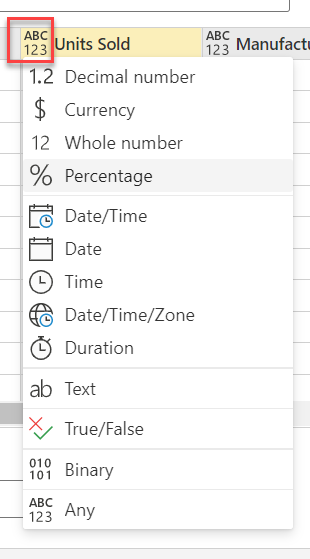
Columns can be added and removed using the context menu. Select Use first row as headers if your pasted data contains a header row to promote the first row to the header row automatically. Power BI detects data types automatically, but you can also set them manually. Next to the column name, click the Data type button.

change-data-type

Power BI creates a new dataset for you and autogenerates a summarised view of your data as you go through the creation process. These automatically generated visuals get you from raw data to insights faster than ever before.

select-data-fields-generate-new-visuals

Altering the data in the report is also simple. To add or remove fields from the information, use the Your data pane. Select and deselect areas to change what you want to measure and analyze. Power BI generates meaningful charts based on your field selection.

Want to know more about Power BI,visit here Power BI Tutorial !

Power BI Training

Weekday / Weekend Batches

Conclusion :

Power BI documentation highlights some crucial steps in the complete tutorial or learning of power BI. These steps are straightforward to follow, and Microsoft has released several e-books to document them. If you have any queries, please write back to us.

Related Article :


Source link