How I earned 20,000 American Airlines Loyalty Points with 1 flight


In my never-ending pursuit to retain my American Airlines elite status, I am always on the lookout for ways to earn more Loyalty Points. I have been a loyalty member since 1994 (back when it was US Airways) and have held Gold, Platinum and Executive Platinum statuses over the years.

I prefer the American Airlines AAdvantage loyalty program over other U.S. carriers because it remains straightforward, using Loyalty Points as its primary currency for elite status, while other airlines use a more complicated formula.

At the end of 2025, American Airlines launched a mid-tier cobrand credit card with Citibank, the Citi® / AAdvantage® Globe™ Mastercard® (see rates and fees), with a $350 annual fee and a few unique perks (more on that shortly).

It fits nicely between the Citi® / AAdvantage® Platinum Select® World Elite Mastercard® with its $99 annual fee ($0 intro annual fee for the first year) and the premium Citi® / AAdvantage® Executive World Elite Mastercard® (see rates and fees) with its $595 annual fee.

The information for the Citi / AAdvantage Platinum Select has been collected independently by The Points Guy. The card details on this page have not been reviewed or provided by the card issuer.

My quest for elite status

I applied for the Citi / AAdvantage Globe Mastercard in December when it had a limited-time welcome offer to earn 90,000 bonus miles after spending $5,000 on purchases in the first four months from account opening.

That offer is back, but it ends soon.

I quickly got to work taking advantage of the perks and benefits before Dec. 31, when some annual credits reset, and before the end of February, when the elite status qualification year resets.

Even with the card’s help (and my late start), I was only able to qualify for AAdvantage Platinum status this year (so long AAdvantage Executive Platinum status and easier upgrades). But, so far this year, I booked one international trip using the card and I was able to earn over 20,000 Loyalty Points toward 2027 status (that’s a little more than halfway to Gold elite status which requires 40,000 Loyalty Points) because not only does the card earn at a higher rate than my AAdvantage Platinum Select card (3 miles per dollar on American Airlines flights versus 2 miles), but the Flight Streak bonus after four qualifying flights kicked in. That gave me an additional 5,000 Loyalty Points.

Reward your inbox with the TPG Daily newsletter

Join over 700,000 readers for breaking news, in-depth guides and exclusive deals from TPG’s experts

What is a Flight Streak bonus?

The Flight Streak bonus is unique to the Citi / AAdvantage Globe Mastercard and has to be one of my favorite credit card perks, not only for its elite status-boosting capabilities, but also because it’s automatic and so easy for cardholders to earn. You can earn up to three Flight Streaks per qualifying year after flying four flights. Each Flight Streak is worth 5,000 Loyalty Points for a total of 15,000 possible extra Loyalty Points each year.

I had four flights alone (two segments each way) during my round-trip international flight to Africa in May, which unlocked my first Flight Streak of 2026.

How 1 round-trip flight earned 20,000 Loyalty Points

Here’s the breakdown of how I racked up my Loyalty Point earnings for this one trip.

  • I earned 1,863 Loyalty Points for the round-trip economy ticket that cost $1,863.03 when I used my Citi / AAdvantage Globe Mastercard for the purchase. (Because the card earns 3 miles per dollar on eligible American Airlines purchases, I also earned 3,726 bonus miles.)
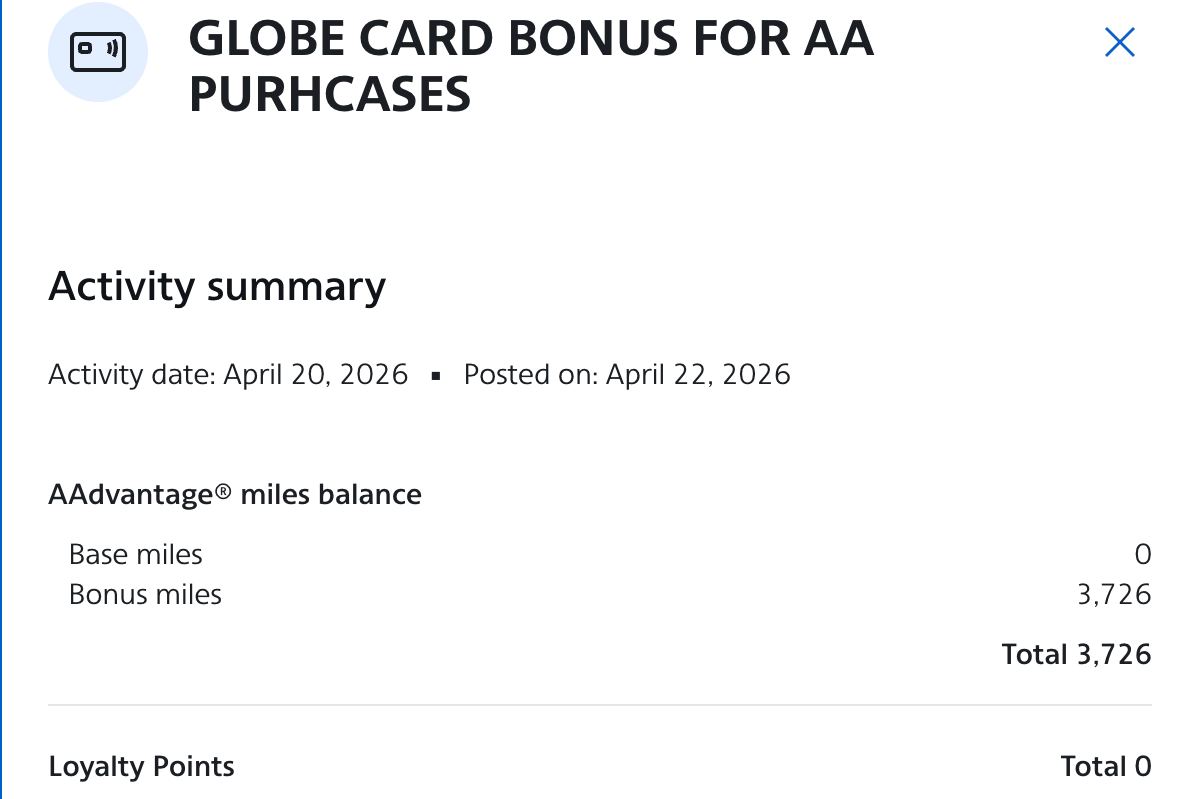
Screenshot showing bonus miles for AA flight purchase with Globe Mastercard
  • The miles flown earned me an additional 12,504 Loyalty Points, which were posted to my account after the last flight.
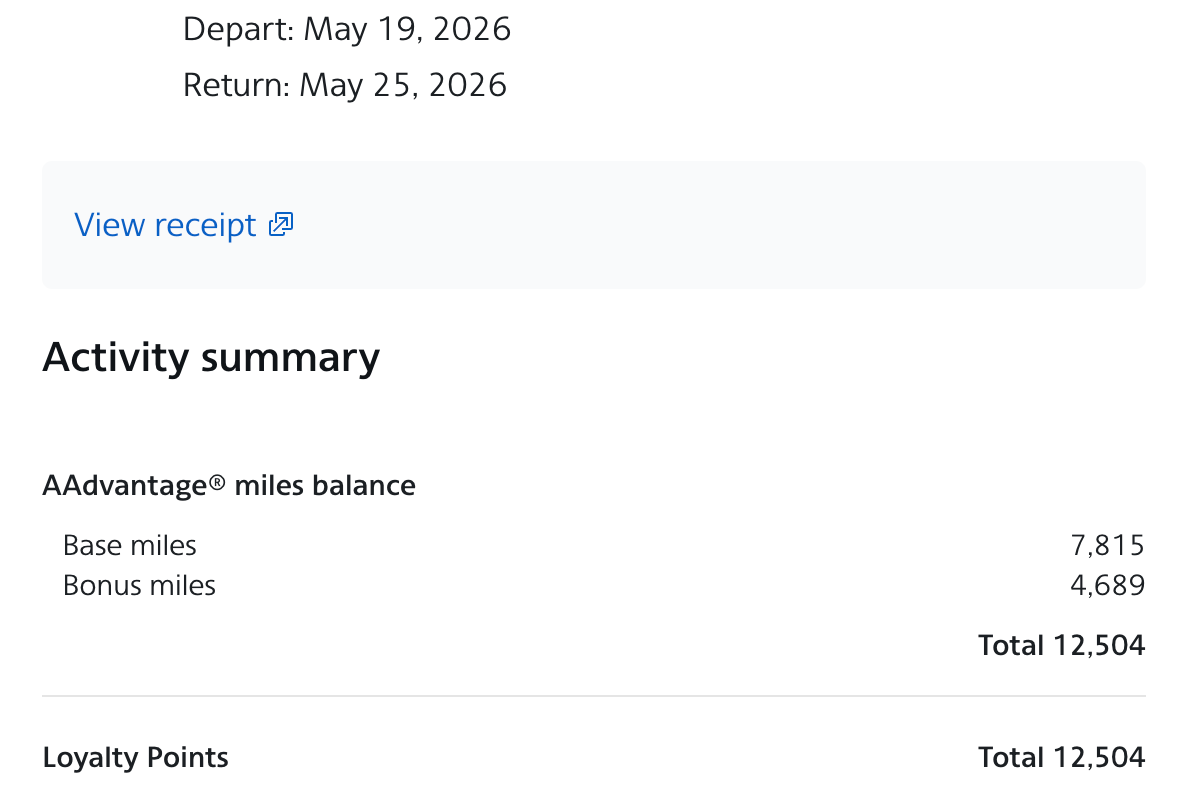
Screenshot showing miles flown from PHL to LHR to ACC on American Airlines.
  • The round-trip flight was four flight segments: I flew from Philadelphia International Airport (PHL) to Accra International Airport (ACC) with a stopover at London’s Heathrow Airport (LHR) and then back the same way. Those four segments counted as one Flight Streak, earning an additional 5,000 Loyalty Points.
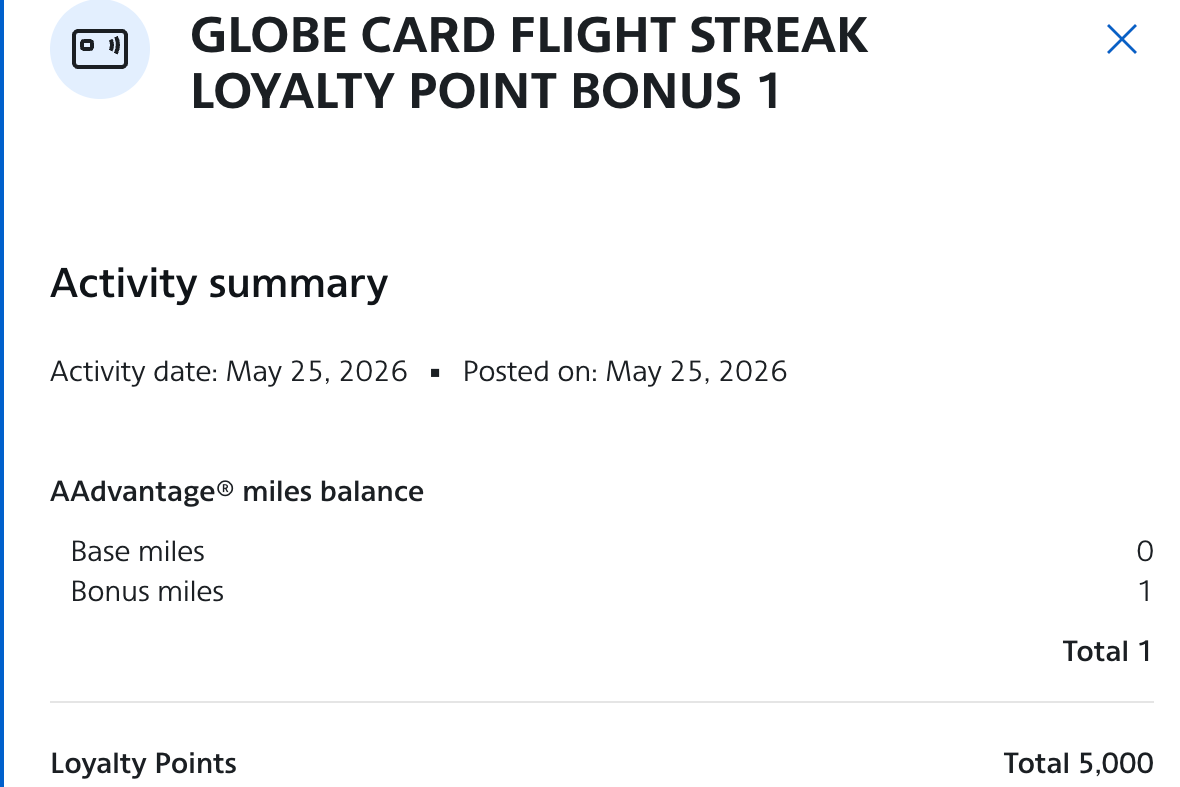
Screenshot showing AA Globe card flight streak bonus
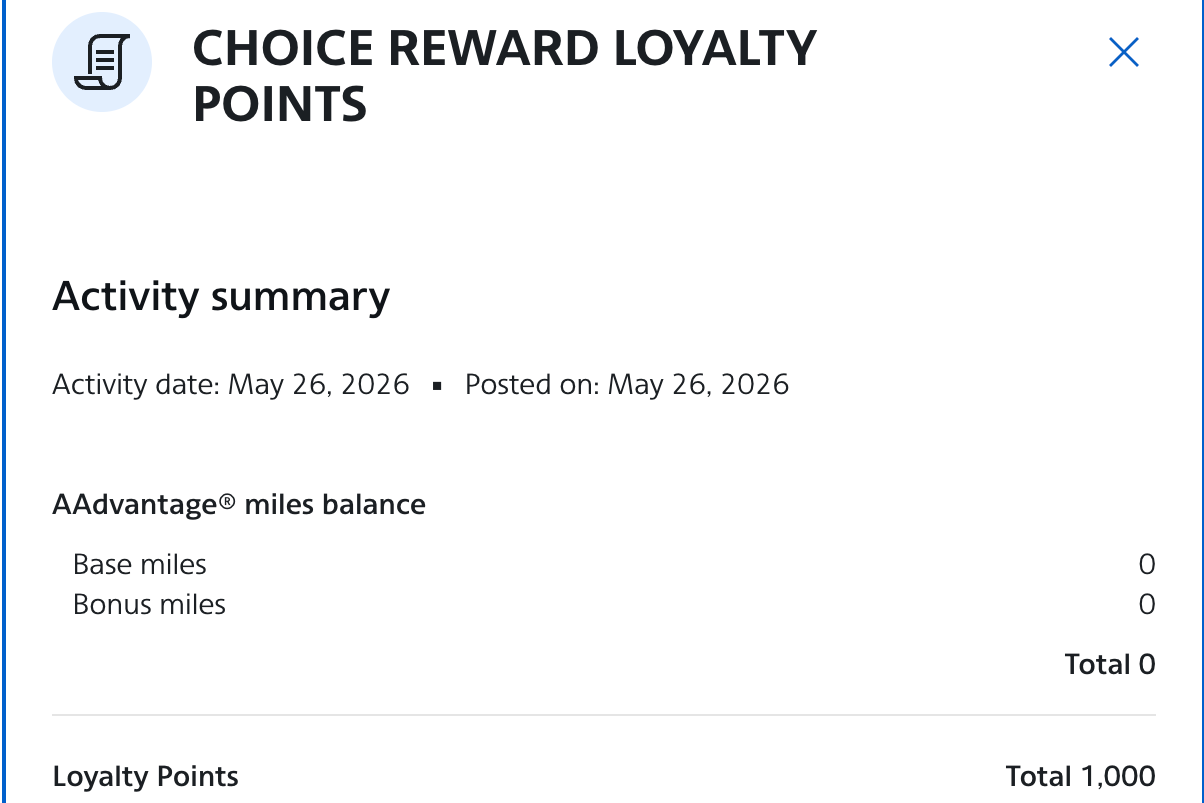
Screenshot showing AA loyalty choice reward

That brings my grand total of Loyalty Points to 20,367 for one flight booked using my AAdvantage Globe Mastercard.

Bottom line

I love using my Citi / AAdvantage Globe Mastercard to maximize my American Airlines purchases for Loyalty Points toward elite status, and I also earn miles I can redeem for more flights. Next, I plan to follow in my colleague Eric Rosen’s footsteps and book some AAdvantage Hotel stays to increase my earnings.

The card currently has a limited-time offer that is ending soon. So if you are thinking of getting the card — don’t delay!


Apply here: Citi / AAdvantage Globe Mastercard


Related reading:


Source link

Leave a Reply

Subscribe to Our Newsletter

Get our latest articles delivered straight to your inbox. No spam, we promise.

Recent Reviews


What is Azure Application Insights?

Application Insights is an Application Performance Management (APM) service for developers to monitor live applications. The anomalies in performance are automatically detected. It also includes powerful analytics tools that help in diagnosing issues. The insights help to understand how users are interacting with the application. With the Application Insights, developers can continuously improve performance and usability.

Application Insights works on applications built with various languages like .NET, Node.js, Java, and Python. The applications can be hosted on-premise or on the cloud, or hybrid. It can integrate with DevOps processes. It also integrates with Visual Studio App Center and can monitor telemetry from mobile apps.

All the data in the Application insights service can be exported to a database or any external tools. Application Insights SDKs are available for web services hosted in ASP.NET servers, Java EE, Azure. They are also available for web clients, desktop apps, mobile devices like Windows Phone, iOS, and Android.

How does it Work?

To monitor your application, all you have to do is enable the Application Insights from the Azure portal or install a small instrumentation package (SDK) in your application. The application will be monitored by this instrumentation package. It will use a unique GUID, which is also known as an Instrumentation Key, to direct the telemetry data to an Application Insights resource. 

IMAGE

Since we install the instrumentation package in the application, it doesn’t have to be hosted on Azure. The application can run anywhere. We can instrument any background components of an application and the JavaScript in the web pages too. Application Insights can also collect telemetry data from Azure diagnostics, Docker logs, or performance counters when they are integrated into Azure Monitor. 

Interested in learning Azure Course ? Enroll in our Microsoft Azure Certification Training program now!

What does the Application Insights Monitor?

Application Insights focuses on the performance of an application to ease the work of the development team. It monitors the following constraints,

  • Request rates, response times, and failure rates – It tells us which pages are being visited the most and at what times of the day.
  • Dependency rates, response times, and failure rates – It shows any external sources that might slow the application down.
  • Exceptions – It reports both server and browser exceptions. It gives an aggregate statistics of all the instances. We can further drill down to get statistics of individual instances.
  • It will also monitor the page views and load performance collected from the user’s browser.
  • It monitors AJAX calls from web pages, users, and session counts.
  • It will show the performance of memory, CPU, and network usage.
  • We can get host diagnostics from Docker or Azure.
  • We can correlate events with requests using the diagnostic trace logs of the application.
  • It also shows the custom events or metrics that the developer includes in the code.

Uses of Application Insights

Once we install Application Insights for an application, we can get the following benefits.

  • The load, responsiveness, and the performance of page loads, dependencies, AJAX calls can be known through an intuitive application dashboard.
  • We can identify the slowest requests and determine the requests that are failing often.
  • When a new release of an application is deployed, the statistics of it can be seen through a live stream.
  • If users are affected, we can get an alert so we can check how many users are being affected.
  • If there are any request failures, we can correlate them with the exceptions, dependency calls, and traces.
  • When a new feature of the app has to be deployed, we can measure the effectiveness of it.

Microsoft Azure Certification Training

  • Master Your Craft
  • Lifetime LMS & Faculty Access
  • 24/7 online expert support
  • Real-world & Project Based Learning

Limitations of Azure Application Insights

Like any other solution, Application Insights has some limitations.

  • If your code uses dynamic SQL, the Application Insights collects the full query into Azure, which might result in uploading sensitive data contained in the query.
  • The reports show up to the server and database level. But it cannot monitor individual SQL queries on how long they are being executed.
  • When you add Application Insights and deploy the application to Azure, it won’t collect the SQL queries unless a site extension is installed for it.
  • It cannot collect first chance exceptions.
  • It cannot show common exceptions across all applications.
  • If you are using ASP.NET for your application, Application Insights does not support asynchronous HttpClient calls.
  • There is no alert severity specified.
  • We cannot configure alerts to go to specific distribution lists based on severity.

Data collection, retention, and storage of Application Insights

When Azure Application Insights SDK is installed in your application, it starts sending telemetry data from your app to the cloud. Each SDK uses different techniques to collect telemetry data from different kinds of applications. You can also include custom telemetry to send your data. Azure runs some processes called availability tests to web applications regularly. The results from the test will be sent back to the Application Insights service.

You can test which data is being sent by the SDK. You can view the data in the output windows of the IDE and browser while testing the application. The data in the Application Insights service can retain up to 730 days. Users can set up a retention duration. The debug snapshots are stored for 15 days in the Application Insights service.

If the SDK is not able to reach the endpoint, the telemetry channels store the data in local storage temporarily by creating temp files. Once the issue is resolved, the new data, along with the persisted data, will be sent to Azure by the telemetry channel.

Do you want to collaborate in the Application Packaging and Virtualization world? Begin by learning Application Packaging and Virtualization Training!

HKR Trainings Logo

Subscribe to our YouTube channel to get new updates..!

Enable Application Insights for your Application

Create Application Insights Service

Navigate to the Azure portal at https://portal.azure.com/ and login to your account. Click on ‘+ New’ from the left side menu. Search for ‘Application Insights’ in the search bar. You can see the service in the search results. Click on it to open the service and click on ‘Create’. Give a name for your service, select your application type from the drop-down menu, and select your subscription. Choose ‘Create new’ for the ‘Resource Group’ field and give the same name that you gave for the service. Select a location and click on ‘Create’.

                                         Learn new & advanced  Architect solutions in hkr’s  Azure Architect solutions course

Go to the newly created resource group and click on ‘app insights resource’. You will get the details of the resource. Copy the ‘Instrumentation Key’ from the page.

Add the Instrumentation key to the Application

Open Visual Studio and navigate to the appsettings.json file of your application. Add the below code in the file.

"Application Insights": {
"InstrumentationKey": "Your_instrumentation_key"
}

Replace the ‘Your_instrumentation_key’ with the one you copied before. It appears as a NuGet package. Go to the package.json file in your application, and you can see the Application Insights package added. You have successfully configured Application Insights to your application.

View the telemetry data

Launch the application from Visual Studio and play around with it. Stop the application. Right-click on the application, select ‘Application Insights’, and select the ‘Search Debug Session Telemetry’ option. You can see the telemetry data captured by your application. You can also see the details in Application Insights. Right-click on the application, select ‘Application Insights’, and select the ‘Open Application Insights Portal’ option.

The Application Insights portal opens up, and you can see the telemetry data collected from your application. You can drill down to see the page load metrics and more.

Microsoft Azure Certification Training

Weekday / Weekend Batches

Conclusion

Application Insights is a simple way for developers to detect and diagnose application performance issues of live applications. The SDKs vary for different applications and different platforms. Each SDK component sends different data. So choose one that is suitable for your application and install it. You can also include code in your application to send unhandled exceptions. The Azure Application Insights has a built-in map feature that can be used to identify the performance of dependencies.


Source link