

Pros
- Exceptional 1080p performance
- Good upgradeability
- Convenient air filtration
- Clean aesthetic and cable management
Cons
- Premium pricing
- Needs a lot of space
- Included storage is just so-so
The Origin PC Millennium makes some curious choices, but its strong foundation and customization options let you make smarter ones. The giant gaming desktop starts at $3,139, but as our test unit was configured, it’s not a very smart buy against RTX 5080-powered machines like the Starforge Explorer III Pro or Lenovo Legion Tower 7 Gen 10. It’s also dramatically more expensive than the Lenovo Legion Tower 5 Gen 10 without providing much extra performance.
Make no mistake, it’s a strong machine, but spending close to $4,000 for decent 1080p gaming, lagging 4K performance is probably not a compelling choice. Still, there’s room to improve here with different options. That may not get the Millennium deep enough into value territory to compete against the Lenovo Legion Tower 5 Gen 10, but the Origin is a solid, well-built (if massive) PC that should be a lot easier to upgrade than any Lenovo desktop. That’s a long-term value that can add up. With PC component pricing as messy as it is lately, the Origin PC Millennium at least manages to stack up well against the price of building a similar machine yourself.
Origin PC Millennium
| Price as reviewed | $4,196 |
|---|---|
| Size | 100.2 liter (21.5 x 12.5 x 22.8 in/546 x 318 x 578 mm), 51lbs |
| Motherboard | Gigabyte X870E AORUS ELITE Wi-Fi |
| CPU | 4.7GHz AMD Ryzen 7 9800X3D |
| Memory | 32GB DDR5-6000 |
| Graphics | Nvidia GeForce RTX 5070 Ti |
| Storage | 2TB NVMe M.2 PCIe Gen 4 SSD (boot) (Corsair MP600 Core XT R2) |
| Networking | 2.5GbE, Realtek Wi-Fi 7 RTL8922AE 802.1be, Bluetooth 5.4 |
| Connections | USB4 Type-C (x2 rear), USB 3.2 Gen 2 Type-A (x2 rear), USB 3.2 Gen 1 Type-C (x1 front), USB 3.2 Gen 1 Type-A (x4 front, x4 rear), USB 2.0 (x4 rear), 3.5mm audio connector (x1 front, x2 rear), SPDIF (x1 rear), 2.5Gb Ethernet, HDMI 2.1 (x1 on motherboard, x1 on GPU), DisplayPort 2.1b (x3 on GPU) |
| Operating system | Windows 11 Home |
Our test unit came with the configuration above, notably including a motherboard that’s not offered in Origin PC’s configuration choices any longer, currently replaced by an Asus ROG motherboard. At the time of writing, this configuration had a listed price of $4,196, but an ongoing discount until July 31 lowers that to $3,693. That may be a critical discount, as the Origin PC Millennium otherwise costs nearly as much as many RTX 5080-packed systems, like the Lenovo Legion T7 34IAS10 or Starforge Explorer III Pro, while only carrying an RTX 5070 Ti itself. Also, given the price fluctuations caused by RAM, SSD and GPU shortages, this price could go up (then again, so will the others).
So. Many. Fans.
The Millennium starts with a base price of $3,139 (though currently on sale for $2,762). This gets you an Intel Core Ultra 5 260K, an MSI Z890-P Wi-Fi motherboard, 32GB (2×16) of Crucial Pro DDR5-6400 memory, an RTX 5060 8GB, Windows 11 Home, a 1TB Corsair MP600 Core XT R2 drive and a Corsair 850x Shift Series Plus Gold power supply. Technically, you can knock the price down a little by leaving out a graphics card entirely, but that would be financially foolish since you’d be giving up an RTX 5060 ($299) just to save $88.
Origin PC offers plenty of customization. You get a choice of both Intel Core Ultra 200-series and some 14th-gen Intel Core processors, as well as several Ryzen 9000 Series processors. Regardless of CPU choice, Origin PC has a base MSI motherboard and an Asus ROG motherboard as a pricey ($491 in the case of AMD) upgrade. The 14th-gen Intel Core processors are limited to an MSI motherboard.
The cooling system is quiet and efficient.
Origin PC offers 32GB, 64GB and 96GB memory capacities, though only some configurations can get the 96GB capacity. You can get one or two M.2 SSDs installed. The drive options range from 1TB to 8TB, largely using Corsair MP600 or MP700 drives or a Samsung 9100 Pro. Graphics options range from the RTX 5060 up to the RTX 5090 from Nvidia. The Radeon RX 9070 XT is the sole option from AMD.
Power supply options include the Corsair 850x Shift, Corsair RM1000x Shift, Corsair RM1200x Shift and Corsair HX1500i, though certain hardware configurations may limit these options depending on their power requirements. All configurations include the Corsair iCUE Link Titan 360 RX RGB AIO liquid cooler for the CPU and seven Corsair iCUELink RX120 RGB case fans. Origin PC offers some further customization options such as front I/O placement, a side panel display and UV prints. Why all the Corsair components? It’s Origin PC’s parent company.
Making the most of 3D V-Cache
The Origin PC Millennium has excellent performance. For one thing, it’s not struggling with heat. Six intake fans mean plenty of fresh air getting to the graphics card and CPU’s 360-millimeter radiator. Under a heavy gaming load, the Origin PC Millennium hardly stirs up more than a faint whirring. After all, with so many fans, none of them has to work too hard.
My review system’s 5070 Ti GPU did well, but you can go up to a 5090 if you’ve got the money.
For general computing, the Origin PC Millennium has more than enough might, as demonstrated by the 11,502-point score in PCMark, which may be the highest score I’ve ever seen on that test. Scores of just 5,000 and above tend to be a good sign for a PC, so 11,000-plus points suggest the system won’t struggle one bit with office work.
The AMD Ryzen 7 9800X3D isn’t the be-all-end-all of CPUs, but it has some major merits. Multicore performance is middle-of-the-road for high-end gaming CPUs, though single-core performance proves more competitive. The real edge this CPU provides is in 1080p gaming.
The cabling is nice and tidy.
The CPU’s special 3D V-Cache is like magic for 1080p gaming. In spite of its RTX 5070 Ti, the Origin PC Millennium can outstrip RTX 5080-powered systems at 1080p and not even by small margins. It blew past the Alienware Area-51 (Intel Core Ultra 9 285K plus RTX 5080), Starforge Explorer III Pro (Intel Core Ultra 7 265K plus Nvidia RTX 5080) and Lenovo Legion T7 34IAS10 (Intel Core Ultra 9 285K plus Nvidia RTX 5080) in our Guardians of the Galaxy and Shadow of the Tomb Raider benchmarks.
However, those systems retake their lead if you bump the resolution up to 4K. They also outshine the Origin PC Millennium in 3DMark’s synthetic benchmarks. Looking at the Velocity Micro SX3 Raptor Z95A I tested a while back (AMD Ryzen 7 9800X3D paired with an Nvidia RTX 5080 FE) as a reference, the Origin PC Millennium could likely jump right back into the lead if it also had an RTX 5080.
Corsair’s iCUE software runs the lightshow.
The RTX 5070 Ti’s advantages over the non-Ti variant are clear, but strictly looking at frames-per-dollar value, Origin PC might simply be asking too high a price. The Lenovo Legion Tower 5 Gen 10 is about half the price, half the size and makes good use of an AMD Ryzen 7 7800X3D and RTX 5070 to get within about 10% of the Origin PC Millennium’s 1080p performance.
The Corsair MP600 Core XT R2 included in the system isn’t a standout either. It lags behind what’s packed into a lot of systems I’ve tested over the last year or so, including cheaper systems. It’s fine, but I’d opt to get the minimum available option from Origin PC and then augment with some better drives afterward.
Big and roomy with some smart (and not so smart) choices
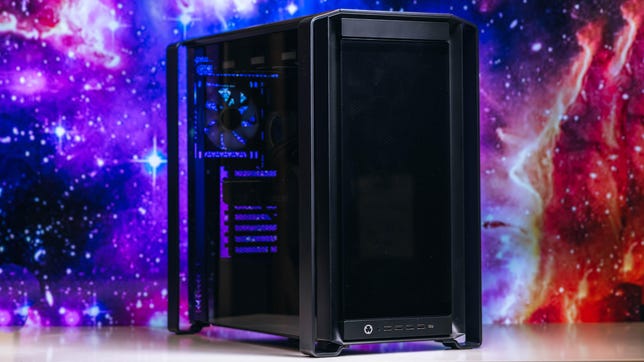
The Origin PC Millennium’s case is interesting. While it measures 21.5 by 12.5 by 22.8 inches for a total of roughly 100 liters of volume, that measurement accounts for rather sizable corner pieces that expand the width. Without those, the case becomes a more reasonable 9.8 inches wide and that brings the volume down to 78.6 liters. You’ll still need to find space for a 100-liter desktop, but you’ll be putting a smaller actual case into that space.
You’ll need this handle to move this beast of a PC around.
Those metal corner pieces are handy for hoisting the heavy and sizable system around. There’s really nowhere else great to grab it. A small hand strap is included at the rear for carrying, but a clean tear before it even reached me for testing was enough indication that it wasn’t up to the task.
Overall, the case design is commendable. It has plenty of space, as you’d hope for such a large system, and it makes good use of it. The power supply actually gets to sit sideways in the base, making for easy access to its modular ports. The front has nice, deep air scoops, so the three 120mm fans at the front aren’t starved for fresh air despite being behind a glass panel. There’s also space for three more 120mm intake fans on the side of the system. Both of those inlets (as well as the bottom grille) are covered with a fine metal mesh that filters out dust. These filters are easy to remove and rinse when they get dirty.
While there are some air filters in the case, there is no filter for the top fan vent.
With six intake fans, one rear exhaust and three radiator fans blowing out through the top of the case, there should be good positive pressure inside to keep dust out of unfiltered openings. The top of the case is one of those unfiltered openings, so it could see some gradual buildup whenever the system is powered down. Fortunately, the Millennium shouldn’t actively suck dust into itself.
There are also some awkward choices inside the Origin PC Millennium. Perhaps the worst offender is the approach to the 2.5-inch drive bays. Behind the motherboard, there are four holders for 2.5-inch drives, but Origin PC has nullified three of them. One is occupied by the special fan controller. Two have had their mounting screw holes appropriated to hold zip ties that guide some peripheral power cables, leaving just one drive holder actually open. While I’d maybe forgive this in a smaller system, the Origin PC Millennium case has more space than anything else. Thankfully, there’s room in the main compartment to throw in a multidrive cage of your own if you want.
The port assortment is ample, but will vary depending on your motherboard choice.
There are also some downsides to the side panels. The metal ones feel and sound flimsy, which hurts the build’s otherwise premium feel. It could greatly benefit from some smartly placed vibration-damping pads. The glass side panel is just awkward to remove. It has a toolless design, but because of the metal corner pieces of the case, I unavoidably slammed the panel into the corner piece and then dropped it to the floor when removing it. The fall is short, and the slam isn’t extreme, but it would be nice to have a smoother way to remove the panel. Getting it back into place is equally awkward.
It’s hard to be too mad, though, as the internal cable routing is so clean. The system is tidy. All the RGB fans glowing inside don’t illuminate a rats’ nest interior. There’s also a clean view of the little display on the CPU water pump.
Further upgrades (apart from 2.5-inch drivers) appear fairly easy. The system has two extra RAM slots, two extra PCIe x16 slots (PCIe 4.0 x4 and PCIe 3.0 x4 bandwidth) and three extra M.2 slots in our test configurations. The Asus ROG motherboard option will have even more M.2 slots.
Plenty of I/O choices on the back.
The system also comes with a considerable host of ports. It has four USB-A ports and one USB-C port at the front, all at 5-gigabits-per-second bandwidth. The rear has a ton of connections as well, but since our test configuration’s motherboard isn’t available, the ports it includes won’t be what you might get. The MSI motherboard, for instance, only gets one USB4 port, while the Asus motherboard offers even more USB-C ports and six 10Gbps USB-A ports.
So basically, the Millennium is big, highly upgradable, highly customizable, but pricey. Definitely be careful with your build options, too.
Geekbench 6 (single core)
Lenovo Legion Tower 5 Gen 10 2,729Minisforum AtomMan G7 Ti 2,833Dell XPS 8960 2,948Alienware Area-51 3,149Origin PC Millennium 3,327Velocity Micro Raptor Z95A 3,303Corsair Vengeance A7500 Air 3,382
Geekbench 6 (multicore)
Lenovo Legion Tower 5 Gen 10 14,349Minisforum AtomMan G7 Ti 16,959Origin PC Millennium 17,217Velocity Micro Raptor Z95A 18,338Dell XPS 8960 18,699Corsair Vengeance A7500 Air 20,998Alienware Area-51 21,929
Cinebench 2024 CPU (multicore)
Lenovo Legion Tower 5 Gen 10 1,041Origin PC Millennium 1,267Velocity Micro Raptor Z95A 1,321Minisforum AtomMan G7 Ti 1,431Dell XPS 8960 1,554Alienware Area-51 2,313Corsair Vengeance A7500 Air 2,256
Shadow of the Tomb Raider gaming test (1080p)
HP Omen 35L 174Alienware Area-51 248Dell XPS 8960 250Lenovo Legion Tower 5 Gen 10 289Origin PC Millennium 336Velocity Micro Raptor Z95A 362Corsair Vengeance A7500 Air 397
Guardians of the Galaxy gaming test (4K)
Lenovo Legion Tower 5 Gen10 125HP Omen 35L 139Origin PC Millennium 155Alienware Area-51 177Velocity Micro Raptor Z95A 187Corsair Vengeance A7500 Air 263
3DMark Fire Strike Ultra (4K)
Lenovo Legion Tower 5 Gen 10 14,610HP Omen 35L 16,426Dell XPS 8960 17,525Origin PC Millennium 17,933Alienware Area-51 21,463Velocity Micro Raptor Z95A 21,665Corsair Vengeance A7500 Air 33,075
3DMark Speed Way (4K)
Lenovo Legion Tower 5 Gen 10 5,870Origin PC Millennium 7,505Dell XPS 8960 7,520Alienware Area-51 8,717Velocity Micro Raptor Z95A 9,009Corsair Vengeance A7500 Air 14,536
The Rift Breaker CPU (1080p)
Alienware Area-51 166Lenovo Legion Tower 5 Gen 10 201Dell XPS 8960 202Origin PC Millennium 229Corsair Vengeance A7500 Air 254Velocity Micro Raptor Z95A 268
Procyon Stable Diffusion XL
Lenovo Legion Tower 5 Gen 10 2,672Origin PC Millennium 3,260HP Omen 35L 3,656Alienware Area-51 3,814Velocity Micro Raptor Z95A 4,257Corsair Vengeance A7500 Air 7,144
Configurations
| Alienware Area-51 | Microsoft Windows 11 Pro; 3.7GHz Intel Core Ultra 9 285K; 64GB DDR5-6400; 16GB Nvidia GeForce RTX 5080 graphics; 2TB SSD |
|---|---|
| Dell XPS 8960 | Microsoft Windows 11 Home;3.4GHz Intel Core i714700K; 21GB DDR5 RAM; 16GB Nvidia RTX 4080 Super graphics; 1TB SSD |
| Corsair Vengeance A7500 Air | Microsoft Windows 11 Home; 4.4Ghz AMD Ryzen 9 9950X3D; 64GB DDR5-4800 RAM; Nvidia RTX 5090 graphics; 2TB Corsair MP700 Elite (boot drive); 2TB Corsair MP600 Core XT |
| HP Omen 35L | Microsoft Windows 11 Pro; 4.2GHz AMD Ryzen 7 8700G; 64GB DDR5 3,600MHz; 16GB Nvidia RTX 4080 Super graphics; 2TB SSD + 1TB SSD |
| Lenovo Legion Tower 5 Gen10 | Microsoft Windows 11 Home; 4.2GHz AMD Ryzen 7 7800X3D; 32GB DDR5-5600 RAM; Nvidia RTX 5070 graphics; 1TB NVMe M.2 PCIe Gen 4 SSD |
| Minisforum AtomMan G7 Ti | Microsoft Windows 11 Home; 2.2GHz Intel Core i9-14900HX; 32GB DDR5 5,600MHz RAM; 8GB Nvidia RTX 4070 graphics; 1TB SSD |
| Origin PC Millennium | Microsoft Windows 11 Home; AMD Ryzen 7 9800X3D; 32GB DDR5-6000 RAM; 16GB Nvidia GeForce RTX 5070 Ti; 2TB NVMe M.2 |
| Velocity Micro Raptor Z95A | Microsoft Windows 11 Home; 2.5GHz AMD Ryzen 7 9800X3D; 64GB DDR5 RAM; 16GB Nvidia GeForce RTX 5080 graphics; 2TB SSD |

Stephan is the sports journalist for the Maple Grove Report.