That Amazon-only design, currently in AZ3 and AZ3 Pro chips, is in devices I’ve tested, like the Echo Show 8 and Echo Show 11 (now in my kitchen), as well as the Fire TV. Panay says more devices are on the way.
The latest chips are designed to run as much AI on-device as possible, improving response times and generally making it more secure than relying on cloud processing.
“If we’re going to go deliver this ambient experience in the home for people in the most secure way, we definitely need to think about how that end-to-end delivery of hardware comes together,” Panay said, although he added that Amazon is still using Qualcomm chips for other purposes.
This may also give Amazon more control over device pricing. While computer chips aren’t facing quite the same AI-related cost leaps as graphics processing units — something CNET has termed RAMageddon — prices are still rising. Keeping the manufacturing process mostly in-house could help Amazon dictate consumer prices with more discretion.
An Amazon representative did not immediately respond to a request for comment.
Amazon’s chips are only the start of a new focus on AI
Alexa Plus can do a lot, but now Amazon wants it to be on the go.
Tyler Lacoma/Zooey Liao/CNET
Why the new focus on end-to-end chip design? According to Panay, it comes down to improving security and AI, especially its Alexa Plus capabilities. Alexa Plus is the latest version of Amazon’s voice assistant (free with Amazon Prime, $20 for most capabilities otherwise), built with conversational AI.
“I think we might be moving away from a world of apps and screens,” Panay said to CNBC, underlining Amazon’s focus on the voice assistant. He said Amazon has a lab full of devices it’s testing, including a “whole roadmap of on-the-go devices.” That would explain Amazon’s purchase of wearables brand Bee in 2025.
What those mobile Alexa Plus devices look like remains to be seen, but according to Amazon, we won’t have to wait long. We’ve already seen devices like AI pins that can listen to your daily conversations and take notes on them, but they haven’t been especially useful and have raised privacy questions about what this technology listens to.
Speaking of privacy, it’s worth noting that Amazon automatically processes voice commands given to devices like the Echo Show 11 for analysis, and while you can turn other Alexa settings off, you can’t adjust that one.
This new wave of AI devices is likely to come with similar requirements, so think about how much you want Amazon to know about you.
SQL Server Data Tools (SSDT) offers a declarative model to make the relational database development easy. Developers can use Transact-SQL to build, debug, maintain, and refactor databases all from within Visual Studio. They can either connect a database and work on it directly or work on a database project. Developers can also use code navigation and IntelliSense tools to work with SSDT.
It provides a visual view to create and edit tables through Table Designer. It also offers version control for database files, which will be easier for a team-based environment.When all the data modifications are done, they can publish the projects to target platforms, which are nothing but other supported SQL platforms like SQL Database and SQL Server.
The database projects in Visual Studio can be viewed through the SQL Server Object Explorer. It helps developers in performing light database operations like create, edit,rename, and delete tables.It also helps in implementing stored procedures, types, and functions.They can even compare schemas with the help of contextual menus.
To gain in-depth knowledge with practical experience in SQL server, then exploreSQL server Training!
Advantages of SSDT
Here are some of the many advantages that SSDT provides.
Developers can create database projects through which they can carry out database operations easily.
All the database operations can be performed using Transact-SQL.
Developers get rich editing and debugging experience while working with Transact-SQL scripts.
They can compare data between a source and a target database.They can also set the target database data in sync with the source database.
Developers can configure CI/CD pipelines that reflects changes in the target database using Azure DevOps.
Developers can clone a production database to a test instance, apply changes to it, and publish the changes back to the production database.
It lets the developers control their code versions using source control.This will be extremely beneficial in a team environment.
They can use Table Designer to manage table relationships.
The Table Designer also shows the syntax and semantic errors during build and deployment. It also shows the error while editing database entities and their definitions.
Developers can debug and perform SQL Server unit tests on databases to verify the changes performed.
Installation of Visual Studio
To work with SSDT, we need Visual Studio first. It is very easy to install Visual Studio. Let me walk you through the process in a step-by-step way. I also included some screenshots to help you better follow the process.
Note: If you already have Visual Studio installed on your machine, you can skip this step.
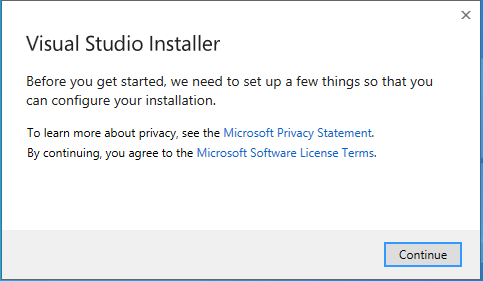
Go to https://visualstudio.microsoft.com/thank-you-downloading-visual-studio/?sku=Community&rel=16# to download Visual Studio. Run the executable file to start the installation process. You will get an installer screen asking to agree to terms and conditions.
Click on ‘Continue’ to start fetching the files by the installer.It may take a while to get everything ready. It will then show the installation location and asks to choose a workload.
SQL Server Certification Training
Master Your Craft
Lifetime LMS & Faculty Access
24/7 online expert support
Real-world & Project Based Learning
Select the ‘ASP.NET and web development’ workload and click on the ‘Install’ button. It takes some time to get the installations done.You can observe the progress while the installation is being done.
Once the installation is complete, you will get the following screen.
Add SSDT to Visual Studio
Launch your Visual Studio Installer and click on ‘Modify’. You will get the workloads screen. Choose the ‘Data storage and processing’ option under ‘Other Toolsets’.
Click on ‘Modify’ and it will start installing the workload. Once the process is done, you will get the following screen.
Click on ‘Launch’ to open Visual Studio.
Create a database project
In the Visual Studio, click on ‘File’ in the top left corner. Click on ‘New’ and select ‘Project’. You will get the ‘Create a new project’ screen. Search for ‘SQL’ in the search box.
Choose the ‘SQL Server Database Project’ from the search results and click on ‘Next’. You will get a configuration page
Give a name for your project and click on ‘Create’. Once the project is created, you will get your project structure in the Solution Explorer.
Double-click on the properties option under your project.
Make sure that ‘SQL Server 2016’ is set as your target platform. Now you can start working on your databases.
Subscribe to our YouTube channel to get new updates..!
Tips and Tricks
Here are some pointers that might help you while working with SSDT.
To keep the SQL statements clean and easy to read, use inline syntax.It will be easier to validate the DDLs.
Ensure that all the DDL objects in your project are set to build.
If you want to promote your DML statements to another environment, then it will be better to include them in the project and set the DML SQL script to none. Make sure that you compare your database in development with the one in production frequently.
It is always important to build a project as it captures the changes made. So, make it a habit to build your project regularly.
For each project, always save the Schema Comparison (SCMP) settings.
When you perform schema comparison, always generate the script instead of updating it. So, you can validate the script before executing it.
SQL Server Certification Training
Weekday / Weekend Batches
Conclusion
In this post, we have provided an overview of Microsoft’s SQL Server Data Tools. It also helps in designing and deploying SSIS packages using Visual Studio.There is a bit of a learning curve that is needed to master working with SSDT. Once you start practicing,it will become easier.Try working with database projects using SSDT in Visual Studio.Once you get the hang of it, you will understand that it is the easiest tool to get your database work done.
To provide the best experiences, we use technologies like cookies to store and/or access device information. Consenting to these technologies will allow us to process data such as browsing behavior or unique IDs on this site. Not consenting or withdrawing consent, may adversely affect certain features and functions.
Functional
Always active
The technical storage or access is strictly necessary for the legitimate purpose of enabling the use of a specific service explicitly requested by the subscriber or user, or for the sole purpose of carrying out the transmission of a communication over an electronic communications network.
Preferences
The technical storage or access is necessary for the legitimate purpose of storing preferences that are not requested by the subscriber or user.
Statistics
The technical storage or access that is used exclusively for statistical purposes.The technical storage or access that is used exclusively for anonymous statistical purposes. Without a subpoena, voluntary compliance on the part of your Internet Service Provider, or additional records from a third party, information stored or retrieved for this purpose alone cannot usually be used to identify you.
Marketing
The technical storage or access is required to create user profiles to send advertising, or to track the user on a website or across several websites for similar marketing purposes.