

Lose Yourself in the Park Hyatt Tokyo – HoneyTrek


Park Hyatt Tokyo

Remember that to-die-for hotel in Lost in Translation? The one where Bill Murray is completely pampered, sipping Suntory whiskey in that swanky jazz bar, rendezvousing with Scarlett Johansson at the sky pool, or gazing out his wall of windows from 45 floors above Asia’s most sophisticated metropolis…this is the Park Hyatt Tokyo, and it’s even better than Hollywood portrays. We spent a few unforgettable nights here basking in the chic interiors, dining like royalty, and feeling like starlets ourselves.

Modern Architectural Marvel

01 The Peak Lounge day
Set in the 52-story Shinjuku Park Tower, the Park Hyatt Tokyo begins on the 14th floor with a dramatic glass atrium and lobby, but for the ultimate en-suite views, the rooms start on the 41st floor. We walked into architect Kenzo Tange’s modern marvel and knew we were in for a treat.

Park Hyatt Rooms

02 cq5dam.web .1280.1280 5
We beamed up to our room and were wooed by its beauty and calming effect. The spacious room’s soft palette, lovely furnishings, fine art, and views of Mount Fuji felt worlds above the city street.

Champagne Over Mt. Fuji

03 ParkHyattTokyo
The Park Hyatt team surprised us with a honeymoon bottle of champagne. We love this pouring photo…it’s like Mt. Fuji is erupting with Veuve Clicquot!

Cocktails at New York Bar

04 NewYorkBar01
Even with a bubbly under our belt, we couldn’t miss pre-dinner cocktails at the legendary New York Bar. We ordered their signature New York cocktail (Maker’s Mark, pomegranate, and lime…yum!) and soaked up the sultry sounds of live jazz vocalist Karen Jones. Anne’s dad is a big-time Jazz fan, who also spent years living and working in Japan, so he was quite jealous!

Dinner at Kozue

05 MG 7794
Dinner at New York is said to be one of the best American restaurants in all of Tokyo, but we decided to branch out and indulge in something a bit more exotic at Kozue, the Park Hyatt’s creative contemporary Japanese restaurant. We ordered the five-course Shun meal, starting with assorted seasonal delicacies, followed by sashimi of sweet prawn, prime tuna, and yellowtail, accompanied by a selection of sake. The best part was that with each round, our server would bring over a tray of sake glasses—from William Yeoward crystal to handcrafted pottery to whichever suited our mood.

Eating Shabu Shabu

06 MG 7798
Shabu Shabu, Japanese-style hot pot, is a delicacy we were dying to try. Dipping the Yonezawa beef sirloin and vegetables into boiling broth was as fun as it was delicious… and the view wasn’t bad either.

Honeymoon Surprise at the Park Hyatt
07 MG 7837
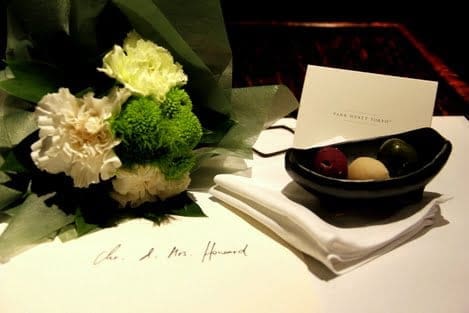
We got back to our room feeling over the moon from our romantic evening….and it just got better. A bouquet of flowers, chocolate truffles, and a handwritten note were there to wish us a very good night. The Park Hyatt’s attention to detail never ceased to amaze!

Early Morning Swim at the Sky Pool

08 COTP POOL1
Not much can motivate us to get up before dawn, but when you have a near-Olympic-sized floating over the city lights, early morning laps suddenly sound like a fine idea. The sky pool was one of the many features at the spa, including seven different treatment rooms, a workout space, and an array of classes (hula dancing included).

Room Service for Breakfast

09 RoomService AmericanBreakfast 2
We got back to our room, and room service arrived just on time. Omelets, fresh fruit, and croissants from their very own French pastry chef were all delicious…and everything always tastes better from the comforts of a honeymoon suite.
If you are looking for the crème de la crème of contemporary Tokyo accommodations, the Park Hyatt Tokyo is the only place to stay.

Note: The Park Hyatt Tokyo invited us to be their guest; however, all opinions are our own


Source link

Leave a Reply

Subscribe to Our Newsletter

Get our latest articles delivered straight to your inbox. No spam, we promise.

Recent Reviews


Lost a crucial document because your system crashed before you could save it? Worry no more! Microsoft Word has introduced an automatic save option that regularly backs up your work, so you’ll never lose your progress again.

Users will now be able to manage their Word documents without thinking about saving them manually. The new Microsoft Word update allows users to automatically save their documents to the cloud as soon as they start documenting any content piece.

Raul Munoz, the Senior Product Manager at Microsoft, has stated about the new feature, “We are modernizing the way files are created and stored in Word for Windows! Now you don’t have to worry about saving your documents: Anything new you create will be saved automatically to OneDrive or your preferred cloud destination.

Microsoft additionally hints at introducing similar features for Windows Excel and PowerPoint, which are now live.

How Does the Auto-save Feature Work?

The auto-save option can be accessed and used effectively with the compatible Word for Windows version. Let’s understand how the process works-

Primarily, users need to create a fresh document in Word and switch the AutoSave option on. Unlike the previous default document name- DocumentN, the autosave feature saves the files with the date.

Microsoft Word Update - Step 1

Source: Microsoft Tech Community

To change the name of the file and its location, users need to select Save or press Ctrl+S. After selecting the file name and location, press Confirm to save the changes.

Microsoft Word Update - Step 2

Source: Microsoft Tech Community

In case users try to close the file before it gets saved, a dialog displays on the screen asking whether they intend to Discard or Keep the file. If users try to close empty files, Word discards them without asking for confirmation.

Microsoft Word Update - Step 3

Source: Microsoft Tech Community

Availability of the Auto-Save Feature of Microsoft Word Update-

The AutoSave feature of Microsoft Word update is available to users with Version 2509 (Build 19221.20000) or newer. This advancement is set to enhance accessibility and address the challenge of lost files. Similar features have been introduced on Windows Excel and PowerPoint as well.

Advantages of the Latest Microsoft Word Update

Microsoft Word’s new auto-save feature will unlock several benefits for users. Alongside increased security, it offers flexible file management capabilities. Let us discuss other significant advantages-

Flexibility in File Storage and Control: Users can store and manage their files more flexibly than ever. As users are in charge of the documents, they can adjust file names and locations to save, organizing the files according to convenience.

Never Lose Your Files: The auto-save feature in Microsoft Word addresses the challenge of losing files due to not saving them manually. As soon as you start making progress in a file, it automatically gets saved.

Enhanced Security and Compliance: Files saved in your organization’s cloud servers already adhere to the set security guidelines and practices. Hence, users do not need to think about protecting the files separately.

Increased Accessibility: The auto-save feature enables enhanced accessibility of Word files. It can be accessed from diverse types of devices and platforms once shared, including Android, iOS, and web browsers. Changes made to the file will get synced on all devices and platforms.

Better Collaboration: The AutoSave feature has made collaboration within and across teams easier. Users can easily share the cloud file and initiate collaboration by making changes, adding comments, and resolving comments in real time.

Agentic AI Support: The Word files are now equipped with Copilot agentic AI support. Users can unlock AI-powered capabilities whenever they need to improve or update their documents. Nevertheless, to use Copilot in Word, a Microsoft 365 Copilot license is needed.

Additional Tips: 

  • Users will be able to easily change the location for new documents. Right-click on any cloud folder in the File section of Word, then select Set as Default Location to choose the location.
  • Users can manage how their files are created, whether in the traditional manner or automatically in the cloud, in the Save tab of Word Options, and opt in or opt out for Create new files in the cloud automatically.

Key Elements to Keep in Mind-

  • When a new Word session is started while another is running, the new file does not autosave. Hence, users need to close the previous file to enable the auto-save option for new files.
  • Users may sometimes encounter a delay in refreshing the recent files list while changing the name of a document.
  • If users disable the option for Show the Start screen when this application starts, remember that the first file they create will not autosave automatically.

Concluding Remarks!

Microsoft has been making significant advancements in its 365 Office platforms for better collaboration and enhanced productivity of diverse teams within an organization. With the integration of Copilot and flexible features, the firm is aiming to boost user experience and accessibility of the tools, including Word for Windows.

Learn about the major technological shifts and practices with KnowledgeNile!


FAQs:

1. What is the AutoSave feature in Microsoft Word?

Answer: The AutoSave feature in Microsoft Word lets users save their files automatically.

2. What is the purpose of AutoSave?

Answer: The AutoSave feature aims to reduce the challenges of data loss in unwanted circumstances, such as power shortages and device failures.

3. Where are AutoSave Word documents stored?

Answer: Automatically saved Word files are stored in cloud storage, like OneDrive.


Recommended For You:

Oracle identity cloud vs Microsoft Active Directory: Which to opt for and why?


Source link