

It’s been a rough couple of years for Sonos. In mid-2024, the company released a redesigned and thoroughly busted update to its app, which Sonos owners need to set up new products, manage their speaker groups, play music and access a host of other crucial features. The fallout from that was far-reaching — the company replaced its CEO, canceled a few planned products and released no new hardware in 2025.
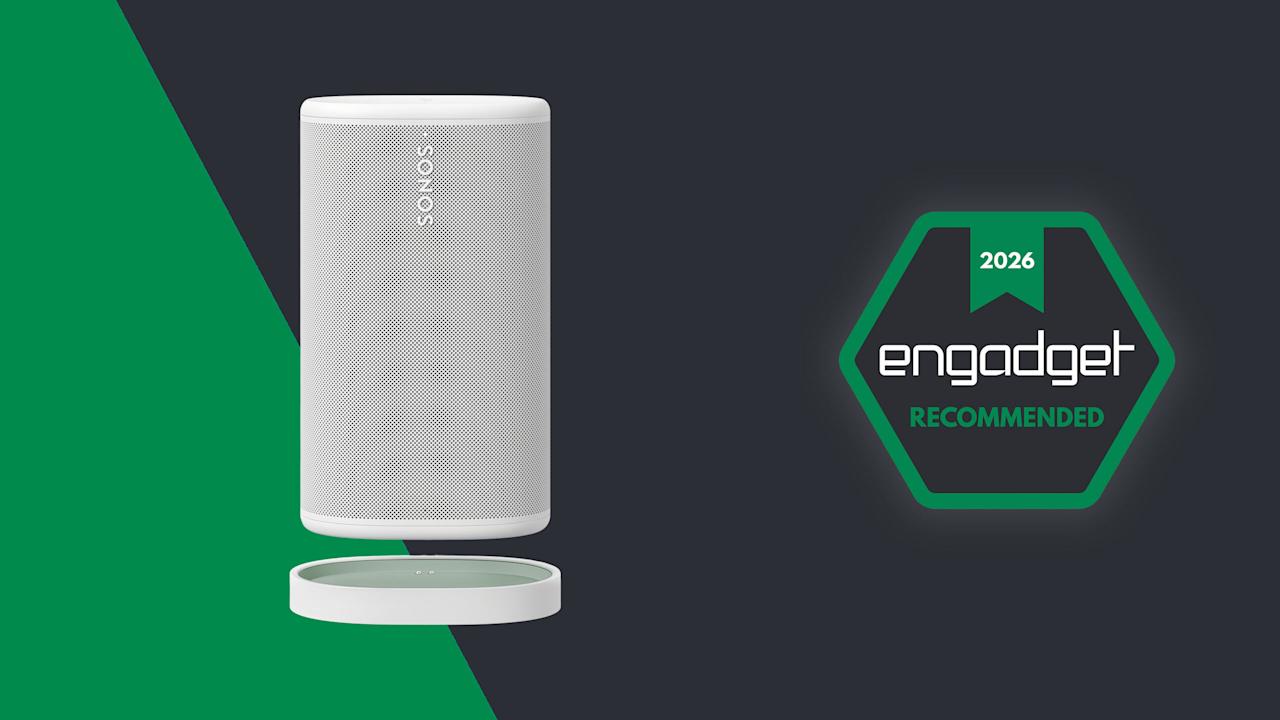
The Sonos Play, announced earlier this month, is the company’s reset button, a way to remind people what the company does well. The Play is a portable speaker that sits between the $499 Sonos Move 2 (which is large, expensive and extremely loud) and the $179 Roam 2 (the cheapest Sonos speaker and tiny enough to bring anywhere). The $299 Play sits right in the middle of the company’s portable lineup in both size and price — and after spending a few weeks listening to it, I think it’s a very smart addition to the collection. Thanks to its impressive sound quality, versatility and portability, the Play is immediately one of the best speakers Sonos sells. The timing couldn’t be better, either, with warmer weather finally on the way.

Sonos / Engadget
The Play sounds great, has a wide and versatile feature set and won’t break the bank. It’s a welcome return to form for Sonos.
- Compact design
- Great sound quality for its size
- Features like line-in and Bluetooth grouping make it extremely versatile
- Long battery life
- Doesn’t come with a power adapter
- More colors would be welcome
Feature set
Like all other Sonos speakers, the Play is a Wi-Fi smart speaker that can stream audio from dozens of services; you can also play content on it via AirPlay 2, Spotify Connect and Bluetooth. The USB-C port on the back also lets you connect to turntables, CD players and other audio devices via a line-in dongle, or you can also use that port for an Ethernet connection (again with the corresponding dongle). Finally, you can also control the Play via Amazon Alexa or the Sonos Voice Assistant. And like the Roam, the Play is IP67 rated for water and dust resistance.
That’s all standard fare at this point, but I appreciate that Sonos included Ethernet and line-in capabilities, two things the Roam doesn’t support. It makes the Play a much more versatile option for being a centerpiece of your indoor setup as well as something you can take on the go. And since the Play comes with a wireless charging base, it’s easy to keep it charged up during indoor duty and equally simple to just grab it and go without fussing with cables. (Strangely enough, it does not come with a power adapter, so you’ll need to provide your own USB-C brick.)

The real panel of the Sonos Play. (Nathan Ingraham for Engadget)
Physically, the Play reminds me of the Sonos Era 100 with its width squished down to make it more portable. Unsurprisingly, it comes in the same white and black color options; I had been hoping for a few more options like the vibrant Roam colors. The one touch of color you’ll see is on the light green grab loop attached to the back; you can remove it if you’re not a fan. At 7.6 inches, it’s slightly taller than the Era 100, but it’s much thinner and lighter. Based on the initial product renders, I expected the Play to be larger than it is in reality, but it feels quite compact and easy to move around. It’s not a “throw in your bag and forget it” speaker like the Roam, but it’s far more portable than the Move. The Move is a speaker I’d really only use in my house or in the backyard, whereas I’d toss the Play into a backpack and take with me — unless I really needed to save space or weight.

The Era 100 (left) and the Play (right). (Nathan Ingraham for Engadget)

Side view of the Sonos Era 100 and Play. (Nathan Ingraham for Engadget)
Its diminutive size is even more impressive when you consider the audio components Sonos packed inside. The Play features a speaker array nearly identical to that of the larger Era 100. It has two tweeters angled at 90 degrees for some stereo separation, along with a mid-woofer and two passive radiators for bass performance. The passive radiators are unique to the Play, specifically included to help bass levels in settings where there aren’t walls for the sound to reflect off of — like anywhere outside you might take a portable speaker.

Two Sonos Play speakers paired in stereo. (Nathan Ingraham for Engadget)
Audio quality
The Play’s flexibility only matters if it sounds good. Fortunately, Sonos has never struggled with producing a speaker that’s a pleasure to listen to, and the Play certainly fits the bill. My top-level and unscientific analysis is that the Play sounds nearly as good as the Era 100, an impressive feat considering its comparatively small frame.
I tested a single Play speaker as well as a stereo pair in my small office, where I typically listen to music through a stereo pair of Era 100 speakers. I also used them in stereo on my larger and more open first floor, both streaming music and playing on my turntable via the line-in jack. Finally, I got to test them outside on my deck on a few lovely early Spring days that the Boston area was graced with recently. I used the auto Trueplay tuning feature throughout; it uses the Play’s built-in microphone to optimize audio for whenever you’ve placed the speaker. Sonos has offered various versions of Trueplay for over a decade now and it consistently makes its speakers sound better. And given you don’t have to do the old “wave your phone around the room” method to use Trueplay, there’s really no reason not to have it on.
While in my office, I did a lot of A/B testing of the Era 100 vs. the Play, typically playing Apple Music lossless via the Sonos app, but I also tried AirPlay and Spotify Connect as well as other music services including YouTube Music and Bandcamp. The biggest differences I noticed between the two speakers are the Era 100 is louder and has a more pronounced mid-range. The Play comparatively feels like its EQ is “scooped,” and it just isn’t quite as loud at the same volume level. The Play also doesn’t maintain quality quite as well through the full volume range — I wouldn’t say that it got distorted when I was playing it at 75 percent volume, but it’s not as clear as the Era 100 either.
These differences I mostly only noticed when I was flipping back and forth between the two speakers — when I just sat back and listened, I was extremely happy with the Play’s sound. When listening to a single Play, the angled tweeters did provide a small degree of stereo separation when things were hard-panned to the left or right channels. For example, the backing vocals in the chorus of Soundgarden’s “Black Hole Sun” jump from one channel to the other, and I did pick up on that effect.

Top controls on the Sonos Play. (Nathan Ingraham for Engadget)
The Play sounds very well-balanced and neutral, capable of reproducing songs without over-emphasizing any particular frequency. My usual listening habits include a ton of ‘90s-era alternative and more modern indie rock, plus some modern pop and the occasional film or video game score, and the Play sounded great across the board. Daughter’s “Be On Your Way” is an atmospheric track juggling strings, electronic underpinnings, reverb-drenched guitar and a gorgeous vocal track, and all those elements shined here. The dance-influenced beats of Nine Inch Nails’ “Less Than” had appropriate thump and power behind them, and “Stay Down” by Boygenius sounded great, whether it was the acoustic-tinged intro or the layered, full-band climax. Heavier fare like Metallica’s “Battery” and Tool’s “Fear Inoculum” hit with the appropriate intensity as well, particularly when I was running two Play speakers in stereo.
My go-to film score for these kinds of tests is Howard Shore’s Lord of the Rings: The Two Towers, and it’s often the case that doesn’t sound as majestic on smaller speakers. But the Play did a great job with the intricate orchestral arrangements that jump between delicately intimate moments and full-throated majesty — the first song “Glamdring” has all these elements in less than four minutes, and it sounded excellent. I also love Gustavo Santaolalla’s score for The Last of Us with its tortured strings and host of organic acoustic sounds alongside unsettling electronics, and all its various elements were faithfully conveyed here.

The line-in connection on the Sonos Play. (Nathan Ingraham for Engadget)
Using the speaker’s line-in capabilities with a USB-C to 3.5mm audio input worked easily as well. The only real issue I noticed is that my particular turntable’s output meant I had to turn the Play up much louder than I would when streaming music, so its top volume level is much lower. That wasn’t exactly a problem, but if you really want to push a lot of volume from a line-in source, this might not be the speaker for you. I was also worried that I’d switch from line-in to streaming and forget to adjust the volume down, but the speaker is smart enough to re-adjust from the line-in volume down to wherever it was set previously.
While the Play isn’t the loudest speaker out there, it has plenty of power when outside. I set the volume to around 60 and walked from my porch to the sidewalk and could still faintly hear the music (though not loud enough to be too offensive to passers-by or neighbors). Back up on the deck, the Play maintained its detailed profile despite the lack of surfaces for the sound to reflect off. It feels like a great device to have playing in the background when you’re entertaining outdoors, but something like the Move 2 will do better if you want music to be the centerpiece of a gathering.
The Play’s Wi-Fi connection is strong enough that I didn’t need to switch to Bluetooth when I was outside, but it’s simple to use if you need it. There’s a dedicated Bluetooth button on the back; pressing it turns it on, while holding puts the speaker in pairing mode. Bluetooth is probably the easiest way to give someone else control over your Sonos system. If you start streaming music to it, you can then group other speakers with the Play to get those tunes anywhere in the house without having to give a guest access to your Sonos system.

The Sonos Play and its charging base. (Nathan Ingraham for Engadget)
Sonos included a new Bluetooth feature with the Play that they’re also bringing to the Move 2. If you’re away from Wi-Fi and playing audio via Bluetooth, other Play or Move 2 speakers can join a group just by pressing and holding the play/pause button. This works with Play or Move 2 speakers that have previously been set up on the same Sonos system, and it’s as simple as it sounds. I just paired my phone to one speaker, started playing some music and then held the play/pause button on the second speaker to get them in sync.
As for battery life, the Play is a huge step up over the Roam’s rather paltry 10-hour estimate. The Play is rated for up to 24 hours of playback, same as the Move 2, and I think Sonos just about hit that mark. I spent several work days playing music for eight-plus hours and the Play’s battery only dropped about 30 percent each time. Your mileage may vary, but I think the Play has plenty of battery life considering its smaller size — and given how easy it is to just drop on a charging base when you’re done, I don’t think most people will run its battery down too often. Sonos also made the battery in the Play user-replaceable, a good option to keep the speaker running for years to come.

Side-by-side comparison of the Sonos Era 100 and Play. (Nathan Ingraham for Engadget)
Competition
While there are loads of portable Bluetooth speakers out there, the Play’s position as a Wi-Fi speaker that can group with others in a household as well as be used on-the-go with Bluetooth makes it a rather unique option. The $269 Bose SoundLink Plus sounds great, can be paired in stereo or grouped in “party mode,” and is a similar size as the Play. But its battery doesn’t last as long and, more crucially, it only works via Bluetooth. Some people won’t care, but I prefer the much wider variety of playback options that the Play provides. JBL also has a host of portable Bluetooth speakers, as well as Wi-Fi enabled options meant for home use — but again, the combo of Wi-Fi playback and portability seems to be mainly limited to Sonos right now.
As such, the main competition for the Play comes from Sonos itself, with the Move 2, Roam and Era 100 all offering different pluses and minuses depending on what you’re looking for.

Sonos Play speaker sitting outside. (Nathan Ingraham for Engadget)
Wrap-up
If it isn’t obvious, I’m a pretty big fan of the Sonos Play. While it’s not quite as portable as the tiny Sonos Roam, it sounds significantly better than the smallest Sonos speaker while still being easy to carry around. It’s probably the most versatile speaker in the Sonos lineup right now, and a smarter choice than the $499 Move 2 for most people. Unless you really need massive outdoor volume, the Play is the best portable Sonos speaker.
The only catch is its price. $299 is fair when you consider its sound quality and feature set. But it’s also $80 more than the Era 100, or $110 more than the Era 100 SL (which drops the microphone but is otherwise identical to its more expensive counterpart). So you’ll have to decide how much portability is worth to you. For me, the Play is an excellent addition to my existing setup. But if you’re likely to do most of your listening indoors, the Era 100 and its superior sound quality might make more sense.
To be clear, that’s not a knock against the Play. The latest Sonos speaker offers impressive sound quality, flexibility and portability, and it’s the kind of product that can help Sonos rebuild its reputation after its recent difficulties.

Stephan is the sports journalist for the Maple Grove Report.







