

Why having your Known Traveler Number is vital right now


You’re probably familiar with the mental checklist that runs through your head before heading out the door to catch a flight: ID in wallet. Essentials packed. Electronics charged.

But as security lines swell across the country in the midst of a partial government shutdown, the most important pretravel task of all may be one that hardly crosses your mind: making sure your Known Traveler Number is attached to your flight reservation.

In recent days, hourslong lines have snaked through some of the nation’s busiest hubs, as weeks of working without pay have led to callouts at the Transportation Security Administration. The delays have caused passengers to miss flights — and have surely made many spring break trips start off on the wrong foot.

US Airport Lines Worsen As TSA Agents Miss Their First Full Pay
A TSA line Sunday at Houston’s William P. Hobby Airport (HOU). MARK FELIX/BLOOMBERG/GETTY IMAGES

But through it all, TSA PreCheck remains a major time-saver for travelers — that is, if it’s actually marked on their boarding pass.

Take Houston’s William P. Hobby Airport (HOU), for example. This airport was the epicenter of this week’s TSA delays, and at one point on Monday, standard security lines topped three hours. But if you had PreCheck access, you could get through in 10 minutes or less.
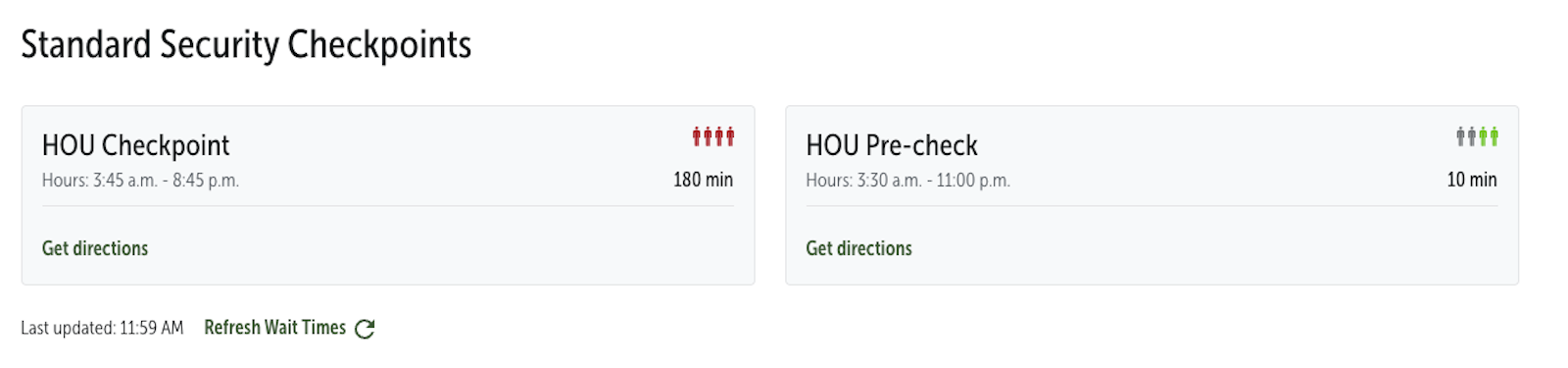
Average wait times on Monday at Houston’s William P. Hobby Airport (HOU). HOUSTON AIRPORTS

It has made the fast-tracked security program a proverbial lifeline for travelers looking to avoid the chaos of recent days — even after the Trump administration nearly suspended the program last month.

But all too often, TSA PreCheck members download their boarding pass — or show up at the airport — only to realize their boarding pass doesn’t actually say “TSA PreCheck.” Without that little notation, they can’t access the expedited lanes at the airport.

It’s a common snafu, but one that’s easily fixable.

Your Known Traveler Number: What to know

If you have an active TSA PreCheck or Global Entry membership, check your boarding pass when you download it on your phone or when you print it at the airport. If it doesn’t say “TSA PreCheck” on it, you’ll need to add your Known Traveler Number to your reservation.

Reward your inbox with the TPG Daily newsletter

Join over 700,000 readers for breaking news, in-depth guides and exclusive deals from TPG’s experts

tsa iad
TSA PreCheck lanes at Dulles International Airport (IAD). SEAN CUDAHY/THE POINTS GUY

This is different than your airline frequent flyer number or your flight confirmation code. It’s a series of digits the U.S. Department of Homeland Security assigns to all members of its Trusted Traveler Programs, like TSA PreCheck and Global Entry.

To get your boarding pass to display “TSA PreCheck,” you need to add your KTN to either your reservation or your airline profile.

How to find your Known Traveler Number

You can find your KTN in a few places:

The federal government’s portal

Try visiting the Department of Homeland Security’s website and logging in to your PreCheck or Global Entry account. Your KTN will be listed on your profile.
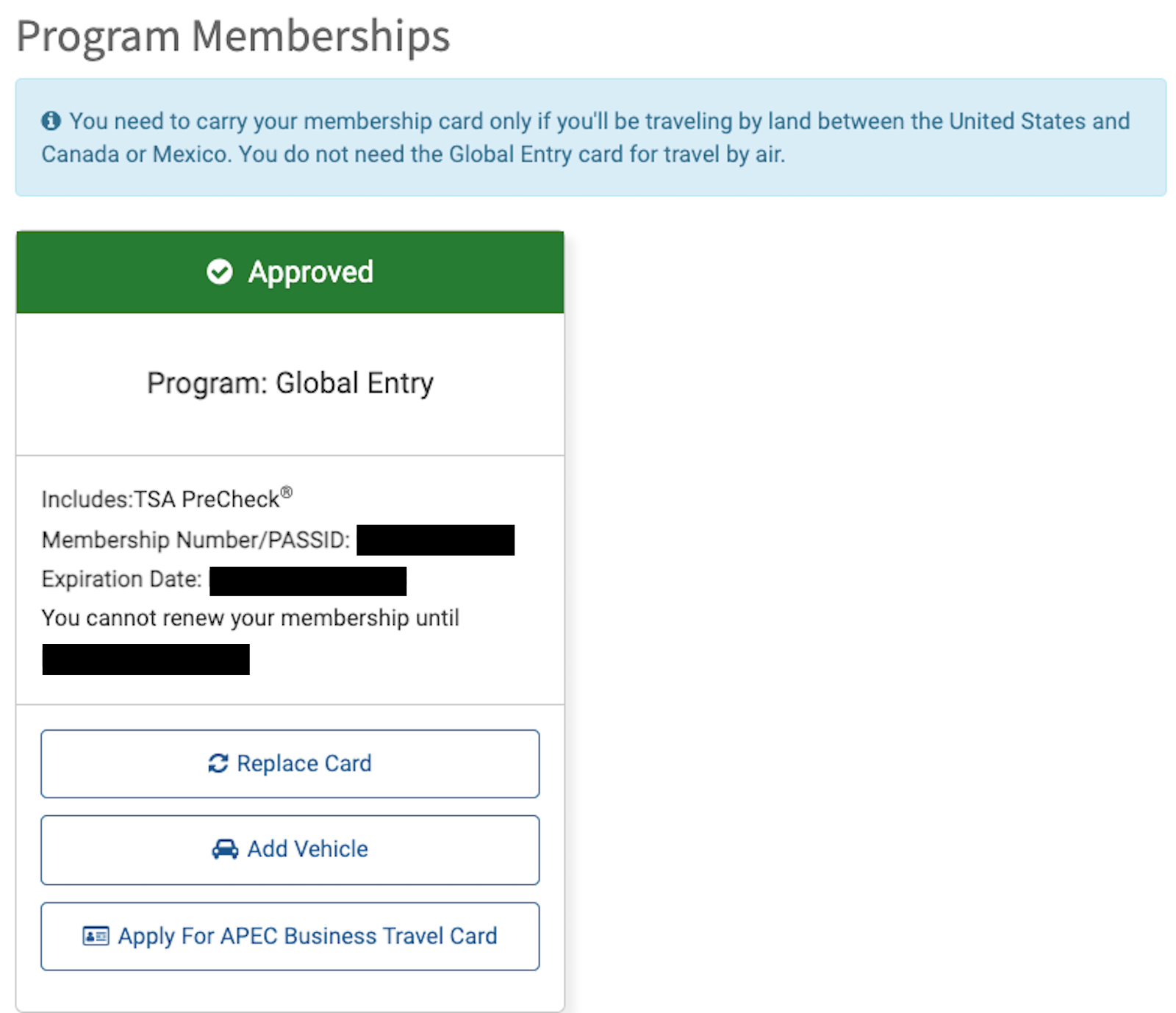
global entry portal
TTP.DHS.GOV

Global Entry card

If you have a Global Entry card, the number is also listed on it.
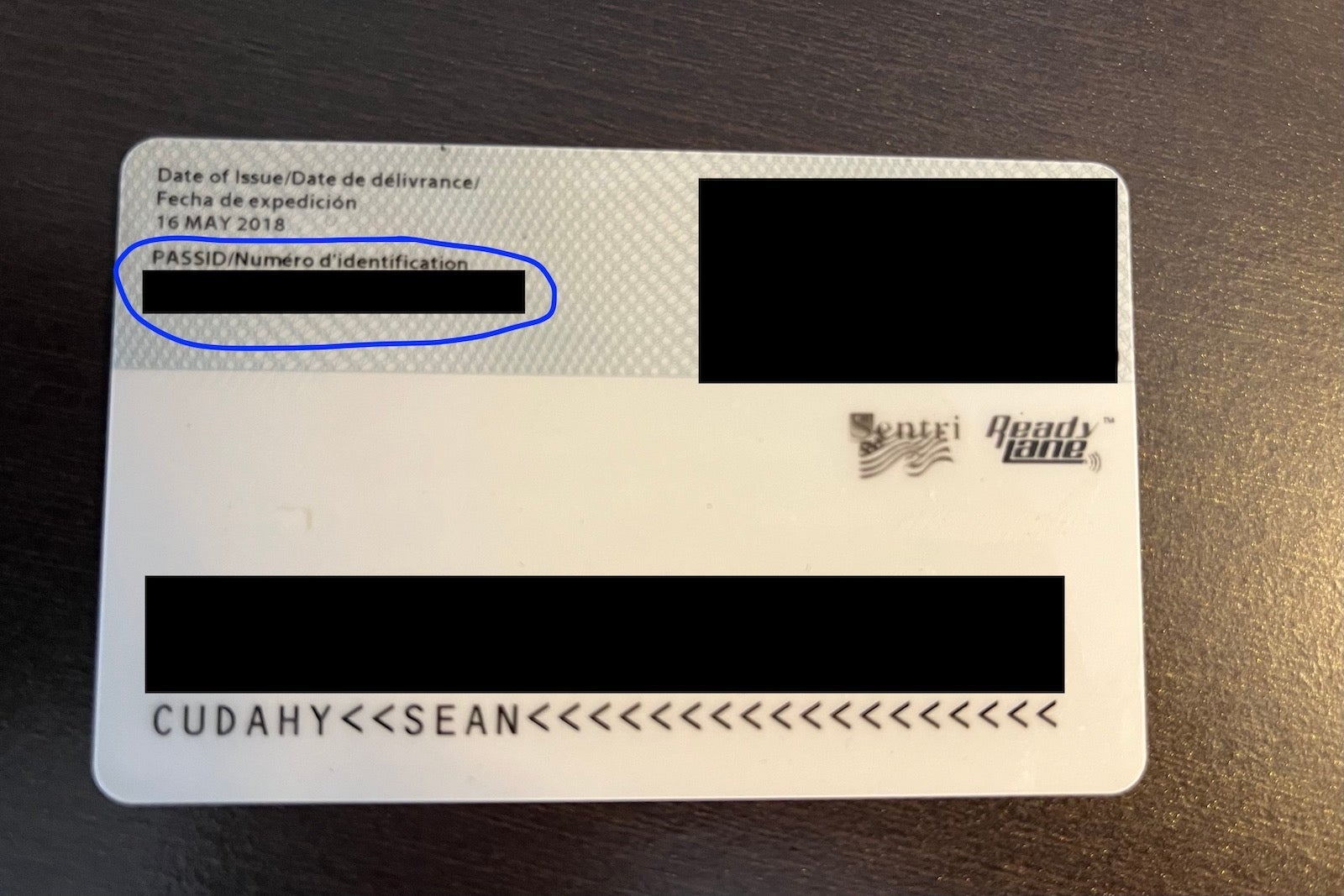
global entry card
The location of a Known Traveler Number on a Global Entry card is circled in blue. SEAN CUDAHY/THE POINTS GUY

Your profile with another airline

No luck? If you frequently fly with another airline and know you’ve used TSA PreCheck with that carrier, pull up your profile with that carrier. You may be able to find your KTN listed under your personal information; check the section for “secure traveler information.”
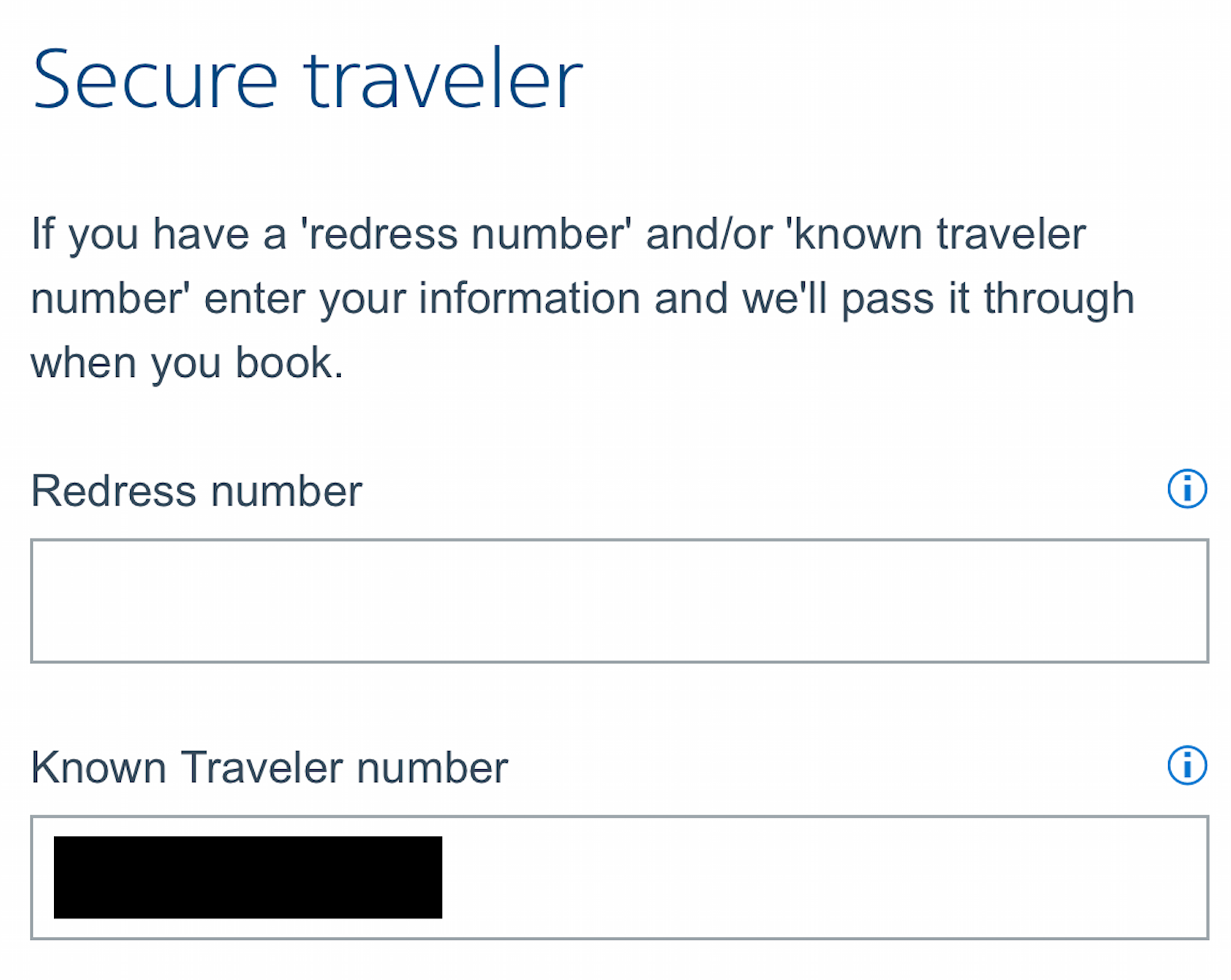
aa app
AMERICAN AIRLINES

Now add it to your reservation

To add your KTN to your next booking, go to the frequent flyer profile for the airline you’re flying next. Paste that number into your personal info for that carrier. Once you do that, TSA PreCheck should populate on all your future boarding passes as long as your account is active.

You can also add your KTN to an individual reservation online, or — if it’s last-minute — via a kiosk at the airport.

TPG tip: Look up your KTN now and save it somewhere secure but easily accessible, in case you need to find it in a hectic moment at the airport.

Bottom line

On a day when the standard security lanes are running smoothly, all of these steps may feel like overkill for a few minutes of time savings.

But with security lines snarling across the country and TSA PreCheck still operational (at least for now), having your KTN attached to your airline reservation and profile could be vital to making it to your gate on time this spring — especially since there are few signs that the partial government shutdown will end anytime soon.

You can find the rest of our tips on navigating air travel this spring in the midst of the shutdown here.

Related reading:


Source link

Leave a Reply

Subscribe to Our Newsletter

Get our latest articles delivered straight to your inbox. No spam, we promise.

Recent Reviews


Lost a crucial document because your system crashed before you could save it? Worry no more! Microsoft Word has introduced an automatic save option that regularly backs up your work, so you’ll never lose your progress again.

Users will now be able to manage their Word documents without thinking about saving them manually. The new Microsoft Word update allows users to automatically save their documents to the cloud as soon as they start documenting any content piece.

Raul Munoz, the Senior Product Manager at Microsoft, has stated about the new feature, “We are modernizing the way files are created and stored in Word for Windows! Now you don’t have to worry about saving your documents: Anything new you create will be saved automatically to OneDrive or your preferred cloud destination.

Microsoft additionally hints at introducing similar features for Windows Excel and PowerPoint, which are now live.

How Does the Auto-save Feature Work?

The auto-save option can be accessed and used effectively with the compatible Word for Windows version. Let’s understand how the process works-

Primarily, users need to create a fresh document in Word and switch the AutoSave option on. Unlike the previous default document name- DocumentN, the autosave feature saves the files with the date.

Microsoft Word Update - Step 1

Source: Microsoft Tech Community

To change the name of the file and its location, users need to select Save or press Ctrl+S. After selecting the file name and location, press Confirm to save the changes.

Microsoft Word Update - Step 2

Source: Microsoft Tech Community

In case users try to close the file before it gets saved, a dialog displays on the screen asking whether they intend to Discard or Keep the file. If users try to close empty files, Word discards them without asking for confirmation.

Microsoft Word Update - Step 3

Source: Microsoft Tech Community

Availability of the Auto-Save Feature of Microsoft Word Update-

The AutoSave feature of Microsoft Word update is available to users with Version 2509 (Build 19221.20000) or newer. This advancement is set to enhance accessibility and address the challenge of lost files. Similar features have been introduced on Windows Excel and PowerPoint as well.

Advantages of the Latest Microsoft Word Update

Microsoft Word’s new auto-save feature will unlock several benefits for users. Alongside increased security, it offers flexible file management capabilities. Let us discuss other significant advantages-

Flexibility in File Storage and Control: Users can store and manage their files more flexibly than ever. As users are in charge of the documents, they can adjust file names and locations to save, organizing the files according to convenience.

Never Lose Your Files: The auto-save feature in Microsoft Word addresses the challenge of losing files due to not saving them manually. As soon as you start making progress in a file, it automatically gets saved.

Enhanced Security and Compliance: Files saved in your organization’s cloud servers already adhere to the set security guidelines and practices. Hence, users do not need to think about protecting the files separately.

Increased Accessibility: The auto-save feature enables enhanced accessibility of Word files. It can be accessed from diverse types of devices and platforms once shared, including Android, iOS, and web browsers. Changes made to the file will get synced on all devices and platforms.

Better Collaboration: The AutoSave feature has made collaboration within and across teams easier. Users can easily share the cloud file and initiate collaboration by making changes, adding comments, and resolving comments in real time.

Agentic AI Support: The Word files are now equipped with Copilot agentic AI support. Users can unlock AI-powered capabilities whenever they need to improve or update their documents. Nevertheless, to use Copilot in Word, a Microsoft 365 Copilot license is needed.

Additional Tips: 

  • Users will be able to easily change the location for new documents. Right-click on any cloud folder in the File section of Word, then select Set as Default Location to choose the location.
  • Users can manage how their files are created, whether in the traditional manner or automatically in the cloud, in the Save tab of Word Options, and opt in or opt out for Create new files in the cloud automatically.

Key Elements to Keep in Mind-

  • When a new Word session is started while another is running, the new file does not autosave. Hence, users need to close the previous file to enable the auto-save option for new files.
  • Users may sometimes encounter a delay in refreshing the recent files list while changing the name of a document.
  • If users disable the option for Show the Start screen when this application starts, remember that the first file they create will not autosave automatically.

Concluding Remarks!

Microsoft has been making significant advancements in its 365 Office platforms for better collaboration and enhanced productivity of diverse teams within an organization. With the integration of Copilot and flexible features, the firm is aiming to boost user experience and accessibility of the tools, including Word for Windows.

Learn about the major technological shifts and practices with KnowledgeNile!


FAQs:

1. What is the AutoSave feature in Microsoft Word?

Answer: The AutoSave feature in Microsoft Word lets users save their files automatically.

2. What is the purpose of AutoSave?

Answer: The AutoSave feature aims to reduce the challenges of data loss in unwanted circumstances, such as power shortages and device failures.

3. Where are AutoSave Word documents stored?

Answer: Automatically saved Word files are stored in cloud storage, like OneDrive.


Recommended For You:

Oracle identity cloud vs Microsoft Active Directory: Which to opt for and why?


Source link







