Inline remote and microphone with good noise reduction and voice calling performance
Cons
Some fraction of users may not get a tight seal from the included ear tips (three sizes)
No storage pouch or case included
Back in 2012, I wrote a review of Panasonic’s ErgoFit RP-HJE120 wired earbuds, which cost me $6 at the time (now they’re $9), and I was impressed by how decent they sounded for how little they cost. They didn’t have a ton of bass, but they were well-balanced and offered an ample amount of detail and clarity, making them arguably the cheapest audiophile-friendly earbuds. While the company’s step-up ErgoFit RP-TCM125 earbuds didn’t sound quite as good for some reason, they did have an inline remote and microphone, a key feature if you plan on using your buds with a phone.
In those days, phones were equipped with 3.5mm headphone jacks (and so were once-popular digital music players such as the iPod Mini). Now, most phones leave them off, which is where Panasonic’s new-for-2026 ErgoFit RP-TCM325 USB-C comes in. The spiritual successor to those two earlier wired models with 3.5mm plugs, the RP-TCM325 instead connects to the USB-C port of your phone, tablet or computer to deliver an all-digital wired connection. For $25, the sound is hard to beat, and their voice calling performance is also good, which is why I’ve awarded them a CNET Editors’ Choice award.
The ErgoFit USB-C buds currently come in three color options: blue, white and black.
David Carnoy/CNET
Panasonic ErgoFit USB-C design
One of the drawbacks of the ErgoFit RP-HJE120 was that while they had a sturdy L-shaped plug, their cord was thin and had a tendency to become tangled if you stuffed the earbuds in a pocket. The ErgoFit RP-TCM325, however, has a thicker, tangle-resistant cord for about two-thirds of its length before splitting into two thinner cords that lead into the buds, which seem more substantial than the tiny RP-HJE120 buds; they’re larger and have more weight to them. The way they’re shaped does allow them to nestle nicely in your ears, even with the cord weighing down on them a bit.
In the cord leading up to the right bud, you’ll find an inline remote that allows you to raise and lower the volume as well as advance tracks forward and back and answer/end calls.
I had to put on larger tips from another set of buds (Beats Powerbeats Pro 2) I tested to get a tight seal.
David Carnoy/CNET
The only design issue I had was with the included silicone eartips. While most people should be able to get a decent fit from one of the three sizes of included tips, the largest tip didn’t quite give me a snug fit, so I had to swap in larger eartips from one of the many earbuds I’ve tested (they happened to be extra-large tips from the Beats Powerbeats Pro 2). But at least these buds don’t require proprietary eartips such as the Apple AirPods Pro 3 or Samsung Galaxy Buds 4 Pro; they have a standard post that accommodates many tips.
Impressive sound quality
The sound quality is remarkably good for $25 earbuds. The buds’ marketing material describes them as having “tonally balanced audio with crisp highs and deep low notes, plus wider frequency response and lively sound quality.” That pretty much sums them up, though I’d add that the key here, beyond the balanced sound, is that there’s a natural, accurate quality to that sound. Also, while the bass goes deep, it’s controlled and doesn’t overwhelm the mids and highs, which have some nice sparkle to them (the highs). I also encountered minimal distortion, which is unusual for inexpensive earbuds.
The one big caveat is that in order to get the quality of sound I’m talking about, you do have to get a tight seal from one of the included eartips or find some tips that get you that tight seal. Without a tight seal, you lose a lot of bass, and you’ll likely come away thinking the buds sound tinny and mediocre. If you’re underwhelmed by the sound, try pressing both buds into your ears to create a good seal and see if the sound quality changes.
The buds have a 1.2-meter cord with a microphone and remote integrated into it.
David Carnoy/CNET
There are plenty of sub-$25 USB-C earbuds out there. I’ve tested a few of them, including Sony’s IER-EX15C buds, which retail for just under $20. Those Sony buds also sound good for the money, but the ErgoFit USB-C are a cut above for sound and build quality (the Panasonic buds deliver richer sound with more bass). The Sony buds look and feel a little cheaper, and I had one pair where the sound cut out on one of the buds, so I had to toss them.
Passive noise isolation but no ANC
While wired earbuds are back in fashion (my teenage daughter has taken to wearing Apple’s wired EarPods USB-C with her iPhone), I can’t say I’m all too fond of wearing wired earbuds on the go. If you do get a tight seal, you get some passive noise isolation from the tips, but there’s no active noise canceling, though the buds do draw a bit of power from the USB-C connection. (USB-C earbuds tend to have their own built-in Digital-to-Analog Converter or DAC.)
The back of the buds’ box displays all their key features.
David Carnoy/CNET
I’ve gotten so used to wearing true-wireless earbuds with very good noise canceling that it’s a little hard for me to go without noise canceling, especially in noisy environments like the subway. I enjoyed using and listening to the earbuds most when I was stationary in a quieter environment (seated at my desk or on a couch). That said, not everybody likes or cares about active noise canceling.
Better voice calling performance than I expected
I hadn’t used wired earbuds for a while to make calls and was surprised when callers said they could barely hear any background noise from the noisy streets of New York and that my voice sounded mostly clear and natural. I tested the earbuds with callers at the same time I was testing Anker’s Soundcore Space 2 headphones ($130), and the two callers I spoke with both said the ErgoFit RP-TCM325 were the easy winner. I graded the Space 2 a B for voice calling. I’d give these an A-minus, with the only potential issue involving wind noise (don’t expect stellar voice calling performance when it’s windy).
Panasonic ErgoFit RP-TCM325 final thoughts
There are plenty of inexpensive USB-C earbuds out there, but Panasonic has built on the legacy of its earlier ErgoFit buds to deliver a set of USB-C buds that stand out from the pack for sound quality and also serve up good voice calling performance. If you get a tight seal, they sound as good or better than wireless earbuds and headphones that cost more than $100.
Power BI is a Business Intelligence and Data Visualization tool that transforms information from diverse sources into visualisations and BI reports. Power BI suite includes a variety of software, connectors, and services, including Power BI desktop, SaaS-based Power BI service, and mobile Power BI apps for various platforms. Business users use this set of services to consume data and create BI reports. Power BI Desktop is used to create reports, Power BI Services (Software as a Service – SaaS) is used to publish reports, and Power BI mobile app is being used to view dashboards and reports. Power BI Desktop is available in 32-bit and 64-bit configurations.
Become a Power BI Certified professional by learning this HKR Power BI Training !
What is a Power BI Dashboard?
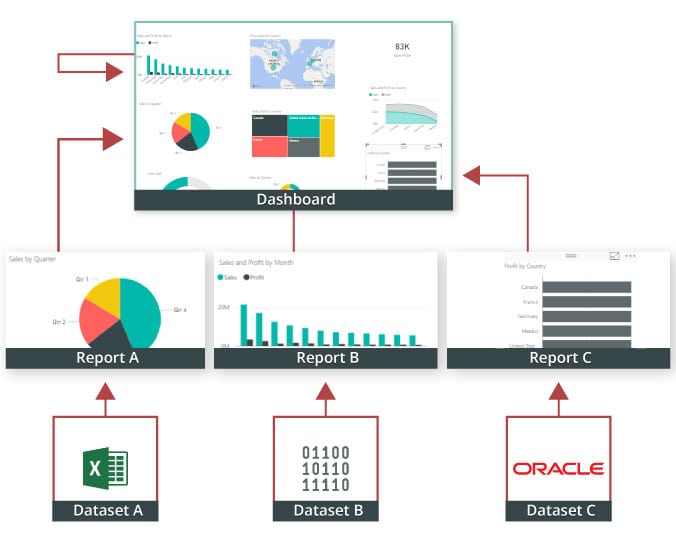
A Power BI dashboard is a single-page visualisation that uses multiple charts and graphs to tell a storey. This one-page dashboard visualisation is also known as a Canvas. The Power BI dashboard is accessible only in Power BI Service. Because a Power BI dashboard is only one page long, it only encompasses the features of a storey. Power BI Desktop does not support the creation of dashboards. A Power BI dashboard is a single sheet, also known as a canvas, that uses visualisations to tell a storey. A well-designed dashboard includes only the features of that storey since it is restricted to one page. Readers can get more information by viewing related reports.
Power BI Dashboard on Power BI Service
In a dashboard, representations are produced from reports, and each report depends on one dataset. The representations present on the dashboard are called tiles, and report creators pin these tiles to the dashboard.
Advantages of a Power BI dashboard :
Dashboards are a magnificent method for observing your business and seeing each of your most significant measurements initially. The perceptions on a dashboard can emerge out of one basic dataset or many, and from one basic report or many. A dashboard joins on-premises and cloud information, giving a united view paying little heed to where the information resides.
• A Power BI dashboard empowers clients to examine reports and view exceptionally significant measurements initially
• Utilizing a Power BI dashboard, clients can make perceptions from numerous datasets or various reports
• You can alter dashboards to meet the necessities of any venture
• Power BI dashboards can be inserted into applications to give a brought together client experience
• You can immediately impart a dashboard to different partners in your association
How to Create a Dashboard in Power BI? Building reports in the dashboard provides details regarding Power BI Desktop and distributing them to Power BI Service is probably the most ideal way to see how a Power BI dashboard functions. For our demo, we’ll be taking a gander at a deals dataset that contains item deals data all through the United States. The dataset contains different client related subtleties, including client names, request and shipment dates, item names, item classes and subcategories, benefit made, etc. This dataset is normally known as a Sample Superstore dataset. We’ll investigate this dataset to analyze deals and benefit from each section, year, and quarter. We’ll likewise make a guide to show the deals across various states in the USA. Coming up next is the dataset that we’ll use to make the dashboard:
Fig: Sales Data
To begin, we will make three different vouchers to evaluate total sales, profit, and amount of sales. Click “card” in the visualisation committee on the power to make a vacant card.
Drag the sales column onto the fields to see the total amount of sales for all products. The user can change the font size and colour of the sales value on this card. The user can also give this card a headline. Correspondingly, by having to drag corresponding columns onto disciplines, you can generate 2 more cards for net income and total amount of sales.
Then, in our visualisation, we’ll add a slicer to slice the data based on the “Order Date” column. This will allow us to screen the data as well as visualise it as needed.
Fig: Cards and Slicers
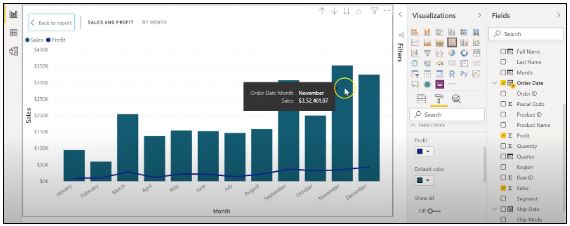
Assume you are hoping to picture and investigate deals and benefit over a specific number of years. To do this, you’ll make a line and stacked segment diagram. Select the line and stacked segment graph from the representation board and drag the “Request Date” section on to “Shared Axis.” Put “Deals” under “Segment” values, and addition the “Benefit” segment into “Line” values. That will create the chart. You can alter the shade of the bars and the line under the organization tab.
In the outline over, the bars address the deals, and the line addresses the benefit. The chart uncovers that the most noteworthy measure of deals and benefits happened in 2017. Power BI Desktop gives an amazing component to dive into the information and picture the chart as far as each quarter, month, and day. This choice is accessible at the top when you explore a particular outline.
Fig: Sales and profit by each month
You can likewise add the names to the diagram by tapping the “Organization” tab and turning on the information marks.
Fig: Adding labels to the graph
Presently, we should make a bunched segment diagram by dissecting yearly and quarterly deals.
From the Visualizations menu, select the “Grouped Column Chart.” Add the “Year” segment to the pivot. Take the “Quarter” sections under “Legend,” and add the “Business” segments to “Worth.”
Fig: The clustered bar chart
The diagram above shows that the principal quarter of each year had the most minimal marketing projections, while the final quarter was reliably the most elevated. You additionally have the choice to change the shadings on your diagram to make it all the more outwardly engaging.
Presently, how about we examine the deals for each state in the US. To do this, we’ll utilize a filled guide. Select a filled guide from the representations board. Add the “State” section to “Area.” Drag the “Deals” segment onto “Tooltips.” To alter the shadings, click on the “Configuration” tab, and pick “Information Colors.” Select the contingent arranging choice and add the scope of tones that you’d like.
Fig: Formatting colors based on the sales
Our colour has been described for the smallest, medium, and greatest sales values. The green-colored states had the smallest sales. California, Texas, and New York, which are highlighted in orange or red, had the highest sales. Correspondingly, you can create a map to see the profit and number of units sold in each nation.
Fig: Sales by each State
So far, our report appears to be as follows. We’ve covered how to make cards, slicers, line and stacked column charts, clustered bar charts, and packed maps.
Fig: Sales report
Following that, we’ll take a glance at how to make a donut chart to evaluate revenue and profit by section.
Select the pie chart from the visualizations menu. Add the section column to the legend. Drag the “Sales” column to the “Values” column and the “Profit” column to the “Tooltips” column.
Fig: Donut chart for Sales and Profit
According to the pie chart given above, the customer group had the most revenue and profit, while the head office segment had the least. To make the visualisation more visually appealing, you can format it as needed.
We will now create a pie chart to visualize the sales for each product category. Move the “Category” column to the “Legend” column and add the “Profit” column to the “Values” column. Drag the “Sales” column to the “Tooltips” section.
Fig: Pie Chart for Profit and Sales
The new tech classification produced the most sales and profit, while furniture generated the least. To change the colours and make any necessary changes, go to the “format” tab.
The following is an example of the the last total sales report:
Fig: Overall Sales Report
Allow us now to picture our information at a more granular level by examining deals, benefit, and units sold at territorial and state levels.
In the first place, we’ll make three slicers to channel our information. Click on the slicer from the representations board and add the “Area” segment on to “Field” to make a local slicer. Additionally, you can make a state and year slicer. You likewise have the choice to alter the slicers to change the text dimension, increment the size of the text, and add a foundation tone.
Fig: Slicers to filter data
We’ll presently make a table to check the sum and the advantage made in each city. Under the “Insights” tab, select “Table”. Add the “City” fragment under “Values,” followed by sum and the “Advantage” area. Add an establishment tone to the fragment headers and addition the size of the printed style. You can channel the data by picking the things from all of the slicers.
Under, we have picked the central region and picked the region of Minnesota. In the table, you can see all of the metropolitan regions in the area of Minnesota, the sum sold, and the advantage they made.
Fig: Creating a Table in Power BI
Orchestrating a table is another limit that Power BI Desktop maintains. This gives clients the decision to sort the segment in a table in their solicitation for tendency.
By and by, could we create a clustered reference diagram to separate the arrangements for each thing class across different states? Select the gathered bar layout from the discernments board. Take the “State” area on the center point, “Characterization “portions on to the legend, and “Arrangements” on to “Worth.”
Fig: Clustered Bar Chart
Among the three classes of things, the region of California made the most critical arrangements for all orders.
Then, at that point, we should check the yearly advantage by grouping using an area diagram. Select the area chart from discernments and drag the “Year” segment on to the turn, the “Class” fragment on to the legend, and “Advantage” on to “Values.”
Fig: Area chart using Power BI
You can separate the advantage and sum that each thing class and subcategory sold. You can moreover make a line. Clients can research their various decisions through the dashboard.
Fig: Region and State Level Report
To go comprehensively and make a more granular level report, you can do that by making a report considering the things’ orders and subcategories, as shown in the report underneath. You can use class and subcategory as your slicers and make different line traces, bubble outlines, treemaps, and pie charts to imagine the data.
Fig: Category and subcategory Level Report
We’ll as of now disperse our overall business diagram on Power BI Service and make a dashboard. Save your reports on Power BI Desktop. Then, click on the home menu and select the “Convey” tab.
Fig: Publishing report on to Power BI Service
You can in like manner make another workspace or disperse the report to a current workspace in Power BI Service.
Fig; Publishing to Power BI successfully.
Power BI Training
Master Your Craft
Lifetime LMS & Faculty Access
24/7 online expert support
Real-world & Project Based Learning
Reports in Power BI :
A Power BI report is a multi-perspective look at a dataset, with visual effects representing various information and results from that set of data. A report may contain a single visual or possibly multiple pages of visual elements. Based on your work, you may be in charge of creating reports.
Power BI reports v Dashboards :
Pages- Dashboards are not permitted to span more than one page; all essential reports are displayed on a single page.
Data sources- Dashboards are founded on the basis of multiple data tables that are linked to one another in one or more contexts. Reports are typically generated from a solitary table of data with no relationships to other tables.
Available in Power BI Desktop- Both the features are available in Power BI desktop
Pinning- Dashboards are fastened to the page so that the viewer can simply read through the data. Reports are built with various filters and shredders to allow the user to communicate with the set of data.
Subscribe- Reports can be published on the web and subscribed to via email. Dashboards have the same features as reports, but they can only be exported to a limited number of formats, so they are used to visualise important data rather than analyse it, which is only possible with reports.
Filtering- Power BI dashboards don’t at present have filter channels though reports are made with any sort of channels and slicers so the client can cooperate with the informational index. Dashboards are stuck to the page even the report proprietor.
Set alerts- With a dashboard, you can set up alarms for when a tile arrives at a specific limit. Thusly, you will not need to continue to return on the dashboard to check whether the tile has arrived at that limit. Sadly, it is absolutely impossible to set up a caution for a report. Thus, you should continue to inquire on the report to check whether the measurements you are following have arrived at a specific limit.
Modify/change visualization type- Dashboards contain an assortment of outlines and tables on a scope of related points though reports contain diagrams and tables on a solitary theme. Accordingly, dashboards regularly offer an undeniable level outline of a subject, and reports will generally be more granular and smaller in center.
Subscribe to our YouTube channel to get new updates..!
Features of Power BI :
Range of Attractive Visualizations :
Visualizations, or the visual representation of data, are important in Power BI. It provides a wide variety of detailed and appealing visualisations.
Get Data Feature :
The Get Data feature in Power BI permits the users to choose from a variety of data sources. The data sources can range from on-premise to cloud-based, unstructured to structured. Every month, new data sources are added.
Datasets Filtration :
A dataset is a single set of data created by combining data from multiple sources. You can use the datasets to create various types of visualisations.
Customizable Dashboards :
Dashboards are a grouping of visualisations that provide useful information or insights into data. Power BI dashboards are typically made up of multiple visualisations as tiles.
Flexible Tiles :
In a Power BI dashboard, a tile is a single block that contains a visualisation. Tiles properly separate each informative visualisation to provide a clearer view.
Power BI dashboard is a wonderful storytelling tool that can be really helpful to develop actionable business insights. In addition to this, we have also illustrated the differences between the Power BI dashboard and the reports. If you have any questions let us know in the comments section.
To provide the best experiences, we use technologies like cookies to store and/or access device information. Consenting to these technologies will allow us to process data such as browsing behavior or unique IDs on this site. Not consenting or withdrawing consent, may adversely affect certain features and functions.
Functional
Always active
The technical storage or access is strictly necessary for the legitimate purpose of enabling the use of a specific service explicitly requested by the subscriber or user, or for the sole purpose of carrying out the transmission of a communication over an electronic communications network.
Preferences
The technical storage or access is necessary for the legitimate purpose of storing preferences that are not requested by the subscriber or user.
Statistics
The technical storage or access that is used exclusively for statistical purposes.The technical storage or access that is used exclusively for anonymous statistical purposes. Without a subpoena, voluntary compliance on the part of your Internet Service Provider, or additional records from a third party, information stored or retrieved for this purpose alone cannot usually be used to identify you.
Marketing
The technical storage or access is required to create user profiles to send advertising, or to track the user on a website or across several websites for similar marketing purposes.