Fact checked by Nick Blackmer
:max_bytes(150000):strip_icc():format(jpeg)/Health-GettyImages-1920931318-b3c8d97aa6294a46a8da81f5beb35f73.jpg "Athletic attractive middle aged woman practicing yoga doing yoga in nature in bridge pose. Glute bridge pose.The concept of stretching, pilates, doing sports in nature.")
Credit: YURY NIKALAYEU / Getty Images
- Skipping lower-body exercises because of knee pain can actually worsen knee health.
- The most effective approach is to strengthen the muscles that support the knee while minimizing joint strain.
- Exercises like Romanian deadlifts, reverse lunges, and band walks can build strength without aggravating the knees.
If you struggle with knee pain or tenderness, finding lower-body exercises that don't bother that sensitive area can be a challenge.
But skipping lower-body workouts altogether can actually backfire. Strengthening the muscles that support the knee—like the glutes, hamstrings, and adductors—actually helps protect the joint, said Alexandra Silver-Fagan, CPT, a strength coach and yoga teacher. “Skipping leg day can make the joint more vulnerable over time, not less.”
So which lower-body exercises should you focus on? Here are seven that fitness experts say can build stronger, more stable knees—without making existing pain even worse.
1. Romanian Deadlift / Hip Hinge
Romanian deadlifts are one of Silver-Fagan’s favorite knee-friendly exercises for building posterior chain strength and are “foundational for performance, posture, and everyday movement.”
To do a romanian deadlift:
- Stand with your feet hip-width apart, holding weights in front of your thighs.
- Send your hips back (not down) as you lower the weights along your legs, keeping them close to your thighs until you feel a stretch in the hamstrings. Keep your back flat and neutral, with your chin tucked throughout.
- Drive through your heels to stand, squeezing your glutes at the top.
You can also skip the dumbbells or kettlebells here and turn the movement into a simpler hip hinge, which uses the same mechanics without added weight.
Because these exercises are driven entirely by the hips—loading the glutes and hamstrings while keeping the knees stable—they typically won’t aggravate knee pain, Silver-Fagan said. If your pain flares up, it's likely because you’re placing too much load on them in deep flexion (as in a squat).
"Knees are often irritated by poor load distribution and not [from] lower body training as a whole,” said Adam Rosante, CPT, CSCS, a strength and nutrition coach. “Loading your hips and posterior chain can be much more knee-friendly.”
To protect your knees, keep them in a soft, slightly bent position throughout the movement.
2. Reverse Lunge
Another of Silver-Fagan’s favorite moves, reverse lunges help build unilateral leg strength, which is important for balance, daily movement, and injury prevention.
Stepping backward places less force and strain on the knee, which may help reduce joint stress. Forward lunges, by contrast, tend to put more pressure on the patellofemoral joint, a common source of knee pain. “Driving back off that front foot from a front lunge tends to create a shearing force in the joint that really aggravates knee pain,” Rosante said.
To do a reverse lunge:
- Step one foot back.
- Lower your back knee toward the floor while keeping your front shin vertical.
- Drive through your front heel to return to standing.
“Stepping ‘back’ into a lunge shifts the load into the glutes and hip flexors and keeps the front knee from traveling past the toes, which is typically what causes discomfort,” Silver-Fagan said.
3. Band Walk
Band walks target essential hip stabilizers, like the gluteus medius, a fan-shaped muscle that plays a big role in hip abduction. These muscles help keep the knees properly aligned while preventing them from collapsing inward, according to Ashley Joi, CPT, a trainer, glute specialist, and former Division 1 athlete based in Los Angeles. The exercise can also improve hip stability and knee tracking during movements like walking, running, and squatting.
To do a band walk:
- Placing a resistance band around your thighs, mid-calf, or ankles.
- Slightly bending your knees and take controlled steps to the side, keeping tension on the band. Avoid bringing your feet completely together as you move.
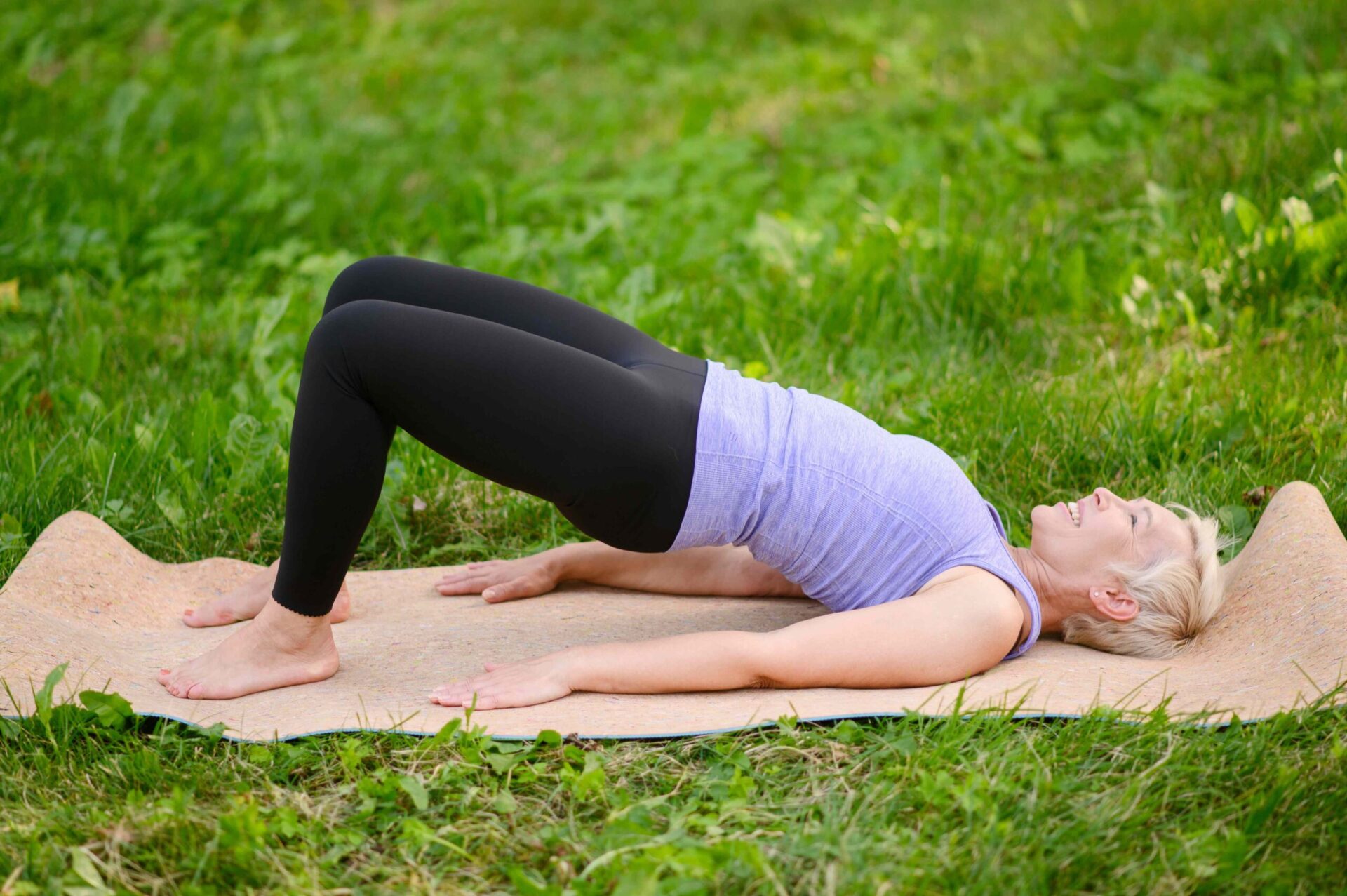
4. Glute Bridge
Strengthening your glutes not only supports posture and core stability, it also helps reduce stress on your knees and lower back. “Because you’re lying on your back with feet flat on the floor, there’s zero compressive load on the knee joint,” Silver-Fagan said.
To do a glute bridge:
- Lie on your back with your knees bent and feet planted on the ground hip-width apart. (It’s okay to go slightly wider than hip-width if you’d prefer). For added resistance, you can place a dumbbell on your hips or loop a resistance band around your thighs.
- Drive through your heels while lifting your hips, tucking your pelvis until your body forms a straight line from your shoulders to knees.
- Lower down slowly and repeat.
If you want to strengthen your hamstrings, try walking your feet slightly farther away from your glutes before lifting your hips, Joi said.
5. Sumo Squat
Compared with a regular squat, sumo squats involve a wide stance with externally rotated feet and open hips, which reduces shear force on the knees while strengthening the muscles around the joint. This movement specifically targets the inner thighs, glutes, quads, and adductors—muscles that play a large role in knee stability but are often “massively undertrained,” Silver-Fagan noted.
To do a sumo squat:
- Get into a wide stance, feet wider than shoulder-width apart and angled at about 45 degrees. If using a weight, hold it vertically in front of you or in a goblet position at your chest.
- Sit straight down, keeping your chest tall and knees tracking over your toes.
- Press through your entire full foot to return to standing.
6. Step-Up
“Everyone should be doing step-ups,” Joi said. The exercise builds single-leg strength, balance, and coordination, skills that translate directly to everyday movements like walking, climbing stairs, and hiking. And, if done with controlled movements on a low box, step-ups also strengthen the leg muscles while keeping knee tracking stable.
To do a step-up:
- Step onto a low box or bench with one foot, driving through the heel to stand up.
- Slowly lower back down with control.
- Alternate legs with each step. If you want to level up, try adding a knee drive and hold your knee at hip height for a few seconds before stepping back down.
7. Calf Raise
This move can actually help improve knee pain, since strengthening your calves helps with ankle stability and shock absorption, both of which indirectly reduce strain on the knees, Joi said. It also requires very little knee movement.
To do a calf raise:
- Stand tall with your feet hip-width apart.
- Slowly rise onto the balls of your feet, lifting up onto your toes.
- Pause briefly at the top, keeping your calves engaged, then lower back down with control.
You can perform this exercise with both legs at the same time or one leg at a time.