Switch 2 Pricing Shift: Nintendo Says Its Physical Games Will Cost $10 More


Nintendo made an unprecedented move Wednesday by changing up its pricing scheme for its digital and physical Switch 2 games. Starting in May, it’s going to cost more to buy a physical game instead of a digital copy, and the current memory shortage could be the culprit. 

Yoshi and the Mysterious Book, set to release on May 21, will be the first Nintendo Switch 2 game that will have two separate MSRPs, Nintendo said in a statement on Wednesday. The digital version will cost $60 while the physical copy will retail for $70 at Nintendo’s online store, and Switch 2 exclusive games that follow will have a similar pricing scheme to the digital format, costing less than the physical. 

Nintendo did not give a reason as to why the prices will be different. It did say that its games “offer the same experiences whether in packaged or digital format, and this change simply reflects the different costs associated with producing and distributing each format and offers players more choice in how they can buy and play Nintendo games.”

It’s unclear how retailers will respond to this change. Nintendo says retailers can set the prices as they see fit for either version. 

Which Switch 2 game will have the new pricing scheme?

Yoshi and the Mysterious Book will be out on May 21.

What will be the price difference between physical and digital?

As of right now, physical copies will cost $10 more. It’s unclear whether this will be the same across the board for different games, but it will be the norm for Nintendo’s Switch 2 exclusive games.

Why did Nintendo make this change?

The most likely reason is that the storage for the games themselves was costing Nintendo too much money. In its statement, Nintendo says the change “reflects the different costs associated with producing and distributing each format.” Nintendo already broke pricing norms for games with Mario Kart World and its retail price of $80, the highest price for a new game. 

In the case of Switch 2 games, since the newer console is more powerful and can produce better visuals, that means the Switch cartridges require more storage. Switch 1 games ranged from 2GB to 32GB, while Switch 2 games can start as low as 4GB, but they have double the file size of the older Switch games, with Split Fiction taking up 73GB. Cartridges with large storage sizes are more expensive to produce, especially during the current global shortage of memory happening across the globe. It would that Nintendo wants to pass along those extra production costs to gamers as it did with Mario Kart World

What will retailers do about the Switch 2 game price change? 

Retailers were arguably the biggest reason publishers like Sony, Microsoft and Nintendo didn’t price their digital versions of games lower than the physical copies. It’s been rumored that when the Big Three game companies began offering digital sales of games via their respective platforms, it was retailers who advised that if digital copies undercut physical versions, they would stop stocking those physical versions on store shelves. This rumor hasn’t been verified, but over the year, it does appear that there is an agreement to keep both versions of a game at the same price regardless of its physical or digital format. 

The thing is, digital sales of games have been increasing over the years while physical sales have dropped tremendously. In January 2025, Matt Piscatella, senior director and video game industry advisor at Circana, posted on Blue Sky that sales of physical games media have dropped by more than 50% since 2021 and more than 85% since its peak in 2008. Part of that reason is how retailers such as Walmart, Best Buy and Amazon also sell digital codes for a game, which gives consumers more outlets to purchase from. 

As retail stores are allowing less space for physical media, it’s likely that they will not oppose this change by Nintendo. If there is one store that could feel the effects the most, it would be GameStop and other video games-focused retailers, but it’s not doom and gloom for them. While most of the gaming public will continue to purchase digital versions of games, especially when prices are lower, a growing number of game collectors have shown a willingness to pay a premium for physical copies. There’s also a push by some gamers to avoid digital media out of fear that publishers could turn off servers, making digital copies obsolete

What will other game publishers do about the Switch 2 game price change? 

Publishers of Switch 2 games, such as EA, Ubisoft and Bandai Namco will be the ones who have the toughest decision on this matter of pricing. Lowering the price of digital versions of their games is an immediate revenue hit for them, especially since many of the games they publish and develop have large budgets surpassing those of many Nintendo games. If they don’t change the pricing for games across the board, these publishers might make changes to their midrange titles, where it would be an easier pill to swallow. 

It’s also unlikely that Sony and Microsoft will follow suit, as both have been adjusting their plans to deal with the current downward trend in gaming. 


Source link

Leave a Reply

Subscribe to Our Newsletter

Get our latest articles delivered straight to your inbox. No spam, we promise.

Recent Reviews


Comparing the columns in Excel is a powerful way for analysing and understanding data and can help us in identifying the patterns and trends that we may not be able to find out through manual inspection. Using Excel formulas and techniques we can quickly and easily compare columns and gain insights that can help us in making better decisions. There are several ways to compare two columns in Excel. By using formulas like IF, COUNTIF, INDEX/MATCH and VLOOKUP. But before we compare we need to understand the type of data you are working with, like whether it is a numeric, text or date/time data. This will help you to choose the suitable tool or technique to compare it. For example if you are working with text data, you can use the IF function to compare and find the matching and non-matching entries. If you are working with numeric data, you may use a function like COUNTIF function to count the number of matching entries.

Methods to compare two columns in excel:

1. Using Equal operator

One of the simplest ways to compare values in two columns in Excel is using an equal operator. Let us understand how we can compare two columns using equal operators with an example.

  • First select a cell where you want to write the result
  • Then type “=” sign
  • Select the value in the first column which you want to compare then write “=” and select the value in another column and 
  • Hit the enter button


Want to gain knowledge in Excel? Then visit here to learn Excel Training!

Excel Training

  • Master Your Craft
  • Lifetime LMS & Faculty Access
  • 24/7 online expert support
  • Real-world & Project Based Learning

2. Using Conditional formatting:

a) Comparing two columns to highlight the duplicate values in the columns:

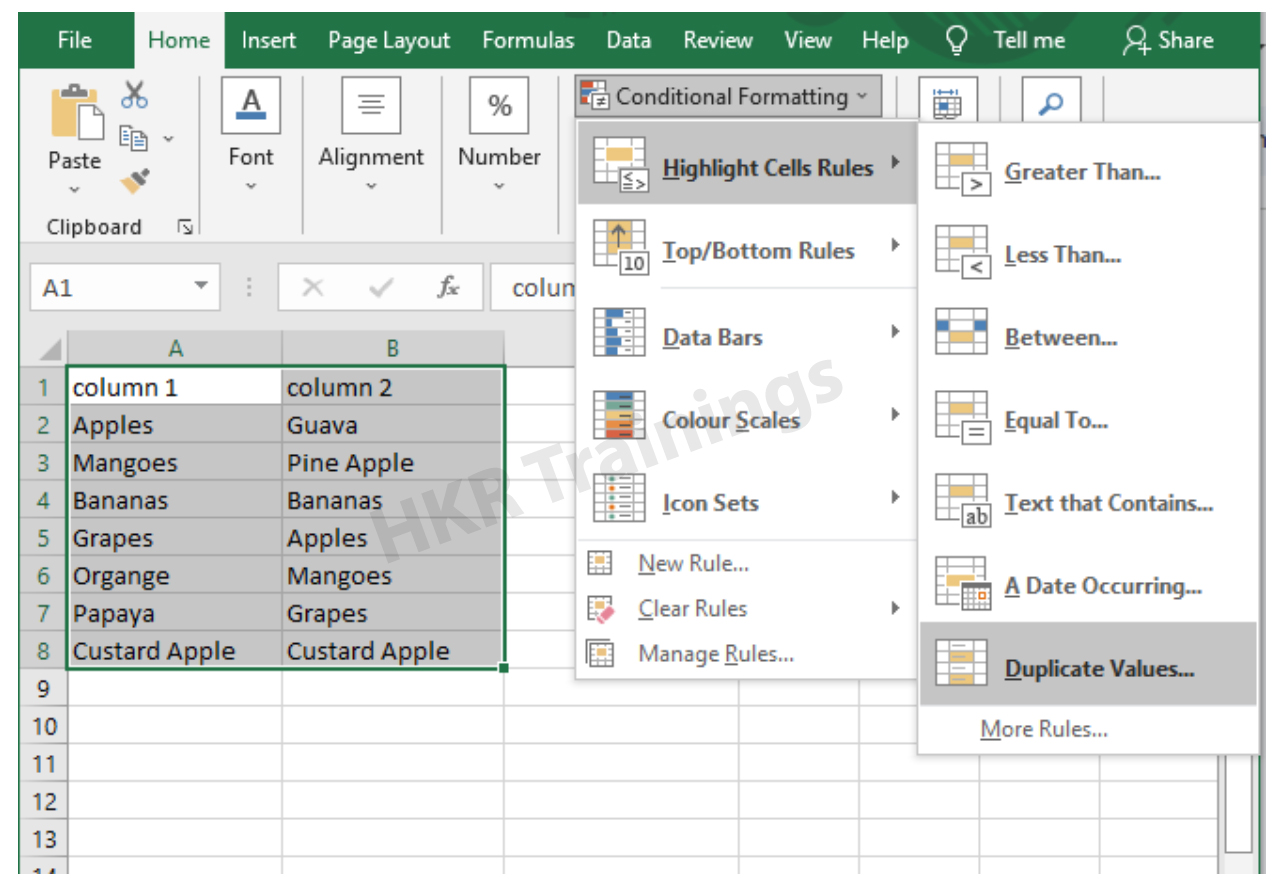
It is a feature in Excel that will highlight cells in one column that match/do not match with another column. To highlight the cells that have same values follow the below steps:

1. Select the two columns you want to compare.

2. Then go to the home tab and select the conditional formatting option.

3. Select the option Highlight cells Rules, then click on duplicate values option


4. Duplicate values dialogue box appears on the screen. Select an option from the dialogue box how the duplicate values must look like. In this Example I have chosen Green fill with dark green text. You can choose any option you like and click ok.

5. Then the duplicate text will be highlighted with green colour with dark green text

b) Comparing two columns to highlight the Unique values in the columns:

Now to highlight the cells that have different values follow the below steps:

  1. Select the two columns you want to compare.
  2. Then go to the home tab and select the conditional formatting option.
  3. Select the option Highlight cells Rules, then click on duplicate values option
  4. Duplicate values dialogue box appears on the screen. Select an option Unique instead of Duplicate from the dialogue box and also how the duplicate values must look like. In this Example I have chosen Light Red fill with dark Red text. You can choose any option you like and click ok.
  5. Then the unique text will be highlighted with light Red colour with dark Red text


Equal operator, Generals, compare-two-columns-in-excel-description-0, Generals, compare-two-columns-in-excel-description-0, Generals, compare-two-columns-in-excel-description-0, Equal operator, Generals, compare-two-columns-in-excel-description-0, Generals, compare-two-columns-in-excel-description-0, Equal operator, Generals, compare-two-columns-in-excel-description-0, , Generals, compare-two-columns-in-excel-description-1, Generals, compare-two-columns-in-excel-description-1, Generals, compare-two-columns-in-excel-description-1, Equal operator, Generals, compare-two-columns-in-excel-description-0, Generals, compare-two-columns-in-excel-description-0, Equal operator, Generals, compare-two-columns-in-excel-description-0, , Generals, compare-two-columns-in-excel-description-1, Generals, compare-two-columns-in-excel-description-1, Equal operator, Generals, compare-two-columns-in-excel-description-0, , Generals, compare-two-columns-in-excel-description-1, , Generals, compare-two-columns-in-excel-description-2, Generals, compare-two-columns-in-excel-description-2, Generals, compare-two-columns-in-excel-description-2

Subscribe to our YouTube channel to get new updates..!

3. Using Formulas

Excel offers a number of Formulas to compare the cells in two columns. Let us go through them one by one.

a) IF:

It allows you to compare two cells in two columns and will return the result based on the condition we provide. Let us understand how to use the IF formula to compare the values in two columns with an example.

  1. First select a cell where you want to write the result
  2. Then type “=” sign
  3. Type IF and open bracket “( and write the condition and put a comma. Then write the value to be displayed if the condition is true in inverted commas and put a comma, and then write the value to be displayed if the condition is false in inverted commas.
  4. Close the bracket “)” and hit the enter button


b) COUNTIF:

We can use this formula to compare the two columns and count the number of cells that are the same or different. Let us understand how to use the COUNTIF formula to compare the values in two columns with an example.

  1. First select a cell where you want to write the result
  2. Then type “=” sign
  3. Type COUNTIF and open bracket “(“ and select the range, put a comma and select the range from another column to compare it
  4. Close the bracket “)” and hit the enter button


Top 30 frequently asked Excel Interview Questions !

Excel Training

Weekday / Weekend Batches

c) MATCH:

We can use the match function to compare two columns and find the position of a value in one column that matches with the value in another column. Let us understand how to use the MATCH formula to compare the values in two columns with an example.

  1. First select a cell where you want to write the result
  2. Then type “=” sign
  3. Type MATCH and open bracket “(“ and select the cell which you wanted to compare, put a comma and select the range from another column to compare, put a comma and write 0 to get exact match
  4. Close the bracket “)” and hit the enter button


d) VLOOKUP:

We can use the VLOOKUP function for comparing two columns and return a value if there is a match. Let us understand how to use the VLOOKUP formula to compare the values in two columns with an example.

  1. First select a cell where you want to write the result
  2. Then type “=” sign
  3. Type VLOOKUP and open bracket “(“ and select the cell which you wanted to compare, put a comma and select the range from another column to compare, put a comma and write 2 to return the value from the second column of the range – if a match is found, put a comma and write FALSE to get exact match
  4. Close the bracket “)” and hit the enter button


Conclusion:

In this blog, We have discussed different ways to compare two columns in Excel with examples. We hope you found this information useful. For more information on Excel stay tuned.


Source link