Razer Releases New Blade 16 Gaming Laptop With Intel Panther Lake, Brighter OLED


Razer is out with a new gaming laptop. Released Wednesday, the latest Blade 16 runs back the slab-like look of previous models, but inside has shifted from AMD to Intel. This year’s Razer Blade 16 is based on the Core Ultra 9 386H, a 16-core CPU from Intel’s latest Panther Lake series. That’s the only CPU offered, but for the GPU, you have a choice between an Nvidia GeForce RTX 5080 or 5090.

Along with the Panther Lake processor comes support for faster memory. The Blade 16 supports up to 64GB of 9,600MHz LPDDR5 RAM — up from 8,000MHz last year. The memory is soldered to the motherboard, so you can’t upgrade it after purchase. You’ll need to choose either 32GB or 64GB up front and stick with it. 

However, there’s a second M.2 slot for increasing the internal storage. And since the Blade 16’s storage options are only 1 or 2 terabytes, gamers with large game libraries or creators who work with large video files might want to add more.

In addition to gaming and content creating, the Blade 16 is well-equipped for AI work. The Core Ultra 9 386H processor features a neural processing unit capable of 50 trillion operations per second, or TOPS, and its integrated GPU supplies another 40 TOPS. For reference, Microsoft set a minimum of 40 NPU TOPS for its Copilot Plus PC platform of AI laptops.

Intel’s Panther Lake CPUs thus far have proven to be both impressively powerful and efficient. For example, the MSI Prestige 14 Flip AI Plus and Dell XPS 14 that I tested turned in great numbers on our application and graphics benchmarks, and incredible battery life. I have no doubt that the new Razer Blade 16 will rip through our benchmarks, but it might also do so while delivering long battery life. Razer estimates the Blade 16 will give you up to 13 hours of productivity use and up to 15 hours of video playback.

Razer Blade 16 display, design and connections

The display remains the same, but Razer says it’s a bit brighter. It’s a 16-inch OLED with a 2,560×1,600-pixel resolution and 240Hz refresh rate that can now hit a peak brightness up to 1,100 nits in HDR mode. Last year’s model topped out at 1,000 nits. The display covers 100% of the DCI-P3 color gamut and is Calman Verified with custom-calibrated color profiles. I think the 2.5K resolution is perfect for the size. And if you want a 4K OLED, you can get it with the bigger Blade 18.

The new Blade 16 offers the latest in connectivity, starting with a Thunderbolt 5 port. (The other USB-C port is Thunderbolt 4, and there’s also a USB-A for connecting a mouse or an older USB device.) In addition, the Blade 16 features Wi-Fi 7 and Bluetooth 6.

I love the understated, unibody design of the Blade 16 and am happy to see it continue with this year’s update. It’s precision‑milled from a single block of T6‑grade aluminum and features a matte-black anodized finish with a fingerprint‑resistant coating. Add in the per-key RGB lighting and the green Razer logo on the lid, and you have yourself one good-looking gaming laptop.

Razer Blade 16 pricing

This much power and beauty doesn’t come cheap, especially with the global RAM shortage driving up laptop prices.

This year’s Blade 16 starts at $3,500 for RTX 5080 graphics, 32GB of RAM and a 1TB SSD.

For $4,500, the Blade 16 comes with an RTX 5090, 64GB of RAM and a 2TB SSD.

I’ll test the higher-end model as soon as I get it from Razer. Look for a full review of the Razer Blade 16 soon.


Source link

Leave a Reply

Subscribe to Our Newsletter

Get our latest articles delivered straight to your inbox. No spam, we promise.

Recent Reviews


Comparing the columns in Excel is a powerful way for analysing and understanding data and can help us in identifying the patterns and trends that we may not be able to find out through manual inspection. Using Excel formulas and techniques we can quickly and easily compare columns and gain insights that can help us in making better decisions. There are several ways to compare two columns in Excel. By using formulas like IF, COUNTIF, INDEX/MATCH and VLOOKUP. But before we compare we need to understand the type of data you are working with, like whether it is a numeric, text or date/time data. This will help you to choose the suitable tool or technique to compare it. For example if you are working with text data, you can use the IF function to compare and find the matching and non-matching entries. If you are working with numeric data, you may use a function like COUNTIF function to count the number of matching entries.

Methods to compare two columns in excel:

1. Using Equal operator

One of the simplest ways to compare values in two columns in Excel is using an equal operator. Let us understand how we can compare two columns using equal operators with an example.

  • First select a cell where you want to write the result
  • Then type “=” sign
  • Select the value in the first column which you want to compare then write “=” and select the value in another column and 
  • Hit the enter button


Want to gain knowledge in Excel? Then visit here to learn Excel Training!

Excel Training

  • Master Your Craft
  • Lifetime LMS & Faculty Access
  • 24/7 online expert support
  • Real-world & Project Based Learning

2. Using Conditional formatting:

a) Comparing two columns to highlight the duplicate values in the columns:

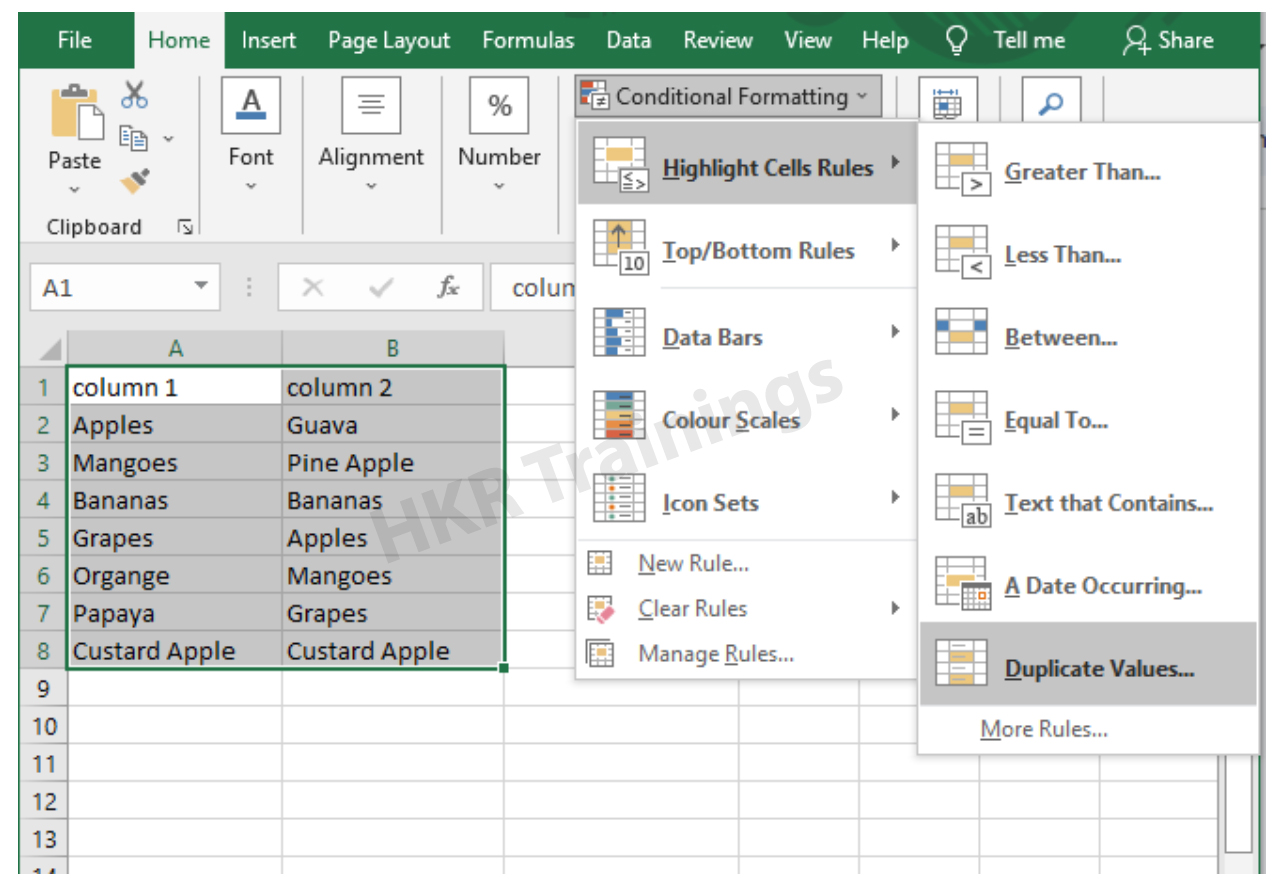
It is a feature in Excel that will highlight cells in one column that match/do not match with another column. To highlight the cells that have same values follow the below steps:

1. Select the two columns you want to compare.

2. Then go to the home tab and select the conditional formatting option.

3. Select the option Highlight cells Rules, then click on duplicate values option


4. Duplicate values dialogue box appears on the screen. Select an option from the dialogue box how the duplicate values must look like. In this Example I have chosen Green fill with dark green text. You can choose any option you like and click ok.

5. Then the duplicate text will be highlighted with green colour with dark green text

b) Comparing two columns to highlight the Unique values in the columns:

Now to highlight the cells that have different values follow the below steps:

  1. Select the two columns you want to compare.
  2. Then go to the home tab and select the conditional formatting option.
  3. Select the option Highlight cells Rules, then click on duplicate values option
  4. Duplicate values dialogue box appears on the screen. Select an option Unique instead of Duplicate from the dialogue box and also how the duplicate values must look like. In this Example I have chosen Light Red fill with dark Red text. You can choose any option you like and click ok.
  5. Then the unique text will be highlighted with light Red colour with dark Red text


Equal operator, Generals, compare-two-columns-in-excel-description-0, Generals, compare-two-columns-in-excel-description-0, Generals, compare-two-columns-in-excel-description-0, Equal operator, Generals, compare-two-columns-in-excel-description-0, Generals, compare-two-columns-in-excel-description-0, Equal operator, Generals, compare-two-columns-in-excel-description-0, , Generals, compare-two-columns-in-excel-description-1, Generals, compare-two-columns-in-excel-description-1, Generals, compare-two-columns-in-excel-description-1, Equal operator, Generals, compare-two-columns-in-excel-description-0, Generals, compare-two-columns-in-excel-description-0, Equal operator, Generals, compare-two-columns-in-excel-description-0, , Generals, compare-two-columns-in-excel-description-1, Generals, compare-two-columns-in-excel-description-1, Equal operator, Generals, compare-two-columns-in-excel-description-0, , Generals, compare-two-columns-in-excel-description-1, , Generals, compare-two-columns-in-excel-description-2, Generals, compare-two-columns-in-excel-description-2, Generals, compare-two-columns-in-excel-description-2

Subscribe to our YouTube channel to get new updates..!

3. Using Formulas

Excel offers a number of Formulas to compare the cells in two columns. Let us go through them one by one.

a) IF:

It allows you to compare two cells in two columns and will return the result based on the condition we provide. Let us understand how to use the IF formula to compare the values in two columns with an example.

  1. First select a cell where you want to write the result
  2. Then type “=” sign
  3. Type IF and open bracket “( and write the condition and put a comma. Then write the value to be displayed if the condition is true in inverted commas and put a comma, and then write the value to be displayed if the condition is false in inverted commas.
  4. Close the bracket “)” and hit the enter button


b) COUNTIF:

We can use this formula to compare the two columns and count the number of cells that are the same or different. Let us understand how to use the COUNTIF formula to compare the values in two columns with an example.

  1. First select a cell where you want to write the result
  2. Then type “=” sign
  3. Type COUNTIF and open bracket “(“ and select the range, put a comma and select the range from another column to compare it
  4. Close the bracket “)” and hit the enter button


Top 30 frequently asked Excel Interview Questions !

Excel Training

Weekday / Weekend Batches

c) MATCH:

We can use the match function to compare two columns and find the position of a value in one column that matches with the value in another column. Let us understand how to use the MATCH formula to compare the values in two columns with an example.

  1. First select a cell where you want to write the result
  2. Then type “=” sign
  3. Type MATCH and open bracket “(“ and select the cell which you wanted to compare, put a comma and select the range from another column to compare, put a comma and write 0 to get exact match
  4. Close the bracket “)” and hit the enter button


d) VLOOKUP:

We can use the VLOOKUP function for comparing two columns and return a value if there is a match. Let us understand how to use the VLOOKUP formula to compare the values in two columns with an example.

  1. First select a cell where you want to write the result
  2. Then type “=” sign
  3. Type VLOOKUP and open bracket “(“ and select the cell which you wanted to compare, put a comma and select the range from another column to compare, put a comma and write 2 to return the value from the second column of the range – if a match is found, put a comma and write FALSE to get exact match
  4. Close the bracket “)” and hit the enter button


Conclusion:

In this blog, We have discussed different ways to compare two columns in Excel with examples. We hope you found this information useful. For more information on Excel stay tuned.


Source link