Pega is a tool for managing business processes developed in Java. It uses Java and OOPs concepts. It has become more popular because of its agile way, flexibility, and extensibility. As Pega is a no-code tool, it is very easy for non-technical people to learn how to build complex applications using Pega. It has a dev studio in it that allows the owners of the business, sales leaders, and marketing teams to work directly with the developers to create new applications, automate and improve business processes and learn the business as it works to improve the customer experience. All about Pega begins with the company’s need and customer experience, and it comes with decades of evolution to continuously improve.
Want to Become a Master in Pega? Then visit here to LearnPega Training
What is SLA in Pega?
SLA stands for Service Level Agreement. SLA is one of the valuable features of the Pega CRM platform. Service Level Agreements enable us to set up goals and deadlines as part of the case management process. The main purpose of SLA is to help the task force to handle everything on time. Pega Rules Process Commander will monitor each SLA rule on taking care of performing a particular event action that was configured on that specific rule. It also adjusts the urgency associated with that task by increasing the urgency number. This may highlight the task in the employee’s worklist as it requires attention. So, based on the urgency of the task, we can sort the worklist. For every assignment, the default urgency is 10.
A Service Level Agreement defines time intervals as a goal and a timeline, which are used to standardize the way you solve work in your application. It creates a deadline to complete the work. When we create a goal and deadline, Pega creates an SLA. We can configure service levels for process, steps, stages, and entire classes. In Pega, there are four levels for SLA: start, Goal, Deadline, and Passed deadline.
Start: This is the step at which the service level timing begins. It begins at zeroth hour.
Goal: It states how long the assignments should take. This step is measured from when the assignment or the case begins.
Dead Line: It defines the amount of time the case or step may take before it is late. It is measured from the time when the assignment or case begins.
Passed Deadline: Passed Deadline defines when to take further action as the assignment or the case has passed the deadline. It measures the time that passed since the deadline for a still open assignment.
Want to know more about Pega,visit herePega Tutorial!
Pega Certification Training
Master Your Craft
Lifetime LMS & Faculty Access
24/7 online expert support
Real-world & Project Based Learning
Importance of SLA
SLA makes sure that your service provider is on the same page in terms of standards and services. It is important to set clear and measurable guidelines as they reduce the likelihood of client disappointment and provide recourse if the obligations are not met.
SLAs provide recourse for the unmet service obligation. If the obligations are not met by your service provider, then there will be significant consequences for the reputation of your company. So, we must include consequences in the SLA if performance standards are not met.
SLA provides peace of mind to your clients. They have a contract to which they can refer, which enables them to hold their service provider responsible and which specifies exactly the type of service they expect. If the agreed requirements are not met, they can mitigate some of the impacts through financial compensation from their provider.
An SLA referred to an assignment is known as assignment SLA. This SLA is started when the assignment is created and ended when the assignment is completed. Under the newly Assigned Page, the assignment urgency is set in the property pxUrgencyAssignSLA.
Case level SLA:
An SLA, when referred to the case level, is known as Case level SLA. Throughout the lifecycle of a case, this SLA is applicable. It is started when a case is started and ends when the case is ended. This SLA is identified under the workpage in the standard property pySLAName. It is set in a pxUrgencyWorkSLA property under pyWorkPage. Case level SLA urgency is set in a pxUrgencyWorkSLA property under pyWorkPage.
Stage level SLA:
When an SLA is referred to at stage level, it is called Stage level SLA. It is started when a case enters a stage and stops when the case leaves the stage. Urgency in Stage level is set in a pxUrgencyWorkStageSLA property under pyWorkPage.
Step level/Flow level SLA:
When an SLA is referred to as a step or flow level, it is called a Step level or Flow level SLA. A step level SLA starts when a process or step is started and stops when the process or step is ended. A Flow level SLA is started when a flow is started and stops when a flow is ended. A step SLA overrides a flow SLA if present. In the case type rule, step SLA can be referred to in every step under the stage. A flow SLA is referred under the process tab of the flow rule. The flow or step level urgency is set in the pxUrgencyWorkStepSLA property under pyWorkpage.
Subscribe to our YouTube channel to get new updates..!
How to configure SLA?
An SLA is an instance of class Rule-obj-service level. This SLA event is written to the queue class System-Queue-service level and is processed by an OOTB agent ServiceLevelEvents of the ruleset Pega-ProCom. In Record Explorer, SLA rules can be found under the Process category.
Start of Service-Level: This step involves setting up initial urgency and conditions to trigger the SLA rule. Based on three different conditions, an SLA can be marked as ready. Only when a specific condition is met, the SLA entry will be written to the queue class.
Immediately: When this option is selected, SLA will be written to the queue class when the assignment with SLA gets created. Dynamically defined on a property: when this option is selected, it accepts a date-time property as the input, and when the specified time is reached, it writes an entry into the queue class.
Timed delay: When this option is selected, with a time delay, the SLA entry will be written into a queue class. The time delay is specified in minutes, hours, and days fields.
Service Level Definitions: This step is used to define different intervals in an SLA. They are goal, deadline, passed deadline. An interval can be defined in two ways. They are
1. Interval from when the assignment is ready
2. Set to the value of the property.
How do we add a service level to an assignment?
Open case type from designer studio
Select any case type that is available
Select the step for which SLA to be set
On the right side, select the goal and deadline tab to configure the service level
Enter the goal and deadline
We can also enable the notify option that notifies when the goal or deadline is reached.
How do we add a service level to a case?
On the explorer panel, click on the case types to open the case explorer
Go to the settings tab on the case life cycle
Select goal and deadline under the settings tab.
Select consider goal and deadline.
To add a service level throughout the case life cycle:
In this blog post, we have covered all the important information about SLA in Pega. I hope you found this blog helpful and gave you knowledge on SLA’s, levels of SLA in Pega, configuring SLAs, etc. If you feel anything to be added or uncovered in this blog, feel free to drop a comment in the comment box.
Business Workflows are used in SAP systems to execute business processes in applications. Workflows are an important component of the SAP system because they aid in the design of business processes, which can range from a simple release to a complex repeated business process such as creating a material master, among other things.
SAP Business Workflows are predefined in the SAP R/3 system, but users can also create their own. The workflow enables users to manage business processes efficiently and in accordance with compliance.
Workflows ensure that the correct information is sent to the correct person at the correct time and in the correct sequence.
To complete a complex task in the SAP system, such as invoice approval or purchase request, several steps must be taken. These steps can be carried out manually or through formal communication channels such as email, notes, and so on. When tasks are performed manually, there are some common issues that arise, such as
Tracking the task status is difficult.
Managing Inefficiency
Tracking formal communications is difficult.
Keeping a deadline
The image above depicts the SAP Workflow process. It is a business process automation tool that works consistently across all applications. As you can see, it is appropriate for business processes that involve multiple people or groups of people.
Business workflows could be seamlessly implemented with Organization Management and SAP NetWeaver BI for analysis purposes, allowing you to quickly identify the business processes that are best suited to your organization.
Why do we need sap workflows in business processes?
Workflow is required in business processes in SAP for a variety of reasons. Wait time is the longest duration in any business process.
Raising a Purchase Order, an Invoice, and a Sales Order all require approval from specific stakeholders and involve multiple steps. As a result, a significant amount of time is added to the cycle. Auditing and Compliance – Areas at which auditing is needed or specific compliance must be based on court rules, SOX, and so on. They are difficult to manage with manual business processes. Processes that require regular repeated steps and adhere to specific business rules are referred to as specific processes. For example, when you create a new BP, you must specify contact information, a credit limit, and other details to help you manage the process. SAP Workflow is recommended for managing these specific processes.
Companies can easily address these issues by utilizing SAP Workflows, as well as perform detailed reporting such as implementing time, wait time, and so on.
Benefits of workflow:
The workflow inside a SAP system ensures the right data is sent to the right people at the right time. SAP Workflows can be used with SAP applications such as ERP, CRM, and others. Users can easily map business processes using these workflows, which can also be edited using the workflow builder.
Workflow automates business processes that are composed of a series of tasks, activities, and steps.
Workflows make it simple to manage task dependencies and send notifications about pending actions to SAP mailboxes.
The use of SAP Workflows makes it simple for users to understand what tasks must be completed. Work items are delivered to the user in the form of notifications, and with a single click, it invokes the appropriate T-code and navigates to the appropriate screen in the application.
SAP applications include ready-to-use workflows. Users can also edit the predefined business workflows to map them to the processes of the organization.
Users can create a particular part of Business workflows by using different workflow wizards. The workflow builder can be used to display and modify existing workflows.
Workflows are not restricted to specific SAP applications and can be tailored to meet the needs of the user.
One of the primary advantages of using SAP Workflow is that it is consistent across all SAP applications.
Workflows are useful for processes involving multiple people or groups of people, a sequence of tasks, and coordination between various objects.
SAP workflow layers:
The SAP Workflow architecture in the SAP Application system is made up of the following layers:
Business Object
Business Process
Organization Model
In SAP Business Workflow, a Business Object is a collection of methods or events for an entity in the business process. Customer, Material, and Vendor are some of the most common Business Objects in the SAP system.
Business processes in SAP Workflow are defined in the Workflow Builder. Each work process is referred to as an activity, and it consists of a single step task or workflow template. Business logic is defined in Business Objects using ABAP code.
People or groups of people are responsible for taking actions in a Business Workflow in the organization model. People who are in charge of taking action are referred to as actual agents, and they are defined in the workflow activity in the Business Workflow.
Each object in the SAP system comes with a standard set of events and methods for performing actions on that object. The most common methods and events are as follows:
Change, Display, Get Details, and Create are all methods.
Created and Modified Events
Business Objects are known in SAP systems to reduce the complexity of the SAP system by dividing it into smaller units. These properties are shared by all business objects.
Object Type ID It is used to identify the business object internally.
Object Name It is used to externally identify the business object. The external system can interact with the SAP system by using this property.
Super Type It is the parent object from which all of the BO’s components are inherited.
Name:It is a descriptive name for the BO.
DescriptionIt is a brief description of the type of business object.
Application:The application component to which the BO is assigned.
Program:The ABAP code of the BO is contained in the Program.
SAP workflow Architecture:
SAP Workflow is built on a three-tiered architecture. The three layers of SAP Workflow architecture are as follows:
The lowest level in SAP Workflow architecture seems to be the business object, which is located at the bottom level. In SAP Business Workflow, a Business Object is defined as a collection of methods or events for an entity in a business process. Customer, Material, and Vendor are some of the most common Business Objects in a SAP system. All services are provided in the form of executable methods when Business Objects are used.
A Business Object Repository is an object-oriented approach for modeling Business Objects and Processes. It is a collection of Business Object and Interface types, as well as their associated attributes, methods, and events.
Business processes are at the middle level of the Workflow architecture, defining the steps to be performed as part of the Workflow. The Workflow Builder is used to define business processes.Each work process is referred to as an activity, and it consists of a single step task or the workflow template. Business logic is defined in Business Objects using ABAP code.
The top layer of the SAP Workflow architecture is the organization model. People or groups of people are responsible for taking actions in a Business Workflow in an organizational model. People who are in charge of taking action are referred to as actual agents, and they are defined in the Business Workflows workflow activity.
Using Business Object Builder, you can develop new Business Objects. Events in Business Objects are in charge of both the initial start and the termination of the workflow.Events are also used to trigger the execution of subsequent tasks in the workflow. All tasks defined in the Workflow will be executed in the order specified in the Workflow definition.
Examples of common tasks include
Release Document
After Invoice
Approval Absence
Run the Change Material
Call
Check the report and Work
The image below depicts how a task is carried out in SAP Workflow and how it interacts with object types and object methods, organization models, events, and texts.
Components of sap workflow:
Business processes in SAP Workflow are defined in the Workflow Builder. Each step is defined as an activity in the Workflow builder. Each activity defines a single-step task or workflow template.
Organizational plan
Workflow builder
Standard task and events triggering
Each step throughout the workflow definition can be a task that points to a SAP transaction or decision. A decision may include agent specifications and deadline monitoring for a step. The workflow is initiated either manually or automatically by the system at runtime. In order for the system to initiate a workflow, the workflow definition must include a triggering event.
Whenever an event occurs, the appropriate workflow is initiated automatically. Tasks or work items describe the activities involved and can refer to methods that can be executed automatically or methods that must be executed by a user . Tasks are business objects that are coded in ABAP.
Events are activities that initiate a workflow – one or more workflows at the same time. When the workflow is triggered, the definition flowchart determines when and how work is completed. After that, work items are received and executed in MS Outlook, Lotus Notes, mySAP Workflow MiniApp, or the SAP integrated inbox.
Conversely, the workflow system will send e-mail alerts to any mail system, informing the user that they must log in to the SAP system in order to complete the task. Every work item is assigned to one or more users. When the task is completed, the work item is removed from the inboxes of the other users.
Integration to email systems:
Workflow inboxes are typically populated with executable work items. However, casual SAP users, particularly managers, may forget to check their inbox on a regular basis, so it’s a good idea to set up reminder emails, informing people via a batch job that they have work items in their inbox. Alternatively, an email with a hotlink to the Workflow can be sent directly to their Lotus Notes / Outlook account.All emails are sent out of SAP through SAPConnect, whether they are Workflow notifications, Workflow Workitems, or just a standard SAP Office memo. This provides a one-stop shop for connecting SAP and the mail server.
Transporting workflow items between SAPConnect and the mail server (whether Lotus Notes or Microsoft Outlook) has been made easier by SAP-supplied add-ons that are fully optimized for the different protocols required by each server. Lotus Notes, for example, makes use of a “pipe” known as the MTA, or Message Transfer Agent. This was created in collaboration between SAP and Lotus to provide full integration.
It is important to note that the type of transport medium used is determined by the mail server, not the mail client. In other words, if an employee uses Outlook on their computer but the mail server is a Lotus Domino server, the MTA will be used as a mail gateway. Each workflow background user’s user profile must include an email address.It is important to note that no approval or reply notification from an external mail system will be permitted in other words, external email systems will be unable to respond back to SAP for security reasons.
Creating the sap workflow:
The following are the steps in order to create the workflow. They are:
1.Define Organization Plan (T-code PPOCE)
This transaction is the most straightforward way to define an organizational plan in the SAP system. You must enter the start date of the Organization unit and then click the Green tick mark, as shown in the screenshot below.
Subscribe to our YouTube channel to get new updates..!
2. Create Workflow template: (T-code PFTC_INS) to create a basic template of workflow,
(T-code SWDD) to build the workflow in the workflow builder
Select the Workflow template in the Task type field. To create tasks: Select Standard Task from the Task type drop-down menu and click Create.
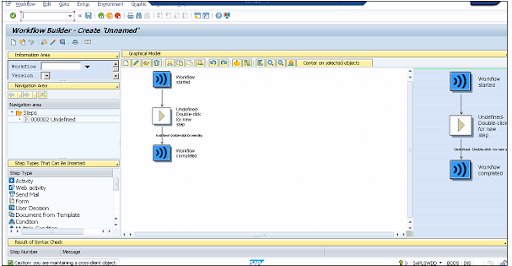
Navigate to T-Code: SWDD to begin building the workflow in the workflow builder.
Step types are different options in the Workflow Builder that you can drag and drop and insert into the Workflow.
3. Define 1st task (T-code PFTC_INS) (Create notification of absence)
To define the first task, navigate to T-Code: PFTC_INS
Select Standard Task in the Task type field.
Enter the following values and Save the task. Once you save the task, you will get code ID in number 93XXX989
In the Name field, select Form_created
In Abbr, select create_form
In Workitem text, select vik_notif_absence-create
In Object Type, select FORMABSENC
In Method field, select CREATE
Checkbox Synchronous object method, Object method with dialog checked
4. Add activity > first task in the workflow
You must add an activity to your workflow in place of the undefined step in the Workflow.
As seen in the following screenshot, using T-Code: PFTC_INS, a Task TS99500654 has been created separately.
SAP Certification Training
Weekday / Weekend Batches
Step Properties allows you to select various options based on your needs. Select the checkbox – Advance with dialog, as shown in the screenshot above. It demonstrates that the workflow work item is immediately available for processing.
Because we entered WF INITIATOR in Expression under Agents, the person who will initiate the workflow is one of the workitem recipients. There is also a binding option defined that confirms absence notification is not only in this task but also in the workflow – _WI ObjectId &ABSENCEFORM&.
In graphical mode, the Workflow Builder now looks like this:
5. 1st Test in SAP Inbox (T-code SBWP)
Now that the workflow has been executed, workitems such as e-mails are created in the SAP Inbox. When it is executed, it invokes the corresponding task or transaction screen. When you run this workflow, the notification of absence form appears.
To cancel the processing of the first notification, click Cancel. The workflow inbox contains one item for processing – creating an absence notification. Select the workitem and press the Execute button (F8). This will take you back to the “Create notification of absence screen,” where the notification of absence form will be displayed. Fill out the form with your information and save it. The Workitem will be removed from the inbox as a result of this action.
6. Define 2nd task (Check notification of absence)
Using the object formabsenc-approve, the created form will be sent to the supervisor for approval. Next, use T-Code: PFTC INS to create a new task.
7. Add activity > second task in workflow
Using the task code generated in the previous step, add Task “Check Notification of Absence in the Workflow.”
Define the binding properties as well, as shown in the screenshot below.
8. 2nd Test
The workflow will then be executed, and you will be directed to the workitem for creating notification of absence for processing. This is due to the Advancing with immediate dialog option being selected when creating a task.
Navigate to Business Workplace using the approver’s user-id to see the workitem to process and other attributes to include in the Workitem. Choose Execute after selecting the workitem for checking the notification of absence.
Reject or approve the request. Take note of the two buttons: Accept and Reject.
9. Integrate User Decision for Re-submit
If the approver rejects the leave request, you can also add the user decision to the rejected output. This gives the requester the opportunity to make changes and resubmit the request for approval.
10. 3rd Test
When a request is denied, the next step is for the user to make a decision. Because we specified (&WF INITIATOR&) as the step’s agent, the request will be sent back to us for a decision. You have two choices. Requests should be revised or withdrawn.
11. Define 3rd task (Revise notification of absence)
For this you need to revise the notification.
12. Add activity > third task to the workflow
To add this step, you have to make the following entries −
Use FORMABSENC-UPDATE as an object.
In the binding option, enter _WI_Object_ID <= &ABSENCEFORM&
In the Agents → add &_WF_INITIATOR& in the expression field
13. Add 4th Customer Task (Send Notification for approval of leave)
To send a notification, you must add a new step called “Send mail.” You must drag this step to the Undefined Step – following the result of the step “Check notification of absence.”
To add this step, you have to make the following entries −
Select the Recipient type − Enter the Organizational object
Select Agents → Choose the Expression &_WF_INITIATOR&.
Enter the subject line as <“Leave Approved”>
Enter the email text as <“Approved”>
When you press the Enter key, you will be prompted to enter the task’s name and abbreviation.
Conclusion:
In the above blog post we had clearly explained the in depth of sap workflows, architecture, features and benefits and why to choose the sap workflows. Had any doubts related to this concept drop your queries in the comment section to get them clarified.
To provide the best experiences, we use technologies like cookies to store and/or access device information. Consenting to these technologies will allow us to process data such as browsing behavior or unique IDs on this site. Not consenting or withdrawing consent, may adversely affect certain features and functions.
Functional
Always active
The technical storage or access is strictly necessary for the legitimate purpose of enabling the use of a specific service explicitly requested by the subscriber or user, or for the sole purpose of carrying out the transmission of a communication over an electronic communications network.
Preferences
The technical storage or access is necessary for the legitimate purpose of storing preferences that are not requested by the subscriber or user.
Statistics
The technical storage or access that is used exclusively for statistical purposes.The technical storage or access that is used exclusively for anonymous statistical purposes. Without a subpoena, voluntary compliance on the part of your Internet Service Provider, or additional records from a third party, information stored or retrieved for this purpose alone cannot usually be used to identify you.
Marketing
The technical storage or access is required to create user profiles to send advertising, or to track the user on a website or across several websites for similar marketing purposes.