A Garmin Trademark Filing Hints at a New Whoop-Like Wearable


As more people embrace an analog lifestyle, favoring offline experiences that get them off their devices, it would seem technology is following suit.

On March 31, Google implied that it will release a new screenless wearable reminiscent of fitness trackers like the Whoop 5.0, known for its recovery insights, and the Luna Band, which uses your voice to track your health. By forgoing screens, you can view your data only in the wearables’ accompanying apps, which can be a game changer for those with health anxiety or anyone tired of staring at screens.

Now, it appears Garmin is joining the screen-free party. 

On Thursday, news and reviews site Gadgets and Wearables reported that Garmin filed a trademark for a device called Cirqa with the United States Patent and Trademark Office on Feb. 25.

The trademark filing describes Cirqa as nonmedical, nontherapeutic wearable devices and instruments that use electronic sensors and monitors to measure and analyze the body’s bio-signals and behavior. Specifically, Cirqa would collect data on recovery from physical and emotional stress, human alertness level and performance.

With a focus on recovery and performance, Cirqa sounds a lot like the Whoop health tracker. 

In its filing, Garmin also describes Cirqa as an instrument for storing and sending data, which could mean it doesn’t display that data itself and instead relies on an app, as with other screenless wearables. 

A Garmin representative declined to comment, saying it’s against company policy to comment on any rumored or unannounced products.

A hand with the Whoop 5.0 on the wrist.

The wrist-based Whoop 5.0 health tracker

Nasha Addarich Martínez/CNET

Whoops: An accidental leak 

This isn’t the first time the Cirqa device has made news. In January, Garmin accidentally launched a Cirqa smart band product page and accompanying support pages, which have since been taken down. However, screenshots are still available on Reddit.

The leaked product was seen in Garmin’s online stores in the US, Canada, Mexico, Brazil and Chile. The band was shown in two colors, black and French gray, and two sizes, small-medium and large-extra large. One of the aforementioned Reddit screenshots shows the latter as wrist sizes.

The page included an “add to cart” option with the caveat that shipping would start in four to five months, meaning it would launch in May or June.

The lawsuit look of Garmin’s Cirqa 

While there haven’t been any leaks showing what Cirqa will look like, based on current lawsuits, it’s unlikely to resemble the Whoop band.

On Oct. 14, Whoop filed a trademark infringement lawsuit against Polar Electro Oy, the maker of the screenless Polar Loop, a health- and fitness-tracking band. Polar told MobiHealthNews that it denied the claim that its Loop copied the look of the Whoop band. On Friday, Polar filed an official response to Whoop’s complaint.

But that wasn’t the last time Whoop went after alleged copycats. On Jan. 22, Whoop filed another trademark infringement lawsuit against Nexxbase Technologies, maker of the Luna Band. Nexxbase Technologies has until May 19 to respond to the complaint.

As of now, Garmin does have its own Index Sleep Monitor, a smart armband worn on the upper arm that tracks breathing, recovery, women’s health and other bodily metrics while you sleep. So perhaps Cirqa will simply move that technology down the arm with 24/7 health insights.

Garmin's black Index Sleep Monitor armband

Garmin’s Index Sleep Monitor armband

Garmin

Based on the shipping date listed in Garmin’s own leaked product page, we may have the answers to all our questions in a month or two.


Source link

Leave a Reply

Subscribe to Our Newsletter

Get our latest articles delivered straight to your inbox. No spam, we promise.

Recent Reviews


Comparing the columns in Excel is a powerful way for analysing and understanding data and can help us in identifying the patterns and trends that we may not be able to find out through manual inspection. Using Excel formulas and techniques we can quickly and easily compare columns and gain insights that can help us in making better decisions. There are several ways to compare two columns in Excel. By using formulas like IF, COUNTIF, INDEX/MATCH and VLOOKUP. But before we compare we need to understand the type of data you are working with, like whether it is a numeric, text or date/time data. This will help you to choose the suitable tool or technique to compare it. For example if you are working with text data, you can use the IF function to compare and find the matching and non-matching entries. If you are working with numeric data, you may use a function like COUNTIF function to count the number of matching entries.

Methods to compare two columns in excel:

1. Using Equal operator

One of the simplest ways to compare values in two columns in Excel is using an equal operator. Let us understand how we can compare two columns using equal operators with an example.

  • First select a cell where you want to write the result
  • Then type “=” sign
  • Select the value in the first column which you want to compare then write “=” and select the value in another column and 
  • Hit the enter button


Want to gain knowledge in Excel? Then visit here to learn Excel Training!

Excel Training

  • Master Your Craft
  • Lifetime LMS & Faculty Access
  • 24/7 online expert support
  • Real-world & Project Based Learning

2. Using Conditional formatting:

a) Comparing two columns to highlight the duplicate values in the columns:

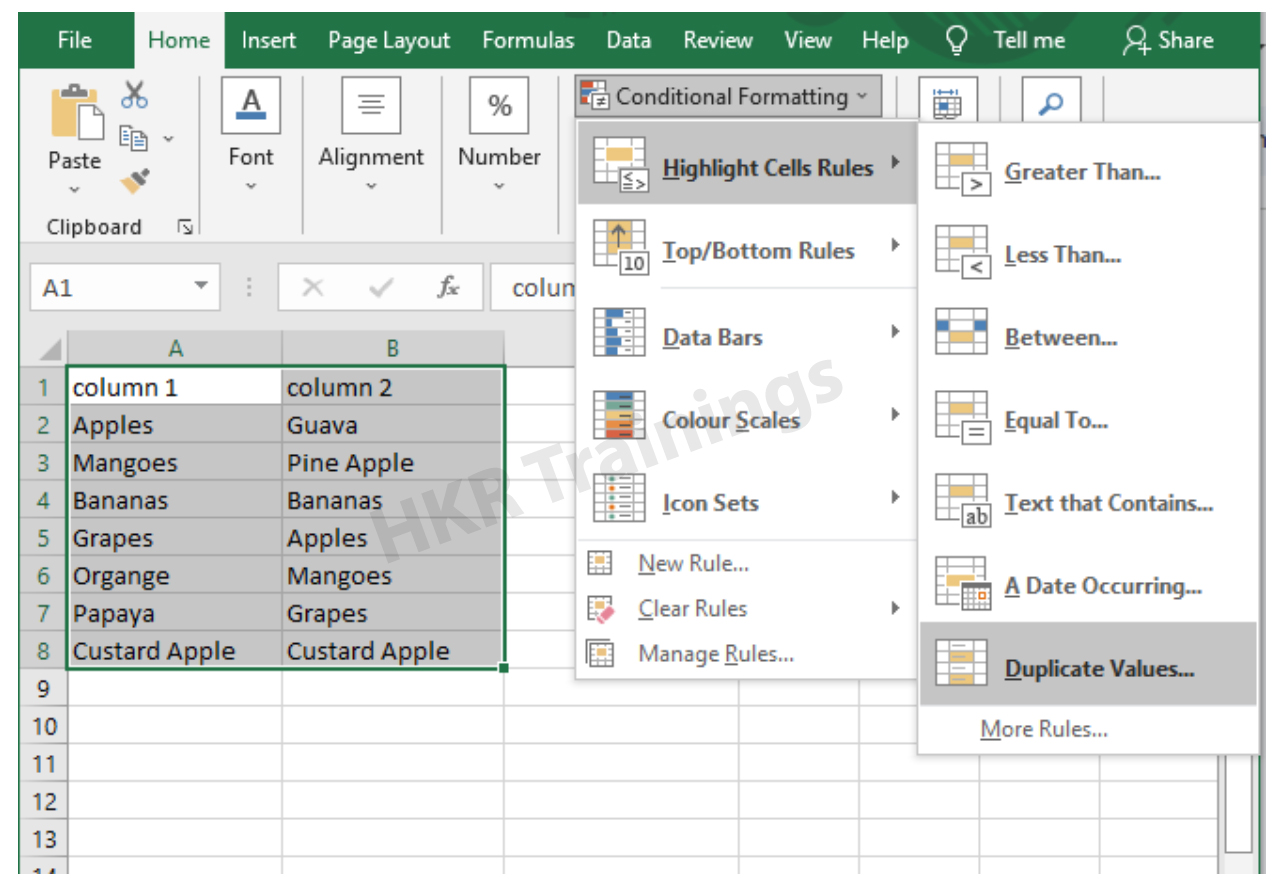
It is a feature in Excel that will highlight cells in one column that match/do not match with another column. To highlight the cells that have same values follow the below steps:

1. Select the two columns you want to compare.

2. Then go to the home tab and select the conditional formatting option.

3. Select the option Highlight cells Rules, then click on duplicate values option


4. Duplicate values dialogue box appears on the screen. Select an option from the dialogue box how the duplicate values must look like. In this Example I have chosen Green fill with dark green text. You can choose any option you like and click ok.

5. Then the duplicate text will be highlighted with green colour with dark green text

b) Comparing two columns to highlight the Unique values in the columns:

Now to highlight the cells that have different values follow the below steps:

  1. Select the two columns you want to compare.
  2. Then go to the home tab and select the conditional formatting option.
  3. Select the option Highlight cells Rules, then click on duplicate values option
  4. Duplicate values dialogue box appears on the screen. Select an option Unique instead of Duplicate from the dialogue box and also how the duplicate values must look like. In this Example I have chosen Light Red fill with dark Red text. You can choose any option you like and click ok.
  5. Then the unique text will be highlighted with light Red colour with dark Red text


Equal operator, Generals, compare-two-columns-in-excel-description-0, Generals, compare-two-columns-in-excel-description-0, Generals, compare-two-columns-in-excel-description-0, Equal operator, Generals, compare-two-columns-in-excel-description-0, Generals, compare-two-columns-in-excel-description-0, Equal operator, Generals, compare-two-columns-in-excel-description-0, , Generals, compare-two-columns-in-excel-description-1, Generals, compare-two-columns-in-excel-description-1, Generals, compare-two-columns-in-excel-description-1, Equal operator, Generals, compare-two-columns-in-excel-description-0, Generals, compare-two-columns-in-excel-description-0, Equal operator, Generals, compare-two-columns-in-excel-description-0, , Generals, compare-two-columns-in-excel-description-1, Generals, compare-two-columns-in-excel-description-1, Equal operator, Generals, compare-two-columns-in-excel-description-0, , Generals, compare-two-columns-in-excel-description-1, , Generals, compare-two-columns-in-excel-description-2, Generals, compare-two-columns-in-excel-description-2, Generals, compare-two-columns-in-excel-description-2

Subscribe to our YouTube channel to get new updates..!

3. Using Formulas

Excel offers a number of Formulas to compare the cells in two columns. Let us go through them one by one.

a) IF:

It allows you to compare two cells in two columns and will return the result based on the condition we provide. Let us understand how to use the IF formula to compare the values in two columns with an example.

  1. First select a cell where you want to write the result
  2. Then type “=” sign
  3. Type IF and open bracket “( and write the condition and put a comma. Then write the value to be displayed if the condition is true in inverted commas and put a comma, and then write the value to be displayed if the condition is false in inverted commas.
  4. Close the bracket “)” and hit the enter button


b) COUNTIF:

We can use this formula to compare the two columns and count the number of cells that are the same or different. Let us understand how to use the COUNTIF formula to compare the values in two columns with an example.

  1. First select a cell where you want to write the result
  2. Then type “=” sign
  3. Type COUNTIF and open bracket “(“ and select the range, put a comma and select the range from another column to compare it
  4. Close the bracket “)” and hit the enter button


Top 30 frequently asked Excel Interview Questions !

Excel Training

Weekday / Weekend Batches

c) MATCH:

We can use the match function to compare two columns and find the position of a value in one column that matches with the value in another column. Let us understand how to use the MATCH formula to compare the values in two columns with an example.

  1. First select a cell where you want to write the result
  2. Then type “=” sign
  3. Type MATCH and open bracket “(“ and select the cell which you wanted to compare, put a comma and select the range from another column to compare, put a comma and write 0 to get exact match
  4. Close the bracket “)” and hit the enter button


d) VLOOKUP:

We can use the VLOOKUP function for comparing two columns and return a value if there is a match. Let us understand how to use the VLOOKUP formula to compare the values in two columns with an example.

  1. First select a cell where you want to write the result
  2. Then type “=” sign
  3. Type VLOOKUP and open bracket “(“ and select the cell which you wanted to compare, put a comma and select the range from another column to compare, put a comma and write 2 to return the value from the second column of the range – if a match is found, put a comma and write FALSE to get exact match
  4. Close the bracket “)” and hit the enter button


Conclusion:

In this blog, We have discussed different ways to compare two columns in Excel with examples. We hope you found this information useful. For more information on Excel stay tuned.


Source link