‘Heated Rivalry’ Soundtrack to Get Physical Release, Details & Release Date Revealed | Heated Rivalry, Music | Celebrity News and Gossip | Entertainment, Photos and Videos


A physical version of the Heated Rivalry soundtrack is coming!!!

Fans will be able to get their hands on a CD or vinyl of the hit Crave series’ soundtrack later this year, Billboard reveals.

Hot shirtless photos of stars Hudson Williams and Connor Storrie will be featured on the two-disc CD set!

Keep reading to find out more…

The soundtrack will feature some of the original score by Peter Peter, as well as a selection of the songs featured in the show, including both versions of “All the Things She Said” by t.A.T.u. and Harrison, “mangetout” by Wet Lag, “I’ll Believe In Anything” by Wolf Parade and more. There will also be a bonus track of the unreleased “One Soul” (Cottage Mix) by Peter Peter.

If you missed it, check out our complete music guide for each episode of Heated Rivalry!

According to Billboard, both the CD and vinyl versions will include a foldout poster and liner notes from creator Jacob Tierney.

The vinyl will have two versions, with one set featuring colored vinyls themed to the Montreal Metros and Boston Raiders, and the second, Icy Inferno, pressed on a transparent clear vinyl with the center featuring Shane and Ilya’s jerseys and numbers.

In addition to the CD and vinyl copies, there will also be a digital download, featuring the same track list as the CD.

The Heated Rivalry soundtrack will be available on July 10th via Milan Records. Pre-orders will begin THIS Thursday (March 26)!

Check out the full tracklists below…

CD & Digital Download Tracklist

Disc 1
1. Dumas, “Une Journée Parfaite”
2. Wet Leg, “mangetout”
3. Philippe B, “Chelsea Mon Amour”
4. Baxter Dury, “Lips”
5. Wolf Parade, “I’ll Believe in Anything”
6. Feist, “My Moon My Man”
7. Satine, “C’est Toi”
8. t.A.T.u., “All the Things She Said”
9. Harrison, “All the Things She Said”
10. La Bronze, “L’Anarchie des Jours Heureux” (Theme Song From the Series Le Chalet)
11. Cailin Russo, “Bad Things”
12. Peter Peter, “One Soul” (Cottage Mix)

Disc 2
1. Peter Peter, “Rivalry”
2. Peter Peter, “Melt”
3. Peter Peter, “Those English Words Just Roll Off Your Tongue”
4. Peter Peter, “Heartbeat I”
5. Peter Peter, “Face-off”
6. Peter Peter, “Common Goal”
7. Peter Peter, “Jane & Lily”
8. Peter Peter, “Two Souls”
9. Peter Peter, “Heartbeat II”
10. Peter Peter, “It’s You”
11. Peter Peter, “Shivers from the Past”
12. Peter Peter, “Spring”
13. Peter Peter, “I Want to Win”
14. Peter Peter, “Let’s Make a Deal”
15. Peter Peter, “Inferno”
16. Peter Peter, “Fire Escape”
17. Peter Peter, “Young and Restless I”
18. Peter Peter, “La nuit est longue”
19. Peter Peter, “Young and Restless II”
20. Peter Peter, “You Slowly Dissipate”
21. Peter Peter, “Strangers on the Ice”
22. Peter Peter, “Dark Glow”
23. Peter Peter, “Utopie I”
24. Peter Peter, “Din of Your Voice”
25. Peter Peter, “Heartbeat III”
26. Peter Peter, “Flatline”
27. Peter Peter, “Distant Rivalry”
28. Peter Peter, “Text Me Whenever”
29. Peter Peter, “Heartbeat IV”
30. Peter Peter, “Hollanov”
31. Peter Peter, “Trembling”
32. Peter Peter, “Everybody’s Glory”
33. Peter Peter, “One Soul”
34. Peter Peter, “Utopie II”

Vinyl Tracklist

Side A
1. Dumas, “Une Journée Parfaite”
2. Wet Leg, “mangetout”
3. Philippe B, “Chelsea Mon Amour”
4. Baster Dury, “Lips”
5. Wolf Parade, “I’ll Believe in Anything”

Side B
1. Feist, “My Moon My Man”
2. Satine, “C’est Toi”
3. t.A.T.u., “All the Things She Said”
4. Harrison, “All the Things She Said”
5. La Bronze, “L’Anarchie des Jours Heureux” (Theme Song From the Series Le Chalet)
6. Cailin Russo, “Bad Things”
7. Peter Peter, “One Soul” (Cottage Mix)

Side C
1. Peter Peter, “Rivalry”
2. Peter Peter, “Melt”
3. Peter Peter, “Heartbeat I”
4. Peter Peter, “Face-off”
5. Peter Peter, “Common Goal”
6. Peter Peter, “Two Souls”
7. Peter Peter, “It’s You”
8. Peter Peter, “Inferno”
9. Peter Peter, “Fire Escape”

Side D
1. Peter Peter, “Young and Restless II”
2. Peter Peter, “La nuit est longue”
3. Peter Peter, “Jane & Lily”
4. Peter Peter, “Heartbeat III”
5. Peter Peter, “Hollanov”
6. Peter Peter, “Trembling”
7. Peter Peter, “Everybody’s Glory”
8. Peter Peter, “One Soul”
9. Peter Peter, “Utopie II”





Source link

Leave a Reply

Subscribe to Our Newsletter

Get our latest articles delivered straight to your inbox. No spam, we promise.

Recent Reviews


Comparing the columns in Excel is a powerful way for analysing and understanding data and can help us in identifying the patterns and trends that we may not be able to find out through manual inspection. Using Excel formulas and techniques we can quickly and easily compare columns and gain insights that can help us in making better decisions. There are several ways to compare two columns in Excel. By using formulas like IF, COUNTIF, INDEX/MATCH and VLOOKUP. But before we compare we need to understand the type of data you are working with, like whether it is a numeric, text or date/time data. This will help you to choose the suitable tool or technique to compare it. For example if you are working with text data, you can use the IF function to compare and find the matching and non-matching entries. If you are working with numeric data, you may use a function like COUNTIF function to count the number of matching entries.

Methods to compare two columns in excel:

1. Using Equal operator

One of the simplest ways to compare values in two columns in Excel is using an equal operator. Let us understand how we can compare two columns using equal operators with an example.

  • First select a cell where you want to write the result
  • Then type “=” sign
  • Select the value in the first column which you want to compare then write “=” and select the value in another column and 
  • Hit the enter button


Want to gain knowledge in Excel? Then visit here to learn Excel Training!

Excel Training

  • Master Your Craft
  • Lifetime LMS & Faculty Access
  • 24/7 online expert support
  • Real-world & Project Based Learning

2. Using Conditional formatting:

a) Comparing two columns to highlight the duplicate values in the columns:

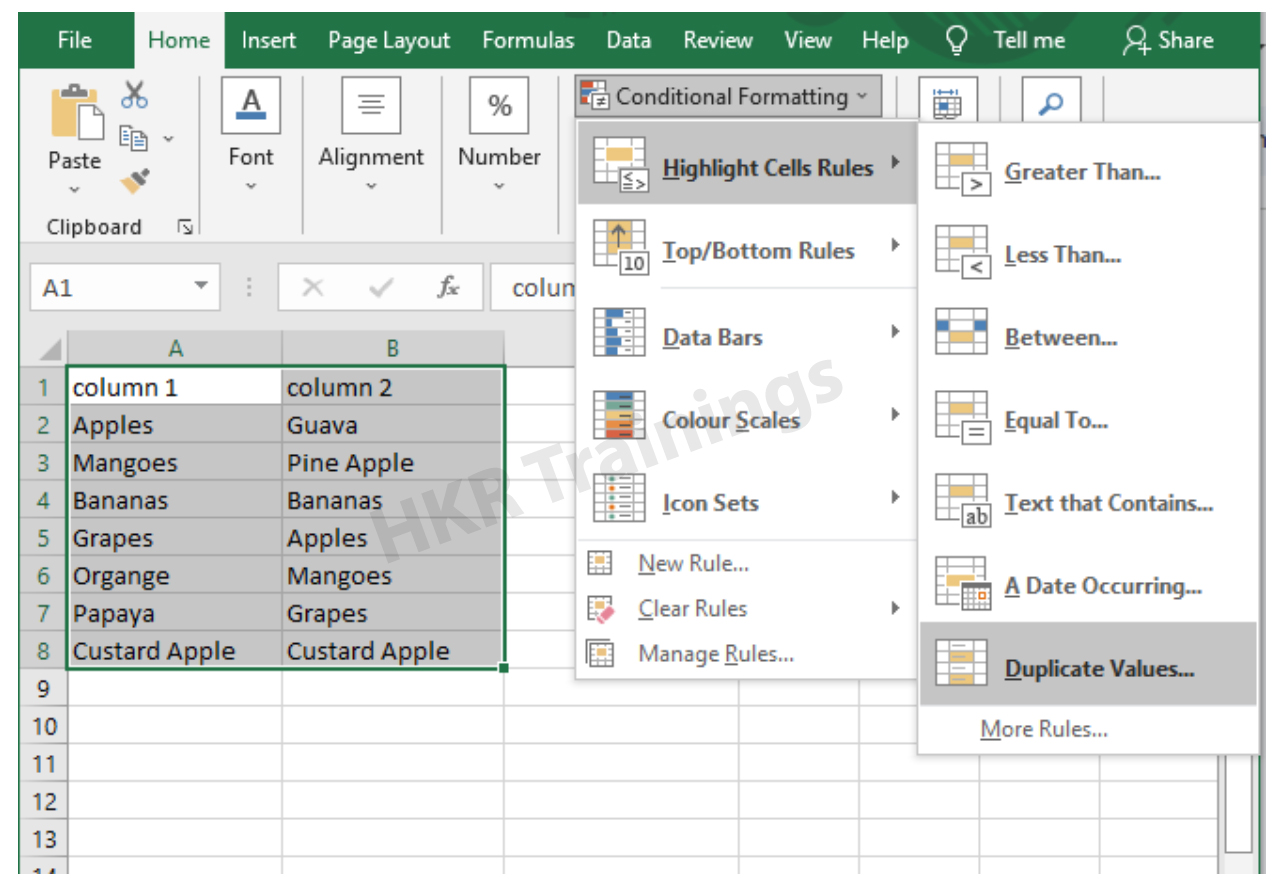
It is a feature in Excel that will highlight cells in one column that match/do not match with another column. To highlight the cells that have same values follow the below steps:

1. Select the two columns you want to compare.

2. Then go to the home tab and select the conditional formatting option.

3. Select the option Highlight cells Rules, then click on duplicate values option


4. Duplicate values dialogue box appears on the screen. Select an option from the dialogue box how the duplicate values must look like. In this Example I have chosen Green fill with dark green text. You can choose any option you like and click ok.

5. Then the duplicate text will be highlighted with green colour with dark green text

b) Comparing two columns to highlight the Unique values in the columns:

Now to highlight the cells that have different values follow the below steps:

  1. Select the two columns you want to compare.
  2. Then go to the home tab and select the conditional formatting option.
  3. Select the option Highlight cells Rules, then click on duplicate values option
  4. Duplicate values dialogue box appears on the screen. Select an option Unique instead of Duplicate from the dialogue box and also how the duplicate values must look like. In this Example I have chosen Light Red fill with dark Red text. You can choose any option you like and click ok.
  5. Then the unique text will be highlighted with light Red colour with dark Red text


Equal operator, Generals, compare-two-columns-in-excel-description-0, Generals, compare-two-columns-in-excel-description-0, Generals, compare-two-columns-in-excel-description-0, Equal operator, Generals, compare-two-columns-in-excel-description-0, Generals, compare-two-columns-in-excel-description-0, Equal operator, Generals, compare-two-columns-in-excel-description-0, , Generals, compare-two-columns-in-excel-description-1, Generals, compare-two-columns-in-excel-description-1, Generals, compare-two-columns-in-excel-description-1, Equal operator, Generals, compare-two-columns-in-excel-description-0, Generals, compare-two-columns-in-excel-description-0, Equal operator, Generals, compare-two-columns-in-excel-description-0, , Generals, compare-two-columns-in-excel-description-1, Generals, compare-two-columns-in-excel-description-1, Equal operator, Generals, compare-two-columns-in-excel-description-0, , Generals, compare-two-columns-in-excel-description-1, , Generals, compare-two-columns-in-excel-description-2, Generals, compare-two-columns-in-excel-description-2, Generals, compare-two-columns-in-excel-description-2

Subscribe to our YouTube channel to get new updates..!

3. Using Formulas

Excel offers a number of Formulas to compare the cells in two columns. Let us go through them one by one.

a) IF:

It allows you to compare two cells in two columns and will return the result based on the condition we provide. Let us understand how to use the IF formula to compare the values in two columns with an example.

  1. First select a cell where you want to write the result
  2. Then type “=” sign
  3. Type IF and open bracket “( and write the condition and put a comma. Then write the value to be displayed if the condition is true in inverted commas and put a comma, and then write the value to be displayed if the condition is false in inverted commas.
  4. Close the bracket “)” and hit the enter button


b) COUNTIF:

We can use this formula to compare the two columns and count the number of cells that are the same or different. Let us understand how to use the COUNTIF formula to compare the values in two columns with an example.

  1. First select a cell where you want to write the result
  2. Then type “=” sign
  3. Type COUNTIF and open bracket “(“ and select the range, put a comma and select the range from another column to compare it
  4. Close the bracket “)” and hit the enter button


Top 30 frequently asked Excel Interview Questions !

Excel Training

Weekday / Weekend Batches

c) MATCH:

We can use the match function to compare two columns and find the position of a value in one column that matches with the value in another column. Let us understand how to use the MATCH formula to compare the values in two columns with an example.

  1. First select a cell where you want to write the result
  2. Then type “=” sign
  3. Type MATCH and open bracket “(“ and select the cell which you wanted to compare, put a comma and select the range from another column to compare, put a comma and write 0 to get exact match
  4. Close the bracket “)” and hit the enter button


d) VLOOKUP:

We can use the VLOOKUP function for comparing two columns and return a value if there is a match. Let us understand how to use the VLOOKUP formula to compare the values in two columns with an example.

  1. First select a cell where you want to write the result
  2. Then type “=” sign
  3. Type VLOOKUP and open bracket “(“ and select the cell which you wanted to compare, put a comma and select the range from another column to compare, put a comma and write 2 to return the value from the second column of the range – if a match is found, put a comma and write FALSE to get exact match
  4. Close the bracket “)” and hit the enter button


Conclusion:

In this blog, We have discussed different ways to compare two columns in Excel with examples. We hope you found this information useful. For more information on Excel stay tuned.


Source link