I Want Apple to Steal These Android Camera Features for the iPhone 18 Pro


The iPhone 17 Pro has an awesome camera system, having held its own against the Galaxy S25 Ultra and fought its corner admirably in a video shootout against a professional cinema camera. The three rear lenses can capture beautiful images in pristine quality, and while I do like recent features such as the Photographic Styles and Apple’s ProRaw image format, there’s more I think Apple needs to do to help its phones appeal even more to pro and amateur photographers alike.

I’ve spent over 14 years reviewing iPhones and Android phones from all brands for CNET, and as a professional photographer, I’ve always had an eye toward testing the cameras of top models like the new Xiaomi Leica Leitzphone, which I awarded an Editors’ Choice award for being the best camera phone I’ve ever used. The competition remains fierce, and Apple needs to push the boat out more than ever. These are a variety of features I’d love to see Apple incorporate into the upcoming iPhone 18 Pro.

leitzphone-31

Andrew Lanxon/CNET

Most of the Xiaomi Leica Leitzphone’s camera

In my review of the Leitzphone — made in collaboration between Xiaomi and iconic camera maker Leica — I called it “the best, most exciting camera phone I have ever used.” And I meant it. This phone has taken some of my favorite images I’ve ever taken on a phone, and Apple would do well to see this as its benchmark for imagery prowess. There are several main elements that I think Apple should steal.

First, the main camera image sensor. It’s physically much larger than the sensors found in most other phones — including the iPhone — which allows it to capture more light and therefore deliver better dynamic range. But it also uses something called LOFIC technology. Standing for Lateral Overflow Integration Capacitor, those nonsense words basically mean it’s able to capture better dynamic range in a single image, rather than combining multiple exposures into one final image — as Apple currently does with its Deep Fusion software processing. Xiaomi’s main sensor is excellent, delivering pristine images with beautiful exposures. Apple is rumored to be experimenting with LOFIC image sensors, though whether we see one on the next model isn’t known.

The Photos I’ve Taken on Xiaomi’s Leica Phone Are Some of My Best Ever

See all photos

But that’s not all; the Leitzphone is also among the first camera phones to feature a continuous telephoto zoom that uses actual moving elements, just like a real camera zoom lens. It allows for better quality telephoto images as it relies less on digital cropping to zoom in further. Again, Apple has been rumored to be working on similar tech for at least the last couple of generations, so maybe the iPhone 18 is where we’ll finally see it deployed. 

There’s plenty more I love about the Leitzphone’s camera experience, but the sensor and the zoom are the main points I’d love to see Apple steal. Beyond that, I absolutely adore the built-in Leica color profiles — especially Leica Chrome — and while I’d love to see them built into Apple’s camera, these are Leica-specific presets that won’t be available on anything without a Leica red dot logo nearby. If you want them on your iPhone, you’ll need to pay separately to use the Leica Lux iPhone app.

Samsung’s My Filters color filter clone

Leica’s filters aside, Samsung’s My Filters is a tool hidden inside recent Galaxy camera phones that essentially lets you steal the color tones from one image and apply them to another. Say you found a lovely photo online with dreamy pastel tones and warm highlights. You can save that image to your phone (even a screenshot of it will do), load it into the filter creation tool within the camera app, and it will then create a new filter that aims to replicate the tones of that image. That filter will then be saved to your phone for you to apply to all your images later on. 

galaxy-my-filter-example-2

The original image (left) and the edited version using my custom filter (right). I love the warmer tones, the teal sky and the film grain. It’s given it a very vintage look and I really like it.

Andrew Lanxon/CNET

While the filters it creates are not always especially accurate to the source image (sometimes the effects can be quite subtle), I do like the results you can get from it. I’ve been able to create some lovely filmic looks that I’ve customized to try to give the impression of old Kodak film stocks. 

Apple’s Photographic Styles is the nearest thing the iPhone has, and while some of the looks are nice enough, there’s not a lot of scope for getting truly creative with colors, film grain and other effects. I’d love to see Apple expand on its Photographic Styles tool to give the sort of filmic looks Fujifilm has achieved so well with its customizable “recipes” on its ever-popular cameras like the X100VI

img-20250707-112953577

The Nothing Phone 3 has a great macro mode.

Andrew Lanxon/CNET

Nothing Phone 3’s Macro Mode

I wasn’t all that impressed with the Nothing Phone 3 in my full review, and a large part of that was down to the overall disappointing camera performance. But it does have one saving grace in its macro mode. As someone who runs a photography YouTube channel specializing in macro photography, I feel I have a high bar for what looks good when it comes to close-up photos of tiny things like insects or flowers. But even I have to admit that this phone takes superb close-up photos. 

The iPhone 17 Pro also has a macro function that uses the ultrawide lens to achieve close-up focusing. And while it certainly succeeds in getting up close and personal with whatever insect you happen to find, images don’t always look great from it. I’ve found colors to look a little drab, though. And while it can focus close to the lens, it results in a wide-angle view. This means you’ll need to get your phone right up close to an insect, likely scaring it off. 

I found Nothing’s macro mode to look much more natural in its image processing, with vibrant colors. As it doesn’t appear to rely on the ultrawide lens, it gives a closer view of your subject without the wide-angle distortion. Fine, macro photography might be a niche use, but it’s also something that anyone with a phone can do (versus having dedicated macro equipment). I’d still love to see Apple work on its close-up skills.

An image of a black Xiaomi smart phone

With the grip attached you can hold and use the Xiaomi 15 Ultra just like a regular compact camera.

Andrew Lanxon/CNET

Xiaomi’s 15 Ultra camera grip

I loved Xiaomi’s 14 Ultra and 15 Ultra phones (not to mention the new Leitzphone), finding them capable of taking some of the best photos I’ve ever seen from phone cameras. There are a lot of reasons why these phones are great for photographers, but one of my favorite things about shooting with them is the Xiaomi-made accessories, including the camera grip and filter mount.

The grip in particular is super helpful as it allows you to hold the phone just like a regular compact camera, while the built-in shutter button makes it easier to snap away without having to tap the screen. The filter mount, meanwhile, allows me to use the same professional screw-in filters (like pro-mist, circular polarizers or neutral density filters) that I use with my professional camera kit. While Xiaomi made one for its new 17 Ultra, it’s oddly not natively compatible with the more photography-focused Leitzphone. So I guess Xiaomi needs to learn this lesson too.

Apple doesn’t make a camera grip for the iPhone, and while there are various third-party ones, I haven’t found many I really love to use. The Leica Lux grip is as well-built as you’d expect from the iconic photography brand, but it relies on MagSafe, which feels risky trusting your phone to hold in place only with magnets, and it will only work with the Leica app, not with the default iPhone camera app. (Oh, and it’s a nearly $400 accessory.)

leica-lux-iphone-grip.jpg

Leica’s Lux grip attaches only using MagSafe and I wouldn’t want to trust it to hold my phone in place while walking quickly around town.

Andrew Lanxon/CNET

Xiaomi’s kit, being made by the company itself and for the specific phone, works seamlessly, connecting securely to the phone and working as expected with the default camera app. The iPhone is amazing as an everyday-carry camera, but it could be elevated even further if Apple created hardware accessories specifically for photographers.

Xiaomi 14 Ultra’s variable aperture

Yes, I keep coming back to Xiaomi, but the company’s 14 Ultra is definitely worth stealing from. In particular, the variable aperture in its main camera that can go from wide open at f/1.7 and close down to f/4. Most phones have a fixed aperture, and while you’d rarely notice the difference, when it comes to night-time photography, the Xiaomi 14 Ultra was amazing.

By closing down the aperture, I was able to create authentic starburst effects around points of light like streetlights in exactly the same way that you would by using a narrow aperture with a mirrorless camera and lens on a tripod. I loved the images I captured with the phone, as they looked so much more professional than the weird amorphous blobs seen around light sources in night photos from other phones. 

night-pub-edited

The starburst on the streetlight makes this image what it is.

Andrew Lanxon/CNET

I won’t hold my breath on this one, as even Xiaomi didn’t stick with the technology for long. While the company made a big deal about it on the 14 Ultra, when it launched the 15 Ultra a year later, the variable aperture was nowhere to be seen, and it’s not present on the more recent 17 Ultra or Leitzphone. Perhaps the mechanics make the phone too expensive to produce, or maybe there just wasn’t enough benefit — or demand — for starbursts in night photos.

Either way, it was a real highlight for me, and it’s something I’d love to see Apple implement in the iPhone 18’s camera.

Xiaomi and Sony’s external lens cameras

No, I’m still not done talking about Xiaomi. But I’m also talking Sony, so simmer down. At MWC last year, Xiaomi showed off a concept for a camera and lens unit that attaches to your phone but contains its own large image sensor and larger, higher-quality optics. It harnesses the computing power, image processing and larger display of your phone, but offers much better overall image quality than the tiny cameras in your phone are able to achieve. 

Image of the internal workings of a lens

Unlike most phone camera lenses, this lens has actual iris blades to open and close the aperture.

Andrew Lanxon/CNET

Sony actually had a similar idea all the way back in 2013, packing its QX100 and QX10 cameras with a large image sensor and full zoom lens, but no screen. Like the Xiaomi concept, it connected to a phone that then acted as the display. While Sony’s product did go on sale, it never really took off, and the company didn’t return to the format. Xiaomi was launched firmly in “concept” territory, and sadly, I saw no sign of it during this year’s MWC. 

I certainly won’t be alone in having daydreamed about what an actual Apple camera would be like. Pairing the top-end image processing Apple is able to achieve with its iPhones with a significantly larger image sensor and pro-standard lens optics could result in an absolute photography powerhouse for both casual snappers and pros alike. 

And while I don’t ever foresee the company launching a stand-alone camera — despite what some patents might suggest — I’d love to see it create a camera unit like Sony’s and Xiaomi’s that’s designed to work in tandem with an iPhone. Do I expect to see this at the iPhone 18 launch? Absolutely not. Will I dream about it anyway? Damn right.


Source link

Leave a Reply

Subscribe to Our Newsletter

Get our latest articles delivered straight to your inbox. No spam, we promise.

Recent Reviews


Power Bi Dashboard – Table of Content

What is Power BI?

Power BI is a Business Intelligence and Data Visualization tool that transforms information from diverse sources into visualisations and BI reports. Power BI suite includes a variety of software, connectors, and services, including Power BI desktop, SaaS-based Power BI service, and mobile Power BI apps for various platforms. Business users use this set of services to consume data and create BI reports. Power BI Desktop is used to create reports, Power BI Services (Software as a Service – SaaS) is used to publish reports, and Power BI mobile app is being used to view dashboards and reports. Power BI Desktop is available in 32-bit and 64-bit configurations.

Become a Power BI Certified professional by learning this HKR Power BI Training !

What is a Power BI Dashboard?

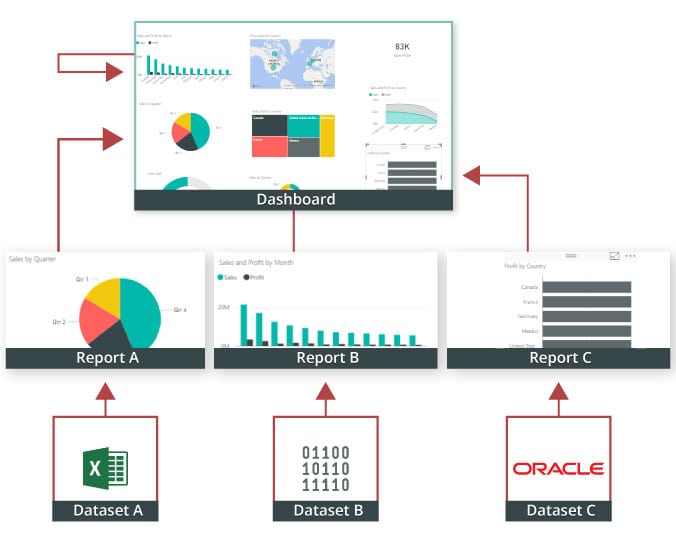
A Power BI dashboard is a single-page visualisation that uses multiple charts and graphs to tell a storey. This one-page dashboard visualisation is also known as a Canvas. The Power BI dashboard is accessible only in Power BI Service. Because a Power BI dashboard is only one page long, it only encompasses the features of a storey. Power BI Desktop does not support the creation of dashboards. A Power BI dashboard is a single sheet, also known as a canvas, that uses visualisations to tell a storey. A well-designed dashboard includes only the features of that storey since it is restricted to one page. Readers can get more information by viewing related reports.

Power BI Dashboards

Power BI Dashboard on Power BI Service

In a dashboard, representations are produced from reports, and each report depends on one dataset. The representations present on the dashboard are called tiles, and report creators pin these tiles to the dashboard.

Dashboard

Advantages of a Power BI dashboard : 

Dashboards are a magnificent method for observing your business and seeing each of your most significant measurements initially. The perceptions on a dashboard can emerge out of one basic dataset or many, and from one basic report or many. A dashboard joins on-premises and cloud information, giving a united view paying little heed to where the information resides.

• A Power BI dashboard empowers clients to examine reports and view exceptionally significant measurements initially

• Utilizing a Power BI dashboard, clients can make perceptions from numerous datasets or various reports

• You can alter dashboards to meet the necessities of any venture

• Power BI dashboards can be inserted into applications to give a brought together client experience

• You can immediately impart a dashboard to different partners in your association

How to Create a Dashboard in Power BI?
Building reports in the dashboard provides details regarding Power BI Desktop and distributing them to Power BI Service is probably the most ideal way to see how a Power BI dashboard functions.
For our demo, we’ll be taking a gander at a deals dataset that contains item deals data all through the United States. The dataset contains different client related subtleties, including client names, request and shipment dates, item names, item classes and subcategories, benefit made, etc. This dataset is normally known as a Sample Superstore dataset. We’ll investigate this dataset to analyze deals and benefit from each section, year, and quarter.
We’ll likewise make a guide to show the deals across various states in the USA.
Coming up next is the dataset that we’ll use to make the dashboard:

Fig: Sales Data

sales-data

To begin, we will make three different vouchers to evaluate total sales, profit, and amount of sales. Click “card” in the visualisation committee on the power to make a vacant card.

Drag the sales column onto the fields to see the total amount of sales for all products. The user  can change the font size and colour of the sales value on this card. The user  can also give this card a headline. Correspondingly, by having to drag corresponding columns onto disciplines, you can generate 2 more cards for net income and total amount of sales.

Then, in our visualisation, we’ll add a slicer to slice the data based on the “Order Date” column. This will allow us to screen the data as well as visualise it as needed.

Fig: Cards and Slicers

sales-dashboard

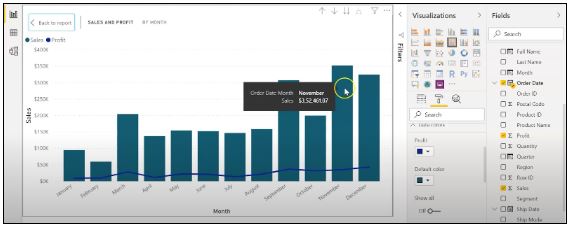
Assume you are hoping to picture and investigate deals and benefit over a specific number of years. To do this, you’ll make a line and stacked segment diagram. Select the line and stacked segment graph from the representation board and drag the “Request Date” section on to “Shared Axis.” Put “Deals” under “Segment” values, and addition the “Benefit” segment into “Line” values. That will create the chart. You can alter the shade of the bars and the line under the organization tab.

cards-slicers

In the outline over, the bars address the deals, and the line addresses the benefit. The chart uncovers that the most noteworthy measure of deals and benefits happened in 2017. Power BI Desktop gives an amazing component to dive into the information and picture the chart as far as each quarter, month, and day. This choice is accessible at the top when you explore a particular outline.

sales profit by month

Fig: Sales and profit by each month

You can likewise add the names to the diagram by tapping the “Organization” tab and turning on the information marks.

adding-labels

Fig: Adding labels to the graph

Presently, we should make a bunched segment diagram by dissecting yearly and quarterly deals.

From the Visualizations menu, select the “Grouped Column Chart.” Add the “Year” segment to the pivot. Take the “Quarter” sections under “Legend,” and add the “Business” segments to “Worth.”

clustered-bar-chart

Fig: The clustered bar chart

The diagram above shows that the principal quarter of each year had the most minimal marketing projections, while the final quarter was reliably the most elevated. You additionally have the choice to change the shadings on your diagram to make it all the more outwardly engaging.

Presently, how about we examine the deals for each state in the US. To do this, we’ll utilize a filled guide. Select a filled guide from the representations board. Add the “State” section to “Area.” Drag the “Deals” segment onto “Tooltips.” To alter the shadings, click on the “Configuration” tab, and pick “Information Colors.” Select the contingent arranging choice and add the scope of tones that you’d like.

formatting-colors

Fig: Formatting colors based on the sales

Our colour has been described for the smallest, medium, and greatest sales values. The green-colored states had the smallest sales. California, Texas, and New York, which are highlighted in orange or red, had the highest sales. Correspondingly, you can create a map to see the profit and number of units sold in each nation.

sales-state

Fig: Sales by each State

So far, our report appears to be as follows. We’ve covered how to make cards, slicers, line and stacked column charts, clustered bar charts, and packed maps.

sales-report

Fig: Sales report

Following that, we’ll take a glance at how to make a donut chart to evaluate revenue and profit by section.

Select the pie chart from the visualizations menu. Add the section column to the legend. Drag the “Sales” column to the “Values” column and the “Profit” column to the “Tooltips” column.

donut-chart

Fig: Donut chart for Sales and Profit

According to the pie chart given above, the customer group had the most revenue and profit, while the head office segment had the least. To make the visualisation more visually appealing, you can format it as needed.

We will now create a pie chart to visualize the sales for each product category. Move the “Category” column to the “Legend” column and add the “Profit” column to the “Values” column. Drag the “Sales” column to the “Tooltips” section.

pie-chart

Fig: Pie Chart for Profit and Sales

The new tech classification produced the most sales and profit, while furniture generated the least. To change the colours and make any necessary changes, go to the “format” tab.

The following is an example of the the last total sales report:

overall-sales-report

Fig: Overall Sales Report

Allow us now to picture our information at a more granular level by examining deals, benefit, and units sold at territorial and state levels.

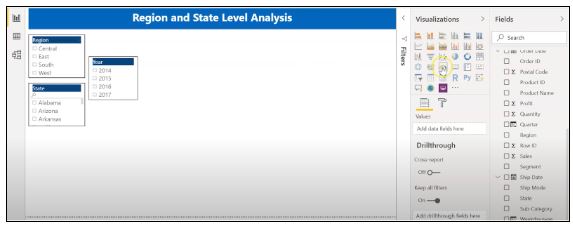
In the first place, we’ll make three slicers to channel our information. Click on the slicer from the representations board and add the “Area” segment on to “Field” to make a local slicer. Additionally, you can make a state and year slicer. You likewise have the choice to alter the slicers to change the text dimension, increment the size of the text, and add a foundation tone.

slicers-filter-data

Fig: Slicers to filter data

We’ll presently make a table to check the sum and the advantage made in each city. Under the “Insights” tab, select “Table”. Add the “City” fragment under “Values,” followed by sum and the “Advantage” area. Add an establishment tone to the fragment headers and addition the size of the printed style. You can channel the data by picking the things from all of the slicers.

Under, we have picked the central region and picked the region of Minnesota. In the table, you can see all of the metropolitan regions in the area of Minnesota, the sum sold, and the advantage they made.

creating-a-table

Fig: Creating a Table in Power BI 

Orchestrating a table is another limit that Power BI Desktop maintains. This gives clients the decision to sort the segment in a table in their solicitation for tendency.

By and by, could we create a clustered reference diagram to separate the arrangements for each thing class across different states? Select the gathered bar layout from the discernments board. Take the “State” area on the center point, “Characterization “portions on to the legend, and “Arrangements” on to “Worth.”

cluster-bar-2

Fig: Clustered Bar Chart

Among the three classes of things, the region of California made the most critical arrangements for all orders.

Then, at that point, we should check the yearly advantage by grouping using an area diagram. Select the area chart from discernments and drag the “Year” segment on to the turn, the “Class” fragment on to the legend, and “Advantage” on to “Values.”

area-chart

Fig: Area chart using Power BI

You can separate the advantage and sum that each thing class and subcategory sold. You can moreover make a line. Clients can research their various decisions through the dashboard.

region-state-report

Fig: Region and State Level Report

To go comprehensively and make a more granular level report, you can do that by making a report considering the things’ orders and subcategories, as shown in the report underneath. You can use class and subcategory as your slicers and make different line traces, bubble outlines, treemaps, and pie charts to imagine the data.

category-level-report

Fig: Category and subcategory Level Report

We’ll as of now disperse our overall business diagram on Power BI Service and make a dashboard. Save your reports on Power BI Desktop. Then, click on the home menu and select the “Convey” tab.

sales%20and%20profit

Fig: Publishing report on to Power BI Service

You can in like manner make another workspace or disperse the report to a current workspace in Power BI Service.

publishing-powerbi

Fig; Publishing to Power BI successfully.

Power BI Training

  • Master Your Craft
  • Lifetime LMS & Faculty Access
  • 24/7 online expert support
  • Real-world & Project Based Learning

Reports in Power BI :

A Power BI report is a multi-perspective look at a dataset, with visual effects representing various information and results from that set of data. A report may contain a single visual or possibly multiple pages of visual elements. Based on your work, you may be in charge of creating reports.

Power BI reports v Dashboards : 

Pages- Dashboards are not permitted to span more than one page; all essential reports are displayed on a single page.

Data sources- Dashboards are founded on the basis of multiple data tables that are linked to one another in one or more contexts. Reports are typically generated from a solitary table of data with no relationships to other tables.

Available in Power BI Desktop- Both the features are available in Power BI desktop

Pinning- Dashboards are fastened to the page so that the viewer can simply read through the data. Reports are built with various filters and shredders to allow the user to communicate with the set of data.

Subscribe- Reports can be published on the web and subscribed to via email. Dashboards have the same features as reports, but they can only be exported to a limited number of formats, so they are used to visualise important data rather than analyse it, which is only possible with reports.

Filtering- Power BI dashboards don’t at present have filter channels though reports are made with any sort of channels and slicers so the client can cooperate with the informational index. Dashboards are stuck to the page even the report proprietor.

Set alerts- With a dashboard, you can set up alarms for when a tile arrives at a specific limit. Thusly, you will not need to continue to return on the dashboard to check whether the tile has arrived at that limit. Sadly, it is absolutely impossible to set up a caution for a report. Thus, you should continue to inquire on the report to check whether the measurements you are following have arrived at a specific limit.

Modify/change visualization type- Dashboards contain an assortment of outlines and tables on a scope of related points though reports contain diagrams and tables on a solitary theme. Accordingly, dashboards regularly offer an undeniable level outline of a subject, and reports will generally be more granular and smaller in center.

Click here to learn Power BI Tutorial

HKR Trainings Logo

Subscribe to our YouTube channel to get new updates..!

Features of Power BI : 

Range of Attractive Visualizations :

Visualizations, or the visual representation of data, are important in Power BI. It provides a wide variety of detailed and appealing visualisations.

Get Data Feature :

The Get Data feature in Power BI permits the users to choose from a variety of data sources. The data sources can range from on-premise to cloud-based, unstructured to structured. Every month, new data sources are added.

Datasets Filtration :

A dataset is a single set of data created by combining data from multiple sources. You can use the datasets to create various types of visualisations.

Customizable Dashboards :

Dashboards are a grouping of visualisations that provide useful information or insights into data. Power BI dashboards are typically made up of multiple visualisations as tiles.

Flexible Tiles :

In a Power BI dashboard, a tile is a single block that contains a visualisation. Tiles properly separate each informative visualisation to provide a clearer view.

Click here to get latest Power BI Interview Questions and Answers

Power BI Training

Weekday / Weekend Batches

Conclusion :

Power BI dashboard is a wonderful storytelling tool that can be really helpful to develop actionable business insights. In addition to this, we have also illustrated the differences between the Power BI dashboard and the reports. If you have any questions let us know in the comments section.

Related Article :


Source link