I Was Cooking Bacon Wrong for Decades, and You Probably Are Too


Stop fighting a losing battle with a grease-spattered stovetop. If you’re buying high-end bacon, you want a perfect crunch without the 20-minute cleanup. The real problem with a frying pan isn’t the taste, though. It’s all that popping and the errant grease spots that mark your skin and kitchen walls. 

Home Tips

In an effort to find the best, cleanest way to make bacon for a Sunday brunch or BLT, I tried several methods, including the stovetop, oven and air fryer.

It turns out I’ve been doing it all wrong. 

A frying pan

  • Cooking time: 10 minutes
  • Hassle: 8/10
  • How much bacon: 7-8 strips

Strips of bacon cooking in a greasy black pan on the stove.

I grew up on pan-fried bacon but my test revealed there’s a better way. 

Mike Mackinven/Getty Images

This is the way I grew up cooking bacon and it’s perfectly fine. There isn’t much skill needed to fry bacon in a pan, although just about every batch I’ve ever made sends a healthy splatter over the stove. In more unfortunate instances, that infernal grease lands directly on my skin or clothes, presenting two distinct but equally aggravating problems.

Pan-fried bacon soaks up a ton of grease, which is why many turn to paper towels to drain it after cooking.  Pan-frying these strips of pork belly also tends to curl them into little bacon balls. While that has no impact on the taste, it can make for a suboptimal presentation.

bacon in a frying pan

I can feel the splatter bombs just looking at this photo.

David Watsky/CNET

Another drawback of cooking bacon in the frying pan is its limited capacity. A 10-inch frying pan can hold only about 7 average-sized strips of bacon at a time, although you can add more as they shrink during cooking. 

Then there’s the matter of cleaning said pan after use. It’s not recommended to put most cookware in the dishwasher, so you’ll have to manage that grease-soaked surface yourself.

The oven 

  • Cooking time: 18 minutes
  • Hassle: 6/10
  • How much bacon: 10-12 strips

9 strips of bacon on a cooking tray.

Oven bacon is best for cooking large batches. 

CNET

While it requires more prep, oven-cooked bacon has clear advantages over pan-frying. For one, there is little concern about capacity, as a standard cookie sheet or baking tray can hold nearly a full package of bacon, making the oven ideal for cooking large quantities.

Using a baking tray and rack allows grease to drip off. That makes for crispier, less greasy results, but it does present a headache when it’s time to clean. Cookie sheets and baking trays don’t fit well in the sink, and there’s typically enough grease that you don’t want to run them through your dishwasher.

You can line the baking tray with aluminum foil, but it takes a lot of foil, and most of the time, bacon grease finds its way under or through it anyway.

Oven-cooked bacon takes longer than bacon cooked in a frying pan — about 18 minutes — but if you’re planning to cook a whole package and don’t want to tend to the stove while it cooks, your oven is the best bet.

The air fryer

  • Cooking time: 7 minutes
  • Hassle: 4/10
  • How much bacon: 6-7 strips

bacon in an air fryer shot from above.

Thanks to its quick cooking time and hassle-free execution, the air fryer is my new go-to for making bacon.

David Watsky/CNET

There’s almost nothing I won’t try to make in the air fryer but, astoundingly, this is my first attempt at bacon. I anticipated a quick cook, because air fryers sizzle most food about 25% faster than a standard oven. 

The air fryer proved to be my favorite way to make bacon, with one big caveat (more on that later). My favorite glass-bowl air fryer cooked those strips in about 7 minutes at 375°F — faster than the oven and the frying pan. Because air fryers include a crisping rack, grease naturally drips into the vessel below, so there was no need to nestle it in a paper-towel lasagna. 

air fryer shot from the side with bacon on crisping tray

The crisping tray drained excess fat while the bacon cooked.

David Watsky/CNET

The bacon turned out perfectly crispy and kept its shape better than when fried in a pan. 

And the mess was minimal. Because the air fryer cooking chamber fits easily in my sink, I was able to wash it in seconds with a sponge and soapy water. My glass bowl air fryer chamber is also dishwasher-safe so another option would have been to wipe the grease and stick it all in the dishwasher.

air fryer bacon

Air fryer bacon is really crispy, y’all.

David Watsky/CNET

The big caveat: Capacity

I use a modest 4-quart air fryer so I can only fit about six strips in at a time. That’s plenty for my partner and me but if I were making bacon for a group, I would have had to cook in batches or invest in a larger model.

That said…

Not having to keep watch over a sizzling, splattering pan or negotiate a grease-filled baking tray pulled from the oven is worth running it back another time to feed a group. There’s also no preheating needed, unlike with an oven, and the sheer speed and cleanliness gave the air frier the edge over the other methods I’ve tried. 


Source link

Leave a Reply

Subscribe to Our Newsletter

Get our latest articles delivered straight to your inbox. No spam, we promise.

Recent Reviews


Comparing the columns in Excel is a powerful way for analysing and understanding data and can help us in identifying the patterns and trends that we may not be able to find out through manual inspection. Using Excel formulas and techniques we can quickly and easily compare columns and gain insights that can help us in making better decisions. There are several ways to compare two columns in Excel. By using formulas like IF, COUNTIF, INDEX/MATCH and VLOOKUP. But before we compare we need to understand the type of data you are working with, like whether it is a numeric, text or date/time data. This will help you to choose the suitable tool or technique to compare it. For example if you are working with text data, you can use the IF function to compare and find the matching and non-matching entries. If you are working with numeric data, you may use a function like COUNTIF function to count the number of matching entries.

Methods to compare two columns in excel:

1. Using Equal operator

One of the simplest ways to compare values in two columns in Excel is using an equal operator. Let us understand how we can compare two columns using equal operators with an example.

  • First select a cell where you want to write the result
  • Then type “=” sign
  • Select the value in the first column which you want to compare then write “=” and select the value in another column and 
  • Hit the enter button


Want to gain knowledge in Excel? Then visit here to learn Excel Training!

Excel Training

  • Master Your Craft
  • Lifetime LMS & Faculty Access
  • 24/7 online expert support
  • Real-world & Project Based Learning

2. Using Conditional formatting:

a) Comparing two columns to highlight the duplicate values in the columns:

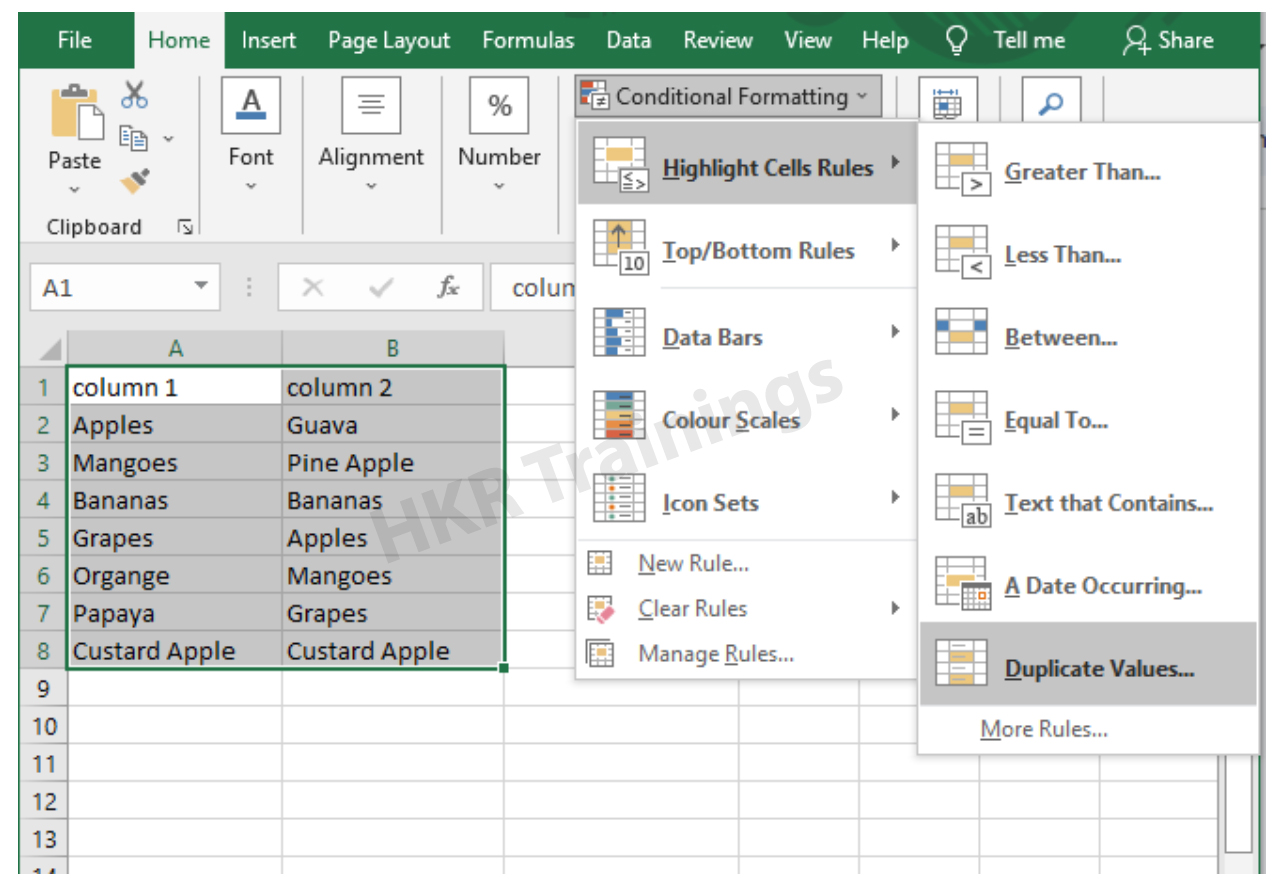
It is a feature in Excel that will highlight cells in one column that match/do not match with another column. To highlight the cells that have same values follow the below steps:

1. Select the two columns you want to compare.

2. Then go to the home tab and select the conditional formatting option.

3. Select the option Highlight cells Rules, then click on duplicate values option


4. Duplicate values dialogue box appears on the screen. Select an option from the dialogue box how the duplicate values must look like. In this Example I have chosen Green fill with dark green text. You can choose any option you like and click ok.

5. Then the duplicate text will be highlighted with green colour with dark green text

b) Comparing two columns to highlight the Unique values in the columns:

Now to highlight the cells that have different values follow the below steps:

  1. Select the two columns you want to compare.
  2. Then go to the home tab and select the conditional formatting option.
  3. Select the option Highlight cells Rules, then click on duplicate values option
  4. Duplicate values dialogue box appears on the screen. Select an option Unique instead of Duplicate from the dialogue box and also how the duplicate values must look like. In this Example I have chosen Light Red fill with dark Red text. You can choose any option you like and click ok.
  5. Then the unique text will be highlighted with light Red colour with dark Red text


Equal operator, Generals, compare-two-columns-in-excel-description-0, Generals, compare-two-columns-in-excel-description-0, Generals, compare-two-columns-in-excel-description-0, Equal operator, Generals, compare-two-columns-in-excel-description-0, Generals, compare-two-columns-in-excel-description-0, Equal operator, Generals, compare-two-columns-in-excel-description-0, , Generals, compare-two-columns-in-excel-description-1, Generals, compare-two-columns-in-excel-description-1, Generals, compare-two-columns-in-excel-description-1, Equal operator, Generals, compare-two-columns-in-excel-description-0, Generals, compare-two-columns-in-excel-description-0, Equal operator, Generals, compare-two-columns-in-excel-description-0, , Generals, compare-two-columns-in-excel-description-1, Generals, compare-two-columns-in-excel-description-1, Equal operator, Generals, compare-two-columns-in-excel-description-0, , Generals, compare-two-columns-in-excel-description-1, , Generals, compare-two-columns-in-excel-description-2, Generals, compare-two-columns-in-excel-description-2, Generals, compare-two-columns-in-excel-description-2

Subscribe to our YouTube channel to get new updates..!

3. Using Formulas

Excel offers a number of Formulas to compare the cells in two columns. Let us go through them one by one.

a) IF:

It allows you to compare two cells in two columns and will return the result based on the condition we provide. Let us understand how to use the IF formula to compare the values in two columns with an example.

  1. First select a cell where you want to write the result
  2. Then type “=” sign
  3. Type IF and open bracket “( and write the condition and put a comma. Then write the value to be displayed if the condition is true in inverted commas and put a comma, and then write the value to be displayed if the condition is false in inverted commas.
  4. Close the bracket “)” and hit the enter button


b) COUNTIF:

We can use this formula to compare the two columns and count the number of cells that are the same or different. Let us understand how to use the COUNTIF formula to compare the values in two columns with an example.

  1. First select a cell where you want to write the result
  2. Then type “=” sign
  3. Type COUNTIF and open bracket “(“ and select the range, put a comma and select the range from another column to compare it
  4. Close the bracket “)” and hit the enter button


Top 30 frequently asked Excel Interview Questions !

Excel Training

Weekday / Weekend Batches

c) MATCH:

We can use the match function to compare two columns and find the position of a value in one column that matches with the value in another column. Let us understand how to use the MATCH formula to compare the values in two columns with an example.

  1. First select a cell where you want to write the result
  2. Then type “=” sign
  3. Type MATCH and open bracket “(“ and select the cell which you wanted to compare, put a comma and select the range from another column to compare, put a comma and write 0 to get exact match
  4. Close the bracket “)” and hit the enter button


d) VLOOKUP:

We can use the VLOOKUP function for comparing two columns and return a value if there is a match. Let us understand how to use the VLOOKUP formula to compare the values in two columns with an example.

  1. First select a cell where you want to write the result
  2. Then type “=” sign
  3. Type VLOOKUP and open bracket “(“ and select the cell which you wanted to compare, put a comma and select the range from another column to compare, put a comma and write 2 to return the value from the second column of the range – if a match is found, put a comma and write FALSE to get exact match
  4. Close the bracket “)” and hit the enter button


Conclusion:

In this blog, We have discussed different ways to compare two columns in Excel with examples. We hope you found this information useful. For more information on Excel stay tuned.


Source link