Inside Air India’s new Maharaja Lounge at SFO


Air India is bringing its premium overhaul to San Francisco International Airport (SFO) with the opening of its first signature lounge outside India.

Officially opening on May 23, the new Maharaja Lounge marks another major investment in the airline’s ongoing transformation, bringing its updated premium experience to one of its key international gateways.

Located near the A Gates in SFO’s International Terminal, the lounge spans roughly 3,300 square feet and blends contemporary luxury with design elements inspired by Indian culture and crafts.

TPG got an early look inside ahead of the official opening. Here’s what travelers can expect.

Where is Air India’s Maharaja Lounge at SFO?

The Maharaja Lounge is located postsecurity near the A gates in SFO’s International Terminal.

After clearing security, travelers should turn left and walk past the Air France lounge before taking the escalators up one level. At the top, signage directs guests toward the lounge; from there, a short walk with a couple of right turns leads directly to the entrance on the right-hand side.

The lounge is expected to operate daily from approximately 6:30 a.m. to 10 p.m., though hours may vary based on flight schedules.

A lounge designed to feel like a gateway to India

Designed by hospitality firm Hirsch Bedner Associates (HBA), the Maharaja Lounge reflects the airline’s updated design philosophy, with a contemporary look that also pays homage to its founding back in 1932.

Warm champagne tones, ivory-hued accents and deep red accent furniture reflect Air India’s refreshed branding, while subtle motifs alluding to the airline’s “Vista” logo appear throughout the walls and furniture. Works by local artists and installations crafted from upcycled aircraft components add texture and points of visual interest throughout the lounge.

Reward your inbox with the TPG Daily newsletter

Join over 700,000 readers for breaking news, in-depth guides and exclusive deals from TPG’s experts

Several art installations near the dining area were sourced from India, including one piece created with pigments derived from Indian spices and botanicals rather than traditional paint. According to the airline, the artwork incorporates colors derived from ingredients such as turmeric, roses and cinnamon — a fitting complement to the lounge’s culinary focus (more on that below).

Even smaller details, including branded glassware and tableware featuring Maharaja motifs, reinforce the airline’s effort to create what it describes as a more immersive “gateway to India” experience before boarding.

STEPHANIE STEVENS/THE POINTS GUY

Large windows and abundant natural light help the lounge feel open and relaxing, while comfortable seating and plentiful power outlets make it easy to settle in before a long-haul flight. At times, it is easy to forget you are inside an airport lounge at all — until aircraft taxi past the tarmac-facing windows.

The Aviator’s Bar

One of the lounge’s focal points is the Aviator’s Bar, a separate speakeasy-inspired cocktail space distinct from the main dining and buffet area.

This separation helps create a more intimate atmosphere, giving the lounge multiple zones for dining, socializing and relaxing.


The space was designed to reflect Air India’s history. The bar stools were inspired by seating used on some of the carrier’s earliest aircraft dating back to the 1930s, incorporating similar stitching patterns, materials and color palettes.

Even the ceiling installation carries an aviation reference: Lighting elements were modeled after the propeller shafts of early planes, intended to evoke the motion and energy of flight before the jet age.

STEPHANIE STEVENS/THE POINTS GUY

The walls of the bar also function as a historical canvas, featuring archival imagery, vintage postcards, aircraft drawings and model aircraft that trace Air India’s evolution over time.

The bar features a curated selection of wines and whiskies alongside signature cocktails, including the Maharaja Manhattan — a twist on the classic cocktail featuring black pepper — and the Limitless, a gin-based drink infused with rose, hibiscus and saffron.


During my visit, I sampled the Mixed Emotions mocktail, a refreshing drink made with cranberry juice, passion fruit, lime juice, simple syrup and soda water, then finished with fresh mint. I also tried the Maharaja Mule, an Indian-inspired take on the classic Moscow Mule that blends lime, muddled mint and ginger.

The beverage program feels carefully considered, balancing classic cocktails with drinks inspired by Indian flavors and ingredients.

And with views from the bar overlooking the tarmac, it makes for an especially appealing spot for aviation enthusiasts and travelers hoping to unwind before a long-haul flight.

Dining and food offerings

The Maharaja Lounge includes both Indian and international dining options with a self-serve buffet.

Menus will rotate on a recurring cycle that varies by mealtime in an effort to keep the experience interesting for passengers who regularly fly between San Francisco and India.

During my visit, the buffet leaned heavily into Indian cuisine, with dishes including dal Bukhara, chicken tikka masala, vegetable biryani, paneer moringa and beet-and-fig sham savera kofta alongside grilled salmon and vegetables.

A cold spread featured fresh fruit, crackers, cheeses and house specialty dips, including tikka achari and mango habanero.


Smaller bites included fish croquettes, paneer tossed in Szechuan sauce and a modernized take on gajar ka halwa — a traditional North Indian carrot dessert slow-cooked with butter, milk and nuts — served in a tart-like bite-sized presentation.

STEPHANIE STEVENS/THE POINTS GUY

The food felt flavorful and thoughtfully prepared, with dishes that leaned into bold spices and comforting regional flavors. Most items hovered around a mild-to-moderate heat level, though additional accompaniments were available for travelers looking to dial up the spice.
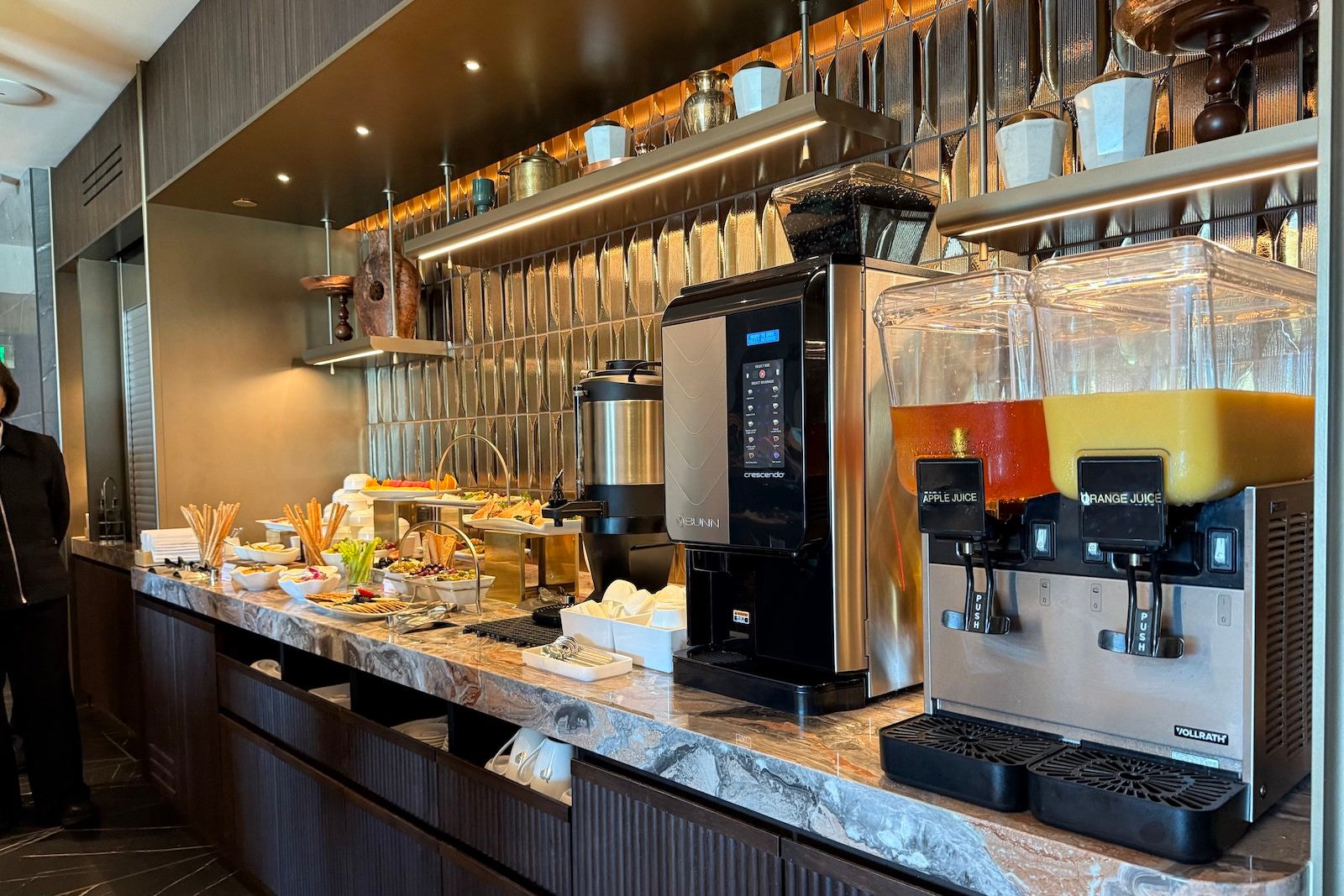
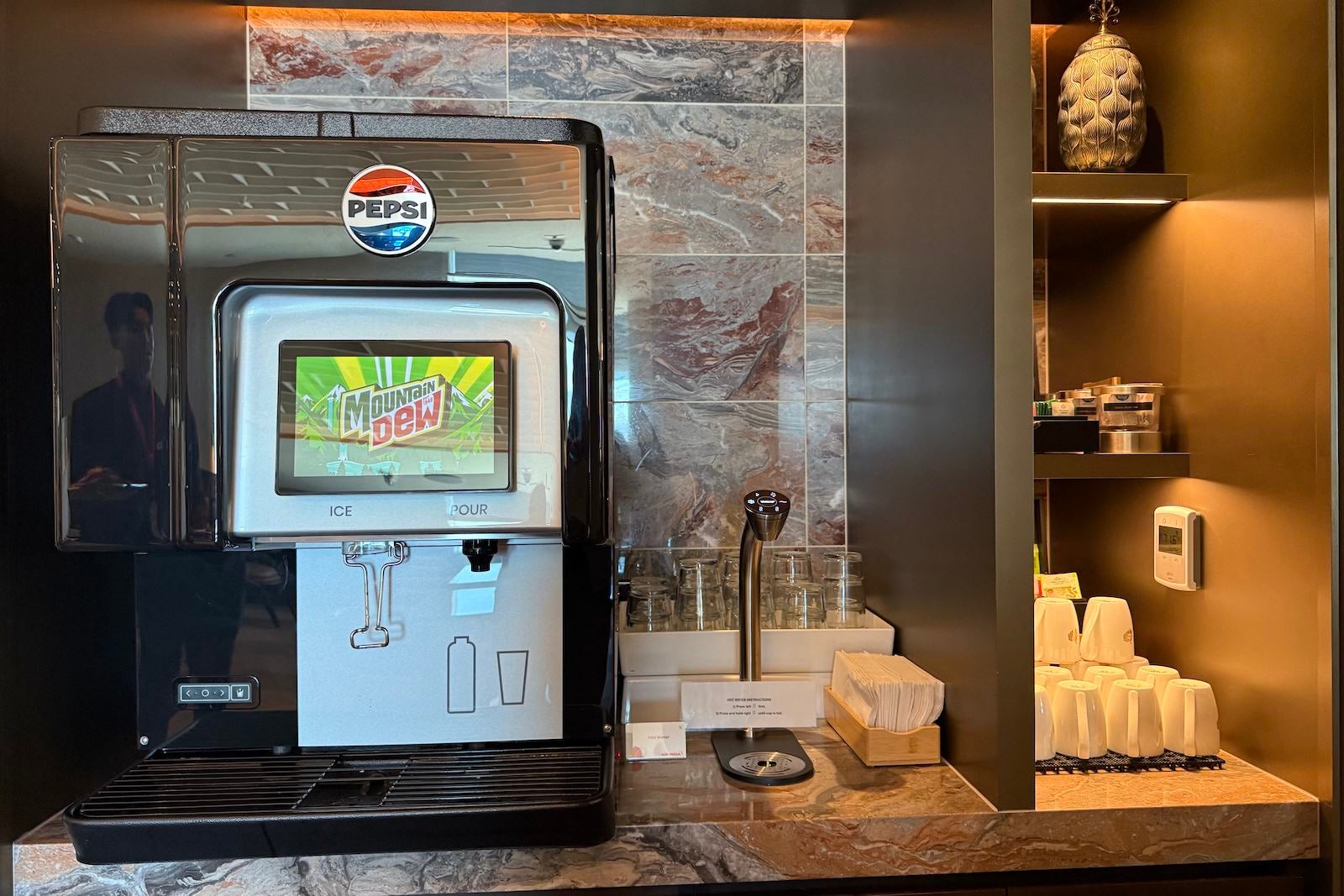
A self-serve beverage station offers juices, soft drinks, coffee and tea, while the Aviator’s Bar handles cocktails, wine and spirits separately from the buffet area.

Private first-class area

Tucked into a quieter corner of the lounge is a dedicated Private Zone reserved exclusively for Air India first-class passengers.

This space accommodates just eight guests at a time and offers a noticeably more serene and elevated experience compared to the main lounge, which seats roughly 75 travelers.

First-class passengers also have access to an a la carte dining menu and a reserved selection of cognac and whiskey, providing a more personalized experience beyond the buffet.

Amenities and practical touches

The lounge includes fast and free Wi-Fi, ample charging points and accessible facilities throughout.

AC outlets and USB-A and USB-C ports are available across seating areas, and seating itself is both modern and comfortable, making it easy to work or relax before departure.

STEPHANIE STEVENS/THE POINTS GUY

One notable omission, however, is showers — something many premium international lounges typically offer for long-haul passengers.

Still, the lounge’s design, natural light and thoughtful layout help create a calm and polished preflight environment despite its relatively compact footprint.

Who can access Air India’s Maharaja Lounge at SFO?

Access is available to:

  • Air India First Class passengers
  • Air India Business Class passengers
  • Eligible Star Alliance premium passengers
  • Maharaja Club Gold and Platinum members traveling on eligible flights

The Private Zone is reserved exclusively for first-class passengers.

Bottom line

Rather than aiming for scale or flash, Air India has created a space that feels polished and intentional. The lounge leans into the airline’s Indian heritage through its design, food and cocktail program, while still offering the comfort and functionality travelers expect before a long-haul flight.

Between the spice-inspired artwork, aviation heritage details, tarmac-facing bar and Indian-focused dining program, the lounge feels cohesive and thoughtfully designed.

And for travelers flying Air India’s long-haul routes to India, it’s a noticeable upgrade to the airline’s preflight experience in San Francisco.

Related: Air India Maharaja Club: How to earn and redeem points, get elite status and more


Source link

Leave a Reply

Subscribe to Our Newsletter

Get our latest articles delivered straight to your inbox. No spam, we promise.

Recent Reviews


What is XPath in Selenium – Table of Content

What is XPath in Selenium?

Selenium is an open-source, most popular web automation testing tool that supports multiple browsers & OS. XPath in Selenium is an XML Path and a syntax useful for locating an element on a web page. Locating any element on the web page uses XML path or XPath expression. Further, XPath in Selenium is useful for navigating through the HTML structure of the web page. 

Moreover, XPath uses HTML DOM structure to find any element on a web page for both HTML and XML documents. 

The syntax for XPath In Selenium 

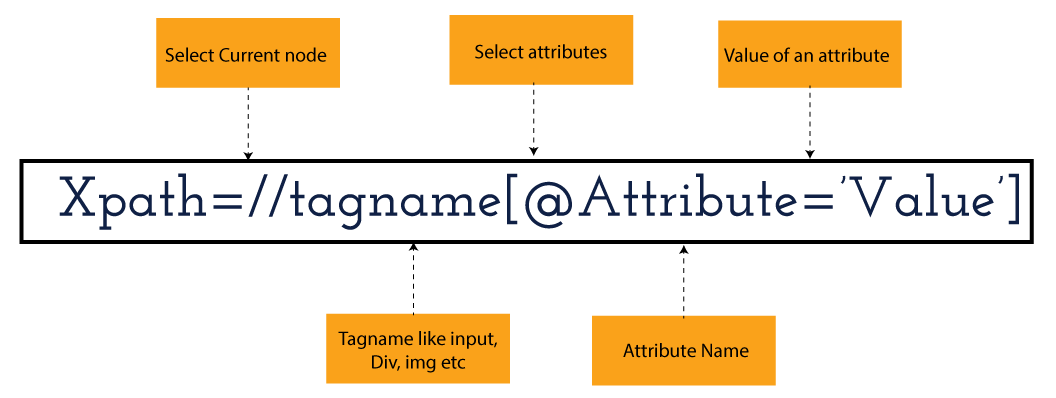
XPath in Selenium holds the element’s location on the web page. The basic syntax for XML Path Selenium is as follows-

Xpath=//tagname[@attribute="value"]

The meaning of each expression in the syntax is-

  • // : Choose the existing node.
  • Tagname: Particular node’s tagname.
  • @: This symbol denotes the “Select” attribute.
  • Attribute: Node’s attribute name.
  • Value: Attribute’s Value.

Become a master of Selenium by going through this HKR Selenium Training!

XML Document

The XML documents are the text files that contain XML data, including elements and other markups, in a sequential package. Further, it can include a wide variety of data such as numbers databases, numbers of a mathematical equation, etc. You can understand XML document with an example:-

 Kumar

   AK & Co.

    032456123

Here, the above code is divided into two parts- Document Prolog & Document Elements. Let us discuss them in brief.

Document Prolog

The document prolog appears at the top of the document, beforE the root document element. It includes XML and Document type declaration. 

Document Elements

These major building blocks of XML segregate the document into different sections. Each of these document sections perform a particular purpose. Moreover, you can easily segregate a document into different sections so that search engines can use it. Further, these document elements can be the containers having text and other elements combined. 

Types of XPath

  1. Absolute XPath:
  2. Relative XPath:
Absolute XPath

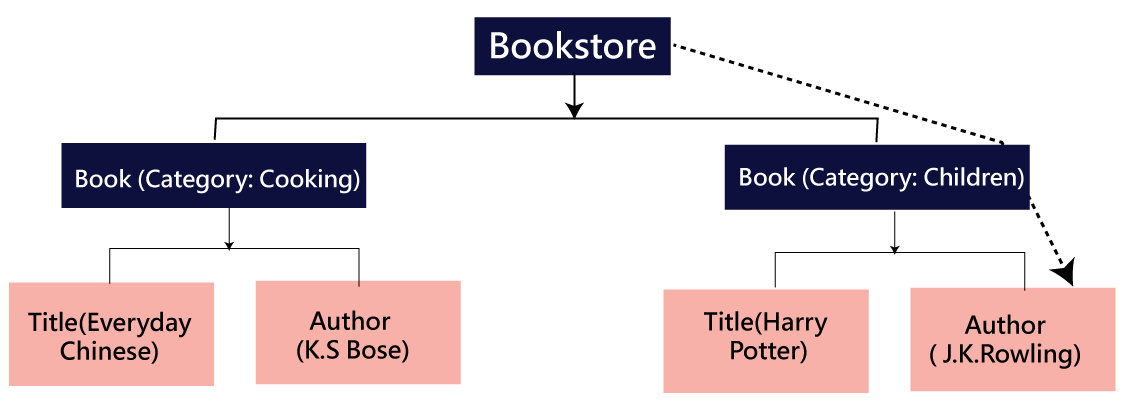
In Selenium, the absolute XPath is the direct path to find the element. This Xpath begins with the “/” (Slash) symbol and helps select the element from the root. The major drawback of this XPath is that if you change the path of the element or attribute, the absolute XPath will fail.

Relative XPath:

The Relative XPath in Selenium begins with the double forward slash “//” symbol and from the middle of the HTML DOM. You can search elements anywhere on the web page as it doesn’t need to write a lengthy Xpath. This XPath is mainly considered as it is not a complete path from the root element.

For example: //input[@id=‘ap_email’]

Suppose You launch Google Chrome and navigate to google.com. Then locate the search bar utilising XPath. By analysing the web element there is an input tag and attributes like class and id. Utilise the tag name and given attributes to create XPath that will locate the search bar.

If you want to Explore more about Selenium? then read our updated article – Selenium Tutorial

What-is-xpath-in-Selenium-1

Click the Elements tab and press Ctrl + F to open a search box in chromes developers tool.  Write XPath string selector and it will try to search based on that criteria. In the image given above, it has an input tag.  //input implies tagname. Use the name attribute and pass ‘q’ as its value. It provides XPath expression as shown below:

//input[@name=’q’]

XPath string

It has focused on the element that implies this specific element was located utilising XPath.

If you want to Explore more about Selenium? then read our updated article – Selenium Tutorial!

Check out our Latest Tutorial video. Register Now Selenium Online Course to Become an expert in Selenium.


Acquire Selenium with jenkins certification by enrolling in the HKR Selenium with jenkins Training program in Hyderabad!

Selenium Certification Training

  • Master Your Craft
  • Lifetime LMS & Faculty Access
  • 24/7 online expert support
  • Real-world & Project Based Learning

XPath Functions

Automation utilizing Selenium is unquestionably an incredible innovation which gives numerous approaches to distinguish an article or component on the website page. Be that as it may, in some cases we do deal with issues in recognizing the articles on a page that have similar credits. Some cases can be: components having similar credits and names or with more than one button with similar name and ids. It’s trying to train selenium to distinguish a specific item on a website page and it is the place where XPath functions to serve as the hero. 

Frequently asked Selenium Interview Questions and Answers !!

Types of XPath Functions

Selenium involves different functions. The three of the most broadly utilized functions are given below:

1) Basic XPath

The basic XPath expression selects nodes or a list of many nodes based on various elements or attributes such as ID, Name, ClassName, etc. It selects them from the XML documents. The syntax we can use for the basic XPath is –

Xpath=//input[@name="uid"
2.Contains()

It is a method used in XPath expression when the value of an attribute or element dynamically changes. You can easily find the elements with a partial text using the “Contains” feature in the XPath expression. Now understand this with the below example.:-

Xpath=//*[contains(@type,'sub')]

The above example denotes that the full value of the element type is submitted, but we use the partial text ‘sub’ here to find the element. Thus, in the above example, we tried to find the element by giving a partial text of the attribute “submit”. 

3) Using OR & AND

Here, we use two conditions, first or second condition, among which one condition must be “True” to execute it. This method is still applicable if any one or both conditions are “true”. It means that any conditions should be true to find the element. The expression we can use for this is-

Xpath=//*[@type="submit" or @name="btnReset"]

The above XPath expression will help determine whether a single or both conditions are ‘True’.

Similarly, in the “And” XPath expression, also we use two conditions, but both conditions should be “true” to locate the element. If any one of the conditions becomes “false”, then the expression cannot find the element. The syntax we can use for this function is-

Xpath=//input[@type="submit" and @name="btnLogin"]
4) Xpath Starts-with

The function Xpath-Starts-with() in the Xpath functions is useful to find the element whose attribute value changes in some conditions. Here the value changes with the refresh of the page or by performing dynamic actions on the webpage. In this method, the initial text of the attribute should be in parallel to locate the element whose attribute value changes interactively. 

Further, you can also find the elements whose attribute value doesn’t change or remain static. You can understand this function’s use by the following example:-

Xpath=//label[starts-with(@id,'message')]

The above syntax shows that two different elements start with the initial id “message”. Here, you can use the Xpath-starts with function to check whose attribute value changes or remains static.

Become a master of Selenium by going through this HKR Selenium Training in Delhi!

HKR Trainings Logo

Subscribe to our YouTube channel to get new updates..!

5) XPath Text() Function

In Selenium WebDriver, the function XPath Text() is a built-in function useful to locate elements based on the web element’s text. Using this function, you can find the same text element. Moreover, the elements that you locate must be in a string format.

Xpath=//td[text()='UserID']

Using the above expression having text function, you can locate the element that will show the exact match of the text.

6) XPath axes methods

This method in XPath functions is useful for finding complex or changing elements. However, we can see the following XPath axes methods which we can use:-

  1. a) Following- It is useful to select all the elements in the document of the existing node(). The expression you can use for this method is-
 Xpath=//*[@type="text"]//following::input
  1. b) Ancestor- The ancestor axes method is useful to select all the ancestor elements of the existing node, like parents, grandparents, etc. Here, the expression you can use is-
Xpath=//*[text()='Enterprise Testing']//ancestor::div
  1. c) Child- This axes method selects all the child elements in the documents’ current node. The expression you can use here is-
Xpath=//*[@id='java_technologies']//child::li
  1. d) Preceding- This method helps select the nodes that come before the existing ones. Here is the example expression:-
Xpath=//*[@type="submit"]//preceding::input

The above expression helps to identify all the input elements before the currently given nodes.

  1. e) Following-sibling- This method helps to select the following siblings of the existing node. All the siblings will be equivalent to the existing node, and the method will find the sibling next to the existing node. Moreover, the syntax you can use here for this method is-
xpath=//*[@type="submit"]//following-sibling::input
  1. f) Parent- It helps to select the parent from the existing node of the element. The following is the syntax you can use here.
Xpath=//*[@id='rt-feature']//parent::div

Many div(s) match with the parent, but if you want to focus on a specific element. For this you can use the below xpath syntax-

Xpath=//*[@id='rt-feature']//parent::div[1]
  1. g) Self- In this method, it selects the existing node where it selects itself only. That means the node here is the “self”. The expression you can use for self is-
Xpath =//*[@type="password"]//self::input
  1. h) Descendant- It helps to select the descendants of the existing element where it recognizes all the element descendants of the existing element. 
Xpath=//*[@id='rt-feature']//descendant::a

Selenium Certification Training

Weekday / Weekend Batches

Conclusion

XPath or an XML Path is used to locate any element or navigate through the HTML structure of a webpage. It is generally used for automation purposes and in cases where it is difficult to find elements using locators like name, class, ID, etc. However, it is the most important among the locators useful in Selenium to identify web elements. Also, it is a handy locator for the testers of web pages.

Thus, learning about XPath in Selenium will help you quickly identify a web element on a web page. 

Related Articles:


Source link