Navicat for PostgreSQL | A Complete Guide of Navicat for PostgreSQL


Navicat for PostgreSQL – Table of Content

Navicat for PostgreSQL

In this blog we will begin with how to start with Navicat and then will explore into the concepts of Navicat for PostgreSQL with Schemas and Databases, Tables, Views, Materialized views, Functions/Procedures, Types, Foreign Servers, Other Objects and Maintain Objects.

      Get ahead in your career by learning PostgreSQL course through hkrtrainings PostgreSQL online training

1. Getting Started with Navicat

Navicat is a database management program with multiple connections that enables you to connect to MySQL, Oracle, PostgreSQL, SQLite, SQL Server, and/or MariaDB databases, making database administration simple. It also has Amazon RDS and Amazon Redshift management capabilities. Navicat’s features are sophisticated enough to meet the needs of experienced developers while also being simple to learn for those who are new to database servers. Navicat’s well-designed GUI allows you to quickly and effortlessly generate, organize, access, and share data in a secure and simple manner.

Linux, Mac OS X, and Microsoft Windows are the three platforms on which Navicat is available. It could connect users to a local or remote server and provides various utility tools to help with data upkeep, including Data Modeling, Data Transfer, Data/Structure Synchronization, Import/Export, Backup/Restore, Report Builder, and Schedule.

Getting Started with Navicat

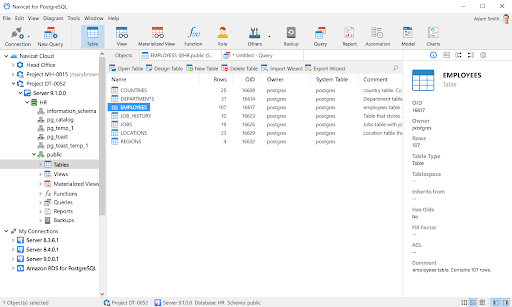
1) Navicat Main Toolbar:

Connections, users, tables, backup, scheduling, and other fundamental objects and functionality are all accessible through the Navicat Main Toolbar. Simply right-click the toolbar and disable Use Big Icons or Show Caption to use small icons or hide the caption.

2) Connection:

Connections, databases, and database objects are all navigated through the Connection pane. It uses a tree structure that allows you to rapidly and simply interact with the database and its items through pop-up menus. The Connection pane would be divided into Navicat Cloud and My Connections sections after you log in to the Navicat Cloud feature. Select View -> Show Only Active Objects from the main menu to display only the opened objects. Select View -> Show Connection from the main menu to show or conceal the Connection window.

3) Tab Bar:

You can switch between the Object List and the tabbed windows using the Tab Bar. You may choose whether to always open pop-ups in a new tab or a new window. If you have numerous tabs open, you can quickly switch between them by using CTRL+TAB. Options can also be found here.

4) Toolbar for Object Lists:

Other controls for manipulating the objects are available in the Object List Toolbar.

5) Object List:

The Object List pane shows a list of objects like tables, views, and queries.

6) Object Information:

The Object Information pane shows the server and Navicat objects’ comprehensive information. From the main menu, select View -> Show Object Information to show or conceal the Object Information window.

7) Navicat Cloud Activity:

The project participants and actions are displayed in the Navicat Cloud Activity pane. In the Connection pane, you choose a project, and in the Object List pane, you choose a Navicat Cloud object. Select View -> Show Navicat Cloud Activity from the main menu to show or conceal the Navicat Cloud Activity window.

2. Schemas and Databases in PostgreSQL Navicat

You must first construct and open a connection before you can begin dealing with the server objects. Create a new database and/or schema if the server is empty.

Creating a new database

  • Right-click a connection in the Navigation pane and choose New Database.
  • In the pop-up window, type the database properties.

Editing an existing database

  • Right-click a database in the Navigation pane and choose Edit Database.
  • In the pop-up window, change the database’s properties.

Creating a new schema

  • Right-click a database in the Navigation pane and choose New Schema.
  • In the pop-up window, type the schema properties.

Editing an existing schema

  • Right-click a schema in the Navigation pane and choose Edit Schema.
  • In the pop-up window, edit the schema properties.
  •       Database Management & Administrations, navicat-for-postgresql-description-2

  • Get ahead in your career by learning PostgreSQL course through hkrtrainings PostgreSQL online training in Hyderabad !

PostgreSQL Training

  • Master Your Craft
  • Lifetime LMS & Faculty Access
  • 24/7 online expert support
  • Real-world & Project Based Learning

3. Tables in PostgreSQL Navicat

Tables are the database objects that hold all of a database’s data. A table is made up of rows and columns, with fields at their intersections. To open the table object list, click  in the main window.

You can make tables that are Normal, Foreign, or Partitioned. Choose the table type by clicking the down arrow next to  on the object toolbar.

You can open a table with graphical fields in one of two ways: right-click the table and select:
1) Open Table: BLOB fields (images) are loaded by Navicat when the table is opened.

2) Open Table (Quick): BLOB fields (images) will not be loaded until you click on the cell, resulting in faster performance while opening the graphical table. (By default, it is hidden until you right-click the table while holding down the SHIFT key.)

By right-clicking a table in the Objects tab and selecting Create Open Table Shortcut from the pop-up menu, you may create a table shortcut. This option is provided to give you a quick method to open your table and start adding data without having to open the Navicat main window.

Right-click the table you want to empty and choose Empty Table from the pop-up menu. When you want to erase all existing entries without resetting the auto-increment value, you can use this option. Use Truncate Table to reset the auto-increment value when emptying your table.

Table Designer

The basic Navicat tool for working with tables is Table Designer. You may use it to create, update, and delete table fields, indexes, foreign keys, and more.

You may find a field name in the Fields tab by selecting Edit -> Find or pressing CTRL+F. You can add fields or rearrange the order of the fields when building a new table.

Note: The designer’s tabs and options are determined on the table type and server version.

Table Viewer

Table Viewer displays data as a grid when you open a table. There are two modes to display data: Form View and Grid View.

4. Views in PostgreSQL Navicat

A view enables users to access a collection of tables as if they were one. Views can be used to restrict row access. To open the view object list, 
clickView in the main window.

By right-clicking a view in the Objects tab and selecting Create Open View Shortcut from the pop-up menu, you can create a view shortcut. This option is intended to provide a quick way to open your view without having to open the Navicat main window.

View Designer

The basic Navicat tool for working with views is View Designer. In the Definition tab, you can edit the view definition as a SQL statement (it implements the SELECT statement). You can pick File -> Import SQL to import SQL statements from a SQL file into the editor.

Buttons

1)Preview: Preview the data view.

2)Explain: The view’s Query Plan is displayed.

3)View Builder: Create a visual representation of the view. It enables you to create and change views without having any SQL experience. 

4)Beautify SQL: Beautify SQL options in Editor can be used to format the codes.

Hint: By selecting View -> Result -> Show Below Editor or Show in New Page, you can display the preview results below the editor or in a new tab.

View Viewer

View Viewer displays data as a grid when you open a view. There are two modes to display data: Grid View and Form View are two different types of views.

5. Materialized Views in PostgreSQL Navicat

Materialized Views are schema objects for summarising, computing, replicating, and distributing data. To open the materialised view object list, click 
Materialized View in the main window.

By right-clicking a materialised view in the Objects tab and selecting Create Open Materialized View Shortcut from the pop-up menu, you can create a materialised view shortcut. This option is designed to give you a quick way to open your materialised view without having to open the Navicat main window.

Right-click a materialised view in the Objects tab and choose Refresh Materialized View With -> Data or No Data from the pop-up menu to totally replace its contents.

5.1 Materialized View Designer

Navicat’s Materialized View Designer is the entry-level tool for working with materialized views. In the Definition tab, you can edit the view definition as a SQL statement (it implements the SELECT statement). You can use File -> Import SQL to import SQL statements from a SQL file into the editor.

Buttons:

1)Preview: Preview materialized view data.

2)Explain: Displays the materialized view’s Query Plan.

3)View Builder: Create a visual representation of the materialized view. It enables you to create and change materialized views without having any SQL knowledge. 

4)Beautify SQL: Beautify SQL settings in Editor can be used to format the codes.

Hint: By selecting View -> Result -> Show Below Editor or Show in New Page, you can display the preview results below the editor or in a new tab.

5.2 Materialized View Viewer
Materialized View Viewer presents data as a grid when you access a materialized view. There are two modes to display data: Form View and Grid View. 

                                            Click here to get latest PostgreSQL interview questions and answers for 2021!

Database Management & Administrations, navicat-for-postgresql-description-2, Database Management & Administrations, navicat-for-postgresql-description-3

Subscribe to our YouTube channel to get new updates..!

6. Functions/Procedures in PostgreSQL Navicat

Functions and Procedures are schema objects that are kept on the server and consist of a series of SQL statements. PostgreSQL 11 supports procedures. To access the function object list, go to the main window and click&nbs;Function.

6.1 Function Wizard
On the object toolbar, select  New Function. The Function Wizard appears, allowing you to quickly define a function.

  • Choose the routine type: Function or Procedure.
  • The parameters should be defined. Under the relevant columns, set the Mode, Type Schema, Type, Name, and Default Value.
  • Select the Schema and Return Type from the list when creating a function.

Hint: After unchecking the option to Show wizard next time, go to Options to enable it.

6.2 Function Designer
The basic Navicat tool for working with functions/procedures is Function Designer. In the Definition tab, you could enter a valid SQL statement. It could be a basic statement like INSERT or SELECT, or it could be a compound statement including BEGIN and END. 

6.3 Results
Click Execute on the toolbar to run the procedure/function. The query will be executed if the SQL statement is accurate, and the Result tab will open with the data returned if the statement is expected to produce data. If an error occurs during the execution of the procedure/function, the program is terminated and the relevant error message is displayed. The Input Parameter dialogue will popup if the procedure/function requires input parameters. To transfer the supplied values to the procedure/function without quotation marks, select Raw Mode.

Note: Navicat is capable of returning up to 20 result sets.

6.4 Debug (Only the Non-Essentials Edition is available)
Install the pldbgapi extension before debugging PL/pgSQL procedures/functions. Install pldbgapi Extension can be done by right-clicking anywhere in the function object list.

Note: Only PostgreSQL 9.1 or later has this option. If you’re using PostgreSQL 8.3 to 9.0 on your server, you’ll need to manually enable the debugger plugin.

Then, open a PL/pgSQL function/procedure. By clicking in the grey area beside each statement, you can add/remove breakpoints for debugging.

To use the PostgreSQL Debugger, go to the toolbar and select 

7. Types in PostgreSQL Navicat

Types are used to create new data types that can be used in the current database. To open the type object list, click Others -> Type in the main window.

Base, Composite, Enum, and Range types can all be created. Choose the type by clicking the down arrow next to  New Type on the object toolbar.

7.1 Type Designer
Type Designer is the basic Navicat tool for working with types. It allows you to create or edit a type.

Note: The designer’s tabs and options are determined by the server version and type you select.

8. Foreign Servers in PostgreSQL Navicat

The connection information that a foreign-data wrapper needs to access an external data resource is often encapsulated in a foreign server. To open the foreign server object list, click Others -> Foreign Server in the main window. 

Right-click anywhere in the foreign server object list and select Install postgres_fdw Extension to install the postgres_fdw extension for accessing data stored in external PostgreSQL servers.

8.1 Foreign Server Designer
The basic Navicat tool for working with international servers is Foreign Server Designer. You can use it to make or edit a foreign server.

PostgreSQL Training

Weekday / Weekend Batches

9. Other Objects in PostgreSQL Navicat

Navicat also permits you to handle other PostgreSQL objects: Domain, Conversion, Aggregate, Operator Class, Operator, Index, Tablespace, Trigger, Sequence, Language and Cast. To open the object list, click Others in the main window and choose an object.

10. Maintain Objects in PostgreSQL Navicat

Navicat is a complete solution for PostgreSQL object maintenance.

  • Select objects in the Navigation pane or the Objects tab in the main window.
  • Perform Right-click over the selected objects.
  • Select Maintain from the pop-up menu, and then select a maintain option.
  • The results are displayed in a pop-up window.

10.1 Database Options
The following are the Database options available.

  • Allow: The database can be connected by users.
  • Disallow: The database cannot be connected by users.
  • Analyze Database: Collect the database statistics.
  • Vacuum Database: Garbage-collect and optionally analyze the database.
  • Reindex Database: All indexes in the database should be recreated.

10.2 Materialized  / Table View Options

The following are the Materialized/Table view options available.

  • Analyze Tables / Analyze Materialized Views: Gather statistics on the table’s contents.
  • Vacuum Tables / Vacuum Materialized Views: Garbage-collect and optionally analyze the table.
  • Reindex Tables / Reindex Materialized Views: Recreate all indexes of the table.

11. Conclusion:

We have now successfully completed reviewing the concepts of Navicat for PostgreSQL. We hope this blog is very useful to the readers and have comprehended all its features.


Source link

Leave a Reply

Subscribe to Our Newsletter

Get our latest articles delivered straight to your inbox. No spam, we promise.

Recent Reviews


Oracle Database administrator :

Before getting deep into Oracle database administrators, let us know about databases. A database usually refers to the collection of the information which will be represented in an organized and structured format. All the databases can be efficiently updated, retrieved, and analyzed based on the requirements. A notepad or Excel might not be capable of handling large volumes of data, files and users. Also, restoration of data, backup and extraction of the data is not easily possible using these applications.

To overcome these limitations, oracle has come up with an Oracle database. Oracle database is also called Oracle RDBMS or Oracle. Oracle DBA is referred to as a relational database management system whose primary focus is to store, manage and retrieve the information to ensure that the performance levels are high and efficient.

Oracle database administrator is not a single person but referred to as a group of specialists. Oracle DBA works on a grid-based architecture, and it is also one of the first-ever databases that are flexible to work with enterprise grid computing. An Oracle database administrator is responsible for administering the Oracle database server. Every database requires a database administrator to manage and administer it. As we handle large volumes of data and users, a single person cannot control the whole of the data management. Hence there will be a group of database administrators who are responsible for sharing their responsibilities and make sure tasks are accomplished.

Oracle database administrator is the one who is responsible for the organization, management, and integration of the company’s data which will be represented in large volumes. There are many different roles, responsibilities, job titles in DBA which will be varying wildly. A database administrator is involved in applying the knowledge of the database management system to define, create, maintain, backup, and secure the organizational data.

The primary responsibility of the database administrator is to ensure that authenticated users have access to the data that they need whenever they need to perform any task. A database administrator should also have the problem-solving capability and have expertise on the relevant databases and technologies where he will be able to communicate effectively with the techies and non-techies in the organization. The database administrators also work closely with the other different departments like Business Analyst and help in developing the database that supports the business needs and helps in keeping the database running smoothly and efficiently in a fast way.

If job security is one of the essential aspects for you, and this is the right time to become a database administrator. As per the surveys conducted, it is analyzed that there will be 11% of growth in the database administrator jobs by the year 2026. This leads to an increase of 7 percent on an average for all the occupations.

Responsibilities of Oracle database administrator:

A Database administrator or a DBA is responsible for managing and maintaining complex databases as organizations hold large volumes of databases. Every organization ensures to review and keep track of the commerce and the other activities, which help in analyzing the future of the organization.

In short, a database administration is one of the recording fields, which helps you develop your career effectively and efficiently.

DBA is responsible for performing some tasks that are purely related to the data. Here are some of the roles and responsibilities a database administrator would undergo.

1. Database administrator is the one who is responsible for the installation and up-gradation of the Oracle server and the respective application tools.

2. They are responsible for creating the primary database storage structures, which are called tablespaces after the designing of the application has been completed by the application developers.

3. A dba is also involved in monitoring and optimizing the performance of the database, controlling the access users to the database, ensuring that the compliance values are met within the Oracle license agreement.

4. He is also responsible for modifying the database structures whenever they need based on the information that is given by the application developers.

5. DBA is involved in creating the primary data storage structures, direct objects like table views indexes, involved in allocating the storage system and also some and analyzing and planning the future storage requirements that are required for the database.

6. A database administrator also needs to ensure that they are ready for the backup and recovery of the database information, restoring the database, maintaining the archived data on tape, enrolling the users and maintaining the system security by giving them access only to the authenticated users, etc.

7. Database administrators are also responsible for contacting the Oracle Corporation whenever they need support from the technical support teams.

                                                 Become a Oracle Primavera Expert With HKR. Join Oracle Primavera Training!

Oracle Database Administrator Certification Training

  • Master Your Craft
  • Lifetime LMS & Faculty Access
  • 24/7 online expert support
  • Real-world & Project Based Learning

Features of Oracle database:

Oracle database is referred to as a cross-platform helps in performing the various tasks, running on the various hardware across different operating systems like Linux, Windows Server, and other distributions of Linux/GNU.

  • Oracle database is also said to be an ACID compliant, ACID-compliant database that is responsible for maintaining the data integration and reliability of data.
  • Oracle database also comprises its networking stack that helps in allowing the applications from different platforms to communicate with Oracle database smoothly.
  • Oracle is the database that it is committed to many available technologies, by providing its extensible support from the late 1990s.

Oracle database also has the structural features which are briefly explained below:

1. Partitioning: Oracle database has come up with the partitioning features which is referred to as a high-performance feature that allows you to divide the last table into different small pieces, allowing you to store each small piece across other storage devices.

2. Logical data structure: Oracle uses the logical data structure where it is stored the data for interaction with the database without actually knowing that the information is stored physically.

3. Data dictionary: Data dictionary is one of the features in the Oracle database that consists of the internal tables and view which help in providing their support to administer the Oracle database more effectively and efficiently.

4. Memory caching: Oracle database uses the memory caching architecture, which helps you to scale up the last database that can help you perform at high speed.

5. Clustering: Oracle is providing high support and high availability that is helping the system to be up and running without any interaction of the services even if there is a cluster failure if one or more servers in a cluster fail.

6. Backup and recovery: To ensure the data integrity is maintained, oracle has a powerful tool called recovery Manager, which helps the DBA in performing the backups and point in time recoveries.

Oracle database architecture:

Oracle database maintenance and architecture includes three main components or categories. They are represented below:

1. Shared memory
2. System support infrastructure
3. Operating system files

Let me give a brief explanation about every component in the Oracle database architecture.

Shared memory:

Shared Memory is referred to as section of the host server memory, which is responsible for the passing the data and application code is stored executed.

Shared memory is often referred to as a Random Access Memory in the architecture of Oracle. Most of the adopters of Oracle Technology will make use of the words cal database and instance synonymously. However, there is a difference between both of them.

A database is referred to as the assortment of the files which are used to store the data and also a handful of work of files that help in the facilitation of the application access.

An instance is referred to as a segment of the shared memory which is providing its extensive support to the process, that also has the capability for applications to work with the data that is present in the database. Once shared memory is started, there are different areas of the shared memory that play a significant role in the database management activities.

The System Global Area, or SGA, comprises the data and also controls information from a single database instance.

The Program Global Area or PGA is referred to as a part of memory that is allocated to a 12c instance. The PGA memory is not shared memory like the SGA memory. The page contains the data and the control information that is specific to the server processes and is not considered as an instance as a whole.

The user Global Area or UGA is referred to as a memory that is associated with each user session.
UGA is also referred to as one of the most important components among the four main memory components available. It is not possible to get the details of each of these components.

Let me give you an overview of the shared memory components of a 12c database.

Auto memory management:

Auto memory management in a 12c database refers to the maximum amount of memory that is used which is defined. The instant is also responsible for the self-management of the size of the assortment of the SG components. The auto memory management approach is used by Oracle mostly and is also referred to as the automatically shared memory management (ASMM).

Manual memory management:

In manual memory management, the administrator is responsible for specifying the fixed size of the components that will make up the SGA. The size of each component is specified in the system parameter file.

System support processes:

System support processes are initiated automatically once the Oracle instance is started. Each process has its importance and performance in the management of the application interaction with the data available.

Below are the set of background processes that support the database.

1. Ckpt: The checkpoint process will help in synchronizing the control file in the data file headers with the available checkpoint information. Apart from this, it also signals the database to write a process that it is time for it to perform the activities that need to be completed.

2. Dbwo: The database writer process is involved in copying the contents of the database offers in the memory to the appropriate database files as per the requirements.

3. Lreg: The listener registration process is responsible for registering the instance information for the Oracle net listener process. If there is an instance where the listener process is not running during the startup, then Lreg tries to attempt to contact it from time to time basis and pass relevant information.

4. Mmon: The manageability monitor process is responsible for establishing the association with the fact that are related to the auto is an automated workload repository.

5. Pmon: The manageability monitor light process also plays an important role in the active session history module. The active session history samples the database activity every second, all the rate of that is trapped can be used for tracking performance issues.

6. Reco: The process monitor is considered as a gatekeeper of the Other server processes, responsible for monitoring all the background processes. It is also involved in performing the recovery activities when the situations come up like the processes end abruptly. It is also responsible for performing resource cleanup activities when required online sessions.

7. smon: The system monitor process is responsible for handling the instance cleanup tasks like a recovery at the startup time if any inconsistencies would cause instance failure.

Operating system files: Operating system files are referred to the suit of fewer than 10 files which have their own individual roles as a database runs.

Below is a list of the operating system files and have their own prominence.

1. Control file: The control file is responsible for managing the metadata of the running instance. There should be at least a minimum of to control files.

2. System parameter: System parameter file includes a list of the parameters and the values that have to be used when the instance is started.

3. Password file: Password file plays an important role in determining who is allowed to initiate the connections to the database in order to perform certain activities and ensure security.

4. System tablespace: If system tablespace is referred to as the heart of a 12c database that comprises the data dictionary as well as the host tombstone information that is relevant to the database activities.

5. Undo tablespace: Undo tablespace is referred to as a player in the Oracle’s read consistent model that contains information required to roll back non committed changes to the data.

6. Temp tablespace: The temp tablespace is referred to as a work area that is used for the Intermediate result sets assembling during the query processing and also to support the sort activities.

7. Online redo: Online redo is referred to as a transaction log that comprises the record or the copy of all the activities that have been happening in the 12c database.

8. Tools tablespace: The tools tablespace is referred to as the user-defined tablespace that is used to house non-system related data.

Become a Oracle Performance Tuning Expert With HKR. Join Oracle Performance Tuning Training !

others, oracle-dba-tutorial-description-0, others, oracle-dba-tutorial-description-1

Subscribe to our YouTube channel to get new updates..!

Terminologies used in Oracle DBA:

You need to understand the basic terminologies that are used in Oracle DBA. We have collected some of the basic terms that are most commonly used in Oracle DBA in this tutorial, as explained below:

Instance: An instance is referred to as the background process and the memory structure that is specifically used to retrieve data from the database.

Process: Process is often referred to as the task or a job that needs to be performed. Oracle comprises two different types of processes. They are Oracle processes and user processes. The operating system commands are not required to be used to interact with the database.

Buffer cache: The buffer cache is referred to as the SGA component that is responsible for storing the data being customized or query and acts as a buffer. The buffer cache is responsible for storing the most recently or frequently used data in the memory to improve the performance. The user processes that are connected to the database will have or share access to it.

Shared pool: Shared pool is responsible for capturing information that is required to be shared with the users. Shared pools include SQL statements, stored procedures, etc. that can be used for reusability and fast access.

Large pool: Large pool is the options area that often provides or offers in memory allocation for extensive processes. It includes oracle backup and recovery operations.

Redo log buffer: The redo log buffer is used to maintain the changes that are made in the database. The redo log files can be overwritten and will run in a circular motion. The redo log helps in recovering the instance whenever there is a failure that occurs. The redo log buffer helps in improving the performance and functionality of the database system.

Locks: Locks are used for controlling the simultaneous access to different data resources.

Database objects in Oracle:

1. Tables: Tables are referred to as common objects that are considered as an integral part of the database. Once the table creation is completed, and the data should be stored by following some of the basic rules like data types, values etc. The table includes all the important rules, and it is easy to access and also compatible to be modified with simple SQL commands.

2. Views: Whenever the database administrator would like to limit the access to the data, a view should come into the picture. There are different types of views of data that can be defined based on the company and user requirements.

Let us take an example where you would like to share the Limited amount of information with the other organization, and then you need to master the rest of the information with proper SQL commands.

Views are introduced to ensure the security aspect is maintained.

3. Synonyms: Synonyms here referred to the process of allowing the users referring to the different objects that are stored somewhere else in the same or different database. These objects are also called handy objects which can be used with the alternative names in the table, and you can also set a pointer to the real table.

Synonyms are referred to as a main memory management technique which some of the objects can be reused and it helps in the Optimization of the overall storage space for the database objects. The database programmers mostly use this concept, and it is used since decades which would increase the throughput of the application code.

4. Stored objects: Store objects are those objects that help in promoting the encapsulation of the code which can be Run either implicitly or explicitly to perform the predetermined task. The most important aspect that needs to be focused on is the usability of the Stored objects which can be reused again and again whenever there is some action that needs to be done. Stored objects help in maintaining consistent performance and also secure the processing together. This object can be divided into functions, procedures, packages which are used to declare the variables, constants, and cursors for exceptional handling.

Benefits of Oracle database:

Oracle has come up with a set of advantages that would help in improving the performance and efficiency, also involved in meeting the client requirements efficiently. Let us have a quick review of the benefits of Oracle database and its help to the Oracle database administrators.

1. Performance: Oracle has come up with the principles and methodologies that are helping in achieving higher performance than any other databases. In Oracle, we can implement the performance tuning in the database, leading to faster retrieval of the data and also altering the data, further leading to the improvement in the query execution time.

2. Editions: Different editions are offered by Oracle. Oracle provides benefits to the users to purchase the edition as per their application requirements and the client requirements. The additions can be updating seamlessly if there is a change in the requirements in the future. The express edition is absolutely free, and you can use it if you want to give a trial and work on the Oracle database to get some hands-on experience on Oracle.

3. Clusters: Oracle uses the real application clusters which help in improving the high data availability systems. The database that contains the real application clusters will have many benefits over the traditional database servers like load balancing, flexibility to increase the processing capacity, scaling up the database over multiple instances, and data redundancy and availability.

4. Multiple databases: Multiple databases involve the management of multiple database instances on a single server. Oracle uses instance casing method to manage the CPU allocations on a server that is running the database instances.

5. Failure recovery: Oracle includes a recovery manager, which is one of the essential features in the Oracle database. The recovery manager has the capability to recover and restore the database files during the outages and downtimes.Users are also allowed to use the user-managed recovery which is supported by Oracle.

6.PL/SQL: Database also provides extensible support to PL for performing procedural programming.

Drawbacks of Oracle database:

There are some set of disadvantages or limitations in the Oracle database. They are explained below:

1. Management of the structure: The management of the structure in Oracle tends to be complex sometimes and seems to be difficult to manage for performing some activities. It is highly recommended to use the basic version and configured with minimal customization.

2. Incompatibility and complexity: Oracle processes some incompatibility and complexity, which is considered as a limitation in terms of time, character and data Syntax sensitivity.

3. Price: Most of the time, there is no price for a specific budget for Oracle licence. Any changes over time, it depends on the change of a policy, updates, patches by the organization.

Oracle Database Administrator Certification Training

Weekday / Weekend Batches

Conclusion:

Oracle database is one of the most commonly used databases in the organization.There is a high need for the database administrators who are involved in implementing and performing the database operations efficiently by meeting the offline customer requirements.Most of the organizations are looking forward to individuals who have the expertise to be a database administrator. Oracle database administrator is one of the prominent roles in the database management field,which is a rewarding field in the current times.Hence,I recommend you to go through this tutorial, also get trained and certified in Oracle to attain a prosperous career in the near coming future.

Related Article:

Oracle Apps DBA Training


Source link