The Best Smart Home and Security Gifts for Mother’s Day


Get mom something truly unique for Mother’s Day with these effective smart home and security devices. From saving money to protecting packages against porch pirates, this technology is useful, practical and often time-saving. Mom will appreciate the long-lasting value of these products — and how they make life easier. 

Check below to see some of my favorite picks, why mom would like them and where you can buy them now. I’ve included a little of everything with devices for young mothers, pet parents, moms living alone and plenty more. 

Ecobee Smart Thermostat Premium

Ecobee Smart Thermostat Premium on violet CNET background

Ecobee’s smart thermostat can save a home (and mom) time and energy.

Ecobee/CNET

A smart thermostat takes the time and annoyance away from adjusting a thermostat manually, letting it learn your household activity levels and helping you save money automatically. I picked this Ecobee Premium model ($244) for its included satellite sensor, which means mom can put it in a chilly room where she’s spending some time, and the thermostat will heat the home with that room in mind. 

I asked Natalie Bracamontez, VP of marketing and customer engagement at home security company Brinks Home, about giving a smart thermostat as a potential gift. “I have two young boys, and one of them sleeps in a room above the garage, which tends to run warmer,” she said. “I use a temperature sensor in his room to make sure he stays comfortable-without freezing his brother down the hall. The sensor helps me adjust the thermostat based on their actual needs, and with set schedules and automation.”

Ring Stick Up Cam (battery)

A Ring Stick Up Cam Pro on a wooden table with its charging table.

Ring’s battery cam is on the higher-end but offers a versatile, weather resistance option to watch kids wherever they are.

Tyler Lacoma/CNET

An indoor camera is a great way to watch over kids, nannies and everything else. I like this Ring model ($90), not just because of its smart objection detection and two-way audio, but because it’s a battery model that mom can move around to whatever room she wants — or even take it outdoors for an afternoon of play. The app provides alerts, live views and motion zones for customization.

Schlage Encode Lever smart lock

A Schlage smart lever shown on an open taupe door showing the inside of a home.

Schlage’s lever lock can be installed on many kinds of compatible doors.

Schlage/Amazon

Sometimes, mom needs some privacy. While many smart locks are designed to work with deadbolts, I chose this Schlage Lever ($240) because it can work with all kinds of locks and doesn’t need a deadbolt. From bedrooms to pantries, moms can get smart lock protection with remote management, keypad codes and autolocking, among other features.

Read more: CNET’s Smart Lock Buying Guide

SwitchBot Meter Pro CO2 monitor

An air monitor from Switchbot showing air quality on a wood table.

Switchbot’s Meter Pro shows local air quality anywhere you put it and is small enough for a pocket.

Tyler Lacoma/CNET

Air quality affects everything from workout quality to the health of kids and pets, but it’s hard to judge. This SwitchBot monitor ($70) is my favorite way to keep an eye on CO2 (carbon dioxide) levels in any room in the house. It’s portable, accurate and can connect to an app for remote monitoring. For example, put it in the kitchen and see how cooking or stovetop work affects your air quality (my CO2 levels certainly spike), then take action with an air purifier or an open window. It measures humidity, too.

Blink Outdoor 4 cam

The Blink Outdoor 4 camera connected to a wooden fence post.

Blink’s Outdoor 4 cam is easy to mount and reliable for watching an outdoor space.

Tyler Lacoma/CNET

An outdoor camera is perfect for watching kids or doggos play in the yard even when mom has to be elsewhere. I love this wireless Blink cam ($100) for its easy-to-use app and lengthy battery life — I’ve had mine for well over a year, and I still get reliable alerts on backyard animal and person activity without needing to change the batteries once.

Amazon Echo Show 5

An Echo Show 5 kids model sits on a wood desk beside a jar of pens, showing the moon on its screen.

The Echo Show 5 makes an excellent video chat option for kids as well as a way to watch through security cameras.

Amazon

A smart display like this Echo Show 5 ($90) does more than just show TV shows or recipe video walkthroughs. It also gives a live view from compatible security cameras (like the Blink Cam I just mentioned) with a simple voice command, letting mom glance through cameras even when her hands are busy.

Kidde’s Ring-supported smart smoke detector

A woman installs a Kidde detector on the ceiling of a white room.

Kidde is partnering with Ring for even smarter smoke detectors.

Ring

A smoke detector brings mom plenty peace of mind: This new smart model from Kidde ($75) watches for both smoke and carbon monoxide, while tapping in the Ring security app. That app gives you remote alerts and low battery warnings, and it can tap into an emergency response subscription if you want. Plus, Kidde’s sensors are designed to help cut down on accidental alarms from enthusiastic cooking and other common — but not dangerous — sources.

Yale smart delivery box

A man puts a package in a gray Yale delivery box on a wood porch.

Delivery boxes keep packages safe and easy to manage.

Yale

Is mom worried about porch pirates making off with delivered goods? There’s a new — well, an old but updated — fix for that: This smart delivery box from Yale ($280) keeps packages safe while allowing you to use an app to remotely lock or unlock it and get alerts when it’s being used. You can also upgrade it with a keypad (give the number to delivery services) or a cooler bag, depending on what mom likes to order.

Petcube 360 pet cam

A Petcube 360 pet cam on a tile floor with a curious cat.

Petcube’s tiny 360 cam is a strong budget option for petowners.

Tyler Lacoma/CNET

If mom has a furry friend she cares about, this compact pet cam from Petcube ($45) is affordable and designed specifically to watch out for pets and give AI-powered alerts about where they are and what they are doing. It’s also equipped with night vision, two-way audio to talk to a pet and sound alerts if a pet starts barking.

Arlo home security system

Arlo's new fob on a keychain laying next to the keypad on a wood table.

Arlo’s system is affordable, easy to set up and can monitor all kinds of things.

Arlo

If mom’s a bit worried about security when loved ones are home, a security system can bring plenty peace of mind. One option I recommend frequently is this compact two-sensor system from Arlo ($200). It’s DIY friendly, affordable and has eight-in-one sensors that can measure anything from motion and doors opening to air quality and temperature — whatever mom wants to watch out for.

CuboAI Smart Baby Monitor 3

A CuboAI white monitor watching over a baby.

A CuboAI white monitor watching over a baby.

CuboAI

If mom has a little one who is spending a lot of time in the crib, I’ve tested this unique CuboAI baby monitor ($300) and came away impressed: It’s designed to mount on a stand or the wall and quite literally watch over your baby’s bed, giving notifications about crying, sleeping, breathing and warnings if it looks like a baby’s face is covered and so on. When kids grow, it can start to double as an AI warning system if tots wander into customizable no-no zones.

For more options, take a look at our list of the best smart home devices, best smart plugs and top fitness trackers


Source link

Leave a Reply

Subscribe to Our Newsletter

Get our latest articles delivered straight to your inbox. No spam, we promise.

Recent Reviews


What is XPath in Selenium – Table of Content

What is XPath in Selenium?

Selenium is an open-source, most popular web automation testing tool that supports multiple browsers & OS. XPath in Selenium is an XML Path and a syntax useful for locating an element on a web page. Locating any element on the web page uses XML path or XPath expression. Further, XPath in Selenium is useful for navigating through the HTML structure of the web page. 

Moreover, XPath uses HTML DOM structure to find any element on a web page for both HTML and XML documents. 

The syntax for XPath In Selenium 

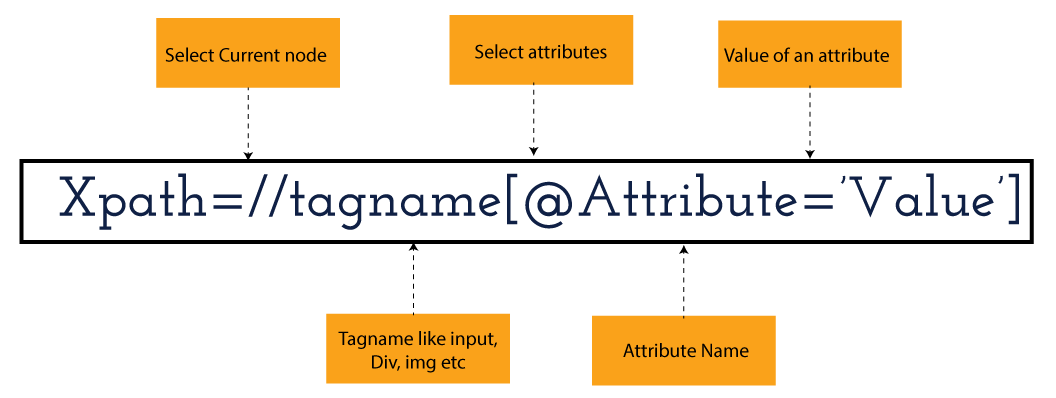
XPath in Selenium holds the element’s location on the web page. The basic syntax for XML Path Selenium is as follows-

Xpath=//tagname[@attribute="value"]

The meaning of each expression in the syntax is-

  • // : Choose the existing node.
  • Tagname: Particular node’s tagname.
  • @: This symbol denotes the “Select” attribute.
  • Attribute: Node’s attribute name.
  • Value: Attribute’s Value.

Become a master of Selenium by going through this HKR Selenium Training!

XML Document

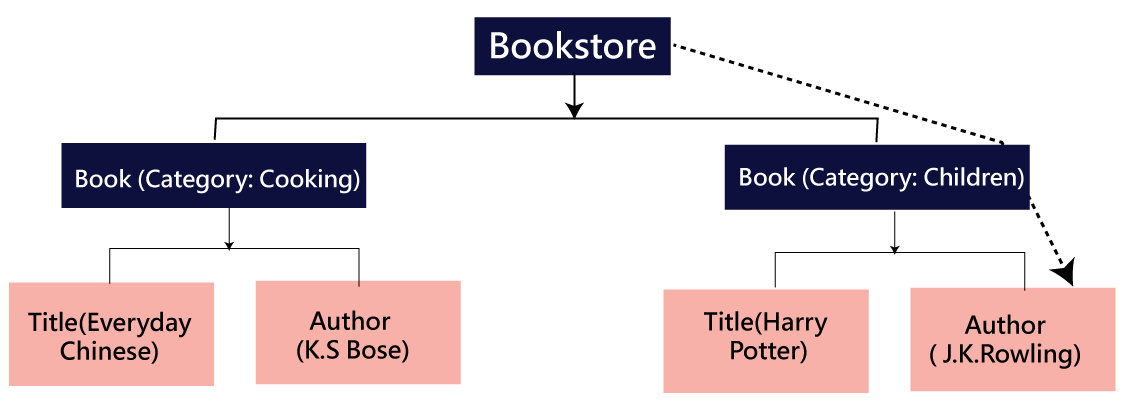
The XML documents are the text files that contain XML data, including elements and other markups, in a sequential package. Further, it can include a wide variety of data such as numbers databases, numbers of a mathematical equation, etc. You can understand XML document with an example:-

 Kumar

   AK & Co.

    032456123

Here, the above code is divided into two parts- Document Prolog & Document Elements. Let us discuss them in brief.

Document Prolog

The document prolog appears at the top of the document, beforE the root document element. It includes XML and Document type declaration. 

Document Elements

These major building blocks of XML segregate the document into different sections. Each of these document sections perform a particular purpose. Moreover, you can easily segregate a document into different sections so that search engines can use it. Further, these document elements can be the containers having text and other elements combined. 

Types of XPath

  1. Absolute XPath:
  2. Relative XPath:
Absolute XPath

In Selenium, the absolute XPath is the direct path to find the element. This Xpath begins with the “/” (Slash) symbol and helps select the element from the root. The major drawback of this XPath is that if you change the path of the element or attribute, the absolute XPath will fail.

Relative XPath:

The Relative XPath in Selenium begins with the double forward slash “//” symbol and from the middle of the HTML DOM. You can search elements anywhere on the web page as it doesn’t need to write a lengthy Xpath. This XPath is mainly considered as it is not a complete path from the root element.

For example: //input[@id=‘ap_email’]

Suppose You launch Google Chrome and navigate to google.com. Then locate the search bar utilising XPath. By analysing the web element there is an input tag and attributes like class and id. Utilise the tag name and given attributes to create XPath that will locate the search bar.

If you want to Explore more about Selenium? then read our updated article – Selenium Tutorial

What-is-xpath-in-Selenium-1

Click the Elements tab and press Ctrl + F to open a search box in chromes developers tool.  Write XPath string selector and it will try to search based on that criteria. In the image given above, it has an input tag.  //input implies tagname. Use the name attribute and pass ‘q’ as its value. It provides XPath expression as shown below:

//input[@name=’q’]

XPath string

It has focused on the element that implies this specific element was located utilising XPath.

If you want to Explore more about Selenium? then read our updated article – Selenium Tutorial!

Check out our Latest Tutorial video. Register Now Selenium Online Course to Become an expert in Selenium.


Acquire Selenium with jenkins certification by enrolling in the HKR Selenium with jenkins Training program in Hyderabad!

Selenium Certification Training

  • Master Your Craft
  • Lifetime LMS & Faculty Access
  • 24/7 online expert support
  • Real-world & Project Based Learning

XPath Functions

Automation utilizing Selenium is unquestionably an incredible innovation which gives numerous approaches to distinguish an article or component on the website page. Be that as it may, in some cases we do deal with issues in recognizing the articles on a page that have similar credits. Some cases can be: components having similar credits and names or with more than one button with similar name and ids. It’s trying to train selenium to distinguish a specific item on a website page and it is the place where XPath functions to serve as the hero. 

Frequently asked Selenium Interview Questions and Answers !!

Types of XPath Functions

Selenium involves different functions. The three of the most broadly utilized functions are given below:

1) Basic XPath

The basic XPath expression selects nodes or a list of many nodes based on various elements or attributes such as ID, Name, ClassName, etc. It selects them from the XML documents. The syntax we can use for the basic XPath is –

Xpath=//input[@name="uid"
2.Contains()

It is a method used in XPath expression when the value of an attribute or element dynamically changes. You can easily find the elements with a partial text using the “Contains” feature in the XPath expression. Now understand this with the below example.:-

Xpath=//*[contains(@type,'sub')]

The above example denotes that the full value of the element type is submitted, but we use the partial text ‘sub’ here to find the element. Thus, in the above example, we tried to find the element by giving a partial text of the attribute “submit”. 

3) Using OR & AND

Here, we use two conditions, first or second condition, among which one condition must be “True” to execute it. This method is still applicable if any one or both conditions are “true”. It means that any conditions should be true to find the element. The expression we can use for this is-

Xpath=//*[@type="submit" or @name="btnReset"]

The above XPath expression will help determine whether a single or both conditions are ‘True’.

Similarly, in the “And” XPath expression, also we use two conditions, but both conditions should be “true” to locate the element. If any one of the conditions becomes “false”, then the expression cannot find the element. The syntax we can use for this function is-

Xpath=//input[@type="submit" and @name="btnLogin"]
4) Xpath Starts-with

The function Xpath-Starts-with() in the Xpath functions is useful to find the element whose attribute value changes in some conditions. Here the value changes with the refresh of the page or by performing dynamic actions on the webpage. In this method, the initial text of the attribute should be in parallel to locate the element whose attribute value changes interactively. 

Further, you can also find the elements whose attribute value doesn’t change or remain static. You can understand this function’s use by the following example:-

Xpath=//label[starts-with(@id,'message')]

The above syntax shows that two different elements start with the initial id “message”. Here, you can use the Xpath-starts with function to check whose attribute value changes or remains static.

Become a master of Selenium by going through this HKR Selenium Training in Delhi!

HKR Trainings Logo

Subscribe to our YouTube channel to get new updates..!

5) XPath Text() Function

In Selenium WebDriver, the function XPath Text() is a built-in function useful to locate elements based on the web element’s text. Using this function, you can find the same text element. Moreover, the elements that you locate must be in a string format.

Xpath=//td[text()='UserID']

Using the above expression having text function, you can locate the element that will show the exact match of the text.

6) XPath axes methods

This method in XPath functions is useful for finding complex or changing elements. However, we can see the following XPath axes methods which we can use:-

  1. a) Following- It is useful to select all the elements in the document of the existing node(). The expression you can use for this method is-
 Xpath=//*[@type="text"]//following::input
  1. b) Ancestor- The ancestor axes method is useful to select all the ancestor elements of the existing node, like parents, grandparents, etc. Here, the expression you can use is-
Xpath=//*[text()='Enterprise Testing']//ancestor::div
  1. c) Child- This axes method selects all the child elements in the documents’ current node. The expression you can use here is-
Xpath=//*[@id='java_technologies']//child::li
  1. d) Preceding- This method helps select the nodes that come before the existing ones. Here is the example expression:-
Xpath=//*[@type="submit"]//preceding::input

The above expression helps to identify all the input elements before the currently given nodes.

  1. e) Following-sibling- This method helps to select the following siblings of the existing node. All the siblings will be equivalent to the existing node, and the method will find the sibling next to the existing node. Moreover, the syntax you can use here for this method is-
xpath=//*[@type="submit"]//following-sibling::input
  1. f) Parent- It helps to select the parent from the existing node of the element. The following is the syntax you can use here.
Xpath=//*[@id='rt-feature']//parent::div

Many div(s) match with the parent, but if you want to focus on a specific element. For this you can use the below xpath syntax-

Xpath=//*[@id='rt-feature']//parent::div[1]
  1. g) Self- In this method, it selects the existing node where it selects itself only. That means the node here is the “self”. The expression you can use for self is-
Xpath =//*[@type="password"]//self::input
  1. h) Descendant- It helps to select the descendants of the existing element where it recognizes all the element descendants of the existing element. 
Xpath=//*[@id='rt-feature']//descendant::a

Selenium Certification Training

Weekday / Weekend Batches

Conclusion

XPath or an XML Path is used to locate any element or navigate through the HTML structure of a webpage. It is generally used for automation purposes and in cases where it is difficult to find elements using locators like name, class, ID, etc. However, it is the most important among the locators useful in Selenium to identify web elements. Also, it is a handy locator for the testers of web pages.

Thus, learning about XPath in Selenium will help you quickly identify a web element on a web page. 

Related Articles:


Source link