Trying to Pick a Meal Kit Service? These 2 Are the Best Value, According to Our Math


Meal kits are about convenience, which means you’ll typically pay more per pound for these recipe bundles than you would if you did the list-making and grocery shopping yourself. Meal kits offer hidden value beyond saving time and energy since there’s often less food waste with meal kits, given they only send you what you need for that night’s meal, and nothing more. 

CNET We Do the Math badge; click here for more

CNET

Within the sprawling meal kit categories, you’ll find a number of options priced between $6 and $15 per serving. The premium services offer higher-end cuts of meat and more complex recipes with gourmet ingredients. The budget services keep it simple with recipes that typically include just four or five ingredients. 

Among the choices, you may be wondering which meal kit services offer the best overall value in 2026. Well, so were we.

To find out, we’ve calculated how meal kit delivery services compare with grocery prices. Here’s what the math says about meal kits and value in 2026.

And while these represent the best-value meal kits, we’ve also dug into them to find the absolute cheapest meal kits available in 2026.

Meal kits, ranked by value

Meal kit service % savings to make the same meals yourself
Home Chef 35%
HelloFresh 35%
Blue Apron 37%
EveryPlate 40%
Marley Spoon 42%
Green Chef 45%
Sunbasket 48%

home chef box on kitchen counter

Home Chef scored top marks in our meal kit value ranking.

David Watsky/CNET

Home Chef

Home Chef cost (2 servings) DIY cost DIY savings
Idiot Proof Crispy Chicken Sandwich $23.98 $12.14 49%
Arrabbiata Cream Shrimp and Feta Peppers $23.98 $16.55 31%

three HelloFresh meal cards and brown paper bags sitting on a counter.

HelloFresh tied with Home Chef as the best value meal kit.

Corin Cesaric-Epple/CNET

HelloFresh

HelloFresh cost (2 servings) DIY cost DIY savings
Green Curry Coconut Shrimp and Rice $22.98 $16.58 26%
Cumin Lamb Chops with Spiced Yogurt Sauce (Premium +$12.99/serving) $48.96 $26.96 45%

  • Cost: $11.49 per serving plus upcharges for premium items  
  • Aggregate savings on this HelloFresh box to make it yourself: 35%
  • Full review of HelloFresh

blue apron box with ingredients spilling out

Blue Apron’s subscription-free* meal kits placed 3rd.

Blue Apron

Blue Apron

Blue Apron cost (2 servings) DIY cost DIY savings
Brown Butter Steaks and Fried Rosemary ($13.29/serving) $26.58 $15.24 43%
Chicken Caesar Wraps ($8/serving) $16.00 $10.88 32%

Note that Blue Apron recently changed its pricing structure and has moved away from a subscription model. Each dish now has a specific price per serving, and you can buy meal kits whenever you want without having to keep track of a recurring weekly delivery.

A hand holding three recipe cards from EveryPlate

EveryPlate’s recipe cards guide you carefully through each meal kit.

David Watsky/CNET

EveryPlate

EveryPlate cost (2 servings) DIY cost DIY savings
Banh Mi Style Chicken Tacos $13.98 $8.40 40%
Herbed White Bean Tomato Stew with Feta and Garlic Toasts $13.98 $8.25 41%

  • Cost: $6.99 per serving plus upcharges for premium items
  • Aggregate savings on this EveryPlate box to make it yourself: 40%
  • Full review of EveryPlate

marley spoon box

Our top pick for best meal kit, Marley Spoon, was in the middle of the pack in terms of value.

Corin Cesaric-Epple/Zooey Liao/CNET

Marley Spoon

Marley Spoon cost (2 servings) DIY cost DIY savings
Steak with Truffle Butter and Fondant Potatoes $25.98 $15.58 40%
Lemon & Herb Pan Seared Shrimp with Broccoli & Pasta $25.98 $14.63 44%

green chef-box

Green Chef is one of our favorite healthy meal kit services but didn’t prove as good of a value in our evaluation.

David Watsky/CNET

Green Chef

Green Chef cost (2 servings) DIY cost DIY savings
Blackened Shrimp and Grits with Bacon $29.98 $15.45 48%
Butter-Basted Sirloin Steak with Potatoes $29.98 $17.33 42%

Sunbasket meal kits in delivery box.

Sunbasket fared the worst in our value analysis.

Anna Gragert/CNET

Sunbasket

Sunbasket cost (2 servings) DIY cost DIY savings
New Orleans Style Shrimp Creole $22.98 $12.10 47%
Sheet Pan Chicken Sausage with Potatoes, Broccoli and Chimichurri $22.98 $11.58 50%

How I did the math

screen-shot-2022-04-14-at-6-22-54-pm.png

A vegan potsticker meal kit ready for action. 

David Watsky/CNET

Using weekly menus available online for each of the seven meal kit services, I selected two standard offerings from each, making sure to mix up the protein type: a steak or premium red meat dish, a shrimp dish or a chicken or poultry option. (Sometimes the sandwich took the form of a burrito, wrap or tacos.)

Armed with in-store grocery prices from a Kroger in suburban Michigan (pretty much the median for current grocery prices in the US), I added up the prorated amounts for the specified quantities of each ingredient, then calculated the savings between the meal kit price and what you’d pay to make the same recipe by sourcing the ingredients yourself. 

To show my algebra, here’s an example from one of the kits:

Home Chef Crispy Chicken Sandwich

Ingredient In-store price Prorated cost
2 sweet potatoes $1.49/lb $1.11
1 cucumber $1.50/ea $1.50
10 oz boneless, skinless chicken cutlet $5.99/lb $3.74
2 brioche buns $5/4 buns $2.50
1.76 oz mayonnaise $4.29/15 oz $0.50
1 oz roasted, salted peanuts $1.99/12 oz $0.17
¼ C panko breadcrumbs $2.59/8 oz $0.65
½ fl oz seasoned rice vinegar $4.49/12 oz $0.19
2 tsp sriracha $5.79/12 oz $0.16
¼ oz cilantro $2.49/.5 oz $1.25
2 tsp umami seasoning $7.49/6.75 oz $0.37

  • Meal kit cost: $11.99 per serving for two servings: $23.99
  • Cost to make two servings via groceries: $12.14
  • Savings to make this recipe yourself: 49%

Note that the only cost I was calculating here was food cost for a traditional meal kit model. I didn’t factor in delivery cost or promotional offers (which many meal kits offer on start-up, or for lapsed customers who return to the service)

I had to make some estimates for certain ingredients (e.g., approximately 6 teaspoons per fluid ounce or the weight of an average-sized potato), but those estimates were kept consistent across all meal kits. I chose the least expensive available brand for the ingredient, except when a particular brand or standard (such as organic) was specified. 

I indicated the percentage savings per item to do it yourself, but to come up with the aggregate savings per box, I added up the total value of all the ingredients in the box and divided it by the total price of the box, rather than taking the average of each of the three savings percentages. 

Some observations on value

Green Chef recipe cards

Green Chef meal kits are easy to love but don’t offer the best value, pound for pound.

David Watsky/CNET

“Value” can be difficult to quantify because your personal values shape how you perceive cost. Organic produce, more responsible packaging or a wider variety of recipes to choose from may play a greater role in your decision-making than the actual food costs calculated here. 

That said, the biggest disparity in value among the meals I calculated was indeed in the organic options: Green Chef and Sunbasket, because organic produce and the highest-quality proteins bought in-store were closer in price to their conventional items than the higher prices in those meal kit brands would have you believe. Sunbasket, curiously, has a pretty low cost per serving, but my calculations showed that you’re getting less in those boxes than in those with conventional ingredients.

I also calculated the cost of each ingredient, but your perception of cost may depend on whether you already have certain items in stock. For example, if you already have garlic powder on hand, you might not really count that as a cost, as you didn’t have to shell out for it in this week’s grocery purchase. (Those 11 cents’ worth of garlic powder aren’t probably making a huge difference in the bottom line anyway.)

Ingredients from a Sunbasket meal kit.

Curiously, Sunbasket has a low cost per serving, but my calculations showed that you’re getting less in those boxes than in those with conventional ingredients.

Sunbasket

On the other hand, a specialty ingredient that isn’t a staple — truffle dust, for example — will feel more expensive because you have to buy it outright to use only a portion of it, even though more remains for use in other recipes. (That particular specialty ingredient is going to hit you especially hard at the point of purchase, because it’s truffles.) 

Another consideration worth noting is that every recipe here calls for 10 ounces of shrimp. If your supermarket doesn’t have a seafood counter that allows you to buy in bulk, you might find that packaged frozen shrimp is only available in 12 ounces. I calculated the price for only the 10 ounces called for, but the actual outlay is higher, and chances are you’ll use all 12 ounces and not save 2 for the future.

Getting the most for your money with any meal kit

Given these calculations, I found that the best value, no matter which service you choose, is for premium-ish items that don’t come with a premium markup. Meat and seafood-based dishes will pretty much always incur higher DIY costs than vegetarian or pasta-based meals, which are cheaper for you to put together yourself, such that the difference between making those meals yourself versus getting them through a meal kit is far greater. 

Ingredients for a fish meal kit

Many of EveryPlate’s cheap meal kit recipes are simple and fuss-free.

David Watsky/CNET

The value really comes down to the availability of inexpensive proteins in your area. Shrimp availability in suburban Michigan in January inflated those DIY costs, which may not be the case on the coasts or in other seasons. To make the most of your meal kit money, no matter which brand’s menu you prefer, check local protein prices and choose your meals accordingly.

What more? Here are seven ways to maximize your meal kit service and the best meal kits for staying healthy in 2026.


Source link

Leave a Reply

Subscribe to Our Newsletter

Get our latest articles delivered straight to your inbox. No spam, we promise.

Recent Reviews


Power Bi Dashboard – Table of Content

What is Power BI?

Power BI is a Business Intelligence and Data Visualization tool that transforms information from diverse sources into visualisations and BI reports. Power BI suite includes a variety of software, connectors, and services, including Power BI desktop, SaaS-based Power BI service, and mobile Power BI apps for various platforms. Business users use this set of services to consume data and create BI reports. Power BI Desktop is used to create reports, Power BI Services (Software as a Service – SaaS) is used to publish reports, and Power BI mobile app is being used to view dashboards and reports. Power BI Desktop is available in 32-bit and 64-bit configurations.

Become a Power BI Certified professional by learning this HKR Power BI Training !

What is a Power BI Dashboard?

A Power BI dashboard is a single-page visualisation that uses multiple charts and graphs to tell a storey. This one-page dashboard visualisation is also known as a Canvas. The Power BI dashboard is accessible only in Power BI Service. Because a Power BI dashboard is only one page long, it only encompasses the features of a storey. Power BI Desktop does not support the creation of dashboards. A Power BI dashboard is a single sheet, also known as a canvas, that uses visualisations to tell a storey. A well-designed dashboard includes only the features of that storey since it is restricted to one page. Readers can get more information by viewing related reports.

Power BI Dashboards

Power BI Dashboard on Power BI Service

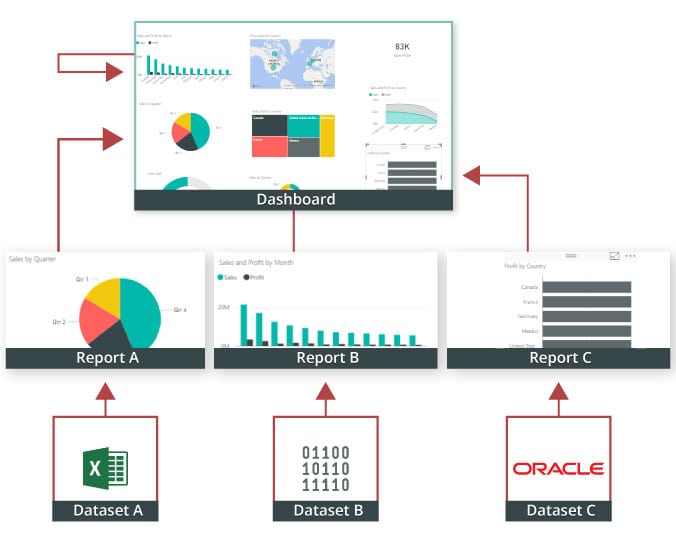
In a dashboard, representations are produced from reports, and each report depends on one dataset. The representations present on the dashboard are called tiles, and report creators pin these tiles to the dashboard.

Dashboard

Advantages of a Power BI dashboard : 

Dashboards are a magnificent method for observing your business and seeing each of your most significant measurements initially. The perceptions on a dashboard can emerge out of one basic dataset or many, and from one basic report or many. A dashboard joins on-premises and cloud information, giving a united view paying little heed to where the information resides.

• A Power BI dashboard empowers clients to examine reports and view exceptionally significant measurements initially

• Utilizing a Power BI dashboard, clients can make perceptions from numerous datasets or various reports

• You can alter dashboards to meet the necessities of any venture

• Power BI dashboards can be inserted into applications to give a brought together client experience

• You can immediately impart a dashboard to different partners in your association

How to Create a Dashboard in Power BI?
Building reports in the dashboard provides details regarding Power BI Desktop and distributing them to Power BI Service is probably the most ideal way to see how a Power BI dashboard functions.
For our demo, we’ll be taking a gander at a deals dataset that contains item deals data all through the United States. The dataset contains different client related subtleties, including client names, request and shipment dates, item names, item classes and subcategories, benefit made, etc. This dataset is normally known as a Sample Superstore dataset. We’ll investigate this dataset to analyze deals and benefit from each section, year, and quarter.
We’ll likewise make a guide to show the deals across various states in the USA.
Coming up next is the dataset that we’ll use to make the dashboard:

Fig: Sales Data

sales-data

To begin, we will make three different vouchers to evaluate total sales, profit, and amount of sales. Click “card” in the visualisation committee on the power to make a vacant card.

Drag the sales column onto the fields to see the total amount of sales for all products. The user  can change the font size and colour of the sales value on this card. The user  can also give this card a headline. Correspondingly, by having to drag corresponding columns onto disciplines, you can generate 2 more cards for net income and total amount of sales.

Then, in our visualisation, we’ll add a slicer to slice the data based on the “Order Date” column. This will allow us to screen the data as well as visualise it as needed.

Fig: Cards and Slicers

sales-dashboard

Assume you are hoping to picture and investigate deals and benefit over a specific number of years. To do this, you’ll make a line and stacked segment diagram. Select the line and stacked segment graph from the representation board and drag the “Request Date” section on to “Shared Axis.” Put “Deals” under “Segment” values, and addition the “Benefit” segment into “Line” values. That will create the chart. You can alter the shade of the bars and the line under the organization tab.

cards-slicers

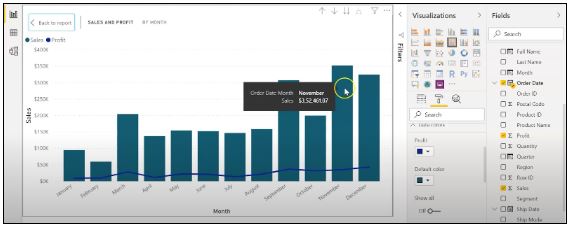
In the outline over, the bars address the deals, and the line addresses the benefit. The chart uncovers that the most noteworthy measure of deals and benefits happened in 2017. Power BI Desktop gives an amazing component to dive into the information and picture the chart as far as each quarter, month, and day. This choice is accessible at the top when you explore a particular outline.

sales profit by month

Fig: Sales and profit by each month

You can likewise add the names to the diagram by tapping the “Organization” tab and turning on the information marks.

adding-labels

Fig: Adding labels to the graph

Presently, we should make a bunched segment diagram by dissecting yearly and quarterly deals.

From the Visualizations menu, select the “Grouped Column Chart.” Add the “Year” segment to the pivot. Take the “Quarter” sections under “Legend,” and add the “Business” segments to “Worth.”

clustered-bar-chart

Fig: The clustered bar chart

The diagram above shows that the principal quarter of each year had the most minimal marketing projections, while the final quarter was reliably the most elevated. You additionally have the choice to change the shadings on your diagram to make it all the more outwardly engaging.

Presently, how about we examine the deals for each state in the US. To do this, we’ll utilize a filled guide. Select a filled guide from the representations board. Add the “State” section to “Area.” Drag the “Deals” segment onto “Tooltips.” To alter the shadings, click on the “Configuration” tab, and pick “Information Colors.” Select the contingent arranging choice and add the scope of tones that you’d like.

formatting-colors

Fig: Formatting colors based on the sales

Our colour has been described for the smallest, medium, and greatest sales values. The green-colored states had the smallest sales. California, Texas, and New York, which are highlighted in orange or red, had the highest sales. Correspondingly, you can create a map to see the profit and number of units sold in each nation.

sales-state

Fig: Sales by each State

So far, our report appears to be as follows. We’ve covered how to make cards, slicers, line and stacked column charts, clustered bar charts, and packed maps.

sales-report

Fig: Sales report

Following that, we’ll take a glance at how to make a donut chart to evaluate revenue and profit by section.

Select the pie chart from the visualizations menu. Add the section column to the legend. Drag the “Sales” column to the “Values” column and the “Profit” column to the “Tooltips” column.

donut-chart

Fig: Donut chart for Sales and Profit

According to the pie chart given above, the customer group had the most revenue and profit, while the head office segment had the least. To make the visualisation more visually appealing, you can format it as needed.

We will now create a pie chart to visualize the sales for each product category. Move the “Category” column to the “Legend” column and add the “Profit” column to the “Values” column. Drag the “Sales” column to the “Tooltips” section.

pie-chart

Fig: Pie Chart for Profit and Sales

The new tech classification produced the most sales and profit, while furniture generated the least. To change the colours and make any necessary changes, go to the “format” tab.

The following is an example of the the last total sales report:

overall-sales-report

Fig: Overall Sales Report

Allow us now to picture our information at a more granular level by examining deals, benefit, and units sold at territorial and state levels.

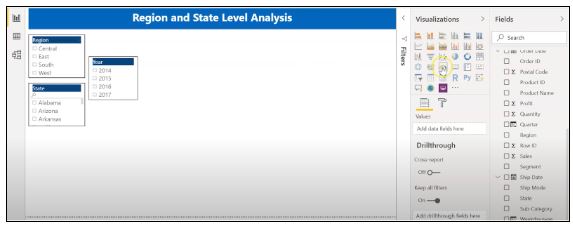
In the first place, we’ll make three slicers to channel our information. Click on the slicer from the representations board and add the “Area” segment on to “Field” to make a local slicer. Additionally, you can make a state and year slicer. You likewise have the choice to alter the slicers to change the text dimension, increment the size of the text, and add a foundation tone.

slicers-filter-data

Fig: Slicers to filter data

We’ll presently make a table to check the sum and the advantage made in each city. Under the “Insights” tab, select “Table”. Add the “City” fragment under “Values,” followed by sum and the “Advantage” area. Add an establishment tone to the fragment headers and addition the size of the printed style. You can channel the data by picking the things from all of the slicers.

Under, we have picked the central region and picked the region of Minnesota. In the table, you can see all of the metropolitan regions in the area of Minnesota, the sum sold, and the advantage they made.

creating-a-table

Fig: Creating a Table in Power BI 

Orchestrating a table is another limit that Power BI Desktop maintains. This gives clients the decision to sort the segment in a table in their solicitation for tendency.

By and by, could we create a clustered reference diagram to separate the arrangements for each thing class across different states? Select the gathered bar layout from the discernments board. Take the “State” area on the center point, “Characterization “portions on to the legend, and “Arrangements” on to “Worth.”

cluster-bar-2

Fig: Clustered Bar Chart

Among the three classes of things, the region of California made the most critical arrangements for all orders.

Then, at that point, we should check the yearly advantage by grouping using an area diagram. Select the area chart from discernments and drag the “Year” segment on to the turn, the “Class” fragment on to the legend, and “Advantage” on to “Values.”

area-chart

Fig: Area chart using Power BI

You can separate the advantage and sum that each thing class and subcategory sold. You can moreover make a line. Clients can research their various decisions through the dashboard.

region-state-report

Fig: Region and State Level Report

To go comprehensively and make a more granular level report, you can do that by making a report considering the things’ orders and subcategories, as shown in the report underneath. You can use class and subcategory as your slicers and make different line traces, bubble outlines, treemaps, and pie charts to imagine the data.

category-level-report

Fig: Category and subcategory Level Report

We’ll as of now disperse our overall business diagram on Power BI Service and make a dashboard. Save your reports on Power BI Desktop. Then, click on the home menu and select the “Convey” tab.

sales%20and%20profit

Fig: Publishing report on to Power BI Service

You can in like manner make another workspace or disperse the report to a current workspace in Power BI Service.

publishing-powerbi

Fig; Publishing to Power BI successfully.

Power BI Training

  • Master Your Craft
  • Lifetime LMS & Faculty Access
  • 24/7 online expert support
  • Real-world & Project Based Learning

Reports in Power BI :

A Power BI report is a multi-perspective look at a dataset, with visual effects representing various information and results from that set of data. A report may contain a single visual or possibly multiple pages of visual elements. Based on your work, you may be in charge of creating reports.

Power BI reports v Dashboards : 

Pages- Dashboards are not permitted to span more than one page; all essential reports are displayed on a single page.

Data sources- Dashboards are founded on the basis of multiple data tables that are linked to one another in one or more contexts. Reports are typically generated from a solitary table of data with no relationships to other tables.

Available in Power BI Desktop- Both the features are available in Power BI desktop

Pinning- Dashboards are fastened to the page so that the viewer can simply read through the data. Reports are built with various filters and shredders to allow the user to communicate with the set of data.

Subscribe- Reports can be published on the web and subscribed to via email. Dashboards have the same features as reports, but they can only be exported to a limited number of formats, so they are used to visualise important data rather than analyse it, which is only possible with reports.

Filtering- Power BI dashboards don’t at present have filter channels though reports are made with any sort of channels and slicers so the client can cooperate with the informational index. Dashboards are stuck to the page even the report proprietor.

Set alerts- With a dashboard, you can set up alarms for when a tile arrives at a specific limit. Thusly, you will not need to continue to return on the dashboard to check whether the tile has arrived at that limit. Sadly, it is absolutely impossible to set up a caution for a report. Thus, you should continue to inquire on the report to check whether the measurements you are following have arrived at a specific limit.

Modify/change visualization type- Dashboards contain an assortment of outlines and tables on a scope of related points though reports contain diagrams and tables on a solitary theme. Accordingly, dashboards regularly offer an undeniable level outline of a subject, and reports will generally be more granular and smaller in center.

Click here to learn Power BI Tutorial

HKR Trainings Logo

Subscribe to our YouTube channel to get new updates..!

Features of Power BI : 

Range of Attractive Visualizations :

Visualizations, or the visual representation of data, are important in Power BI. It provides a wide variety of detailed and appealing visualisations.

Get Data Feature :

The Get Data feature in Power BI permits the users to choose from a variety of data sources. The data sources can range from on-premise to cloud-based, unstructured to structured. Every month, new data sources are added.

Datasets Filtration :

A dataset is a single set of data created by combining data from multiple sources. You can use the datasets to create various types of visualisations.

Customizable Dashboards :

Dashboards are a grouping of visualisations that provide useful information or insights into data. Power BI dashboards are typically made up of multiple visualisations as tiles.

Flexible Tiles :

In a Power BI dashboard, a tile is a single block that contains a visualisation. Tiles properly separate each informative visualisation to provide a clearer view.

Click here to get latest Power BI Interview Questions and Answers

Power BI Training

Weekday / Weekend Batches

Conclusion :

Power BI dashboard is a wonderful storytelling tool that can be really helpful to develop actionable business insights. In addition to this, we have also illustrated the differences between the Power BI dashboard and the reports. If you have any questions let us know in the comments section.

Related Article :


Source link