

Pros
- Fun, pillowy design
- Instant physical photos
- Self-timer and flash
Cons
- Easy to accidentally select Close-Up mode
- No wireless connectivity
- Bulky
Fujifilm’s Instax Mini 13 might be new for 2026, but it looks like it could have come out 10 years ago or more. The fundamentals of the successful instant camera line stay the same in that it’s a basic, inexpensive instant camera that lets you take fun, physical photos that develop in about 90 seconds. These prints are great as keepsakes to give to friends, decorate a wall or fridge with memories and more. In this era of digital everything, it’s delightfully analog.
That low price and simplicity mean the Mini 13 doesn’t have the features some might want or expect in a camera like this. It’s a pure instant film camera, which means there’s no digital images. It also doesn’t have Bluetooth or Wi-Fi, so it can’t be used as a printer to send photos you took elsewhere to the Mini for printing like you can with the Mini LiPlay Plus. It doesn’t have a screen, either, so you’re stuck with an offset viewfinder for most photos and a small mirror on the front for selfies. That said, as long as you’re not looking for more, the Mini 13 is a fun little camera for a great price.
Specs and hardware
- Photo resolution: Analog! Roughly credit-card size prints
- Lens: 60mm, f/12.7
- Storage: Instax Mini-size film packs (10 photos each)
- Battery life: Roughly 100 photos (10 packs of 10)
- Weight: 327 grams (11.5 ounces) without two AA-size batteries
- App: Instax Up (for scanning/sharing but not camera control)
Being a simple, essentially analog instant camera, there’s not much to explain specs-wise. The Mini, as its name suggests, uses Instax Mini film cartridges, which are roughly the size of a credit card. These offer different designs for the frame around the photo beyond simple white, including the new Pastel Galaxy, which you can see in some of the images below.
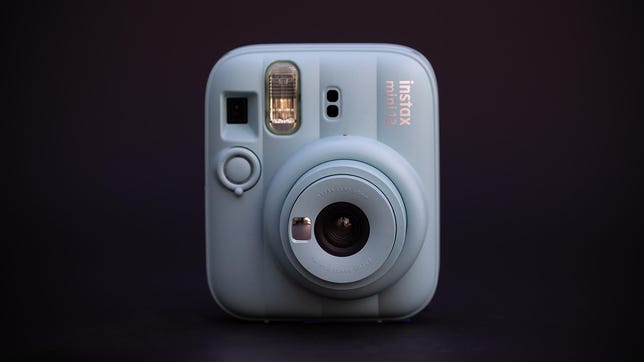
The body of the Mini 13 has a fun, curvy vaguely pillowed design. The included wrist strap has a plastic Instax logo charm that doubles as a wedge to lean the Mini back slightly on a flat surface. This is necessary because the camera doesn’t have a tripod mount. That’s a bit of a miss in my book since plenty of selfie sticks come with tripod screws and lots of selfie sticks have extendable feet, so you’d be able to place a camera just about anywhere. I can’t imagine this would have added much to the cost, and it would have made the Mini more usable in a wider variety of situations.
Unlike some Instax models, like the dual-camera Mini LiPlay Plus, it has no screen. Instead, there’s a curved mirror on the front of the lens to help line up selfies. This simple solution works just fine for the sort of fun photos most people will be taking with the Mini.
The Mini 13 is available in four pastel colors or white. A purselike accessory makes it easier to carry, which is good since the camera is too big for most pockets. These are available in the same colors.
There is technically an app, but it doesn’t interact with the camera. Instead, the app lets you scan photos, organize them and share collages online. This works well, and it even includes a way to reduce reflections by combining multiple camera photos from different angles. Other apps are available that can do this, but the way that Fujifilm’s Up app organizes the photos keeps with the overall fun vibe of the camera.
Usability and photo quality
There’s not much to using the Mini 13. It doesn’t have any settings and just has a single button. The flash fires with every photo. Your only choices are a 2- or 10-second timer, and if you’re shooting closeups, you can twist the lens one more stop past “on” to enable Close-Up mode.
If you’ve never used an Instax camera before, it takes a moment to orient yourself. They’re meant to be held vertically but are designed to look vaguely like a regular camera, so your hand falls into an odd position if you try to grip it like a normal camera. You have to make sure there aren’t any digits blocking the flash, for instance.
In its standard shooting mode, the Mini can focus on anything beyond 20 inches. The Close-Up mode can focus on objects from 12 to 20 inches. You need to be careful, though, as it’s very easy to overturn the lens and end up in Close-Up mode. Since there’s no screen to check what the image will look like, you can end up with blurry photos quite easily. Consider this part of its charm, and you’ll be less upset about all your out-of-focus photos. Maybe.
Screenshots from the Instax Up app. Scan and adjust the images, see them in gallery form or a “pictures in a shoebox” layout that you can sort with buttons or by shaking your phone. Different backgrounds are available, and you can drag and drop individual photos.
The simple viewfinder works fine for closeups but is skewed slightly for more distant shots, so you might think you’ve lined up a photo only for it to come out as you aimed too far to the right. This wouldn’t be as big a deal if there were a screen, but as long as you keep the offset in mind and don’t desire perfection, it’s fine.
Instant mini
I think there are two main questions someone might have with a camera like this. The first is, of course, do you need an instant camera? Personally, I think they’re fun, and it’s great to be able to share something physical with friends and family or have the photos in wall collages and random decorations. It’s rare that something so inexpensive can bring such simple joy.
The follow-up question is whether you should get this instant camera. I’m torn on that one because, on one hand, I like the fun design and low price. Keeping something this bulky on you at all times is a bit of an ask, though, especially since everyone has a tiny portable camera in their pocket. I like the functionality of the higher-end Instax models to connect to a phone, letting you print photos you and others took with other cameras. Most of the people I know who have an Instax camera eventually just use it as a printer. So a camera with this functionality is a good compromise between the practical, but less exciting, Instax printers, and the more fun but less practical wireless and screen-free models like this.
I get the draw to analog simplicity, but there’s a reason why certain aspects of photography adopted new technology and never looked back. A big one of those is being able to see the photo you’re about to take and making sure it’s what you want. Film is expensive, and wasting it on a blown shot is a bummer.
For the price, it’s hard to beat the Mini 13, especially if you appreciate the happy accidents of film photography. But if you can afford more, I’d recommend one of the Instax models with at least a screen and, ideally, wireless connectivity. The difference in initial price will likely be offset by fewer wasted shots and longer-term usability as a printer if the novelty of the camera wears off.

Stephan is the sports journalist for the Maple Grove Report.