‘Grey’s Anatomy’ Finale Spoilers: How Owen & Teddy Were Written Off the Show with a Happy Ending


ABC

The season 22 finale of Grey’s Anatomy just aired on ABC and we’ve learned the fate of Dr. Owen Hunt and Dr. Teddy Altman, played by departing cast members Kevin McKidd and Kim Raver.

Heading into last week’s episode Owen and Teddy were seemingly going strong as a couple after a recent rough patch in their relationship. There was a hiccup though. Just as Owen was about to tell Teddy how much he really loves her, she broke the news that she’s considering taking a job in Paris.

Owen didn’t have the best reaction and later apologized in a voicemail to Teddy, which got cut off as he was involved in a bridge collapse.

Thankfully, Owen survived and even helped save a family involved in the collapse too.

So, what does the future hold for Owen and Teddy?

In the end, Owen tells Teddy that she should take the job in Paris and that he’ll move there with her and the kids.

They got their happy ending!

Showrunner Meg Mairinis broke down the ending in a post-finale interview with TheWrap.

We went through a couple of different options. And yes, there were pitches for iconic Grey’s deaths, and I’m sure fans have been wanting one of those for a long time. But I really wanted to show that these two characters who have been with us for so long also had full character arcs and growth. Showing Owen as the medical hero and saving an entire family and then choosing to follow Teddy for once — after she’s been following him for decades — I thought was a beautiful full circle arc for him and also for her too. She came here for him back in Season 6, and she came here thinking that he was calling her to be in a relationship with her. But when she walked into that hospital he was with Cristina Yang. So it’s kind of a full circle moment for her, too, to be pursued by him, and for her to be able to pursue her career and still have everything.

Also, I need a little hope in my life. I didn’t want their journeys to end. I want to believe that they’re moving on to Paris and starting a wonderful life, and maybe getting out of Seattle is what this couple needed, to get away from all of this baggage — and I want to see them again, not as ghosts.
Meg Marinis, TheWrap

Why are Kevin McKidd and Kim Raver leaving the show?

It doesn’t sound like it was Kevin and Kim‘s choice to leave.

Meg told Variety that she made the decision to cut them from the show “shortly after the new year. It’s no secret what’s happening with network shows, and we’re not an exception, unfortunately.”

Long-running shows on network television are being given major budget cuts all across the board, leading to the departures of main cast members or reduced episodes for them.

It was a super painful decision, from the bottom of my heart. I’m very close to both of those characters and those actors. Kevin has directed double digits of episodes that I’ve written. So it was a very difficult episode to write, and it surprised me how difficult it was to even watch. But when we were faced with needing to exit [someone], it made the most sense for where their characters were in their lives. It felt like it was time. After the ups and downs of their relationship this season, I knew I wanted them to exit together. I thought they finally deserved to be happy, and it became clear to me that maybe they can’t be happy in Seattle — and that’s where the decision was made.
Meg Marinis, Variety

What’s next for Kevin McKidd

Kevin opened up about his future in an interview with Variety.

There’s so many things I want to do. Some theater — I haven’t done theater in a long time. I have about 15 projects on the slate. And my production company, we just signed this deal with STV. So we’ve got a few that are in development, and quite close to getting green lights. I’ll be directing and producing and acting in some of those. I just want to keep acting and improving my craft. I want to direct other stuff, my own stuff. I’m really excited about how busy things are getting. It’s funny, because my agent was like, “You know, for 18 years, we get calls all the time from people going, ‘Hey, is Kevin available for this?’ And it’s like, ‘No, he’s doing Grey’s. She’s quite excited that it’s shifting. I just finished Highlander, which was a blast, getting back to doing some period drama — swinging swords and riding horses. And then The Only Suspect is this really taut, twisty-turny psychological thriller that is brilliantly written and adapted from a novel, and the cast is great. The director is fantastic. It starts filming next week. 
Kevin McKidd, Variety

What’s next for Kim Raver?

Kim also opened up about her future after Grey’s Anatomy.

I really want to continue directing. It’s something that I feel really passionate about. I have the rights to a book with this incredible female lead, so getting that off the ground and directing and producing that. And continuing to work with amazing people that I’ve had the fortunate ability to work with.
Kim Raver, Variety

Take a look at all of the upcoming season 23 cast updates we know already.

The post ‘Grey’s Anatomy’ Finale Spoilers: How Owen & Teddy Were Written Off the Show with a Happy Ending appeared first on Just Jared – Celebrity News and Gossip | Entertainment.



Source link

Leave a Reply

Subscribe to Our Newsletter

Get our latest articles delivered straight to your inbox. No spam, we promise.

Recent Reviews


What are Data Catalogs?

A Data Catalog seems to be an accumulation of metadata especially in data planning and search tools that assists experts as well as other data consumers in locating the data they require, acts as a current asset of data available, and offers criteria to assess strength and conditioning data for potential purposes.

This succinct process made several locations regarding data catalogs—data management, looking, data inventory, and interpretation of data; they all rely on the central capacity to deliver a catalogue of metadata.

    Start learning Denodo Online Course from hkrtrainings to make a bright career in the world of Denodo!

What is the Denodo Data Catalog?

The Data Catalog seems to be a web-based self-service device that is included in the Denodo System that would allow technology and commercial consumers to query, lookup, and explore details and metadata saved in a Virtual DataPort server. Consumers could use this device to create knowledge and open the way for best choices.

If you want to explore the denodo server metadata, then use the dendo data catalog. Here I am going to explain how all these things happen.

Launching the data catalog:

The Data Catalog seems to be a web based application distributed as part of Denodo 8.0 that allows data analysts, enterprise customers, and app developers to search and browse data and metadata in a business-friendly way for personal exploration and predictive analysis.

To use this web tool, open the Denodo Platform Control Center and launch the Data Catalog. When the status changes to “Running,” click the Data Catalog link to launch the Web tool (by default, https://127.0.0.1:9090/denodo-data-catalog).

Login into the denodo platform with your login details.If you are logging for the first time, you will see a pop up window showing the synchronize metadata option.This must be run the first time you start the Data Catalog to make sure that it reflects the most recent state of the Denodo 8.0 server to which you are connected.

The VDP Synchronization should be performed as follows:

  • Click the Synchronize metadata now button.
  • On each Synchronization step, click Continue.
  • The views have now been synchronized, and you can begin exploring!

Using the metadata search:

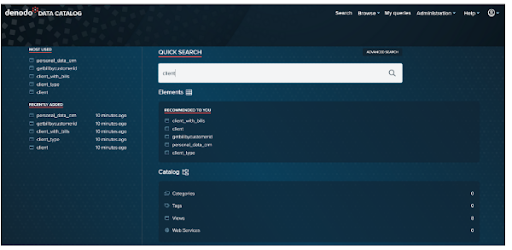
The first example comes from the Data Catalog’s home page.

Let’s use the Business Analyst’s scenario to look at a simple use case: searching for clients by typing in client and pressing enter.

denodo data catalog

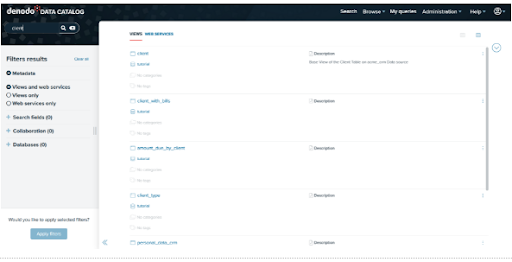
Here are the outcomes of our search. Starting with Data Catalog 8.0, this search will look for views or web services that include the query terms in the element’s metadata, such as:

  • It has a name.
  • It is described.
  • The names of the fields in which it operates.
  • The descriptions of its various fields.
  • The values of any custom properties that have been assigned to it.

denodo data catalog 1

For instance, let’s click on the view client to go to the summary of the selected view:

denodo data catalog 2

For the time being, we have conducted a search in the Virtual DataPort metadata. In the following section, we’ll look into the Data Catalog’s more advanced features!

Denodo Training

  • Master Your Craft
  • Lifetime LMS & Faculty Access
  • 24/7 online expert support
  • Real-world & Project Based Learning

Exploring the features of Data Catalog:

We’ll now look at the features in the Data Catalog that allow for more in-depth interrogation of a view. This includes the following:

  • Filtering and querying results from a view
  • Results are being saved to a file.
  • Developing new fields
  • Queries saved
  • Investigating viewpoint relationships
  • Investigating data ancestry
  • Views with related fields can be queried

Exploration of Data Catalog Views:

We chose our client view from the previous section. We can now look through the contents of this view.

Summary Tab:

We could see a summary of the selected view under the Summary Tab. It will display the metadata of the selected view, such as the database name, the list of categories, the list of tags, and collaboration information provided by the user, such as Endorsement and Warnings. You can edit the view’s description by clicking the Edit button next to the Description option. If the view is deprecated, an indication will appear at the top of the summary tab.

Furthermore, the Summary tab includes buttons such as Add Tags/Categories , Collaborative effort possibilities further to create custom the view, and Connection URLs, Tableau to display different opportunities to link to the view/datasource.

denodo data catalog 3

Schema tab:

Under the Schema Tab, we can see the view’s schema, which includes the view description as well as all of the fields and types. We can add a field description by clicking the Edit button next to the column. We can also use the search option at the top of each section to look for fields, data types, and descriptions.

denodo data catalog 4

Query Tab:

The Query Tab is the following tab. Ad-hoc queries can be run against the view here (the query is created graphically).

Business Intelligence & Analytics, denodo-data-catalog-description-3, Business Intelligence & Analytics, denodo-data-catalog-description-6

Subscribe to our YouTube channel to get new updates..!

Select all of the following fields for our view and drag them into the Output columns area.

client_id

name

surname

Client_type

denodo data catalog 5

Click on the execute to get the results.

denodo data catalog 6

Editing of data catalog metadata:

In this segment, we would then look at the metadata characteristics of the Data Catalog. Users could use Denodo Data Catalog to append tags and categories to views, and also keep updating the view as well as field descriptions, with such a function.

In our instance, we will: (1) add explanations to the customer fields in addition to allowing for more particular discovery of such a view, (2) add tags and categories, and (3) implement those to our client view.

Data catalog Metadata:

The capacity to exhibit view metadata, such as the View Description and Field Descriptions, is a good feature of the Data Catalog. Then see how we can make that data more modifiable.

Editing view and field descriptions:

  • Browse to the Client View’s Summary page and click the Edit option beside Description.
  • Add the necessary descriptions to the View and then click Ok.
  • Similarly, you can add a description to fields by going to the Schema tab and clicking on the Edit button next to each one.
  • The new descriptions are now visible in the view. These descriptions are saved as metadata in the Data Catalog.

Adding of tags and categories in data catalog metadata:

Tags and Categories are useful for allowing users to search the Data Catalog more precisely. While the number of Data Sources and Views in our tutorial is small, maintaining good Categorization and Tagging habits will pay off in the long run by allowing users to navigate the Data Catalog more easily.

In order to add categories follow the below mentioned points.

  • Navigate to Administration > Configuration and Management.
  • Click the Categories option in the Administration window’s Catalog Management section.
  • Select the + Add Category option.
  • Make a category with the following information:
    • Customer’s name
    • Customer data sources
  • Make a new category with the following information:
    • CRM (Customer Relationship Management)
    • Customer is the parent of the Acme crm System.
  • Make a final category with the following information:
    • Name: Billing 
    • Description: Billing
    • Parent:customer

Denodo Training

Weekday / Weekend Batches

Adding tags:

  • Navigate to Administration > Configuration and Management.
  • Click the Tags option in the Administration window’s Catalog Management section.
  • Click the + Add Tag icon to add a new Tag with the following information:
    • Name:JDBC 
    • Description: JDBC data sources
  • Creating another tag with the following data.
    • Name:SOAP
    • Description:SOAP data sources

We can easily modify the views for adding tags and categories as well.

                            Get ahead in your career with our Denodo Tutorial!

Recommendation and collaboration in data catalog:

Recommendations in data catalog:

The AI Feature Package includes Automatic recommendation of datasets in the Data Catalog to assist you in discovering new elements among your company’s data resources.

This feature displays individualized recommendations based on earlier activity in the Data Catalog, like datasets which are most utilised, lately used, suggested, and so on.

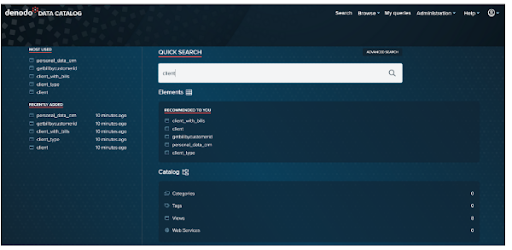
Go to the Data Catalog’s homepage to see the recommendations.

The homepage displays a collection of products provided by various topics, such as one titled Recommended to you. This dataset recommendation is really only accessible only with the AI Feature Pack.

Collaboration in data catalog:

In the collaboration there are 3 options such as endorsements, warnings and decrepation notes.

Endorsements seem to be comments made by users on a view or a webservice to express their support. A user can only endorse a perspective or web service once, which means whenever a new comment is added, the prior endorsement is removed.

Warnings have been used by customers to write and exhibit “advise against” texts on opinions and web services. A consumer could only add one warning to a view as well as web service.

Deprecations have been used to notify people that a feature has become outdated and should no longer be used. A consumer could only write one deprecation for a perspective as well as web application.

Conclusion:

In the above blog post we had clearly discussed the dendo data catalog, data catalog metadata, adding of tags and categories, recommendations, collaboration etc in a more detailed way. If you have any doubts please drop your query in the comments section to get them clarified.

Other Related Articles:


Source link