The family of a woman killed after a Tesla, which was operating using “an automated driving assistance system” according to authorities, crashed into her home is suing both the company and the driver of the vehicle.
As reported by Elektrek, a lawsuit was filed in Harris County District Court by Jennifer and Justin Barbour, the daughter and son-in-law of the 76-year-old victim, Martha Avila. It accuses Tesla of a design defect, and the car’s owner, Michael Butler, 44, of negligence.
Butler’s Tesla Model 3 allegedly collided with Avila’s Katy, Texas, home at around 8pm on June 19, at which time she was standing in her front room. She was later pronounced dead after being airlifted to a nearby hospital. Justin Barbour was also inside and suffered multiple injuries.
The driver is said to have been using the Tesla Model 3’s assisted self-driving system in the lead-up to the crash, and the Harris County Sheriff’s Office said he was cooperative, showing no signs of intoxication. The family is blaming both parties for the crash, alleging that the Tesla vehicle failed to accurately detect the end of the street and the oncoming house. They also claim that the vehicle’s systems failed to warn Butler of the danger and said the technology has a “history of known danger.” Avila’s family is seeking more than $1m in damages.
Tesla appears to have conceded that Butler was at one point using its FSD (Full Self-Driving) system, which despite the name still requires an attentive human behind the wheel. However, the company says the driver was ultimately responsible for the crash after assuming control of the vehicle himself.
In a reply to a post on X, Elon Musk said the circumstances of the crash meant that FSD could not have been in use at the time. “Yes, this makes no sense. FSD drives slowly through neighborhood streets and this was a high speed crash!” he wrote.
Ashok Elluswamy, Tesla’s Head of AI, also commented on the post, supporting Musk’s claims Butler was directly operating the car in the events that lead to the fatal crash. “Yup. In this case, the driver manually overrode self-driving by pressing the accelerator all the way to 100% of the accel pedal in this residential area,” he said. “They reached a speed of 73 mph during the crash, and had the accelerator pressed even after the crash.”
According to Elektrek, Butler had previously told Harris County officials that his vehicle had been on Autopilot (the standard Tesla self-driving system, which is less advanced than FSD) when it collided with Avila’s two-story home. According to ABC, no criminal charges have been filed and the crash is currently under investigation.
This isn’t the first time that Tesla’s autonomous driving tech has been the subject of legal action involving the National Highway Traffic Safety Administration, which is launching its own investigation into the recent Texas tragedy. Last year, the federal agency opened an investigation into how Tesla reports crashes involving its driver assistance systems, and more recently, a judge ordered Tesla to pay $243 million for a deadly crash dating back to 2019, in which Autopilot was involved.
A Data Catalog seems to be an accumulation of metadata especially in data planning and search tools that assists experts as well as other data consumers in locating the data they require, acts as a current asset of data available, and offers criteria to assess strength and conditioning data for potential purposes.
This succinct process made several locations regarding data catalogs—data management, looking, data inventory, and interpretation of data; they all rely on the central capacity to deliver a catalogue of metadata.
Start learningDenodo Online Coursefrom hkrtrainings to make a bright career in the world of Denodo!
What is the Denodo Data Catalog?
The Data Catalog seems to be a web-based self-service device that is included in the Denodo System that would allow technology and commercial consumers to query, lookup, and explore details and metadata saved in a Virtual DataPort server. Consumers could use this device to create knowledge and open the way for best choices.
If you want to explore the denodo server metadata, then use the dendo data catalog. Here I am going to explain how all these things happen.
Launching the data catalog:
The Data Catalog seems to be a web based application distributed as part of Denodo 8.0 that allows data analysts, enterprise customers, and app developers to search and browse data and metadata in a business-friendly way for personal exploration and predictive analysis.
To use this web tool, open the Denodo Platform Control Center and launch the Data Catalog. When the status changes to “Running,” click the Data Catalog link to launch the Web tool (by default, https://127.0.0.1:9090/denodo-data-catalog).
Login into the denodo platform with your login details.If you are logging for the first time, you will see a pop up window showing the synchronize metadata option.This must be run the first time you start the Data Catalog to make sure that it reflects the most recent state of the Denodo 8.0 server to which you are connected.
The VDP Synchronization should be performed as follows:
Click the Synchronize metadata now button.
On each Synchronization step, click Continue.
The views have now been synchronized, and you can begin exploring!
Using the metadata search:
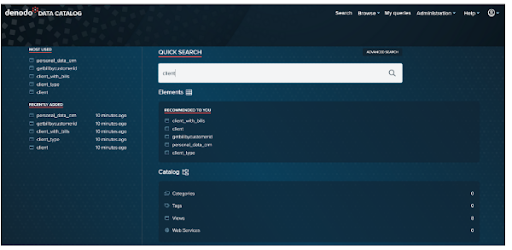
The first example comes from the Data Catalog’s home page.
Let’s use the Business Analyst’s scenario to look at a simple use case: searching for clients by typing in client and pressing enter.
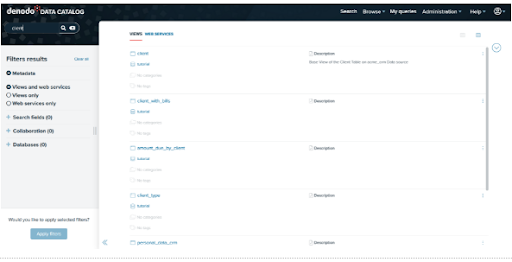
Here are the outcomes of our search. Starting with Data Catalog 8.0, this search will look for views or web services that include the query terms in the element’s metadata, such as:
It has a name.
It is described.
The names of the fields in which it operates.
The descriptions of its various fields.
The values of any custom properties that have been assigned to it.
For instance, let’s click on the view client to go to the summary of the selected view:
For the time being, we have conducted a search in the Virtual DataPort metadata. In the following section, we’ll look into the Data Catalog’s more advanced features!
Denodo Training
Master Your Craft
Lifetime LMS & Faculty Access
24/7 online expert support
Real-world & Project Based Learning
Exploring the features of Data Catalog:
We’ll now look at the features in the Data Catalog that allow for more in-depth interrogation of a view. This includes the following:
Filtering and querying results from a view
Results are being saved to a file.
Developing new fields
Queries saved
Investigating viewpoint relationships
Investigating data ancestry
Views with related fields can be queried
Exploration of Data Catalog Views:
We chose our client view from the previous section. We can now look through the contents of this view.
Summary Tab:
We could see a summary of the selected view under the Summary Tab. It will display the metadata of the selected view, such as the database name, the list of categories, the list of tags, and collaboration information provided by the user, such as Endorsement and Warnings. You can edit the view’s description by clicking the Edit button next to the Description option. If the view is deprecated, an indication will appear at the top of the summary tab.
Furthermore, the Summary tab includes buttons such as Add Tags/Categories , Collaborative effort possibilities further to create custom the view, and Connection URLs, Tableau to display different opportunities to link to the view/datasource.
Schema tab:
Under the Schema Tab, we can see the view’s schema, which includes the view description as well as all of the fields and types. We can add a field description by clicking the Edit button next to the column. We can also use the search option at the top of each section to look for fields, data types, and descriptions.
Query Tab:
The Query Tab is the following tab. Ad-hoc queries can be run against the view here (the query is created graphically).
Subscribe to our YouTube channel to get new updates..!
Select all of the following fields for our view and drag them into the Output columns area.
client_id
name
surname
Client_type
Click on the execute to get the results.
Editing of data catalog metadata:
In this segment, we would then look at the metadata characteristics of the Data Catalog. Users could use Denodo Data Catalog to append tags and categories to views, and also keep updating the view as well as field descriptions, with such a function.
In our instance, we will: (1) add explanations to the customer fields in addition to allowing for more particular discovery of such a view, (2) add tags and categories, and (3) implement those to our client view.
Data catalog Metadata:
The capacity to exhibit view metadata, such as the View Description and Field Descriptions, is a good feature of the Data Catalog. Then see how we can make that data more modifiable.
Editing view and field descriptions:
Browse to the Client View’s Summary page and click the Edit option beside Description.
Add the necessary descriptions to the View and then click Ok.
Similarly, you can add a description to fields by going to the Schema tab and clicking on the Edit button next to each one.
The new descriptions are now visible in the view. These descriptions are saved as metadata in the Data Catalog.
Adding of tags and categories in data catalog metadata:
Tags and Categories are useful for allowing users to search the Data Catalog more precisely. While the number of Data Sources and Views in our tutorial is small, maintaining good Categorization and Tagging habits will pay off in the long run by allowing users to navigate the Data Catalog more easily.
In order to add categories follow the below mentioned points.
Navigate to Administration > Configuration and Management.
Click the Categories option in the Administration window’s Catalog Management section.
Select the + Add Category option.
Make a category with the following information:
Customer’s name
Customer data sources
Make a new category with the following information:
CRM (Customer Relationship Management)
Customer is the parent of the Acme crm System.
Make a final category with the following information:
Name: Billing
Description: Billing
Parent:customer
Denodo Training
Weekday / Weekend Batches
Adding tags:
Navigate to Administration > Configuration and Management.
Click the Tags option in the Administration window’s Catalog Management section.
Click the + Add Tag icon to add a new Tag with the following information:
Name:JDBC
Description: JDBC data sources
Creating another tag with the following data.
Name:SOAP
Description:SOAP data sources
We can easily modify the views for adding tags and categories as well.
The AI Feature Package includes Automatic recommendation of datasets in the Data Catalog to assist you in discovering new elements among your company’s data resources.
This feature displays individualized recommendations based on earlier activity in the Data Catalog, like datasets which are most utilised, lately used, suggested, and so on.
Go to the Data Catalog’s homepage to see the recommendations.
The homepage displays a collection of products provided by various topics, such as one titled Recommended to you. This dataset recommendation is really only accessible only with the AI Feature Pack.
Collaboration in data catalog:
In the collaboration there are 3 options such as endorsements, warnings and decrepation notes.
Endorsements seem to be comments made by users on a view or a webservice to express their support. A user can only endorse a perspective or web service once, which means whenever a new comment is added, the prior endorsement is removed.
Warnings have been used by customers to write and exhibit “advise against” texts on opinions and web services. A consumer could only add one warning to a view as well as web service.
Deprecations have been used to notify people that a feature has become outdated and should no longer be used. A consumer could only write one deprecation for a perspective as well as web application.
Conclusion:
In the above blog post we had clearly discussed the dendo data catalog, data catalog metadata, adding of tags and categories, recommendations, collaboration etc in a more detailed way. If you have any doubts please drop your query in the comments section to get them clarified.
To provide the best experiences, we use technologies like cookies to store and/or access device information. Consenting to these technologies will allow us to process data such as browsing behavior or unique IDs on this site. Not consenting or withdrawing consent, may adversely affect certain features and functions.
Functional
Always active
The technical storage or access is strictly necessary for the legitimate purpose of enabling the use of a specific service explicitly requested by the subscriber or user, or for the sole purpose of carrying out the transmission of a communication over an electronic communications network.
Preferences
The technical storage or access is necessary for the legitimate purpose of storing preferences that are not requested by the subscriber or user.
Statistics
The technical storage or access that is used exclusively for statistical purposes.The technical storage or access that is used exclusively for anonymous statistical purposes. Without a subpoena, voluntary compliance on the part of your Internet Service Provider, or additional records from a third party, information stored or retrieved for this purpose alone cannot usually be used to identify you.
Marketing
The technical storage or access is required to create user profiles to send advertising, or to track the user on a website or across several websites for similar marketing purposes.