Happy Birthday, Apple! CNET Reminisces on 50 Years of Tech and Events


Happy 50th Birthday, Apple. On April 1, 1976, Steve Jobs, Steve Wozniak and Ronald Wayne launched the Apple Computer Company (renamed Apple in 2007) to sell the Apple Computer 1 (Apple-I) — without a monitor or keyboard. 

Now 50 years later, Apple has evolved into one of the world’s largest companies with an extensive lineup of devices, including smartphones, laptops, earbuds, tablets and smartwatches. Beyond its personal gadgets, Apple has evolved into the smart home and entertainment spaces with the Vision Pro, HomePod and Apple TV. For many of us, including myself, it’s literally the apple of my eye. I’m deep into Apple’s ecosystem, between my iPhone 17 Pro Max, MacBook Pro, iPad Mini, AirPods Pro 2 and Apple Watch

But let’s be honest — Apple hasn’t always gotten it right. Some products and features flopped, like the Apple Newton and iTunes Ping, while others were overrated, like the $3,500 Apple Vision Pro headset (more on that below). 

I asked CNET writers and editors to reminisce about Apple’s legacy, and it’s clear we all respect Apple for thinking differently — a phrase used in one of its most iconic ad campaigns, narrated by Richard Dreyfuss.

Let’s take a trip down memory lane. 

These Apple gadgets saved us over the years

AirPods Pro hearing test

An iPhone and an AirPods Pro case on a wooden table

In 2024, Apple introduced a new hearing test feature to the AirPods Pro 2. The newer AirPods Pro 3 also support the tool.

Jeff Carlson/CNET

When many of us found ourselves in an SOS moment, we turned to our Apple devices and features for help in a pinch. For Anna Gragert, CNET’s wellness editor, the AirPods hearing test assured her that her hearing was normal after dealing with hearing loss and recovering. Now, the Reminders app is helping her remember to take her medications on time. 

Watch this: Apple AirPods Pro 2 Can Test Your Hearing

Apple Watch with cellular connectivity

Apple Watch Series 11

The Apple Watch Series 11 launched in 2025 alongside the Ultra 3 and SE 3.

Vanessa Hand Orellana/CNET

Mike Sorrentino, CNET’s mobile senior editor, recalls his phone battery dying, but being able to use the cellular connection on his Apple Watch to coordinate a ride home after returning from a trip. And the Apple Watch gets credit for identifying life-saving health data that prompted many of our loved ones to seek care. 

Find My

an iPhone with Find My on the screen next to an AirTag 2

Find My debuted in 2010 as Find My iPhone. Now it supports locating Apple devices, accessories, third-party items and the AirTag, which can be attached to things like luggage to keep track of their location.

Patrick Holland/CNET

However, Apple’s Find My app is the biggest feature that’s saved many of us. It helps locate your Apple devices and loved ones who share their location with you. Ty Pendlebury, CNET’s streaming editor, remembers using the app to find his phone that he had accidentally left on a bench in Central Park.

David Katzmaier, CNET’s editor-in-chief, used Find My to locate an AirPod that his daughter lost. The good news is that he found it, but the bad news is that it was in another county. You can even use the Find My network to find your dead iPhone from another Apple device

Watch this: Apple’s Find My vs. Android’s Find My Device Network

The most underrated Apple device is the long-gone iPod

Our team can’t agree on just one underrated Apple device. The Apple Pencil takes the iPad’s capabilities to a new level, and the 13-inch MacBook Air is powerful, lightweight and small enough to fit on an airplane tray table. But some devices don’t get enough credit, like the iPod, which was discontinued in 2022. 

iPod Classic

iPod Classic

Originally known just as the iPod when it debuted in 2001, the iconic music player earned its Classic moniker in 2007, months after the original iPhone went on sale.

James Martin/CNET

Zach McAuliffe, CNET’s software and services writer, loved the iPod Classic for its simplicity. “Take me back to when you had to connect your iPod to a computer to upload music to it. Without the iPod Classic, we wouldn’t have the iPhone. Plain and simple,” he says.

iPod Nano

The iPod Nano in different colors

This is the iPod Nano 3rd-generation, which had a gorgeous square design and, when it debuted in 2007, it had the highest resolution screen on any Apple product. The Nano line debuted in 2005, replacing the iPod Mini.

Apple

And Katelyn Chedraoui, CNET’s AI writer, wants the iPod Nano back now. It was the perfect size, came in fun colors and did exactly what it was supposed to do,” Chedraoui says. “Even just the sound of clicking through your library is nostalgic. I would love to use it now while I’m working or exercising to avoid being inundated by my phone’s notifications.”

The Apple Watch and Vision Pro are the most overrated 

On the other hand, it’s a toss-up between which Apple products are the most overrated. CNET staffers have varying hot takes on what’s really worth the money, but for some, the Apple Watch and Apple Vision Pro are the most overrated. 

Apple Watch

Apple Watch Series 11, Ultra 3, and SE 3

All three Apple Watch models announced at Apple’s Sept. 9 event: Apple Watch Ultra 3, Apple Watch Series 11 and Apple Watch SE 3 (left to right).

Celso Bulgatti/CNET

As for the Apple Watch, David Watsky, CNET’s home tech managing editor, has a take I’ve heard before. 

“I find them to be information overkill, and it’s not healthy to have that much data attached to your body,” he says. 

Apple Vision Pro

Apple Store in NYC as the Apple Vision Pro VR headset goes on sale

When the Vision Pro first went on sale, Apple added lights shaped like the headset’s silhouette to its flagship Fifth Avenue retail store in New York.

Bridget Carey

Meanwhile, a couple of CNET writers don’t believe that the Vision Pro is worth its $3,500 price, especially for the average person. CNET principal writer Scott Stein shared that Apple’s headset’s price is its biggest downside. There aren’t enough apps, there are glitches, and it’s absurdly expensive, he says, 

Jeff Carlson, CNET’s mobile senior writer, says the Vision Pro is an answer in search of a market rather than a solution to a problem (like most Apple devices). But he still believes there’s a chance the VR headset could become the most underrated device, especially if the price drops. 

iPhone Pro

A man wearing an orange vest holding an iPhone 17 Pro Max in Cosmic Orange

The iPhone 17 Pro and Pro Max launched in September 2025 and came is a loud, bright Cosmic Orange color.

Celso Bulgatti/CNET

Other overrated products include the iPhone Pro. Katzmaier says he’s had the base model for years and hasn’t missed the telephoto lens, which has also saved him money. 

Here are the 50th anniversary products we want Apple to release

Twentieth Anniversary Macintosh

In 1997, Apple released a special computer, the Twentieth Anniversary Macintosh, to mark its 20th year as a company. Interestingly, the TAM came out closer to the company’s 21st anniversary and had a 250MHz processor, 2MB of VRAM, a 2GB hard drive, an FM/TV tuner and a Super floppy drive. 

Michael Tullberg/Getty Images

Apple has been known to surprise us over the years. So far, this year, it has added the MacBook Neo, iPhone 17E and AirPods Max 2 to its product lineup. 

There’s no word on whether Apple will be dropping a new device on its 50th birthday, but the company has been full of surprises lately. CNET staffers are torn over what 50th-anniversary gadget Apple might release, if any. Some want Apple to add a new product to the lineup — like an Apple TV that’s actually a TV set, a smart ring (like the Oura ring) or an electric vehicle. 

Others want Apple to release something nostalgic, like an iPod or a retro iMac case. Still others hope for a fresh take on a gadget already in Apple’s lineup, like a foldable iPhone (rumors say it could be coming later this year). And yet other CNET staff hope for a limited-edition Apple Watch with a special band to commemorate the original Apple Computer 1’s 50th anniversary. 

There’s no telling if there will be a new or special-edition product, so we’ll have to wait and see. 

Our favorite (and frustrating) Apple moments

A woman on a scissor lift dropping an iPhone

At CES 2018, CNET invited phone case makers to a drop test. All they had to do was bring an iPhone X with their case on it and we’d test it against other companies from various heights.

Lexy Savvides/CNET

Some of our favorite moments are sweet and simple, like Nasha Addarich Martínez, CNET’s managing editor, who loves the sound of turning on a new MacBook for the first time. And McAuliffe recalls using an iPhone for the first time in 2016, after having an Android, and finally understanding the hype. 

Others are bolder and venturesome, like Vanessa Hand Orellana, CNET’s mobile lead writer, who launched iPhones off a 20-foot boom lift at the Las Vegas Convention Center during CES as part of an iPhone case drop test. Of the 12 cases, only four iPhones emerged unscathed.

Watch this: The toughest cases drop to the death at CES

But Apple has some quirks that our team isn’t fond of. Every day that Pendlebury logs into his work laptop, it sends a multi-factor authentication notification to his kid’s iPad to access iTunes and the App Store on his work MacBook — which can be annoying. And Lumb has a lifelong vendetta against Apple Podcasts for its less-than-ideal functionality.

The questions we wish we could all ask Steve Jobs

Steve Jobs standing in front of a photo

During his keynote for the iPad’s debut, Steve Jobs showed a photo of himself and Steve Wozniak from the early days at the Apple Computer Company.

Justin Sullivan/Getty Images

We all know Steve Jobs as Apple’s former CEO and a pioneer. His vision for the company leaves us with many questions, ranging from his personal life to his relationship with Steve Wozniak and his thoughts on generative AI and LLMs. There’s a lot we want to know. 

The bigger questions we have are around what Apple has become today. Like, what product design choices would have made him cringe, and would he hate the fact that the Magic Mouse’s charging port is on the bottom like the rest of us? The charging port is still at the bottom, even in 2026, which may hint that Apple wants to maintain a sleek design, but we don’t know for sure.

By the way, back in 2011, Jobs stated in his biography that he finally cracked the TV. Knowing that Apple planned to expand into the TV category, we’re curious about what he meant by this.

We’re also curious what he would think of Apple today, especially around topics like AI and services. We also want to know what he’s most and least proud of regarding his company’s impact on technology. 

There are a few other eyebrow-raising questions, like whether he would have given President Donald Trump a 24K gold-and-glass statue, as Apple CEO Tim Cook did. 

All in all, Apple means a lot to us

The amazing and intelligent people

CNET’s Patrick Holland, Abrar Al-Heeti and Vanessa Hand-Orellana (left to right) in front of the Apple Park welcome center for the iPhone 17 launch event in September 2025.

CNET

Summing up how Apple has impacted our lives as tech experts is tough. Even for Chedraoui, who’s never lived in a world without an iPhone. 

“I was a kid when the first iPhone dropped, and I never wanted a BlackBerry or Nokia or flip phone — I wanted a smartphone, and I wanted an iPhone,” she says. “There was no world in which Apple wasn’t my ideal tech dream.” 

Patrick Holland, CNET’s director of content, says Apple is “wildly innovative” and deliberately slow to enter new product categories in order to launch a device that gets things right from the start (mostly). That approach has led the company to develop products and features we both want and need, like MagSafe, which makes it easy to wirelessly charge your iPhone without an outlet. Or Find My, which reduces the headaches of locating your keys — if they’re attached to an AirTag

There is so much that comes to mind when we hear the word Apple. From its rainbow Macintosh logo to dominating the consumer tech space with devices like the iconic iPhone, watching Major League Soccer games on weekends thanks to Apple TV and doing Apple Fitness Plus workouts from my living room. For each of us, Apple means something different, but creating tech that challenges us to think differently is what Apple’s best at. So, happy birthday, Apple. Here’s to 50 more. 


Source link

Leave a Reply

Subscribe to Our Newsletter

Get our latest articles delivered straight to your inbox. No spam, we promise.

Recent Reviews


Alteryx Tools – Table of Content

What is Power BI?  

Power BI is referred to as a Software as a service (SaaS) platform, a Business Intelligence tool that helps analyze organizational data and also helps in creating real-time and interactive dashboards. The Power BI business intelligence tool can be installed on any desktop, mobile or can be used online as well. It also helps in collaborating with every peer in the organization. Power BI is a data visualization tool that helps in developing dashboards and BI reports with business intelligence capabilities. Apart from data visualization, it also allows to perform data exploration, helps in establishing reliable and secure connections to the cloud data sources.

Power BI is used by many organizations because of its amazing features like visualization creation. Some of the visualization formats are column charts, area plots, bar charts, line plots, scatter plots, pie charts, treemaps, scatter plots, etc. It also includes a navigation pane that helps in navigating to the dashboards and reports, associated applications, recent work, etc. The Power BI tool also includes inbuilt functions called DAX functions that can be used for data analysis. These are predefined functions that are available in the library. In Power BI, the data can be imported either from a single or multiple data sources. Power BI is also capable of providing extensive support to both structured and unstructured data. It also includes pre-built templates for dashboard creation. You can also create customized dashboards. 

What is Python?

Python is referred to as a high-level, general-purpose, interpreted programming language that includes a set of pre-built functions and libraries which helps in performing complex operations and calculations. It is easy to learn and is used in most fields like data analytics, artificial intelligence, machine learning, etc. 

Python includes two libraries called Matplotlib and Pandas. Matplotlib library consists of the predefined functions that help in plotting the data visualizations while the pandas library also includes the predefined functions that help in working with the data available.

Become a Power BI Certified professional by learning this HKR Power BI Training !

Power BI Training

  • Master Your Craft
  • Lifetime LMS & Faculty Access
  • 24/7 online expert support
  • Real-world & Project Based Learning

Prerequisites for Power BI Python Integration:

Below is the list of the prerequisites required for Power BI Python Integration to take place.

  1. Python runtime installation: The python runtime installation includes the installation of the execution run time through which the Python script operations can be performed.
  2. Libraries installation: It is essential that some of the important libraries have to be installed which increases the robustness of Power BI. Some of the important libraries are Seaborn and Pandas.
  3. Installation of Visual Studio Code: The installation of Visual Studio code is optional. You can also install any other code editor for writing your python scripts. You can also make use of the Power BI script editor to write the scripts.
  4. Power BI settings update: The final step is to update the settings so that you can work efficiently with Python in Power BI. Through this, you can perform the scripting in Power BI. All you need to do is open up the Power BI desktop, click on the file option. Then click on options followed by settings, then navigate to the opportunities which open a new dialogue box in Power BI. Then you can click on the Python scripting, select the path from the directories and IDE of Python. Once done, you will need to click on the OK button.

Understanding the need for Python Integration in Power BI:

By now, you all might have got an idea of what Power BI and Python is for. Yes, Python is referred to as the powerful tool that helps in creating visualizations while Power BI is for creating well-versed dashboards. These dashboards include all the information which helps in providing a complete view of the organization growth, metrics, KPIs, etc. Hence, if Python and Power BI are integrated, it will be a plus for us to utilize the capabilities that Power BI and Python hold.

Apart from the above, Python and Power BI integration includes several other benefits listed below.

  • The users are allowed to run the python scripts directly within the Power BI
  • Through the integration, libraries like Matplotlib and Seaborn can be used in Power BI for data visualization.
  • Python has become a leading technology and all the machine learning frameworks and data science libraries are written in Python. Through the integration, it allows to create of the data analysis scripts using Power BI
  • To perform precise calculations and clear the complexities, some of the enriched libraries like NumPy and Pandas can be used.

Click here to learn Power BI Tutorial

Power BI Python Integration:

In order to solve complex problems in an organization, it requires data and analytics. It also requires future predictions which gives us future insights and helps us clear the bypass of the issues. Through the business intelligence tools, all these predictions and data visualizations are represented in different forms for a better understanding and analysis. With the amazing capabilities that Power BI and Python hold, organizations are being successful with their integration attaining benefits.

Any idea on how the Power BI Python Integration is performed? Well, I will help with the step by step process to perform the Power BI Python integration.

  • Setup the Integrated Environment:

The primary step is to set up an integrated environment ready for the integration process to begin. You will need to have a distribution of Python readily installed in your machine/desktop. I preferred Anaconda for coding related tasks and the base distribution of Python. Sometimes, trying to integrate Anaconda with Power BI is a difficult task.

After the installation process is completed, you will need to install four python packages, each one has its own significance. They are :

Pandas – for data analysis and data manipulation

Matplotlib and seaborn – for plotting purposes

NumPy – for performing scientific calculations

The pip command in the command line tool is used for installing these packages into the machine.

pip install pandas

pip install matplotlib

pip install NumPy

pip install seaborn

Once the above packages are installed, the python scripting needs to be enabled in Power BI. If you want to check, you can open the Power BI and detect whether the python distribution is automatically detected or not. You will need to go to the files, followed by options and settings, then click on options. You will be able to view the home directory for Python under python scripting that is installed in the machine.

Setup the Integrated Environment

Acquire Vagrant certification by enrolling in the HKR Vagrant Training program in Hyderabad!

  • HKR Trainings Logo

    Subscribe to our YouTube channel to get new updates..!

  • Data Importing using the Python script:

It is time for you to check whether Python is working within Power BI by running a sample test. The primary step to perform this function is to import a small dataset using the Python script in Power BI.

To perform this, you will need to navigate to the Home ribbon, then move to the GetData option and click on the other option. Through this, you will be able to import the data from a different set of sources available. Some of the sources are Spark, Hadoop distributed file system, (HDFS), Web, etc. In the below image, I am going to import the Churn Prediction system that is available in my system.

Data Importing using the Python

Once you click on the connect option, you will see a section that allows you to write the Python script.

Python script

You will need to click on the OK button which will further ask you to select the churn data. Once done, you will need to click on the Load option. You can also perform a check whether the data has been loaded or not through the data view option. With this, you are now ready to make use of the power query in order to perform the data transformations.

Using Power Query To Transform the data:

All the individuals who have learned Python would know that data transformation is no longer a single task-based activity.

By using the Power Query editor, the user can shape and transform the data as required with just a single click. The Power BI is also capable of keeping the record of all the transformations and operations that take place or happen during the process of transformation. We will now show you how to use the Power query to understand and know the data transformation capabilities.

Once the data is loaded in the Power BI, you will need to click on the transform data option which is available under the Home tab in order to open the query editor.

Once the query editor is opened up, you will see multiple options to perform the operations like clean, reshape and transform the data.

Power Query To Transform

We will now convert the customer_nw_category variable into a text field because these fields represent the worth category. Also, you need to know that it would not be a continuous variable.

To perform the same, you will need to select the column -> Go to the Data Type, and change the data type to a text format. All the steps will be recorded by the Power query under the applied steps section. You can also rename these steps for a better recall or reference. I will rename this step as nw_cat Text. The next step is to transform the churn column into a logical variable. True here represents for churned (1), whereas False here represents not churned (2). The step can be renamed as Churn True/False.

customer_nw_category

Once the above operation is performed, you will need to click on the close and apply option which will be available on the top left corner so that all the transformations made will be applied.

Using Python’s Statistical within Power BI:

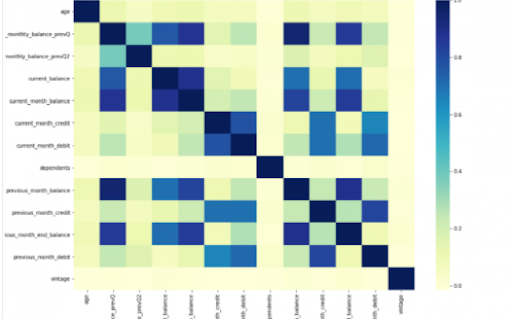
Power BI is considered a library of visualization. Correlation matrix heatmap is an integral component in the data analysis reports.

We will guide you on how to create a correlation matrix heatmap by making use of the Python correlation function. The created heatmap will be available in the reports section in Power BI.

You will need to navigate to the Report section that is available in the Power BI. Then click on the Py symbol which denotes Python visual which is available under the visualizations section. On the left side, you will see an empty Py along with a Python script editor popping up at the bottom of the screen. By this, you might have understood that Power BI is providing an option to create the visualizations with the scripts.

All the value fields will be empty firstly. For correlation heatmap illustration, all the continuous variables will be brought into the value fields, like the age current, previous month balance, monthly balance items, etc. This is considered one of the most essential steps during the integration process. If you forget to perform this step, the Power BI will not be able to recognize the variables.

As the variables are moved into the values fields, the python script will be automatically populated with the below codes.

Let us also write the code for correlation heatmap creation in Python by using the seaborn package.

# import the charting libraries matplotlib and seaborn

import matplotlib.pyplot as plt

import seaborn as sns

# create the correlation matrix on the dataset

corr = dataset.corr()

# create a heatmap of the correlation matrix

sns.heatmap(corr, cmap="YlGnBu")

# show plot

plt.show()

You can now use the run script button and run the script, which will produce a correlation matrix heatmap.

Python’s Statistical within Power BI

Generating analytical reports:

After the heatmap is generated, we can analyze the heatmap and will come to a conclusion.

With the above heatmap, below are the set of conclusions made:

  1. There is no correlation with the other variables for the number of dependents and age.
  2. There is a moderate correlation observed for the average monthly balance in the time span of the last two quarters.
  3. There is a high correlation between the average monthly balance with the previous month balance and the current month balance in the last quarter.
    It is possible to generate a heatmap for the customers who have churned and you can also compare with the customers that do not have. You can apply the filter of churn = False or True so that the heatmap can be observed. Through the analysis, it helps in deriving useful insights from data analysis to the prediction of the behavior.
  4. Power BI Training

    Weekday / Weekend Batches

Conclusion:

Through this article, you have got a clear idea of the process of integration of Python with Power BI. I hope the above information helps you. To get a clear understanding and in-depth knowledge on the subject, you can get trained and certified in Power BI through the Power BI training. The integrated environment will definitely help the organizations to handle and play with the data as and when needed. It focuses on enhancing the power and capitalizing on the benefits that are available in both tools.

related articles 


Source link