5 Home Stretching Routines That Relieve Joint Stiffness Fast After 55


You can do simple stretching routines at home to ease joint and muscle stiffness.Credit: Galdric / Getty Images
You can do simple stretching routines at home to ease joint and muscle stiffness.
Credit: Galdric / Getty Images

Do you feel stiff when you get out of bed in the morning or after sitting for a while? A few minutes of targeted stretching can help loosen tight muscles, improve mobility, and make everyday movements feel much easier.

1. Morning Full-Body Stretch Routine

If you often have the most stiffness first thing in the morning, a gentle head-to-toe stretching routine can help warm up and wake up your muscles and joints before you start your day.

Begin with gentle neck stretches:

  • Tilt your head toward one shoulder until you feel a gentle stretch along the side of your neck.
  • Hold for 10–15 seconds.
  • Repeat on the opposite side.
  • Complete 5–10 slow neck circles in each direction.

Next, loosen the shoulders and upper body:

  • Roll your shoulders 10 times backward and 10 times forward.
  • Reach both arms overhead and stretch toward the ceiling.
  • Complete 5–10 overhead reaches.

Continue with spinal mobility exercises:

  • Perform 10 gentle trunk rotations—twisting your upper body while keeping your lower body stable—to each side.
  • Follow with 5–10 side bends per side, reaching toward your knee while keeping your movements slow and controlled.

Finish by stretching the lower body:

  • Stretch your hamstrings by reaching toward your toes while seated or standing.
  • Hold for 20–30 seconds per leg.
  • Perform a standing quadriceps stretch by bringing one heel toward your buttocks and holding your ankle.
  • Hold for 20–30 seconds per side.
  • Complete 10 ankle circles clockwise and 10 counterclockwise on each foot.

This routine promotes blood flow throughout the body and can help warm up the muscles and joints that most often feel tight when you first wake up.

2. Chair-Based Mobility Stretch Routine

A chair can provide support during your stretching routine, while allowing you to move several major joints through a comfortable range of motion.

Begin by warming up your lower body:

  • Sit tall in a sturdy chair with both feet flat on the floor.
  • March your legs in place for 30–60 seconds to increase circulation and loosen the hips.

Next, perform seated knee extensions:

  • Slowly straighten one knee until your leg is extended.
  • Lower it back down with control.
  • Complete 10–15 repetitions per leg.

Follow with ankle pumps:

  • Alternate between pointing your toes toward the floor and pulling them back toward your shins.
  • Complete 15–20 repetitions.

Continue with seated spinal twists:

  • Sit upright with your hips facing forward.
  • Slowly rotate your upper body to one side.
  • Return to center, and repeat on the opposite side.
  • Complete 5–10 twists per side.

Finish with a chest-opening stretch:

  • Clasp your hands behind your back.
  • Gently draw your shoulders down and back while lifting your chest.
  • Hold for 20–30 seconds, taking slow, deep breaths.

Chair stretches are especially helpful if balance is a concern for you, or if you find floor exercises difficult. 

3. Hip and Lower Back Stretch Routine

Tight hips can contribute to pain or discomfort in your lower back, which often makes standing, walking, and climbing stairs feel harder.

Begin with a seated figure-four stretch:

  • Sit tall in a sturdy chair.
  • Cross one ankle over the opposite knee.
  • Gently lean forward until you feel a stretch in your hip and glutes.
  • Hold for 20–30 seconds.
  • Repeat on the opposite side.

Next, stretch your hip flexors:

  • Stand with one foot in front of the other.
  • Step one foot behind you and gently shift your weight forward.
  • Continue until you feel a stretch along the front of the back hip.
  • Hold for 20–30 seconds.
  • Repeat on the other side.

Move to the floor for a knee-to-chest stretch:

  • Lie on your back with your legs extended.
  • Gently pull one knee toward your chest while keeping the opposite leg relaxed.
  • Hold for 20–30 seconds.
  • Repeat on the opposite side.

Finish with pelvic tilts:

  • Lie on your back with your knees bent and feet flat on the floor.
  • Gently tighten your abdominal muscles and flatten your lower back into the floor.
  • Hold briefly, then release back to a neutral position.
  • Complete 10–15 repetitions.

Keeping your hips mobile can help reduce strain on neighboring joints and help improve overall movement efficiency throughout your day.

4. Shoulder and Upper Body Stretch Routine

Many of the activities you perform daily, from reaching overhead to carrying groceries, require some amount of shoulder mobility.

Begin by warming up your shoulders and upper body:

  • Perform 10–15 arm swings, moving your arms forward and backward in a comfortable range of motion.
  • Complete 10 shoulder circles backward and 10 shoulder circles forward to loosen the shoulder joints.

Next, stretch the shoulders:

  • Bring one arm across your chest.
  • Use your opposite hand to gently pull the arm closer to your body.
  • Hold for 20–30 seconds.
  • Repeat on the opposite side.

Continue with a doorway chest stretch:

  • Place your forearms against the sides of a doorway.
  • Step forward slowly until you feel a stretch across your chest and the front of your shoulders.
  • Hold for 20–30 seconds while breathing deeply.

Finish with gentle neck mobility exercises:

  • Tilt your head toward one shoulder and hold for 15–20 seconds.
  • Repeat on the opposite side.
  • Complete 5 slow head circles clockwise and 5 counterclockwise, moving only within a comfortable range.

Improving flexibility in your shoulders and chest can help counteract the effects of prolonged sitting and overall poor posture.

5. Lower Leg and Ankle Stretch Routine

Your ankles and calves play a big role in balance, walking, and overall stability. However, this area of the body is often overlooked.

Begin by standing facing a wall and performing a calf stretch:

  • Place one foot behind you with your heel flat on the floor.
  • Bend your front knee and gently lean forward until you feel a stretch in your calf.
  • Hold for 20–30 seconds.
  • Repeat on the opposite side.

Next, improve ankle mobility with ankle circles:

  • Lift one foot slightly off the floor.
  • Complete 10 circles clockwise and 10 circles counterclockwise.
  • Repeat on the other foot.

Continue with heel raises:

  • Hold onto a countertop, chair, or other stable surface for support.
  • Slowly rise onto your toes.
  • Pause for 1–2 seconds at the top.
  • Lower back down with control.
  • Complete 10–15 repetitions.

Finish by stretching the bottoms of your feet:

  • Place a small ball or water bottle under one foot.
  • Roll it from your heel to your toes using gentle pressure.
  • Continue for 30–60 seconds per foot.

Maintaining optimal ankle mobility can help support better balance and make everyday activities feel easier and more comfortable.

How To Make Stretching a Daily Habit

The best stretching routine is one that you can do consistently. Consider pairing your stretching routine with an existing habit, such as your morning coffee, daily walk, or watching your favorite television show in the evening before bed.

Even five to ten minutes of gentle stretching each day can help improve mobility, reduce the feeling of stiffness, and help support healthier movement as you age. Over time, small daily sessions can lead to noticeable improvement in overall flexibility and comfort with everyday activities.




Source link

Leave a Reply

Subscribe to Our Newsletter

Get our latest articles delivered straight to your inbox. No spam, we promise.

Recent Reviews


What are Data Catalogs?

A Data Catalog seems to be an accumulation of metadata especially in data planning and search tools that assists experts as well as other data consumers in locating the data they require, acts as a current asset of data available, and offers criteria to assess strength and conditioning data for potential purposes.

This succinct process made several locations regarding data catalogs—data management, looking, data inventory, and interpretation of data; they all rely on the central capacity to deliver a catalogue of metadata.

    Start learning Denodo Online Course from hkrtrainings to make a bright career in the world of Denodo!

What is the Denodo Data Catalog?

The Data Catalog seems to be a web-based self-service device that is included in the Denodo System that would allow technology and commercial consumers to query, lookup, and explore details and metadata saved in a Virtual DataPort server. Consumers could use this device to create knowledge and open the way for best choices.

If you want to explore the denodo server metadata, then use the dendo data catalog. Here I am going to explain how all these things happen.

Launching the data catalog:

The Data Catalog seems to be a web based application distributed as part of Denodo 8.0 that allows data analysts, enterprise customers, and app developers to search and browse data and metadata in a business-friendly way for personal exploration and predictive analysis.

To use this web tool, open the Denodo Platform Control Center and launch the Data Catalog. When the status changes to “Running,” click the Data Catalog link to launch the Web tool (by default, https://127.0.0.1:9090/denodo-data-catalog).

Login into the denodo platform with your login details.If you are logging for the first time, you will see a pop up window showing the synchronize metadata option.This must be run the first time you start the Data Catalog to make sure that it reflects the most recent state of the Denodo 8.0 server to which you are connected.

The VDP Synchronization should be performed as follows:

  • Click the Synchronize metadata now button.
  • On each Synchronization step, click Continue.
  • The views have now been synchronized, and you can begin exploring!

Using the metadata search:

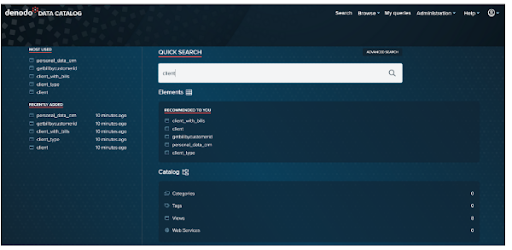
The first example comes from the Data Catalog’s home page.

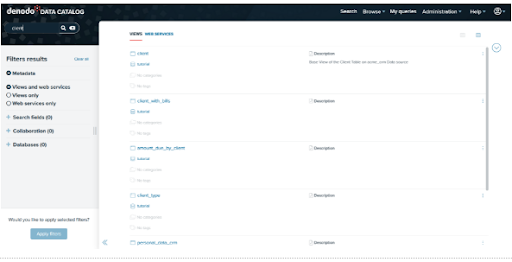
Let’s use the Business Analyst’s scenario to look at a simple use case: searching for clients by typing in client and pressing enter.

denodo data catalog

Here are the outcomes of our search. Starting with Data Catalog 8.0, this search will look for views or web services that include the query terms in the element’s metadata, such as:

  • It has a name.
  • It is described.
  • The names of the fields in which it operates.
  • The descriptions of its various fields.
  • The values of any custom properties that have been assigned to it.

denodo data catalog 1

For instance, let’s click on the view client to go to the summary of the selected view:

denodo data catalog 2

For the time being, we have conducted a search in the Virtual DataPort metadata. In the following section, we’ll look into the Data Catalog’s more advanced features!

Denodo Training

  • Master Your Craft
  • Lifetime LMS & Faculty Access
  • 24/7 online expert support
  • Real-world & Project Based Learning

Exploring the features of Data Catalog:

We’ll now look at the features in the Data Catalog that allow for more in-depth interrogation of a view. This includes the following:

  • Filtering and querying results from a view
  • Results are being saved to a file.
  • Developing new fields
  • Queries saved
  • Investigating viewpoint relationships
  • Investigating data ancestry
  • Views with related fields can be queried

Exploration of Data Catalog Views:

We chose our client view from the previous section. We can now look through the contents of this view.

Summary Tab:

We could see a summary of the selected view under the Summary Tab. It will display the metadata of the selected view, such as the database name, the list of categories, the list of tags, and collaboration information provided by the user, such as Endorsement and Warnings. You can edit the view’s description by clicking the Edit button next to the Description option. If the view is deprecated, an indication will appear at the top of the summary tab.

Furthermore, the Summary tab includes buttons such as Add Tags/Categories , Collaborative effort possibilities further to create custom the view, and Connection URLs, Tableau to display different opportunities to link to the view/datasource.

denodo data catalog 3

Schema tab:

Under the Schema Tab, we can see the view’s schema, which includes the view description as well as all of the fields and types. We can add a field description by clicking the Edit button next to the column. We can also use the search option at the top of each section to look for fields, data types, and descriptions.

denodo data catalog 4

Query Tab:

The Query Tab is the following tab. Ad-hoc queries can be run against the view here (the query is created graphically).

Business Intelligence & Analytics, denodo-data-catalog-description-3, Business Intelligence & Analytics, denodo-data-catalog-description-6

Subscribe to our YouTube channel to get new updates..!

Select all of the following fields for our view and drag them into the Output columns area.

client_id

name

surname

Client_type

denodo data catalog 5

Click on the execute to get the results.

denodo data catalog 6

Editing of data catalog metadata:

In this segment, we would then look at the metadata characteristics of the Data Catalog. Users could use Denodo Data Catalog to append tags and categories to views, and also keep updating the view as well as field descriptions, with such a function.

In our instance, we will: (1) add explanations to the customer fields in addition to allowing for more particular discovery of such a view, (2) add tags and categories, and (3) implement those to our client view.

Data catalog Metadata:

The capacity to exhibit view metadata, such as the View Description and Field Descriptions, is a good feature of the Data Catalog. Then see how we can make that data more modifiable.

Editing view and field descriptions:

  • Browse to the Client View’s Summary page and click the Edit option beside Description.
  • Add the necessary descriptions to the View and then click Ok.
  • Similarly, you can add a description to fields by going to the Schema tab and clicking on the Edit button next to each one.
  • The new descriptions are now visible in the view. These descriptions are saved as metadata in the Data Catalog.

Adding of tags and categories in data catalog metadata:

Tags and Categories are useful for allowing users to search the Data Catalog more precisely. While the number of Data Sources and Views in our tutorial is small, maintaining good Categorization and Tagging habits will pay off in the long run by allowing users to navigate the Data Catalog more easily.

In order to add categories follow the below mentioned points.

  • Navigate to Administration > Configuration and Management.
  • Click the Categories option in the Administration window’s Catalog Management section.
  • Select the + Add Category option.
  • Make a category with the following information:
    • Customer’s name
    • Customer data sources
  • Make a new category with the following information:
    • CRM (Customer Relationship Management)
    • Customer is the parent of the Acme crm System.
  • Make a final category with the following information:
    • Name: Billing 
    • Description: Billing
    • Parent:customer

Denodo Training

Weekday / Weekend Batches

Adding tags:

  • Navigate to Administration > Configuration and Management.
  • Click the Tags option in the Administration window’s Catalog Management section.
  • Click the + Add Tag icon to add a new Tag with the following information:
    • Name:JDBC 
    • Description: JDBC data sources
  • Creating another tag with the following data.
    • Name:SOAP
    • Description:SOAP data sources

We can easily modify the views for adding tags and categories as well.

                            Get ahead in your career with our Denodo Tutorial!

Recommendation and collaboration in data catalog:

Recommendations in data catalog:

The AI Feature Package includes Automatic recommendation of datasets in the Data Catalog to assist you in discovering new elements among your company’s data resources.

This feature displays individualized recommendations based on earlier activity in the Data Catalog, like datasets which are most utilised, lately used, suggested, and so on.

Go to the Data Catalog’s homepage to see the recommendations.

The homepage displays a collection of products provided by various topics, such as one titled Recommended to you. This dataset recommendation is really only accessible only with the AI Feature Pack.

Collaboration in data catalog:

In the collaboration there are 3 options such as endorsements, warnings and decrepation notes.

Endorsements seem to be comments made by users on a view or a webservice to express their support. A user can only endorse a perspective or web service once, which means whenever a new comment is added, the prior endorsement is removed.

Warnings have been used by customers to write and exhibit “advise against” texts on opinions and web services. A consumer could only add one warning to a view as well as web service.

Deprecations have been used to notify people that a feature has become outdated and should no longer be used. A consumer could only write one deprecation for a perspective as well as web application.

Conclusion:

In the above blog post we had clearly discussed the dendo data catalog, data catalog metadata, adding of tags and categories, recommendations, collaboration etc in a more detailed way. If you have any doubts please drop your query in the comments section to get them clarified.

Other Related Articles:


Source link