
50 years of Apple pushing tech forward, for better or worse


Over the last 50 years, Apple reimagined personal computers, catalyzed the era of the smartphone, enlarged an iPhone and called it the iPad and garnered a strong position in wearable tech through its Watch series and its AirPods. It also popularized software and services like its App Store, FaceTime, iCloud, iMessages and many more. For a lot of us, the first time we pinched-to-zoom on a photo was likely on an iPhone.

However, Apple gives and it takes away. Things have had to change, be removed and consumers have to move on to whatever’s new. For better or worse, the weight of Apple’s influence has led to entire product categories following suit. Or, more typically, there’s resistance, complaining and then… following suit. With the benefit of hindsight, most of these cases are examples of Apple seeing where technology was going and getting ahead of a transition that would have been inevitable. Often, these transitions have caused short-term pain for some, but time has proven Apple (mostly) correct about dropping older tech.

As Sir Arthur Quiller-Couch once said: murder your darlings. Here are some of the darlings we’ve lost over the years.

The death of the disk drive (1998)

This is a two-parter. The iMac G3 marked Steve Jobs’ return. The colorful all-in-one Mac was a new start in many ways. In 1998, Apple ditched the standard ports and myriad cable types of personal computers, going all in on USB and a little-known thing called the internet. (In fact, that’s what the ‘i’ in iMac stands for.)

In doing so, it also ditched the 3.5-inch floppy disk drive — although it did have a read-only optical disk drive. Even with sluggish internet and USB transfer speeds at the time, the convenience was plain to see and it led to a decade of thumb drives of ever-increasing storage limits. High-capacity alternatives to the floppy disk, like the Zip disk and even Minidisc, attempted to bridge the gap, but never gained the widespread traction and adoption of the original disk drive. But flash drives and, later, internet-based file storage quickly made them obsolete anyway. Apple was just a little early with its dismissal.

Portable music players (2007)

Despite Apple’s iPod being the de facto music player at the time, it was supplanted by the company’s own biggest hit: the iPhone. At its peak, the iPod made Apple the zeitgeisty tech company it is today. It dominated the MP3 player market, and by 2006, iPods were responsible for 40 percent of the company’s revenue. And that was before the era of Apple including a free U2 album with every iTunes account.

When the iPhone launched in June 2007, it was swiftly followed by the iPod Touch in September. This was the iPhone without the phone part — indicating how the company saw the future of music listening. You didn’t need an iPod if you already had an iPhone in your pocket. It’s the best example of Apple cannibalizing a product that defined a decade with something far more impressive and, eventually, more successful.

It was a slow death. Ignoring the countless MP3-playing rivals, (RIP Zune), Apple dropped the classic iPod in 2014. It soon did the same to the tiny iPod nano and iPod shuffle in 2017. Finally, the company discontinued the iPod Touch in May 2022.

The physical smartphone keyboard (2007 plus change)

A BlackBerry on a rock.

Unsplash / Thai Nguyen

When the iPhone’s capacitive screen and touch keyboard landed, there was a learning curve. Moving from physical keys (whether it was a 9-key alphanumeric version or the BlackBerry’s QWERTY experience) to a touch screen, especially on the tiny 3.5-inch panel of the first iPhone, wasn’t easy.

But it was the future. Physical keyboards took up physical space on devices — especially as those screens grew and grew. The adoption of touch keyboards sped up, thanks to third-party keyboard apps on Android, like Swype, SwiftKey and many others, introducing different input methods, smarter predictive text, typing algorithms and even touch heatmaps. Software keyboards were intrinsically more versatile, supporting multiple languages, infinite key arrangements and eventually emoji galleries. A colon-ellipsis smiley soon didn’t hit the same.

The death of the disk drive, part 2 (2008)

The MacBook Air, introduced by Steve Jobs in 2008, was famously pulled from a manila envelope to demonstrate its ultraportable design. To achieve that slimness, it had to ditch the internal optical drive entirely, making it the first MacBook without one. That move kickstarted an era of ultraportable laptops.

It was a major break from what laptop users were used to, and Apple tried to offer people some options. Apple introduced “Remote Disc,” a feature which allowed the Air to wirelessly use the optical drive of a nearby Mac or PC, and offered an external USB SuperDrive as an optional accessory. (I’ve used mine exactly once since I bought it in 2013.)

While it was considered underpowered compared to Windows competitors, the original MacBook Air set a new design standard for the industry. It positioned Apple’s Macs for a future of App Store software installations, faster internet connectivity, and the rise of streaming media, cloud storage, and the rest. Apple’s MacBook Pro and MacBooks eventually followed suit, ditching optical drives in 2012.

Adobe Flash (2010)

Thoughts on Flash

Apple

In the early days of the iPhone, Apple famously refused to support Adobe Flash. This was in the early 2000s, too, when much of the web was built with Flash for animations and video support. The iPhone and iPad notably lacked support, creating a fractured browsing experience for years.

In April 2010, just as the first iPad arrived, Steve Jobs published his “Thoughts on Flash” open letter, criticizing its poor security and a lack of touch-friendliness. Many Flash games and interfaces interacted with the mouse cursor’s precise position, something that was invisible on the touchscreen iPhone.

It was also a calculated move. By denying Adobe access to the rapidly growing iOS user base, Apple forced developers to choose between sticking with the aging Flash or embracing open standards like HTML5. Also, by making Flash-based games and tools incompatible, it nudged those developers (and iPhone users) toward the App Store for those very games and tools (and more). There, Apple could curate and monetize those creations.

It was a slow death: Adobe finally discontinued Flash in 2020.

The headphone jack (2016)
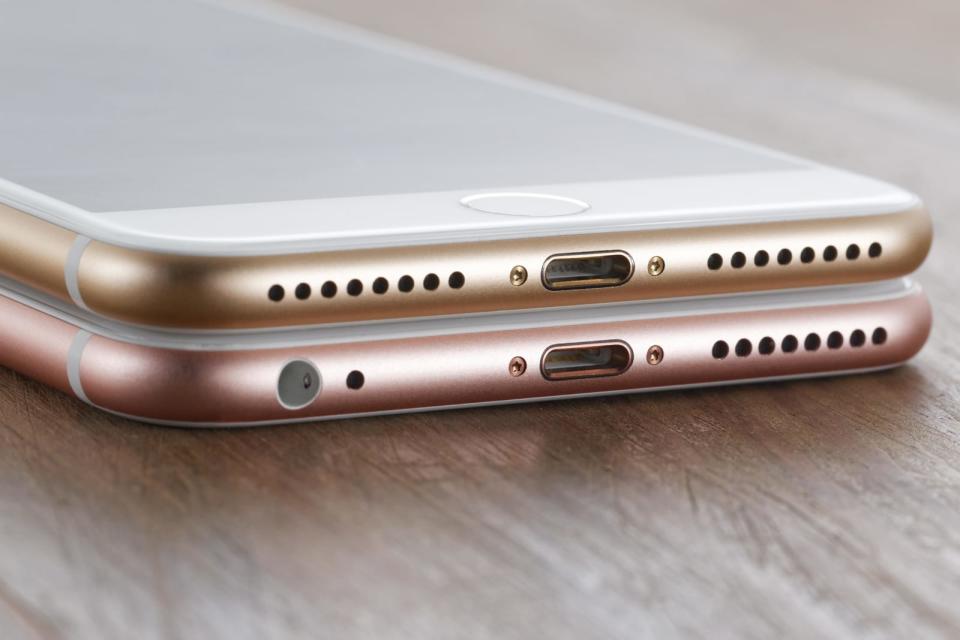
Leszek Kobusinski / Alamy

In a move described by Apple marketing executive Phil Schiller as “courage,” nixing the headphone socket ended up becoming the biggest headline to come from the iPhone 7 launch in 2016. Every flagship iPhone since has lacked the jack, with the most recent iPhone to include it being the original iPhone SE.

To make the change more palatable, Apple bundled a Lightning-to-3.5mm adapter (expect more dongle chat later) with the iPhone 7, 8 and X. In-box headphones also swapped from the typical jack to Lightning. Naturally, this meant you couldn’t charge the phone while you listened to music, unless you already had a pair of wireless headphones.

Of course, this move was ultimately instrumental in making true wireless earbuds ubiquitous. While Apple wasn’t remotely the first company to introduce wireless earbuds (and then headphones), the removal of the headphone jack undoubtedly sped up adoption. Pour one out for the Bragi Dash, the Jabras, the Jaybirds of this world.

Conveniently, alongside the aforementioned iPhone 7, Apple announced the AirPods. Features like one-tap setup and automatic pairing brought the convenience people expected of Apple and put it into a tiny white case.

Despite early resistance and “bragging” from rivals who clung onto the headphone jack, at this point, the socket is mostly confined to cheaper smartphones or phones aimed at audiophiles (hi, Sony) or mobile gamers (ASUS ROG).

Eventually, the iPad Pro also lost its headphone jack, and the rest of the company’s tablets followed. The only non-Mac device to keep the jack? The iPod Touch, which had one until its discontinuation in 2022.

Bespoke ports (2016)

MacBook Pro dongles

Engadget

2016 was the year of donglegate. Apple’s MacBook Pro redesign that year was another drastic shift in the laptop’s history. Chasing ever-thinner profiles and less port fuss, Apple stripped away nearly every legacy connector that professionals relied on. This was particularly jarring after the previous-generation MacBook Pro (2015) was often cited as the peak of utility, with a MagSafe charging port, two Thunderbolt 2 ports, two USB-A ports, not to mention a full-size HDMI port and an SD card slot.

Those were replaced with four (or on the cheapest 13-inch MBP only two!) Thunderbolt 3 USB-C ports and a headphone jack. For power users (like some Engadget editors), it demanded dongles (possibly multiple ones) in order to connect your USB-A thumb drive, wired internet, SD cards, external screens and well, at that point, pretty much everything. Many were particularly furious with the loss of the MagSafe charging connector. Of course, this also meant that one of those USB-C ports would be used primarily to charge the MBP. This sped up the availability of USB-C peripherals and accessories — perhaps because everyone was sick of carrying around so many dongles and hubs — but we still have USB-A devices. HDMI is everywhere. I still have SD Cards.

Eventually, Apple course-corrected itself. The 2021 MacBook Pro redesign reintroduced the SD card reader and HDMI port, and even MagSafe returned, freeing up a USB-C port.


Source link

Leave a Reply

Subscribe to Our Newsletter

Get our latest articles delivered straight to your inbox. No spam, we promise.

Recent Reviews


Power BI Datasets – Table of Content

What is Power BI?

Power BI is a set of software services, apps, and connectors that work together to turn disparate data sources into coherent, visually immersive, and interactive insights. Your data could be in the form of an Excel spreadsheet or a hybrid data warehouse that is both on-premises and cloud-based. Power BI makes it simple to connect to your data sources, visualize and uncover what matters, and share your findings with whomever you choose.

 Become a Power BI Certified professional by learning this HKR Power BI Training !

What are Datasets in Power BI?

A dataset is a data collection that you can connect to or import. Power BI allows you to connect to and import all kinds of datasets, allowing you to put everything together in one place. Dataflows can also be used for sourcing the data for Datasets. Workspaces are associated with datasets, and a single dataset can be used in multiple workspaces.
We have selected “My workspace” and then the “Datasets + dataflows” tab in the example below

Power BI workspace

Let us now look into the different types of Datasets in Power BI.

Types of Datasets

Datasets in Power BI are ready to report and visualize the source of data. There are five different types of datasets, each of which can be constructed in one of the following ways:

  • An existing data model will be connected that is not hosted in a Power BI capability.
  • Power BI Desktop file needs to be uploaded which includes a model.
  • Uploading a CSV (comma-separated values) file, or uploading an Excel workbook (Includes one or more Excel tables and/or a workbook data model).
  • Creating a push dataset using the Power BI service.
  • Creating streaming or dataset with hybrid streaming using the Power BI service.

Let us now explore different types of Datasets.

1) External-hosted models

Azure Analysis Services and SQL Server Analysis Services are the two types of externally hosted models. Installing the on-premises data gateway, whether on-premises or VM-hosted infrastructure-as-a-service (IaaS), is required to connect to a SQL Server Analysis Services model. A gateway isn’t required for Azure Analysis Services.

When there are existing model investments, such as those that form part of an enterprise data warehouse(EDW), connecting to Analysis Services makes sense. By utilizing the identity of the Power BI report user, Power BI can establish a live connection to Analysis Services, enforcing data permissions. Both tabular models and multidimensional (cubes) are supported by SQL Server Analysis Services. A live connection dataset sends queries to externally hosted models, as demonstrated in the accompanying 

External-hosted models

2) Power BI Desktop-developed models

A model can be created using Power BI Desktop, a client application for Power BI development. The model is essentially a tabular Analysis Services model. Models can be created by importing data from dataflows and blending it with data from external sources. While the characteristics of how modeling can be accomplished are outside the subject of this article, it’s crucial to note that Power BI Desktop supports three different types, or modes, of models. We are going to discuss the datasets in the coming sections.

Row-Level Security (RLS) can be used in externally hosted models and Power BI desktop models to restrict the amount of data that can be obtained for a certain user. Users in the Salespeople security group, for instance, can only see report data for the sales region(s) to which they’ve been assigned. Roles in RLS can be either static or dynamic. Static roles apply the same filters to all users allocated to the position, whereas dynamic roles filter by the report user.

3) Excel workbook models

The creation of a model is automatic when datasets are created from Excel workbooks or CSV files. To construct model tables, Excel tables, and CSV data are imported, and an Excel workbook data model is translated to produce a Power BI model. In every scenario, data from a file is imported into a model.

4) Push Dataset

A Power BI dataset that can only be created and populated using the Power BI API is known as a push dataset. However, the lack of a good user interface for creating a push dataset restricted its adoption to scenarios where a single table was inhabited with real-time data streaming.

5) Hybrid Streaming Dataset

Real-time streaming in Power BI allows you to stream data and update dashboards in real-time. Real-time data and visuals can be displayed and updated in any Power BI visual or dashboard. Factory sensors, social media sources, service usage metrics, and a variety of other time-sensitive data collectors or transmitters can all be used to collect and transmit streaming data.

Hybrid Streaming Dataset

Want to know more about Power BI,visit here Power BI Tutorial !

Power BI Training

  • Master Your Craft
  • Lifetime LMS & Faculty Access
  • 24/7 online expert support
  • Real-world & Project Based Learning

How to Create a Power BI Dataset?

Before discussing the steps of creation. It is necessary to know that there are three basic ways to retrieve data in Power BI Desktop that you will use to create your visualizations:

1) Live:

Here you will be connecting to a server that carries all the data. Although no data is sent, the model’s metadata is imported into Power BI Desktop. A query is transmitted to the server when you build visualizations, and it is then executed. The outcomes are then visualized and returned to Desktop. With SQL Server Analysis Services (SSAS) models, whether multidimensional or Tabular, live connections are commonly employed. Power BI Desktop behaves like any other thin client in this scenario, like Excel or Reporting Services (SSRS). It is not possible to make major modifications to the model, but you can add new measurements that will be available in that  .pbix file.

2) DirectQuery:

You can make more modifications to the model here than you can with a Live connection. The data is kept on the server, and queries are run on the server, just like in Live. The Power BI Desktop model, for instance, allows for the creation of relationships.

3) Import:

Power Query queries are used to import the data into a Power BI Desktop file (.pbix). The data is compressed highly so it’s feasible to load records in millions into a file on your system. A model, comparable to an SSAS Tabular model, is built behind the scenes. This is the most versatile mode, as it allows you to blend data from any source. However, all data must be loaded into your model, which can take a long time to refresh.

Now, let’s move to create the dataset. Below are the steps which make you comprehend the creation of the Power BI Dataset.

1) A dataset is connected to the .pbix file where it was created one by one. When you first launch PBI Desktop, click “Get Data” to create a new dataset.

Get Data

Alternatively, you can choose a source from the dropdown menu as shown below:

dropdown menu

2) Let’s assume we imported a few tables from the WideWorldImporters SQL Server sample database (The .pbix file can be downloaded here). The tables and their relationships are visible in the Model view:

.pbix file downloaded

3) You can view the actual data of one table at a time in the “Data view”.

Data view

4) You can create, view, and interact with visualizations built on top of the data and model in the “Report view”. 

Report view

 The dataset is made up of the data as well as the model view. Now, let’s move to the different modes of Dataset available in Power BI.  

[ Related Article : msbi ]

HKR Trainings Logo

Subscribe to our YouTube channel to get new updates..!

Dataset modes in the Power BI

These modes of Dataset in Power BI ascertain whether or not data is imported into the model or retained in the data source. The following are the three Dataset modes in Power BI:

  1. Import
  2. DirectQuery
  3. Composite
1) Import

The most popular mode for developing datasets is the import mode. Because of in-memory querying, this mode provides incredibly quick performance. Modelers can also benefit from design flexibility and support for certain Power BI service capabilities (Quick Insights, Q&A, etc.). It’s the default mode when developing a new Power BI Desktop solution because of these advantages.

It’s crucial to realize that all imported data is saved on disk. When the data is refreshed or queried, it should be fully loaded into the memory of Power BI. Import models can yield very rapid query results once they are in memory. It’s also crucial to note that there’s no such thing as a partially loaded Import model in memory. An Import model can also integrate data from any number of supported data source types. The following image illustrates it. 

Import model

2) DirectQuery

Import mode can be replaced by DirectQuery mode. Data is not imported into models created in DirectQuery mode. Instead, they are made up entirely of metadata that defines the model’s structure. If the model is queried, data is retrieved by using the native queries from the underlying data source.

DirectQuery Model

3) Composite

The composite mode can blend DirectQuery and Import modes, or integrate multiple data sources for DirectQuery. The storage mode for every model table can be configured for models created in Composite mode. Calculated tables (defined with DAX) can also be used in this mode.

Composite Model

Import and DirectQuery modes are used in composite models to give you the best of both modes. They can blend the high query performance of in-memory models with the capacity to access near real-time data from data sources when set properly.

Top 50 frequently asked Power BI Interview Questions

Power BI Training

Weekday / Weekend Batches

 Conclusion:
We have successfully learned that Power BI lets you connect various datasets for importing and bringing them all together in one place. In this blog, we explored the topics of Datasets in Power BI in a systematic flow by understanding Power BI, then Datasets in Power BI, different types of Datasets and models used for reporting and visualizing data, creating a Dataset for connecting files, and various modes of Datasets in Power BI.

Related Article:

  1. MSBI vs Power BI
  2. Looker vs Power BI
  3. KPI in Power BI
  4. DAX In Power BI
  5. Power BI Architecture
  6. Power BI Components
  7. Power BI Dashboard
  8. Power BI Data Modeling
  9. Power BI Documentation


Source link