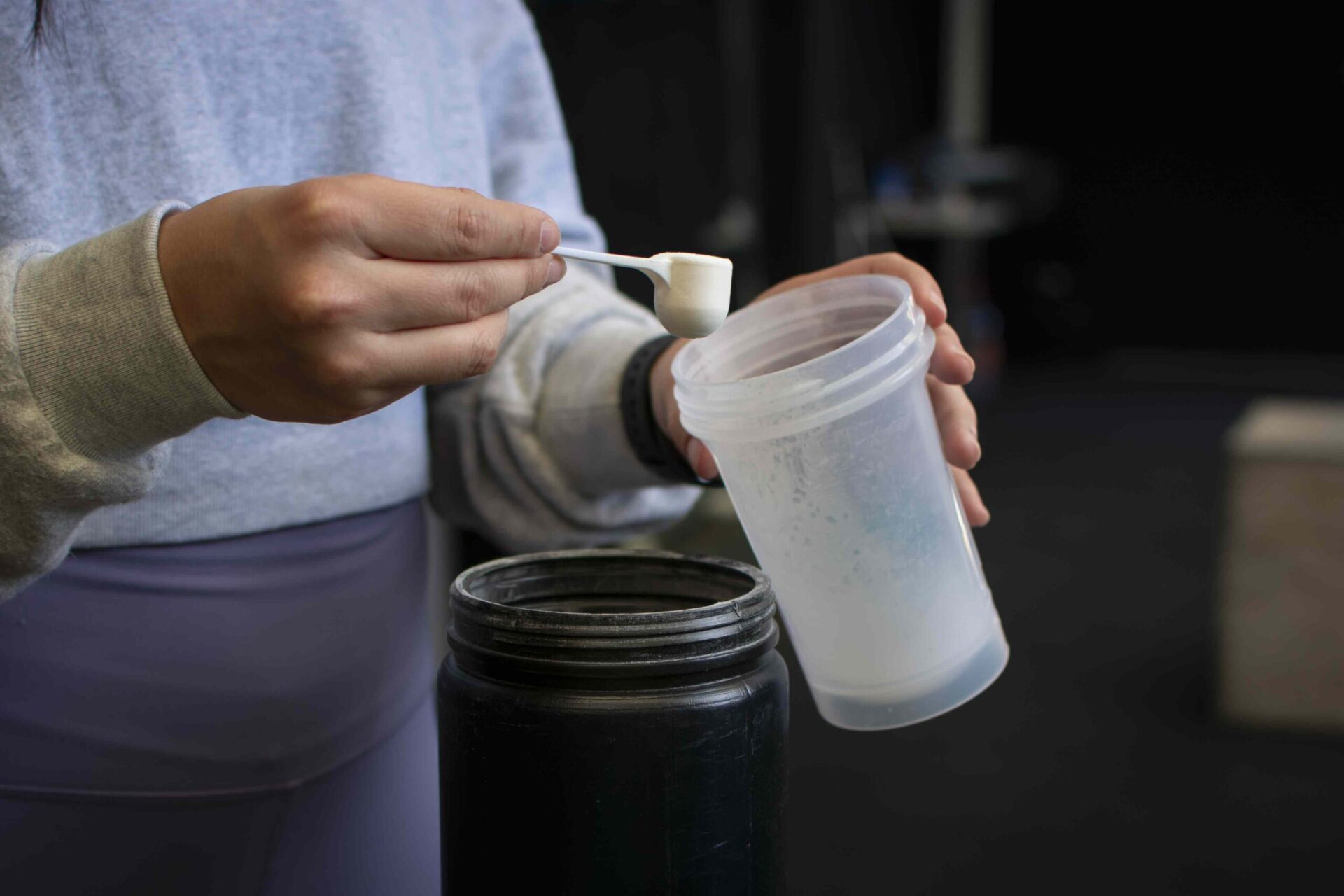
:max_bytes(150000):strip_icc():format(jpeg)/HDC-GettyImages-2121461726-019141ad3d9241d9a54a4318ead340bb.jpg "A person scooping powder into a shaker bottle")
Credit: Edgar BJ / Getty Images
- After three months of taking creatine every day, I saw noticeable muscle growth in my before-and-after measurements.
- I also upped the weight in my strength training and experienced less soreness after workouts.
- The only downside was mild water retention at first, but it improved with better hydration.
This year, my New Year's resolution was all about one thing: creatine. I’d hit a plateau in my strength training routine, and I'd been hearing about how the buzzy supplement can boost performance and muscle growth. I wanted to test it out for myself.
So, for three months, I took 5 grams of creatine monohydrate (the most-studied form) every day, in either gummy or capsule form. I also kept my diet the same and stuck to my regular strength training routine—two days a week, one for legs and one for arms and back. Here's how my body changed.
1. I Could Lift Heavier
At the start of the experiment, I recorded the weights I used for my typical exercises. After three months, I was able to lift more weight for nearly every movement, while still performing three sets of 10 reps.
I saw the largest difference in my leg exercises, going from lifting 60 to 80 pounds on hip thrusts, for example. My arm and back movements saw smaller increases, such as going from 15 to 17.5 pounds in each hand for a shoulder press.
The ability to handle more weight was a change I expected to see. Creatine works by helping regenerate adenosine triphosphate (ATP), the primary energy source for muscles, allowing you to lift heavier and perform more reps before fatigue sets in. Over time, that added training volume can lead to muscle growth.
2. My Muscles Actually Grew
Because I was able to up my training volume (lifting heavier, performing more reps), my muscles reaped the benefits.
Before starting creatine, I took baseline body measurements. When I took them again at the three-month mark, I was shocked at how drastic the changes were:
My glutes had grown a full inch. My thighs, calves, and biceps also grew by half an inch, while my abs and chest remained the same. I could see subtle differences in before-and-after photos, and noticed new muscle definition in places like my thighs and triceps.
Again, that was all on just two days a week of strength training. Since most of the research on creatine has focused on athletes and serious lifters, I was especially pleased to see the supplement could make a difference for someone who doesn't live at the gym.
3. I Felt Less Sore After Workouts
Before creatine, my muscles always felt pretty sore the next day or two after a workout, even when I stuck to the same exercise routine. After starting creatine, I still felt a little sore, but it wasn’t nearly as intense.
Reduced soreness is a benefit of creatine that’s backed by research—and makes sense, given that creatine helps replenish muscles' energy source, enabling quicker repair of the micro-tears that cause soreness.
4. I Experienced One Side Effect
I did experience a common creatine side effect: increased thirst, which may have been related to water retention. Creatine draws water into muscle cells, which helps facilitate muscle growth, but can make you thirstier, especially early on.
In my first two weeks on the supplement, I noticed I was constantly craving fluids. Fortunately, drinking more water helped, and my symptoms eventually subsided.
That was the only side effect I noticed, but the National Institutes of Health lists several more, including nausea, diarrhea, muscle cramps, muscle stiffness, and heat intolerance. These effects can occur, but they’re rare at typical doses, and a large body of research has demonstrated creatine's safety.
My Verdict?
Creatine has been a simple, affordable way to break out of my strength training rut, and I'm going to continue using it.
I highly recommend it for increasing strength and muscle mass—with a doctor's approval.
What to Consider Before Starting Creatine
If you're thinking about starting your own creatine journey, here are a few more things to keep in mind:
- Talk to your doctor first. Always check with your doctor before starting a new supplement, as these products can carry different risks for different people. My doctor said I was a good candidate for creatine (and revealed he was taking it too).
- Choose a form that will work for you. For the first month of my experiment, I took creatine gummies. Then I switched to capsules, which were cheaper and sugar-free. For those reasons, many experts would probably point you toward pills or powder, but it’s also important to consider your own preferences and lifestyle. Above all, make sure your product is third-party tested.
- Don't forget about rest and recovery. Strength training breaks down muscle fibers, but muscles actually grow during recovery—and that process works best with proper rest, sleep, and nutrition. While everyone can create an effective routine, habits like waiting at least a day or two before training the same muscle group and eating a 20-g protein bar after every strength workout have worked for me.
- I didn't notice any cognitive benefits. Growing research suggests creatine may help with cognition, fatigue, and stress, especially in people who are sleep deprived. I can't say I noticed any benefits myself, but I was taking a lower dose than what’s been used in some studies.
- My "experiment" wasn't perfect. It probably goes without saying, but my creatine experiment was an anecdotal experience, not a perfectly controlled study. It's possible the placebo effect motivated me to lift heavier weights, influencing my gains. But with such stark results, I do believe creatine played at least some part.