:max_bytes(150000):strip_icc():format(jpeg)/Health-GettyImages-EatingHealthyWeightLoss-4dce1f66e823446ea189508ce8ed4c85.jpg "Close up, high angle shot of young woman enjoying multi-coloured healthy fruit, vegetables with grilled chicken salad bowl")
- Weight loss depends on total calorie intake, even when eating nutritious foods.
- Overly restrictive dieting and low protein or fiber intake can increase hunger and lead to overeating.
- Lifestyle factors like activity, sleep, stress, and frequent takeout or high-calorie drinks can limit progress.
Many people assume that simply eating more veggies or cutting back on sugary drinks will always lead to weight loss. But, unfortunately, it’s not always that simple. There are many factors that can hold you back from losing weight and reaching your body composition goals while following a healthy diet, including lifestyle factors that go beyond what’s on your plate.
1. You’re Eating More Calories Than You Realize
Total calorie intake is the key driver of weight loss. While nutritious foods support overall health, they’re not necessarily low in calories.
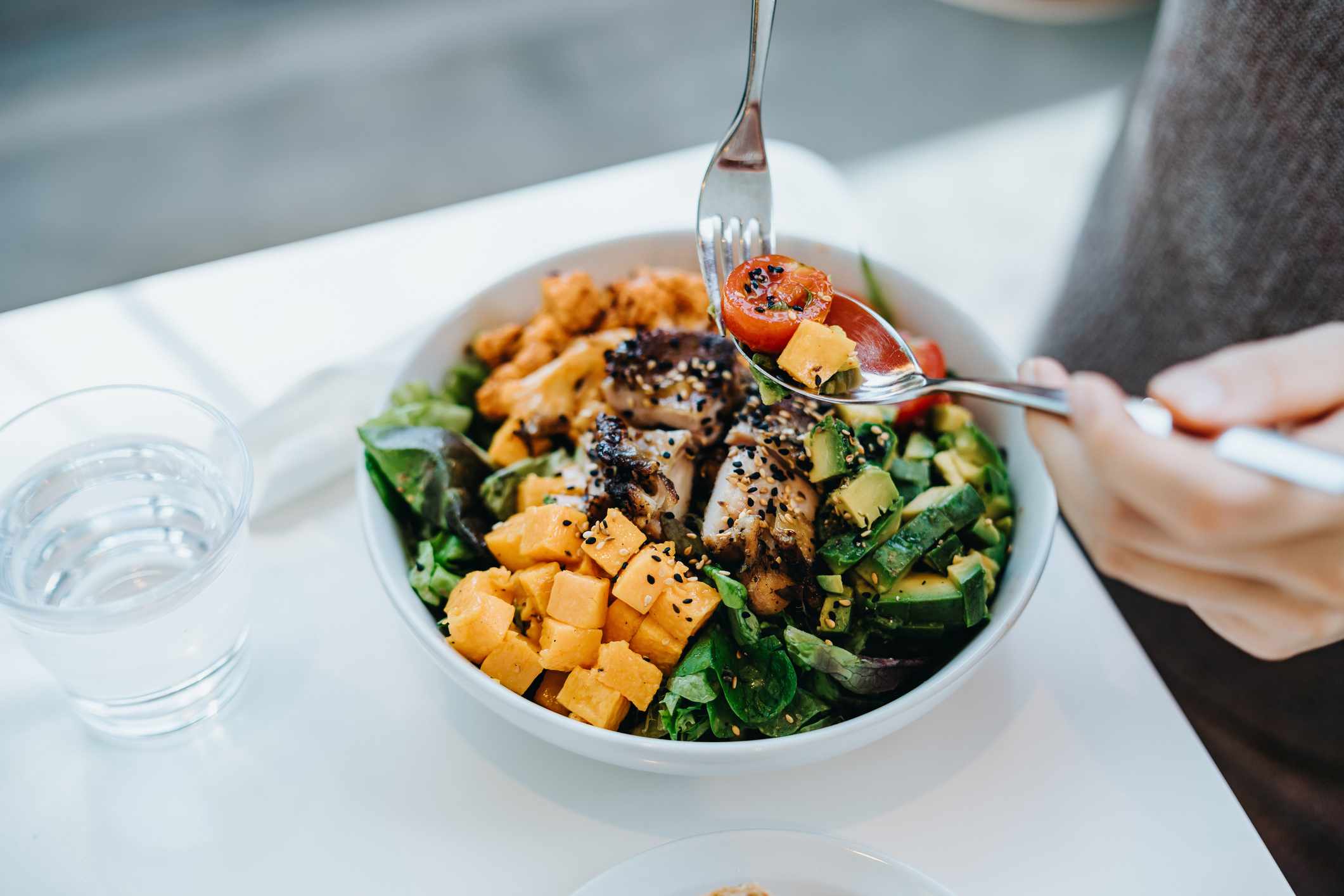
Foods like smoothies, nuts, oils, and granola can be surprisingly calorie-dense, and even small portions can add hundreds of calories to a meal, potentially pushing you into a calorie surplus.
While you don’t need to avoid these foods, it’s helpful to be aware of the recommended portion sizes and calorie counts per serving.
2. You’re Being Overly Restrictive
While cutting back on overall calories and limiting certain foods can be helpful when trying to lose weight, being overly restrictive with food choices could make weight loss harder.
Completely cutting out your favorite foods may increase cravings and make you more likely to overeat later on.
Research suggests that highly restrictive diets are associated with a greater tendency to overconsume highly palatable foods, such as those high in sugar, compared to more flexible eating approaches.
3. You’re Not Prioritizing Protein and Fiber
Protein and fiber are two nutrients that play key roles in satiety and weight loss.
Protein and fiber slow digestion and stimulate the release of satiety hormones, helping you feel more full after eating and making it easier for you to eat fewer overall calories. If you’re not adding sources of protein and fiber to meals and snacks, you may find yourself getting hungry and snacking more throughout the day.
Choosing more filling foods that are high in protein, like fish, chicken, whey protein, and Greek yogurt, and fiber, like chia seeds and beans, can help reduce hunger and increase feelings of fullness, which can help you lose weight.
4. You’re Overeating ‘Healthy’ Foods
Many people ignore portion sizes when eating foods viewed as ‘healthy.’ This is because these foods are often assumed to be lower in calories or better for weight loss.
But even if a product is lower in sugar, fat, or carbs, it’s still possible to eat more than your body needs without realizing it. For example, research shows that foods labeled as organic are often perceived as lower in calories, even when they are actually high in calories. This is known as the “Health Halo” effect.
Regardless of how a food is marketed, it's important to be aware of calories and to practice portion control to stay within your calorie needs.
5. You’re Only Considering Your Diet
While diet is a key component of weight loss, you must also consider other factors, like activity levels, sleep, and stress.
If you’re following a healthy diet but are sedentary, it might be more difficult to lose weight. Adding regular exercise to your routine can help create a calorie deficit by increasing overall energy expenditure, which may be especially beneficial for those who struggle to lose weight through diet alone.
Poor sleep quality and high stress levels can also make weight loss more difficult and may interfere with your ability to see progress.
6. You Rely On Takeout
When trying to lose weight, cooking more meals at home can make it easier to stay on track and reach your goals.
If you rely on takeout or eat out frequently, you may have a more difficult time losing weight. Restaurant and takeout meals are often higher in calories and served in larger portions than home-cooked dishes, which can cause you to eat more calories than you realize.
Research shows that people who regularly cook at home tend to have healthier body weights and better overall diet quality than those who frequently eat out. Preparing meals at home gives you more control over ingredients, portion sizes, and cooking methods, which can improve nutrient intake and make it easier to maintain a calorie deficit for weight loss.
7. Drinking Your Calories
When you’re trying to eat healthy for weight loss, what you drink matters just as much as what you eat.
Drinks, even healthy ones, can be high in calories. For example, smoothies, protein shakes, and juices can contain many more calories than you realize. Plus, many drinks, like coffees and juices, are very low in protein and fiber, making them easy to overconsume.
Choosing water or low-calorie beverages like unsweetened tea or seltzer can help you stay within your daily calorie goals and support weight loss.