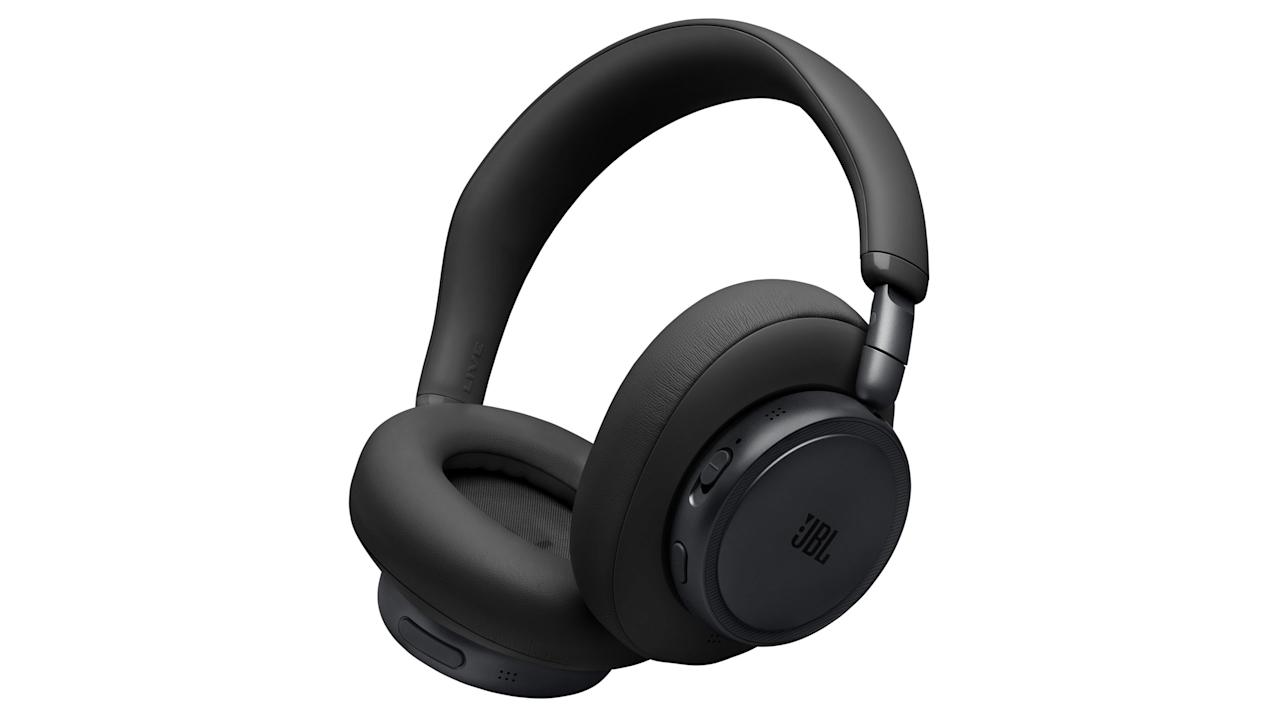

JBL introduced two new headphones to its Live series lineup and both are fighting to live up to expectations. Don’t get me wrong, the JBL Live 780NC and 680NC are both a solid set of cans, but in a sea of noise-cancelling headphones, one of them definitely has more appeal. The biggest differences between these two headphones are the over-ear and on-ear cups, and surprisingly, their audio quality. Let’s get into what does and doesn’t make them so special.

JBL
The JBL Live 780NC are a solid set of headphones that are easily lost in the sea of mid-range cans. It’s enough to be a decent companion, but not enough to excel.
- Comfortable
- Lots of features
- Wide soundstage
- Solid ANC
- Hollow bass
- Need the app to disable ANC and Ambient modes
- Middling mic quality
- So much more expensive

JBL
With on-ear noise-canceling headphones being a more rare commodity, the JBL Live 680NC fills in a gap that folks definitely need, but it still isn’t the best that it could be.
- Comfortable
- Lots of features
- Bassy sound
- Solid ANC
- Narrow soundstage
- Need the app to disable ANC and Ambient modes
- Middling mic quality
Design and comfort
Outside of varying colors and cup sizes, the JBL Live 780NC and 680NC look practically identical. They have these hockey puck-looking ear cups that are divided from the leatherette pads. The design looks like someone’s idea of headphones from 10 years ago. It’s not necessarily a bad thing, but it feels a bit clunky. Despite that, the metal hinge and leatherette band are more pleasantly minimalist. The cups also fold up neatly in a heart shape so you can slot them easily in the included bag.
There’s a dedicated volume rocker on the left ear cup while the right holds room for a USB Type-C port, the active noise cancelling (ANC) button and a combo power/Bluetooth switch (yes, it’s a switch, not a button). Meanwhile, you get all of the touch controls available on the right cup of each set of headphones.
Both headphones felt a little uncomfortable to wear at first, but it usually takes time for me to get used to new cans. After spending several hours each with them, they eventually grew on me. They’re both a bit snug, but neither one left me aching at the end of the day. I felt more relief when taking off the 680NC because of the added pressure of on-ear cups, but I’m also not used to the on-ear design.
Seamless customizable features

The ANC button and USB-C port on the Live 680NC (Rami Tabari for Engadget)
Despite the near $100 price gap, you get the same set of features for the JBL Live 780NC and 680NC, all wrapped up in the JBL Headphones app. It’s easy to set up and you don’t even need to make an account.
The first thing you might want to do is hop over to the settings and add the “disable ANC” function to the rotation. Out of the box, you can either switch between ANC or Ambient mode on the headphones, which is super frustrating — I shouldn’t need an app to enable a basic action. Most headphones these days allow you to cycle between ANC, Ambient mode and off (neither).
At the very least, the app offers a thorough suite of features. You can adjust the strength of the ANC and Ambient modes. Enabling Adaptive ANC allows automatic noise cancellation changes based on the surrounding noise level, while Personal Sound Amplification makes everything around you sound louder than normal. The latter was incredibly helpful in writing this very headphone review, ironically, as I had to keep an ear out for my child potentially committing a crime (kidding… mostly).
The JBL Live 780NC and 680NC are packed with the features I’d expect from a pair of premium headphones. They offer 360-degree spatial sound, an adaptive EQ, Auracast, automatic pausing and simultaneous Bluetooth connections with automatic switching.
You can also customize all of the controls, from the ANC Button to the Touch Panel, which includes two call shortcuts and four general shortcuts, one of which is already dedicated to native voice assistants like Bixby and Siri. You do need to put a little more pressure than you might expect in order for the touch controls to activate, though. This is a bit of a learning curve, so it would’ve been nice if it was more sensitive.
Sound quality

The Live 780NC (left) and Live 680NC (right) (Rami Tabari for Engadget)
The JBL Live 780NC and 680NC both feature 40mm neodymium drivers, but they offer completely different soundstages. With the 680NC, I noticed the bass hit a lot harder during the DanDaDan soundtrack, but vocals and string instruments weren’t as crisp or bright as they were with the 780NC. I had a similar experience while schmoozing my way through everyday objects in Date Everything!, where vocals seemed more distant with the 680NC. However, when playing Helldivers 2, 680NC captured the bassy intensity of an explosive-intergalactic space war.
Continuing to run through tracks like JVKE’s “her” and “Radio” by Bershy, I noticed a common theme amongst the headphones. The 680NC’s soundstage was narrow and bassy, while the 780NC was wide and hollow. Both reproduced one half of a great couple, but unfortunately, they’re currently separated and seeking lives of their own. No, but seriously, the audio quality on both of them is still decent individually. I can distinguish each instrument from each other, so they aren’t getting muddied in the mix. But I don’t think the 780NC is worth the extra $90 on sound quality alone, since you’re trading one issue for another.
ANC
The ANC system is slightly different in the JBL Live 780NC and 680NC. The former features six microphones that detect and monitor ambient noise while the latter is outfitted with four microphones.
What difference does that actually make, though? Well… not much, at least not practically. If you stuck them in a lab and crunched the numbers, there might be, but in my testing using the JBL Live 780NC and 680NC as everyday headphones, there’s virtually no difference outside of the passive noise isolation you get from over-ear design.
My dog is quite the yapper, so I happened to test the ANC against her with both headphones, and they managed to block out most of her bark, but not all (she is quite loud). Unless you’re actively listening to something, it won’t kill all the sound around you — when everything was quiet, I still heard my fan running in the background. As a passenger, the car’s road noise and the other cars around me faded mostly into the background, but they were still present (when not actively listening to music).
Ambient modes for both headphones kept me alert while walking outside, and while checking to make sure nothing chaotic was happening in my home. I could clearly hear the ruckus my child and dog were causing in the next room, and I got even more of it when I turned up the Sound Amplification.
As I mentioned above, the most annoying thing about the ANC and Ambient mode systems is that you cannot disable both of them at the same time (out of the box); you need the app in order to make the “off” option available via the ANC button.
Calls and voice quality

The volume rocker on the JBL Live 780NC (Rami Tabari for Engadget)
JBL wasn’t lying about calls: Both the JBL Live 780NC and 680NC were great at cancelling out the noise from my surroundings, whether it was busy traffic or me blasting music on my desk. The microphone picked up little things here and there, but it blocked out most background distractions. The problem, however, is the overall microphone quality.
Microphones on both sets were pretty rough. My voice sounded like it was underwater or in another room entirely. And while the microphones were able to cancel out the noise in the background, I noticed that it made me a little more muddied, like it was also cancelling out some of my voice as well. This is likely due to the signal processing to block background noise. My friend said, “You sound like you’re fighting an ocean.” If you’re looking for a great caller, these ain’t it.
Battery life
With a full battery, I didn’t have to charge the JBL Live 780NC or 680NC for the week I tested them. That’s with a combination of ANC on and off, as well as using them to chat with friends. JBL rates both headphones with the same battery life: 80 hours with ANC off (33 hours of talk time) and 50 hours with ANC on (28 hours of talk time). Those numbers lined up with my testing considering how long they lasted. Charging the headphones from empty does take two hours, though.
The competition
If you want a solid pair of over-ear ANC headphones in this price range, I’d recommend the Sony WH-CH720N. The ANC struggles a bit, but the headphones are much cheaper than the 780NC and offer great sound quality. It’s the best option if you want to save some money.
However, if you’re looking for alternative on-ear ANC headphones, you’ll be hard pressed to find premium competitors to the JBL 680NC. On-ear headphones tend to land in the mid-range or budget class. The JBL 680NC aren’t the best pair of headphones out there, but they’re good for what they are in those categories.
Wrap-up

Both of the new Live models fold for easy storage (Rami Tabari for Engadget)
To bass or not to bass? That’s one of the few questions you’ll need to ask yourself when choosing between the JBL Live 780NC and 680NC. Of course, on-ear and over-ear designs appeal to different consumers, but the fact is that the former sounds hollow and the latter is more bass-heavy. Both headphones are comfortable and offer great ANC and features.
Overall, however, the JBL Live 780NC falls in the middle of the overcrowded market for noise-cancelling wireless headphones, while the 680NC stands just tall enough to make you want to take a closer look. On a sale, I’d say you could grab either of these cans and be satisfied, but at their full price, I’d be wary. If you twist my arm, I could make an argument for the 680NC because there aren’t enough on-ear noise-cancelling headphones available these days.

Stephan is the sports journalist for the Maple Grove Report.