Samsung Galaxy S26 vs. Google Pixel 10: How Each Flagship Phone Compares


A lot of attention goes to the Pro and the Ultra models of each major company’s phone lines, but it’s the standard models that end up in the most hands. If you’re looking to compare the Samsung Galaxy S26 and the Google Pixel 10, I’ve got the differences here.

Samsung announced the Galaxy S26 at its Unpacked event in February. It gave the base model a battery boost but hiked its starting price by $100 over the Galaxy S25. This comes at a time when Samsung’s closest Android rival, Google, is bridging the gap between its base and Pro models. The company added a dedicated telephoto camera to its latest-generation Pixel 10, which helps the Pixel 10 reach the Galaxy S26‘s camera versatility.

Both phones have a 6.3-inch screen, three cameras on the back and exclusive software features — all while sharing the latest Android perks, like Quick Share’s new ability to send photos and files over AirDrop to Apple devices. However, the Google Pixel 10 undercuts its Samsung rival by $100, but it comes with half the storage, starting with 128GB. Is it worth saving $100, or does the new Galaxy S26 deserve its new price tag? Here’s how the Samsung Galaxy S26 compares to the Google Pixel 10.

A phone held in hand showing its app home screen, with a gray-backgrounded vertical side panel on the right showing app and feature shortcuts.

The Galaxy S26 has a side panel for app and feature shortcuts.

David Lumb/CNET

Design and build

Both Samsung and Google phones have the same display size but offer a different experience. The Galaxy S26 feels more immersive due to its thinner bezels, whereas the Pixel 10 gets brighter in direct sunlight. Both phones are IP68-rated for dust and water resistance, and they both have Gorilla Glass 2 Victus cover glass. So, durability shouldn’t be a concern on either device.

Samsung’s $899 flagship phone has a 6.3-inch AMOLED screen with a resolution of 2,340 by 1,080 pixels (at 411ppi), while the Pixel 10 packs a 6.3-inch OLED display with a resolution of 2,424 by 1,080 pixels (at 422ppi). The latter has a higher pixel density but the difference is negligible, and you’ll have trouble noticing it in day-to-day use. However, you’ll notice the Pixel 10 being more legible outdoors, thanks to its 3,000 nits peak brightness as compared to the S26’s 2,600 nits of brightness.

I’m disappointed with the fact that Samsung is limiting its new Privacy Display feature to the top-of-the-line Galaxy S26 Ultra. The S26 could’ve been a stronger value with this capability, but it being a hardware-related improvement, that likely would have added to the price. 

Pixel 10 with the screen turned on

The Pixel 10’s display has a 3,000-nit peak brightness.

Celso Bulgatti/CNET

Both phones support a 120Hz high refresh rate. However, the S26 automatically dials that down to 1Hz to be more efficient during mundane activity. The Google Pixel 10, in comparison, can only go down to 60Hz, which isn’t a deal-breaker, but its screen is less battery efficient than Samsung’s.

Both the Galaxy S26 and Pixel 10 are compact phones by today’s standards. However, the S26 is more pleasing to hold and comfortable to use, thanks to its lightweight design. At 167 grams, it weighs considerably less than the 204-gram Pixel 10. For context, Samsung’s big S26 Ultra is just 10 grams more than Google’s small phone. The Korean company did a fantastic job when designing its new models to keep the weight in check. Google’s Pixel 10 does include built-in magnets for attaching to wireless chargers and wallet accessories, while a case with magnets is needed to do the same with the Galaxy S26.

A close-up of a smartphone's cameras, three lenses aligned vertically.

The three cameras on the back of the Galaxy S26, including a 50-megapixel wide, 12-megapixel ultrawide and 10-megapixel 3x telephoto.

David Lumb/CNET

The cameras

Both the Galaxy S26 and Pixel 10 have three cameras on the back, accompanied by a plethora of AI tricks in the software.

Samsung’s new model has a 50-megapixel wide, a 12-megapixel ultrawide and a 10-megapixel 3x telephoto. The Pixel 10, on the other hand, comes with a 48-megapixel wide, 13-megapixel ultrawide and a 10.8-megapixel 5x telephoto camera.

You can expect reliable performance from both devices. In daylight, the shots are sharp with plenty of details and a good dynamic range. CNET’s David Lumb put it best in his S26 review: “For no apparent hardware improvements, the shots I took were still pretty stellar.”

The back of the Google Pixel 10 is featured to show the camera bar.

Google’s Pixel 10 has a 48-megapixel wide camera, a 13-megapixel ultrawide camera and a 10.8-megapixel 5x telephoto camera.

Celso Bulgatti/CNET

The Pixel 10’s 5x telephoto camera lacks details in comparison, but its camera system delivers a solid performance overall. In her review, CNET’s Abrar Al-Heeti noted, “The Pixel preserved details like the ombre pink petals of roses and the ridges of hydrangea leaves. The focus was nice and sharp.”

This year, Samsung added gimbal-like stabilization with Horizontal Lock on its Galaxy S26 series. This is a unique feature that’s like autostabilization on steroids. Once turned on, you get remarkably steady videos in hectic environments. Other AI features include the ability to edit via prompts, tools for object removal and the ability to change your outfit in a photo, among other things.

The Pixel 10 has a similar suite of AI features. However, I’ve noticed most of them to be fun party tricks, apart from the AI-assisted Magic Eraser for removing unwanted objects. I, otherwise, never use these features in daily life.

The system settings shows information about the phone's battery

The baseline Samsung Galaxy S26 packs a 4,300-mAh battery.

David Lumb/CNET

Battery and performance

Samsung and Google gave their small flagship models a battery boost on their latest iterations. The Galaxy S26 has a 4,300-mAh battery (versus 4,000-mAh on the S25), while the Pixel 10 packs a 4,970-mAh cell (versus 4,700-mAh on the Pixel 9).

Both of them will last you an entire day on moderate use. The S26 performs slightly better due to a more efficient chipset. This was reflected in CNET’s 3-hour YouTube streaming test, in which the Pixel 10 depleted from 100% to 82% while the S26 depleted to 85%.

YouTube streaming test

YouTube streaming drain test starting at 100%
Samsung Galaxy S26 1 hr: 95%; 2 hr: 90%; 3 hr: 85%
Google Pixel 10 1 hr: 96%; 2 hr: 89%; 3 hr: 82%

The Samsung Galaxy S26 is powered by Qualcomm’s Snapdragon 8 Elite Gen 5 (a “for Galaxy” version optimized for Galaxy AI), whereas the Pixel 10 has Google’s in-house Tensor G5 chipset. The S26 scores higher on the Geekbench 6.0 and 3DMark Wild Life Extreme benchmark apps, but both phones are powerful enough for most day to day tasks. That said, the Galaxy S26 will likely be a better choice if you regularly use your phone for 3D gaming.

Geekbench 6.0

Samsung Galaxy S26 3,698 10,089Google Pixel 10 2,293 6,254

Note: Higher numbers are better.

3DMark Wild Life Extreme

Samsung Galaxy S26 7,664; 45.89fpsGoogle Pixel 10 3,134; 18.77fps

Note: Higher numbers are better.

PixelSnap charger connects to a Pixel 10

The Pixel 10 attached to the PixelSnap charger.

Tara Brown/CNET

The $100 difference between these two phones is apparent when you look at the storage variants. While the Pixel 10 is more affordable than Samsung’s base model, that’s only if you are OK with 128GB of storage. Increasing to 256GB will cost you the same $899 that the Galaxy S26 starts with while already including that amount of base storage. In my opinion, 256GB of storage is a nonnegotiable in 2026, especially when you consider how these phones can take higher-quality photos and videos, which could quickly clog up 128GB.

A phone screen showing a circling feature to select items on the screen to look up online.

Google’s updated Circle to Search is debuting with the Galaxy S26, but will be available on more Android phones including the Pixel 10.

David Lumb/CNET

One UI or Pixel UI?

Both Samsung and Google have a similar software policy, and their phones come with Android 16. You get support for seven years of OS and security updates. The Galaxy S26 runs a highly customizable One UI, whereas the Pixel 10 will give you the core Android experience with negligible third-party preloaded apps.

I prefer Samsung’s One UI for a few reasons. And first among many is installing the Good Lock app. It allows for additional functionalities.

For instance, I installed One Hand Operation+, which lets me add up to six shortcuts with Short swipe and Long swipe gestures (including Straight, Diagonal up, and Diagonal down swipes) on Android’s back gesture. So, instead of swiping back, I can swipe diagonally downwards to access Quick Tools like Scanner and Bluetooth connections, among other functions. These shortcuts improved my day-to-day experience.

The second reason I love One UI is Samsung’s transparent widgets. It might seem like a nitpick, but most Android phones treat widgets like an afterthought. I like having a full calendar on the home screen because I need that information at a glance for scheduling without the screen looking overwhelming.

But most phones, including the Pixel 10, don’t offer fully transparent widgets (albeit a couple). It can be translucent or color-matched with the system UI colors, which isn’t the same thing.

A text asking when a flight is landing in Burbank, with details automatically pulled up with Magic Cue (which are blurred).

Magic Cue on the Pixel 10 makes it easy to get contextual information.

Abrar Al-Heeti/CNET

On the other hand, I love the Pixel 10’s Magic Cue feature, which shows contextual information when I need it. For example, I called a hotel to check for my booking, and it surfaced my booking details on the screen. Samsung has a similar feature (Now Nudge) on its Galaxy S26 series, but it hasn’t worked for me yet.

While I like One UI’s fluidity better, the Pixel UI has its own vanilla look and feel. However, the Pixel UI has always felt a bit slower than One UI to me. It is not a janky experience, but those party trick AI features take more time to process on the Pixel 10 than my Galaxy S26. The Samsung phone is faster overall.

If you want the vanilla Android experience without a ton of preinstalled Microsoft apps and other bloatware, you’ll feel right at home with the Pixel 10. If you like personalizing your experience with additional functionalities, the Galaxy S26 is a better buy; while the S26 does come with bloatware, it can be uninstalled.

Both phones come with Android 16 and support seven years of OS and security updates. I like One UI better than Pixel UI for its customizations and apps like Good Lock and Expert RAW. (I like getting more out of my device.) But some might prefer the straightforward user interface of the Pixel UI.

Watch this: The Galaxy S26 Has a Bigger Screen, Battery and Price

Samsung Galaxy S26 vs. Google Pixel 10: Specs

Display size, tech, resolution, refresh rate

6.3-inch AMOLED; 2,340×1,080 pixels; 1-120Hz adaptive refresh rate

6.3-inch OLED; 2,424×1,080 pixels; 60-120Hz variable refresh rate

Pixel density

411ppi

422ppi

Dimensions (inches)

5.89×2.82×0.28 inches

6×2.8×0.3 inches

Dimensions (millimeters)

149.6×71.7×7.2 mm

152.8x72x8.5 mm

Weight (grams, ounces)

16g (5.89oz)

204g (7.2oz)

Mobile software

Android 16 with One UI

Android 16 with Pixel UI

Camera

50-megapixel (wide), 12-megapixel (ultrawide), 10-megapixel (3x telephoto)

48-megapixel (wide), 13-megapixel (ultrawide), 10.8-megapixel (5x telephoto)

Front-facing camera

12-megapixel

10.5-megapixel

Video capture

8K

4K

Processor

Qualcomm Snapdragon 8 Elite Gen 5 for Galaxy

Google Tensor G5

RAM + storage

12GB RAM + 256GB, 512GB

12GB RAM + 128GB, 256GB

Expandable storage

None

None

Battery

4,300 mAh

4,970 mAh

Fingerprint sensor

Under display

Under display

Connector

USB-C

USB-C

Headphone jack

None

None

Special features

2,600-nit peak brightness; 7 years of OS and security updates; IP68 water and dust resistance; wireless PowerShare to charge other devices; 25W wired charging (charger not included); 15W wireless charging; lacks built-in magnets; Gorilla Glass Victus 2 cover screen; Galaxy AI

Gorilla Glass 2 Victus cover glass; 3,000 nits peak brightness; Satellite SOS; Dual-eSIM; Wi-Fi 6E; NFC; Bluetooth 6; 30W fast charging (wall charger not included); Qi2 15W wireless charging; support for PixelSnap magnetic accessories; Google VPN; Super Res Zoom up to 20x; Camera Coach; Add Me; Macro mode; Face Unblur; Auto Best Take; IP68 rating for dust and water resistance; 7 years of OS, security, and Pixel Drop updates; Corning Gorilla Glass Victus 2 polished back with satin finish aluminum frame

US price starts at

$899 (256GB)

$799 (128GB)

Editors’ note: The author’s travel costs related to the launch of the Galaxy S26 were covered by Samsung. The judgments and opinions of CNET are our own.


Source link

Leave a Reply

Subscribe to Our Newsletter

Get our latest articles delivered straight to your inbox. No spam, we promise.

Recent Reviews


Power Bi Dashboard – Table of Content

What is Power BI?

Power BI is a Business Intelligence and Data Visualization tool that transforms information from diverse sources into visualisations and BI reports. Power BI suite includes a variety of software, connectors, and services, including Power BI desktop, SaaS-based Power BI service, and mobile Power BI apps for various platforms. Business users use this set of services to consume data and create BI reports. Power BI Desktop is used to create reports, Power BI Services (Software as a Service – SaaS) is used to publish reports, and Power BI mobile app is being used to view dashboards and reports. Power BI Desktop is available in 32-bit and 64-bit configurations.

Become a Power BI Certified professional by learning this HKR Power BI Training !

What is a Power BI Dashboard?

A Power BI dashboard is a single-page visualisation that uses multiple charts and graphs to tell a storey. This one-page dashboard visualisation is also known as a Canvas. The Power BI dashboard is accessible only in Power BI Service. Because a Power BI dashboard is only one page long, it only encompasses the features of a storey. Power BI Desktop does not support the creation of dashboards. A Power BI dashboard is a single sheet, also known as a canvas, that uses visualisations to tell a storey. A well-designed dashboard includes only the features of that storey since it is restricted to one page. Readers can get more information by viewing related reports.

Power BI Dashboards

Power BI Dashboard on Power BI Service

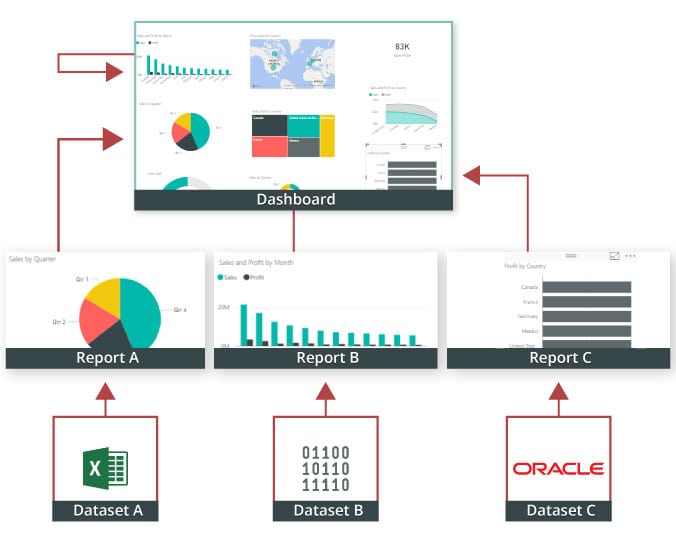
In a dashboard, representations are produced from reports, and each report depends on one dataset. The representations present on the dashboard are called tiles, and report creators pin these tiles to the dashboard.

Dashboard

Advantages of a Power BI dashboard : 

Dashboards are a magnificent method for observing your business and seeing each of your most significant measurements initially. The perceptions on a dashboard can emerge out of one basic dataset or many, and from one basic report or many. A dashboard joins on-premises and cloud information, giving a united view paying little heed to where the information resides.

• A Power BI dashboard empowers clients to examine reports and view exceptionally significant measurements initially

• Utilizing a Power BI dashboard, clients can make perceptions from numerous datasets or various reports

• You can alter dashboards to meet the necessities of any venture

• Power BI dashboards can be inserted into applications to give a brought together client experience

• You can immediately impart a dashboard to different partners in your association

How to Create a Dashboard in Power BI?
Building reports in the dashboard provides details regarding Power BI Desktop and distributing them to Power BI Service is probably the most ideal way to see how a Power BI dashboard functions.
For our demo, we’ll be taking a gander at a deals dataset that contains item deals data all through the United States. The dataset contains different client related subtleties, including client names, request and shipment dates, item names, item classes and subcategories, benefit made, etc. This dataset is normally known as a Sample Superstore dataset. We’ll investigate this dataset to analyze deals and benefit from each section, year, and quarter.
We’ll likewise make a guide to show the deals across various states in the USA.
Coming up next is the dataset that we’ll use to make the dashboard:

Fig: Sales Data

sales-data

To begin, we will make three different vouchers to evaluate total sales, profit, and amount of sales. Click “card” in the visualisation committee on the power to make a vacant card.

Drag the sales column onto the fields to see the total amount of sales for all products. The user  can change the font size and colour of the sales value on this card. The user  can also give this card a headline. Correspondingly, by having to drag corresponding columns onto disciplines, you can generate 2 more cards for net income and total amount of sales.

Then, in our visualisation, we’ll add a slicer to slice the data based on the “Order Date” column. This will allow us to screen the data as well as visualise it as needed.

Fig: Cards and Slicers

sales-dashboard

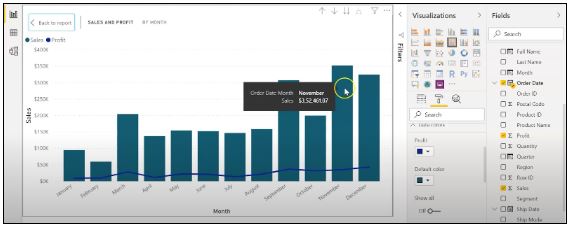
Assume you are hoping to picture and investigate deals and benefit over a specific number of years. To do this, you’ll make a line and stacked segment diagram. Select the line and stacked segment graph from the representation board and drag the “Request Date” section on to “Shared Axis.” Put “Deals” under “Segment” values, and addition the “Benefit” segment into “Line” values. That will create the chart. You can alter the shade of the bars and the line under the organization tab.

cards-slicers

In the outline over, the bars address the deals, and the line addresses the benefit. The chart uncovers that the most noteworthy measure of deals and benefits happened in 2017. Power BI Desktop gives an amazing component to dive into the information and picture the chart as far as each quarter, month, and day. This choice is accessible at the top when you explore a particular outline.

sales profit by month

Fig: Sales and profit by each month

You can likewise add the names to the diagram by tapping the “Organization” tab and turning on the information marks.

adding-labels

Fig: Adding labels to the graph

Presently, we should make a bunched segment diagram by dissecting yearly and quarterly deals.

From the Visualizations menu, select the “Grouped Column Chart.” Add the “Year” segment to the pivot. Take the “Quarter” sections under “Legend,” and add the “Business” segments to “Worth.”

clustered-bar-chart

Fig: The clustered bar chart

The diagram above shows that the principal quarter of each year had the most minimal marketing projections, while the final quarter was reliably the most elevated. You additionally have the choice to change the shadings on your diagram to make it all the more outwardly engaging.

Presently, how about we examine the deals for each state in the US. To do this, we’ll utilize a filled guide. Select a filled guide from the representations board. Add the “State” section to “Area.” Drag the “Deals” segment onto “Tooltips.” To alter the shadings, click on the “Configuration” tab, and pick “Information Colors.” Select the contingent arranging choice and add the scope of tones that you’d like.

formatting-colors

Fig: Formatting colors based on the sales

Our colour has been described for the smallest, medium, and greatest sales values. The green-colored states had the smallest sales. California, Texas, and New York, which are highlighted in orange or red, had the highest sales. Correspondingly, you can create a map to see the profit and number of units sold in each nation.

sales-state

Fig: Sales by each State

So far, our report appears to be as follows. We’ve covered how to make cards, slicers, line and stacked column charts, clustered bar charts, and packed maps.

sales-report

Fig: Sales report

Following that, we’ll take a glance at how to make a donut chart to evaluate revenue and profit by section.

Select the pie chart from the visualizations menu. Add the section column to the legend. Drag the “Sales” column to the “Values” column and the “Profit” column to the “Tooltips” column.

donut-chart

Fig: Donut chart for Sales and Profit

According to the pie chart given above, the customer group had the most revenue and profit, while the head office segment had the least. To make the visualisation more visually appealing, you can format it as needed.

We will now create a pie chart to visualize the sales for each product category. Move the “Category” column to the “Legend” column and add the “Profit” column to the “Values” column. Drag the “Sales” column to the “Tooltips” section.

pie-chart

Fig: Pie Chart for Profit and Sales

The new tech classification produced the most sales and profit, while furniture generated the least. To change the colours and make any necessary changes, go to the “format” tab.

The following is an example of the the last total sales report:

overall-sales-report

Fig: Overall Sales Report

Allow us now to picture our information at a more granular level by examining deals, benefit, and units sold at territorial and state levels.

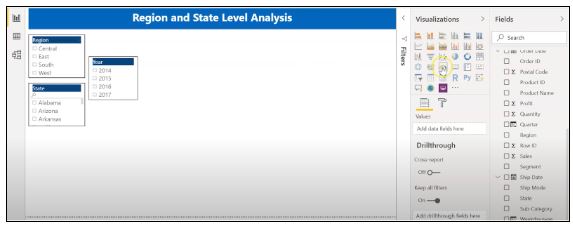
In the first place, we’ll make three slicers to channel our information. Click on the slicer from the representations board and add the “Area” segment on to “Field” to make a local slicer. Additionally, you can make a state and year slicer. You likewise have the choice to alter the slicers to change the text dimension, increment the size of the text, and add a foundation tone.

slicers-filter-data

Fig: Slicers to filter data

We’ll presently make a table to check the sum and the advantage made in each city. Under the “Insights” tab, select “Table”. Add the “City” fragment under “Values,” followed by sum and the “Advantage” area. Add an establishment tone to the fragment headers and addition the size of the printed style. You can channel the data by picking the things from all of the slicers.

Under, we have picked the central region and picked the region of Minnesota. In the table, you can see all of the metropolitan regions in the area of Minnesota, the sum sold, and the advantage they made.

creating-a-table

Fig: Creating a Table in Power BI 

Orchestrating a table is another limit that Power BI Desktop maintains. This gives clients the decision to sort the segment in a table in their solicitation for tendency.

By and by, could we create a clustered reference diagram to separate the arrangements for each thing class across different states? Select the gathered bar layout from the discernments board. Take the “State” area on the center point, “Characterization “portions on to the legend, and “Arrangements” on to “Worth.”

cluster-bar-2

Fig: Clustered Bar Chart

Among the three classes of things, the region of California made the most critical arrangements for all orders.

Then, at that point, we should check the yearly advantage by grouping using an area diagram. Select the area chart from discernments and drag the “Year” segment on to the turn, the “Class” fragment on to the legend, and “Advantage” on to “Values.”

area-chart

Fig: Area chart using Power BI

You can separate the advantage and sum that each thing class and subcategory sold. You can moreover make a line. Clients can research their various decisions through the dashboard.

region-state-report

Fig: Region and State Level Report

To go comprehensively and make a more granular level report, you can do that by making a report considering the things’ orders and subcategories, as shown in the report underneath. You can use class and subcategory as your slicers and make different line traces, bubble outlines, treemaps, and pie charts to imagine the data.

category-level-report

Fig: Category and subcategory Level Report

We’ll as of now disperse our overall business diagram on Power BI Service and make a dashboard. Save your reports on Power BI Desktop. Then, click on the home menu and select the “Convey” tab.

sales%20and%20profit

Fig: Publishing report on to Power BI Service

You can in like manner make another workspace or disperse the report to a current workspace in Power BI Service.

publishing-powerbi

Fig; Publishing to Power BI successfully.

Power BI Training

  • Master Your Craft
  • Lifetime LMS & Faculty Access
  • 24/7 online expert support
  • Real-world & Project Based Learning

Reports in Power BI :

A Power BI report is a multi-perspective look at a dataset, with visual effects representing various information and results from that set of data. A report may contain a single visual or possibly multiple pages of visual elements. Based on your work, you may be in charge of creating reports.

Power BI reports v Dashboards : 

Pages- Dashboards are not permitted to span more than one page; all essential reports are displayed on a single page.

Data sources- Dashboards are founded on the basis of multiple data tables that are linked to one another in one or more contexts. Reports are typically generated from a solitary table of data with no relationships to other tables.

Available in Power BI Desktop- Both the features are available in Power BI desktop

Pinning- Dashboards are fastened to the page so that the viewer can simply read through the data. Reports are built with various filters and shredders to allow the user to communicate with the set of data.

Subscribe- Reports can be published on the web and subscribed to via email. Dashboards have the same features as reports, but they can only be exported to a limited number of formats, so they are used to visualise important data rather than analyse it, which is only possible with reports.

Filtering- Power BI dashboards don’t at present have filter channels though reports are made with any sort of channels and slicers so the client can cooperate with the informational index. Dashboards are stuck to the page even the report proprietor.

Set alerts- With a dashboard, you can set up alarms for when a tile arrives at a specific limit. Thusly, you will not need to continue to return on the dashboard to check whether the tile has arrived at that limit. Sadly, it is absolutely impossible to set up a caution for a report. Thus, you should continue to inquire on the report to check whether the measurements you are following have arrived at a specific limit.

Modify/change visualization type- Dashboards contain an assortment of outlines and tables on a scope of related points though reports contain diagrams and tables on a solitary theme. Accordingly, dashboards regularly offer an undeniable level outline of a subject, and reports will generally be more granular and smaller in center.

Click here to learn Power BI Tutorial

HKR Trainings Logo

Subscribe to our YouTube channel to get new updates..!

Features of Power BI : 

Range of Attractive Visualizations :

Visualizations, or the visual representation of data, are important in Power BI. It provides a wide variety of detailed and appealing visualisations.

Get Data Feature :

The Get Data feature in Power BI permits the users to choose from a variety of data sources. The data sources can range from on-premise to cloud-based, unstructured to structured. Every month, new data sources are added.

Datasets Filtration :

A dataset is a single set of data created by combining data from multiple sources. You can use the datasets to create various types of visualisations.

Customizable Dashboards :

Dashboards are a grouping of visualisations that provide useful information or insights into data. Power BI dashboards are typically made up of multiple visualisations as tiles.

Flexible Tiles :

In a Power BI dashboard, a tile is a single block that contains a visualisation. Tiles properly separate each informative visualisation to provide a clearer view.

Click here to get latest Power BI Interview Questions and Answers

Power BI Training

Weekday / Weekend Batches

Conclusion :

Power BI dashboard is a wonderful storytelling tool that can be really helpful to develop actionable business insights. In addition to this, we have also illustrated the differences between the Power BI dashboard and the reports. If you have any questions let us know in the comments section.

Related Article :


Source link